The Wiert Corner – irregular stream of stuff

Jeroen W. Pluimers on .NET, C#, Delphi, databases, and personal interests

  • My badges

  • Twitter Updates

  • My Flickr Stream

  • Pages

  • All categories

  • Enter your email address to subscribe to this blog and receive notifications of new posts by email.

    Join 1,861 other subscribers

Archive for the ‘Windows’ Category

Posted by jpluimers on 2019/02/01

For my memory:

What’s new in this update:

It’s time for the first update of the year! We appreciate all your comments sent to us through the App Store, in-app feedback and email; and continue focusing on making this app better with each release.

In this version we addressed the following issues:

  • Added support for the AVC (420 and 444) codec, available when connecting to current versions of Windows 10.
  • In “fit to window mode”, a window refresh now occurs immediately after a resize to ensure that content is rendered at the correct interpolation level.
  • Fixed a layout bug that caused feed headers to overlap for some users.
  • Cleaned up the Application Preferences UI.
  • Polished the Add/Edit Desktop UI.
  • Made lots of fit and finish adjustments to the Connection Center tile and list views for desktops and feeds.

Please continue to send us feedback. We read it all and factor it into our planning. If you encounter any errors, you can always contact us via Help > Report an Issue.

NOTE: There is a bug in macOS 10.14.0 and 10.14.1 that can cause the “.com.microsoft.rdc.application-data_SUPPORT/_EXTERNAL_DATA” folder (nested deep inside the ~/Library folder) to consume a large amount of disk space. To resolve this issue, delete the folder contents and upgrade to macOS 10.14.2. Note that a side-effect of deleting the folder contents is that snapshot images assigned to bookmarks will be deleted. These images will be regenerated when reconnecting to the remote PC.

Read the rest of this entry »

Posted in Apple, Mac OS X / OS X / MacOS, Power User, Remote Desktop Protocol/MSTSC/Terminal Services, Windows | Leave a Comment »

Tools for TCP tunnels over HTTP/HTTPS

Posted by jpluimers on 2019/01/16

With the advent of WebSockets, it looks like TCP tunnels over HTTP/HTTPS are gaining more ground and I need to put some research time in them.

Some old to new links:

CONNECT requests are not supported by many HTTP proxies, especially in larger organisations, so chisel and crowbar have a much bigger chance there.

And of course there is SoftEtherVPN/SoftEtherVPN: A Free Cross-platform Multi-protocol VPN Software. * For support, troubleshooting and feature requests we have http://www.vpnusers.com/. For critical vulnerability please email us. (mail address is on the header.).

However, that is a VPN solution which is much broader than just a single TCP tunnel. You can so similar things with OpenVPN, but over HTTP/HTTPS, also requires CONNECT:

SoftEtherVPN seems to be more versatile though. I blogged about that before, but back then didn’t have needs for it yet. VPN over HTTPS: Ultimate Powerful VPN Connectivity – SoftEther VPN Project.

–jeroen

via: [WayBackVPN through only http – Server Fault answer by [WayBack] neutrinus

Posted in Communications Development, Development, HTTP, https, Internet protocol suite, Network-and-equipment, OpenVPN, Power User, TCP, VPN, WebSockets, Windows-Http-Proxy | Leave a Comment »

In windows, can I redirect stdout to a (named) pipe in command line? – Super User

Posted by jpluimers on 2019/01/14

Interesting thought [WayBackIn windows, can I redirect stdout to a (named) pipe in command line? – Super User.

The only problem seems to be a good way of creating/removing those pipes.

–jeroen

Posted in Batch-Files, Development, Power User, Scripting, Software Development, Windows | Leave a Comment »

List of Shell GUIDs for various Windows versions for use in shortcuts and batch files

Posted by jpluimers on 2019/01/09

In my search for starting the Windows Credential Manager from the console, I found [WayBackCredential Manager Shortcut – Create – Windows 7 Help Forums explaining:

%windir%\explorer.exe shell:::{1206F5F1-0569-412C-8FEC-3204630DFB70}

This reminded me of From batch file or shortcut: start Windows Update (via: Windows 7 Help Forums) and batch-file trick: Starting Windows Explorer and selecting a file (“explorer” commandline parameters “/n” “/e” “/select” “/root” “/start” site:microsoft.com).

The odd thing is that some of the GUID shortcuts works fine using the shell::: syntax, but fail with the /e:: syntax, for instance Windows Update until Windows 8.1:

%windir%\explorer.exe shell:::{36eef7db-88ad-4e81-ad49-0e313f0c35f8}
%windir%\explorer.exe /e,::{36eef7db-88ad-4e81-ad49-0e313f0c35f8}

One day I’ll create a table of permutations for various Windows versions and execute options.

For now these links need to suffice:

–jeroen

Posted in Batch-Files, Development, Power User, Scripting, Software Development, Windows, Windows 10, Windows 7, Windows 8, Windows 8.1, Windows 9 | 1 Comment »

FileZilla not available as homebrew cask any more

Posted by jpluimers on 2019/01/07

After an outrage about AdWare mid last year on the Windows side of things, a new outrage on the Mac side of things at the end of last year caused FileZilla to be removed from the homebrew cask repository.

They do not care that there is a non-bundle version that (right now) does not have adware, as FileZilla could put AdWare in that version at any moment in time.

After trying to update, it will disappear, and you might get an error like this (a full log is below the fold):

"Error: Cask 'filezilla' is unavailable: No Cask with this name exists."

Too bad, as FileZilla was fun while it lasted.

For the dare devils, you might want to try the non-bundled version at fosshub, but please run it through at least VirusTotal before installing, and remember: you have to trust yet another man-in-the-middle!

Uninstalling now that the cask has been removed is described in:

Related:


–jeroen

Read the rest of this entry »

Posted in Apple, Power User, Windows | Leave a Comment »

Monitoring: you can ignore ShellHWDetection service warnings on when it’s not started

Posted by jpluimers on 2018/12/31

I’m monitoring quite a bunch of Windows machines with Zabbix.

One of the services I turn off for monitoring is ShellHWDetection as otherwise you get this notification often:

Service "ShellHWDetection" (Shell Hardware Detection) is not running (startup type automatic)

When it happens, it’s always when there is nobody logged on to the machine. But sometimes you do not get this message. I’ve not fully figured out the pattern well, but since the service is associated with auto-play of inserted CD/DVD/USB and other media, I don’t bother too much.

References:

–jeroen

Posted in *nix, Monitoring, Power User, Windows, Zabbix | Leave a Comment »

Windows 7 Home Premium SP1 update throwing 8E5E03FB and later 80070490

Posted by jpluimers on 2018/12/28

A while ago one of our machines threw an error 8E5E03FB while installing SP1 (KB976932) on Window 7 Home Premium.

This is what I used to recover from that (note that failed alone means it failed with the previous error code):

  1. Performed chkdsk %SystemDrive% /F, rebooted, waited for any issues to get fixed (none were)
  2. Disabled Avast anti virus, then update -> failed
  3. Reboot, then update -> failed
  4. Reboot in safe mode, then update -> failed
  5. On an Administrative command prompt, run sfc /scannow
  6. Reboot, then update -> failed
  7. Downloaded [WayBackDownload Windows 7 and Windows Server 2008 R2 Service Pack 1 (KB976932) from Official Microsoft Download Center **
  8. Reboot, then install download -> failure
  9. Looked at %SystemRoot%\Logs\CBS\CBS.log and found this entry:
    • CBS Failed call to CryptCATAdminAddCatalog. [HRESULT = 0x8e5e03fb - JET_errPageNotInitialized
  10. Searched for that combination
  11. Via [WayBackError code 8E5E03FB for Windows 7 updates – Microsoft Community, went for https://aka.ms/diag_wu to [WayBack] https://download.microsoft.com/download/6/C/9/6C970550-32AB-4235-9CDD-7FC9DD848BBB/WindowsUpdate.diagcab
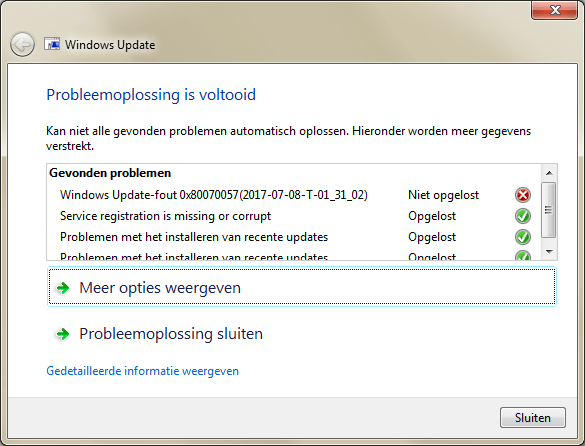
  12. Ran the diagnostics which fixed many problems, but left alone a 0x80070057.
  13. Rebooted, then installed the SP1 download -> failed.
  14. Via[WayBackSP1 installation failure, Code 0x8e5e03fb, performed the steps in [WayBackHow do I reset Windows Update components?.
  15. Rebooted, then installed the SP1 download -> failed, but for a new reason: 0x80070490.
  16. Rebooted, then used on-line Windows update to install SP1 -> failed, but for again a new reason: Code B7. This was in the CBS.Log: Store corruption detected in function CCSDirectTransaaction::ShouldKeepAliveFromInstallmap on resource amd64_avast.vc140.crt_fcc99ee6193ebbca_14.0.24210.0_none_56aba0211ca246c2.
  17. Uninstalled Avast.
  18. Installed CheckSUR (KB947821:[WayBackDownload System Update Readiness Tool for Windows 7 (KB947821) [October 2014] from Official Microsoft Download Center)
  19. Rebooted, then used on-line Windows update to install SP1 -> failed, but for a new reason: 0x80070490. This was in the CBS.Log: Failed to resolve package 'Package_2_for_KB2507938~31bf3856ad364e35~amd64~~6.1.1.4' [HRESULT = 0x80070490 - ERROR_NOT_FOUND].
  20. Searching for that error, I found [WayBack[Win7HomePremium] Unable to install Service Pack 1 – Page 2 which got me to [WayBackDownload SFCFix – MajorGeeks, then run these in an administrative command prompt:
    SFC /SCANNOW
    SFCFix
  21. The latter reported no errors, so I did some more searching and bumped into [WayBackInstallation Failures / CBS Store corruptions: Uncommon issues and troubleshooting – Microsoft GTSC Romania – Enterprise Platforms Support.
  22. It lead me to uninstall the package encompassing 'Package_2_for_KB2507938~31bf3856ad364e35~amd64~~6.1.1.4': dism /online /remove-package /packagename:Package_2_for_KB2507938~31bf3856ad364e35~amd64~~6.1.1.4
  23. Rebooted, then used on-line Windows update to install SP1 -> failed
  24. CBS.log first 0x80070490 entry is still Failed to resolve package 'Package_2_for_KB2507938~31bf3856ad364e35~amd64~~6.1.1.4' [HRESULT = 0x80070490 - ERROR_NOT_FOUND]
  25. Performed wusa /uninstall /KB:2507938 -> failed indicating De update KB2507938 is niet op deze computer geïnstalleerd. (“The update KB2507938 is not installed on this computer.”)
  26. That resulted into one Google Search hit: [WayBack[SOLVED] [Win7] Error Code 80070490 to KB3126587, so downloaded [WayBackDownload Security Update for Windows 7 (KB2507938) from Official Microsoft Download Center
  27. Manually installed the downloaded KB2507938 -> failed with De update geldt niet voor uw computer. (“The update is not applicable to your computer”)
  28. Followed [WayBack] Windows Update Forum Posting Instructions and a few extra steps from [SOLVED] [Win7] Error Code 80070490 to KB3126587 so came up with this:
    1. To get into a relatively clean CBS log: Reboot, then install download -> failure
    2. Run CheckSUR KB947821
    3. On the administrative console, run
      • SFC /SCANNOW
      • SFCFix
      • FRST64
        the latter with search argument KB2507938
  29. Attached files from:
    1. %SystemRoot%\Logs\CBS:
      • CBS.log
      • CbsPersist_20170709180806.cab
        • This is the log file during SP1 update
      • CheckSUR.log
      • CheckSUR.persist.log
    2. %SystemRoot%\Logs\SFCFix:
    3. %SystemRoot%\Logs\FRST64:
      • Addition.txt
      • FRST.txt

So I asked this question: [WayBack[Win7HomePremium] SP1 fails with 0x80070490 as KB2507938 is not fully present.

Extra tools used

** SP1 download

TL;DR: for English Windows 7 x64 you need [WayBackhttps://download.microsoft.com/download/0/A/F/0AFB5316-3062-494A-AB78-7FB0D4461357/windows6.1-KB976932-X64.exe

Note that the download file naming is very confusing as you will see only the above 6 files from the below list (which is English, but similar for other languages):

Read the rest of this entry »

Posted in Power User, Windows, Windows 7 | Leave a Comment »

eventviewer – filtering on service stop/start events

Posted by jpluimers on 2018/12/27

Based on eventviewer – View Shutdown Event Tracker logs under Windows Server 2008 R2 – Server Fault « The Wiert Corner – irregular stream of stuff, I’ve made similar filters for service stop/start events.

Works on translated systems:

PowerShell
Get-EventLog System | Where-Object {$_.EventID -eq "7036"} | ft Machinename, TimeWritten, UserName, EventID, Message -AutoSize -Wrap

Or on one line:

Get-EventLog System ^| Where-Object {$_.EventID -in "6005","6006","7000","7009","7036","7040","7042","7043","7045"} ^| ft Machinename, TimeWritten, UserName, EventID, Message -AutoSize -Wrap

Note the -In operator was introduced in PowerShell 3: [WayBack]

Source: PowerShell v3 – New -in Operator | Jonathan Medd’s Blog

I’ve adapted the custom view to include all these event IDs above (note some links have disappeared moving my notes to a blog post):

  • [WayBack] 6005: The Event log service was started (indication for system startup).
  • [WayBack] 6006: The Event log service was stopped (indication for system shutdown).
  • [WayBack] 7000: The <servicename> service failed to start due to the following error:
    The service did not respond to the start or control request in a timely fashion.
  • [WayBack] 7009: A timeout was reached (30000 milliseconds) while waiting for the <servicename> service to connect.
  • [WayBack] 7036:
    • The <servicename> service entered the stopped state.
    • The <servicename> service entered the running state.
  • [WayBack] 7040: The start type of the <servicename> service was changed from demand start to auto start.
  • [WayBack] 7042: The <servicename> service was successfully sent a stop control.
  • [WayBack] 7043: The <servicename> service did not shut down properly after receiving a preshutdown control.
  • [WayBack] 7045: A service was installed in the system.

Other event IDs that might be relevant via [WayBack] Windows Server restart / shutdown history – Server Fault:

  • [WayBack] 6008: “The previous system shutdown was unexpected.” Records that the system started after it was not shut down properly.
  • [WayBack] 6009: Indicates the Windows product name, version, build number, service pack number, and operating system type detected at boot time.
  • [WayBack] 6013: Displays the uptime of the computer. There is no TechNet page for this id.
  • [WayBack] 1074: “The process X has initiated the restart / shutdown of computer on behalf of user Y for the following reason: Z.” Indicates that an application or a user initiated a restart or shutdown.
  • [WayBack] 1076: “The reason supplied by user X for the last unexpected shutdown of this computer is: Y.” Records when the first user with shutdown privileges logs on to the computer after an unexpected restart or shutdown and supplies a reason for the occurrence.
  • [WayBack] 41 (source: Microsoft-Windows-Kernel-Power)
  • [WayBack] 1001: (source: BugCheck).
  • [WayBack] 12, which is typically the first eventid to be logged after a reboot/reset etc and shows the actual “system start time”, i.e.: “The operating system started at system time ‎2017‎-‎09‎-‎19T02:46:06.582794900Z.”

A more complete list of Windows Kernel related Event IDs is at [WayBack] rootkit.com/NETEVENT.H at master · bowlofstew/rootkit.com.

Steps for the custom view:

Open Event Viewer then

  • Right click Custom Views
  • Click Create Custom View
  • Under the Filter tab
    • Keep Logged as Any time
    • Select all the Event level types (Critical, Warning, etc.)
    • Choose by source = Service Control Manager, Service Control Manager Performance Diagnostic Provider
    • Optionally; For Event ID under the Includes/Excludes Event IDs section enter 6005,6006,7000,7009,7036,7040,7042,7043,7045 for the Event ID
  • Click Ok
  • Enter a name like Shutdown Events and any description then
  • Click Ok again to complete the custom event log.

Your new custom view should show up in the list of custom views with the correct filter applied.

–jeroen

Posted in CommandLine, Development, Power User, PowerShell, PowerShell, Scripting, Software Development, Windows | Leave a Comment »

eventviewer – View Shutdown Event Tracker logs under Windows Server 2008 R2 – Server Fault

Posted by jpluimers on 2018/12/25

Works on translated systems:

PowerShell
Get-EventLog System | Where-Object {$_.EventID -eq "1074" -or $_.EventID -eq "6008" -or $_.EventID -eq "1076"} | ft Machinename, TimeWritten, UserName, EventID, Message -AutoSize -Wrap

Or on one line:

Get-EventLog System ^| Where-Object {$_.EventID -eq "1074" -or $_.EventID -eq "6008" -or $_.EventID -eq "1076"} ^| ft Machinename, TimeWritten, UserName, EventID, Message -AutoSize -Wrap

I’ve adapted the custom view to include all these event IDs above:

  • 12: The operating system started at system time ‎<iso8601utc>.
  • 13: The operating system is shutting down at system time  <iso8601utc>.
  • 109: The kernel power manager has initiated a shutdown transition.
  • 1074: [WayBack] The process <process> has initiated the restart of <computer name> for the following reason: No title for this reason could be found.
    Minor Reason: <reason>
    Shutdown Type: <type>
  • 1076: [WayBack] The reason supplied by user <user name> for the last unexpected shutdown of this computer is: <error description>
    Reason Code: <error code>
    Bug ID: <bug id>
    Bugcheck String: <string>
    Comment: <comment>
  • 6008: [WayBack] The previous system shutdown at <time> on <date> was unexpected.

Steps for the custom view:

Open Event Viewer then

  • Right click Custom Views
  • Click Create Custom View
  • Under the Filter tab
    • Keep Logged as Any time
    • Select all the Event level types (Critical, Warning, etc.)
    • Choose by source = Windows Logs > System
    • For Event ID under the Includes/Excludes Event IDs section enter 12,13,1074,1076,6008 for the Event ID
  • Click Ok
  • Enter a name like Shutdown Events and any description then
  • Click Ok again to complete the custom event log.

Your new custom view should show up in the list of custom views with the correct filter applied.

Source: [WayBackeventviewer – View Shutdown Event Tracker logs under Windows Server 2008 R2 – Server Fault

–jeroen

Posted in CommandLine, Development, Power User, PowerShell, PowerShell, Scripting, Software Development, Windows | Leave a Comment »

Windows Server 2008 and Server 2008 R2 – OpenDNS

Posted by jpluimers on 2018/12/10

I did this a long time ago, but forgot to blog about it back then: [Archive.isWindows Server 2008 and Server 2008 R2 – OpenDNS.

Summary:

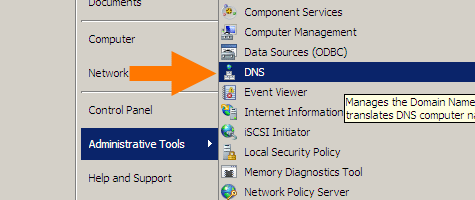
Start with the DNS manager:

%SystemRoot%\system32\dnsmgmt.msc /s

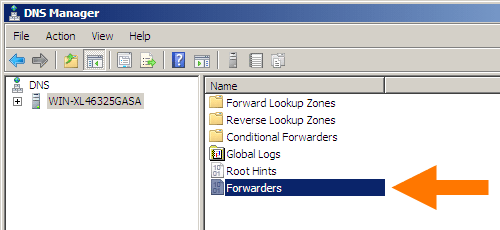
Then open your machine, and double-click Forwarders:

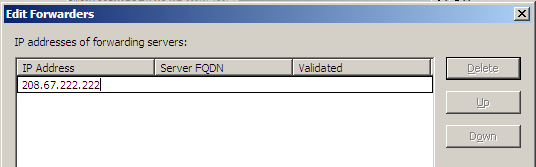
In the dialog, click the Edit button and add DNS servers (for instance Google DNS 8.8.8.8 and 8.8.4.4).

In my case it became this:

Google DNS servers added

Google DNS servers added

Click Done buttons until all dialogs are closed.


–jeroen

Read the rest of this entry »

Posted in DNS, Internet, Power User, Windows, Windows Server 2008, Windows Server 2008 R2 | Leave a Comment »