Archive for the ‘Windows 10’ Category
Posted by jpluimers on 2022/03/14
With the disappearing PrtScn buttons on modern keyboards, boomer screenshots are about the only way to easily persist a screenshot, as these are the only available Windows screenshot shortcuts:
PrtScn: copies full screenshot to the clipboard; multiple invocations overwrite the clipboardWindows + PrtScn: saves full screenshot to a file; multiple invocations saves to new filesWindows + Shift + S: copies full screen or part of the screen to the clipboard, and allows manual action to start snippet tool to save the clipboard contents; often looses the image when on remote desktop connections or when copying something else to the clipboard; multiple invocations overwrite the clipboard
Now look at macOS what a choices, and how less messy than on Windows:
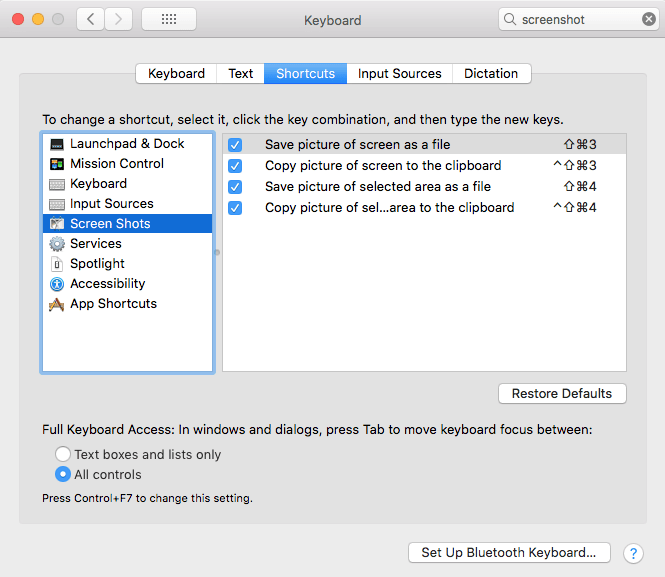
macOS has various shortcuts to save (partial) screenshots to clipboard or file
For macOS 10.14 Mojave and newer, you can even set the folder (default: Desktop) to save the screenshots to:
I want this ease in Windows as well, and maybe I can in part without installing external tools and modifying existing shortcuts to make things easier:
Written after bumping into [Archive.is] Jeff Atwood on Twitter: “Someone just called a smartphone pic of their monitor a “boomer screenshot” and I literally LOLed 🤣… “

–jeroen
Posted in Apple, LifeHacker, Mac OS X / OS X / MacOS, Power User, PowerToys, Windows, Windows 10 | Leave a Comment »
Posted by jpluimers on 2022/03/10
I had a vague recollection of this was possible, so I was glad to find it back after having recovered from all cancer treatments at [Wayback] Use a second laptop as an extended monitor with Windows 10 wireless displays – Scott Hanselman’s Blog.
The feature is called “Miracast” and has a built-in Windows 10 implementation for both sending and receiving not just over WiFi, but also over the local fixed ethernet network: [Wayback] Miracast on existing wireless network or LAN – Surface Hub | Microsoft Docs.
With such support, I’d expected an “it works out of the box” experience. It is far from that, so let me show what I bumped into and how I finally did not get it working.
TL;DR
- Windows will tell you when it doesn’t work
- Windows won’t tell you why it doesn’t work
- The tooling to try to find out why it doesn’t work is not sufficient: documentation is scarce and far from complete
When out of luck
I tried two machines with Intel processors having built-in graphics engines.
Thinkpad T510
Read the rest of this entry »
Posted in Power User, T510, ThinkPad, Windows, Windows 10 | Leave a Comment »
Posted by jpluimers on 2022/03/10
Windows 10 on desktops still defaults to the Sleep option to be available in any Power action while the Hibernation option is unavailable.
This is odd now that most systems have fast and sizable SSD options: from a power loss perspective, Hibernate is much safer than Sleep on desktop machines.
[Wayback] How To Fix Missing Hibernation Option On Windows 10 explains how to restore the Hibernate option.
It is a three step process, partial on the Administrator elevated command-line, part in the UI. I wish all could be done on the commandline
- Enable an hibernation file:
powercfg.exe /hibernate on
- Start the “Power Options” control panel applet:
powercfg.cpl
- In the UI, under “Choose what the power buttons do”, disable “Sleep” and enable “Hibernate” (you might need to “Change settings that are currently unavailable” first), then press “Save changes”
I have not tried yet, but these Registry Values under [Wayback]HKEY_LOCAL_MACHINE\SOFTWARE\Microsoft\Windows\CurrentVersion\Explorer\FlyoutMenuSettings might just cut it, but I am not sure it is complete:
ShowHibernateOption with values 0 and 1ShowSleepOption with values 0 and 1
There is also a value ShowLockOption that defaults to 1.
Two git places where these registry values are mentioned:
–jeroen
Posted in Power User, Windows, Windows 10 | Leave a Comment »
Posted by jpluimers on 2022/03/03
Quite an OK guide on how to backup and restore on Windows 10 (since so much has changed since Windows 7, and some Windows 7 stuff is still there but has moved)
[Wayback] How to make a full backup of your Windows 10 PC | Windows Central
In this guide, we’ll show you the steps to create a full backup of your computer, which includes everything from settings, apps, to files using the System Image Backup tool on Windows 10.
–jeroen
Posted in Power User, Windows, Windows 10, Windows 7 | Leave a Comment »
Posted by jpluimers on 2022/03/01
Somehow after cloning a Windows 10 disk to SSD, the regular partition worked fine, but the recovery partition (sometimes called WinRE: short for Windows Recovery Environment or Windows RE) didn’t.
In short, I only had to perform two actions to get this fixed, both from the Administrator elevated command prompt:
- Set the partition ID of the Recovery partition from
7 to 27 (this is for an MBR disk; for GPT disks, these values are different, see the first link below). I did this using diskpart.
- Re-enabling the Recovery partition by executing
reagentc /info to check if it was disabled, then reagentc /enable (if it wasn’t disabled first, I had to precede it with reagentc /enable).
Before this, bcdedit /enum would only return the Windows Boot Loader entry for the C: drive, but had no recoverysequence and now it had.
Since there are cases where much more action is needed, here are some links for just when I run into more complicated situations:
Read the rest of this entry »
Posted in Power User, Windows, Windows 10 | Leave a Comment »
Posted by jpluimers on 2022/03/01
I bumped into an old draft on notes on NTFS boot issues.
A while ago, I wanted to boot in the Windows 10 “Safe Mode” console, but the F8 option during the boot process was gone.
So I wondered how to get there. There seem to be a few ways, of which almost all require a functioning Windows installation. When you have one, it is relatively easy, as these options will work as summarised from [Wayback] How to open the Windows 10 recovery console:
- Hold the physical
Shift key when choosing “Reboot” in the user interface. There are various ways to get to the “Power” button:
- in the lower right corner at the logon-screen
- in the lower right corner at the lock-screen
- in the lower right corner after pressing
Ctrl–Alt–Del
- in the lower left corner of the “Start” menu
- In the Settings app, there used to be an “Advanced Startup” feature, but I could not find that any more in Windows 10 version 21H1 any more
- From a console Window, run either of these commands (the second waits zero seconds before rebooting, the first 30)
shutdown.exe /r /oshutdown.exe /r /o /t 0
There is also a possibility to restore the F8 functionality, but you need installation media for it. [Wayback] 3 ways to boot into Safe Mode on Windows 10 version 21H1 explains how to.
Some “notes on NTFS boot issues” links for my archive
(Note that for some of the links, only the [Wayback] ones work: link-rot of the links I saved 6 years ago)
–jeroen
Read the rest of this entry »
Posted in Internet, link rot, Power User, Windows, Windows 10, Windows 7, Windows 8, Windows 8.1, WWW - the World Wide Web of information | Leave a Comment »
Posted by jpluimers on 2022/02/25
When downloading Windows 10 builds, I usually want them as ISO files because I test them out as Virtual Machines before running on real hardware.
Downloading can be done from [WayBack] www.microsoft.com/en-us/software-download/windows10, however what you get depends on what machine you start browsing.
The above WayBack link, because it got archived from a non-Windows machine redirects from https://web.archive.org/web/20210321163339/https://www.microsoft.com/en-us/software-download/windows10 to https://web.archive.org/web/20210321143203/https://www.microsoft.com/en-us/software-download/windows10ISO.
On Windows systems the redirect goes from https://web.archive.org/web/20210321143203/https://www.microsoft.com/en-us/software-download/windows10ISO to https://web.archive.org/web/20210321163339/https://www.microsoft.com/en-us/software-download/windows10
By default, when you are on a Windows machine, the download link only provides the Media Creation tool. This forces an extra step into getting the ISO file on the virtual machine host.
When downloading from a non-Windows machine, you get a possibility to download the ISO file directly after selecting which kind of build and language you need. This provides you with a time limited https link to download the ISO (in practice this seems to last at least an hour).
I didn’t dig into this before, but luckily others did, and the difference is as easy as changing the User-Agent in your browser, as these posts describe:
Luckily, since ESXi 6.7, VMware ESXi added https as protocol to wget, so now you can download the https link you get via the above trick without hassle.
Oh, this answers my question from a few years back too: How can I get Win10_1511_1_English_x64.iso or Win10_1511_1_EnglishInternational_x64.iso ?
––jeroen
Posted in Chrome, ESXi6.7, Power User, Virtualization, VMware, VMware ESXi, Web Browsers, Windows, Windows 10 | Leave a Comment »
Posted by jpluimers on 2022/02/18
A while ago I needed to quickly rename a Windows 10 machine, but again they moved around the way to get into the right dialog (each new Windows 10 release more options seem to move around from the classic Control Panel or Computer Properties into hard to memorise places).
So I was glad to find out that either of these work from the command-line:
sysdm.cpl,1SystemPropertiesComputerName
I already was aware of editing the user environment variables through "C:\Windows\System32\rundll32.exe" sysdm.cpl,EditEnvironmentVariables
Glad changing the computer name was so easy.
From [Wayback] Easy Ways to Open System Properties in Windows 10 | Password Recovery, I learned there were more equivalence commands for the rest of the “System Properties” tabs:
- Computer Name
sysdm.cpl,1SystemPropertiesComputerName
- Hardware
sysdm.cpl,2SystemPropertiesHardware
- Advanced
sysdm.cpl,3SystemPropertiesAdvanced
- System Protection
sysdm.cpl,4SystemPropertiesProtection
- Remote
sysdm.cpl,5SystemPropertiesRemote
Searching for [Wayback] “EditEnvironmentVariables” “SystemPropertiesComputerName” – Google Search, I found a truckload more of these command-line tricks at [Wayback] 运行(WIN+R)中能使用的命令:ms-settings:,shell:,cpl,mmc… – Bob-wei – 博客园.
–jeroen
Posted in Power User, Windows, Windows 10, Windows 7, Windows 8, Windows 8.1 | Leave a Comment »
Posted by jpluimers on 2022/01/03
Great post [WayBack] The Evolution of Windows Search | Windows Search Platform, covering some 3 decades of search:
- 1991 (Cairo with WinFS)
- 1996 (Windows NT 4.0)
- 2000 (Windows 2000)
- 2001 (Windows XP)
- 2007 (Windows Vista)
- 2009 (Windows 7)
- 2012 (Windows 8.x)
- 2015 (Windows 10)
It is part 1 of a series of 4 posts by [WayBack] Brendan Flynn, Author at Windows Search Platform:
- The Evolution of Windows Search 👈 You Are here
- Windows Search Configuration and Settings
- What’s in my index?
- How to make the most of search on Windows
When grabbing them, only the first two parts were available. Part two was about [WayBack] Configuration and Settings | Windows Search Platform with an in depth coverage of both the old style Control Panel applet as the new Windows 10 Settings page.
Via: [Archive.is] Immo Landwerth on Twitter: “If you like Raymond Chen’s The Old New Thing, then you might love this new developer focused blog too. It starts with an interesting history of Windows Search, by @brflynn_ms. Enjoy & subscribe!”
–jeroen
Posted in Power User, Windows, Windows 10, Windows 7, Windows 8, Windows 8.1, Windows NT, Windows Server 2000, Windows Vista, Windows XP | Leave a Comment »
Posted by jpluimers on 2021/12/27
The cool thing about the Chocolatey NirLauncher install, is that it not just installs the launcher in the path, but all the NirSoft tools.
I wanted it in the path initially because I needed InsideClipboard to do some investigation (I wrote a similar tool ages ago, but could not readily find the source or executable, but InsideClipboard is better anyway).
This is cool, as I now can start any of the NirSoft tools from the cmd prompt, including [WayBack] NirLauncher itself, [WayBack] InsideClipboard and [WayBack] NirCmd (so I can now set the sound volume to 25% by running nircmd setsysvolume 16000)
To install:
choco install --yes NirLauncher
An older WayBack link notes a few important issues about anti-virus tools:
Read the rest of this entry »
Posted in Chocolatey, NirSoft, Power User, Windows, Windows 10 | Leave a Comment »


 The Wiert Corner - irregular stream of stuff