Archive for the ‘Windows 8.1’ Category
Posted by jpluimers on 2022/02/18
A while ago I needed to quickly rename a Windows 10 machine, but again they moved around the way to get into the right dialog (each new Windows 10 release more options seem to move around from the classic Control Panel or Computer Properties into hard to memorise places).
So I was glad to find out that either of these work from the command-line:
sysdm.cpl,1SystemPropertiesComputerName
I already was aware of editing the user environment variables through "C:\Windows\System32\rundll32.exe" sysdm.cpl,EditEnvironmentVariables
Glad changing the computer name was so easy.
From [Wayback] Easy Ways to Open System Properties in Windows 10 | Password Recovery, I learned there were more equivalence commands for the rest of the “System Properties” tabs:
- Computer Name
sysdm.cpl,1SystemPropertiesComputerName
- Hardware
sysdm.cpl,2SystemPropertiesHardware
- Advanced
sysdm.cpl,3SystemPropertiesAdvanced
- System Protection
sysdm.cpl,4SystemPropertiesProtection
- Remote
sysdm.cpl,5SystemPropertiesRemote
Searching for [Wayback] “EditEnvironmentVariables” “SystemPropertiesComputerName” – Google Search, I found a truckload more of these command-line tricks at [Wayback] 运行(WIN+R)中能使用的命令:ms-settings:,shell:,cpl,mmc… – Bob-wei – 博客园.
–jeroen
Posted in Power User, Windows, Windows 10, Windows 7, Windows 8, Windows 8.1 | Leave a Comment »
Posted by jpluimers on 2022/01/03
Great post [WayBack] The Evolution of Windows Search | Windows Search Platform, covering some 3 decades of search:
- 1991 (Cairo with WinFS)
- 1996 (Windows NT 4.0)
- 2000 (Windows 2000)
- 2001 (Windows XP)
- 2007 (Windows Vista)
- 2009 (Windows 7)
- 2012 (Windows 8.x)
- 2015 (Windows 10)
It is part 1 of a series of 4 posts by [WayBack] Brendan Flynn, Author at Windows Search Platform:
- The Evolution of Windows Search 👈 You Are here
- Windows Search Configuration and Settings
- What’s in my index?
- How to make the most of search on Windows
When grabbing them, only the first two parts were available. Part two was about [WayBack] Configuration and Settings | Windows Search Platform with an in depth coverage of both the old style Control Panel applet as the new Windows 10 Settings page.
Via: [Archive.is] Immo Landwerth on Twitter: “If you like Raymond Chen’s The Old New Thing, then you might love this new developer focused blog too. It starts with an interesting history of Windows Search, by @brflynn_ms. Enjoy & subscribe!”
–jeroen
Posted in Power User, Windows, Windows 10, Windows 7, Windows 8, Windows 8.1, Windows NT, Windows Server 2000, Windows Vista, Windows XP | Leave a Comment »
Posted by jpluimers on 2021/08/31
This helped me big time finding failed logon attempts: [WayBack] Event Log Hell (finding user logon & logoff) – Ars Technica OpenForum
Alternatively, you can use the XPath query mechanism included in the Windows 7 event viewer. In the event viewer, select “Filter Current Log…”, choose the XML tab, tick “Edit query manually”, then copy the following to the textbox:
Code:
<QueryList>
<Query Id="0" Path="Security">
<Select Path="Security">*[System[EventID=4624] and EventData[Data[@Name='TargetUserName'] = 'USERNAME']]</Select>
</Query>
</QueryList>
This selects all events from the Security log with EventID 4624 where the EventData contains a Data node with a Name value of TargetUserName that is equal to USERNAME. Remember to replace USERNAME with the name of the user you’re looking for.
If you need to be even more specific, you can use additional XPath querying – have a look at the detail view of an event and select the XML view to see the data that you are querying into.
Thanks user Hamstro!
Notes:
- you need to perform this using
eventvwr.exe running as an elevated process using an Administrative user CUA token.
USERNAME needs to be the name of the user in UPPERCASE.- replacing
TargetUserName with subjectUsername (as suggested by [WayBack] How to Filter Event Logs by Username in Windows 2008 and higher | Windows OS Hub) fails.
- there are more relevant EventID values you might want to filter on (all links have screenshot and XML example of an event):
- blank (empty passwords) can only be used for local logon, so they disable network logon. That can be a useful security strategy.
Related:
–jeroen
Posted in Development, Microsoft Surface on Windows 7, Power User, Software Development, Windows, Windows 10, Windows 7, Windows 8, Windows 8.1, Windows 9, Windows Vista, Windows XP, XML/XSD | Leave a Comment »
Posted by jpluimers on 2021/08/23
From Windows 8 on, Microsoft has been pushing more and more stuff to the App UI (sometimes called Immersive User Interface).
By default they are only easily accessible from the search feature from the “Start” button or “Search” pane in the task bar.
This is cumbersome or even problematic when you have to remember the correct terms over many localisations.
In the past you could run this from the command prompt or Windows+R keyboard shortcut “Run” pop-up:
control printers
This does not work however in either of the two:
settings printers
This works from the Windows+R keyboard shortcut “Run” pop-up:
ms-settings:printers
This works from the command prompt:
start ms-settings:printers
The difference is that with control , it will eventually find control.exe on the path, but ms-settings: is the scheme bit of an URI. The start command can handle this, the plain command-line cannot.
What in fact happens is that the URI scheme handler, will have a Windows Service (which runs under NT AUTHORITY\SYSTEM) start "C:\Windows\ImmersiveControlPanel\SystemSettings.exe" -ServerName:microsoft.windows.immersivecontrolpanel under your current user.
List of Settings URIs
Next to a List of applications behind the various control panel links – via “Stop user access to control panel”, below is a list of Settings URIs.
The below list is from [WayBack] The list of Settings pages URIs (ms-settings) in Windows 10 , but misses ms-settings:printers.
Read the rest of this entry »
Posted in Power User, Windows, Windows 10, Windows 8, Windows 8.1 | Leave a Comment »
Posted by jpluimers on 2021/08/23
lFor Mac keyboard keys, almost all (except the old solid and open Apple logo’s) have a Unicode code point, see for instance the modifier keys from the [WayBack] List of Mac/Apple keyboard symbols · GitHub (the “Alt” column has a solid Apple logo in the bottom right; on non-Mac systems it will look differently as it is in the Unicode private range: [WayBack] Unicode Character ” (U+F8FF): ‘<Private Use, Last>’):
| Sym |
Key |
Alt |
| ⌃ |
Control |
|
| ⌥ |
Option |
|
| ⇧ |
Shift |
|
| ⌘ |
Command |
|
These are the code points for the “Sym” column:
Keys on many platforms
Read the rest of this entry »
Posted in Microsoft Surface on Windows 7, Power User, Windows, Windows 10, Windows 7, Windows 8, Windows 8.1, Windows 95, Windows 98, Windows NT, Windows Server 2000, Windows Server 2003, Windows Server 2003 R2, Windows Server 2008, Windows Server 2008 R2, Windows Server 2012, Windows Server 2012 R2, Windows Server 2016, Windows Vista, Windows XP | 1 Comment »
Posted by jpluimers on 2021/08/19
Wireshark is indispensable when doing network communications development or DevOps.
This is my choco-install-network-tools.bat batch file to install Wireshark and the pcap dependency which nmap provides:
choco install --yes nmap
:: wireshark requires a pcap for capturing; nmap comes with npcap which fulfills this dependency
:: see:
:: - https://chocolatey.org/packages/wireshark
:: - https://chocolatey.org/packages/win10pcap
:: - https://chocolatey.org/packages/WinPcap
:: - https://chocolatey.org/packages/nmap
choco install --yes wireshark
Yes, I know: Windows Subsystem for Linux could have an easier installation, but the above:
See:
–jeroen
Posted in *nix, *nix-tools, Communications Development, Development, Internet protocol suite, nmap, Power User, Software Development, Windows, Windows 10, Windows 8.1, WSL Windows Subsystem for Linux | Leave a Comment »
Posted by jpluimers on 2021/08/13
For my screenshot archive:
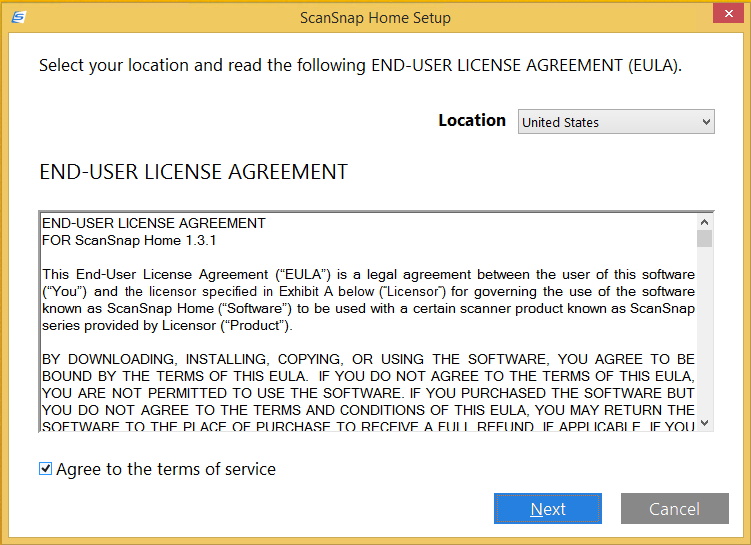

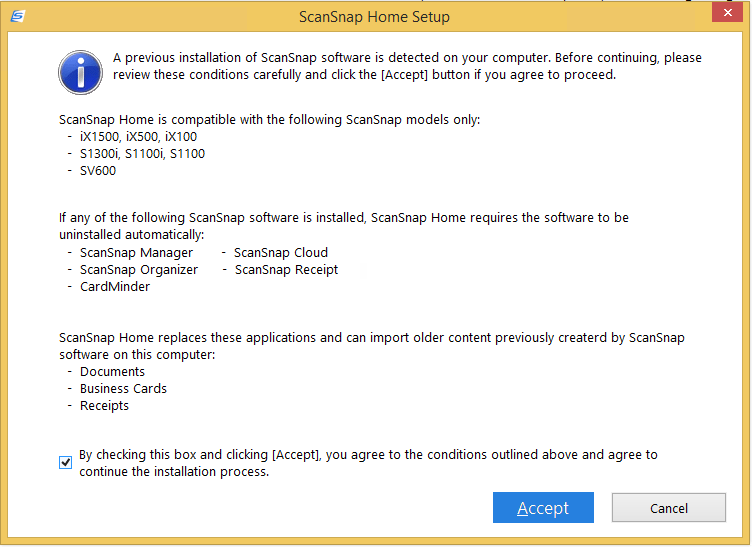
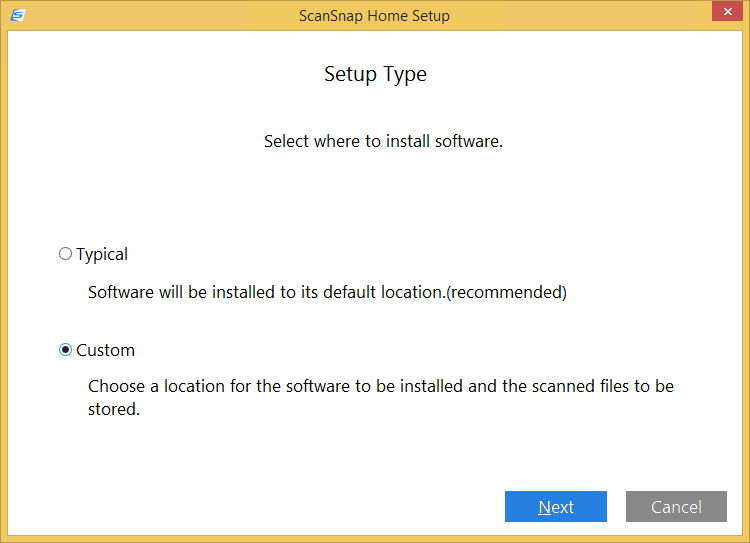
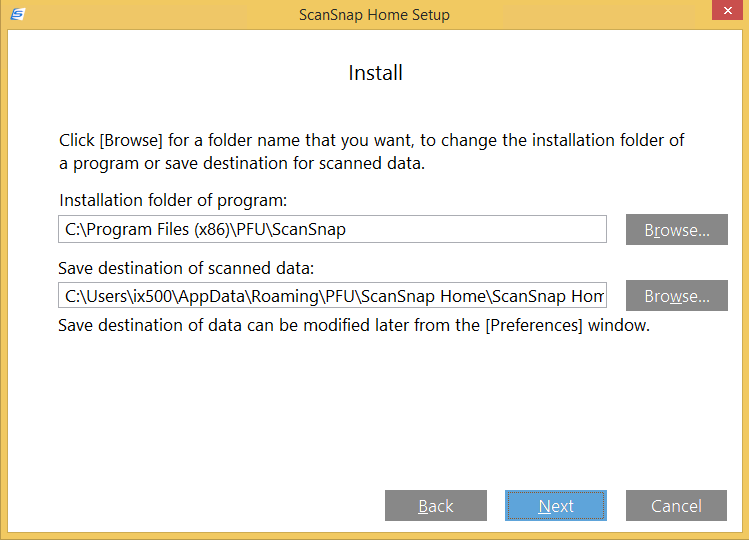
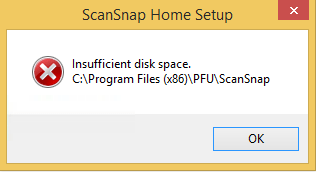
A retry with about 5 gigabyte of free space went further:
Read the rest of this entry »
Posted in Fujitsu ScanSnap, Hardware, ix1500, Power User, Scanners, Windows, Windows 8.1 | Leave a Comment »
Posted by jpluimers on 2021/08/09
[WayBack] How to turn on automatic logon in Windows
Describes how to turn on the automatic logon feature in Windows by editing the registry.
Most archivals of the above post fail with a 404-error after briefly flashing the content, but this particular one usually succeeds displaying.
It is slightly different from the one referenced in my blog post automatic logon in Windows 2003, and because of the archival issues, I have quoted most of it below.
A few observations, at least in Windows 10 and 8.1:
- Major Windows 10 upgrades will disable the autologon: after each major upgrade, you have to re-apply the registry patches.
- If the user has a blank password, you can remove the DefaultPassword value.
- Empty passwords allow local logon (no network logon or remote desktop logon), no network access and no RunAs, which can actually help improve security. More on that in a later blog post
- For a local machine logon, you do not need the DefaultDomainName value either (despite many posts insisting you need them), but you can technically set it to the computer name using
reg add "HKEY_LOCAL_MACHINE\Software\Microsoft\Windows NT\CurrentVersion\Winlogon" /v DefaultDomainName /t REG_SZ /d %ComputerName% /f
- If another user logs on and off, the values keep preserved, so after a reboot, the correct user automatically logs on
- you need a full reboot cycle for this to take effect
- The AutoLogon tool does not allow blank passwords
I wrote a batch file enable-autologon-for-user-parameter.bat that makes it easier:
if [%1] == [] goto :help

:enable
  reg add "HKEY_LOCAL_MACHINE\SOFTWARE\Microsoft\Windows NT\CurrentVersion\Winlogon" /v AutoAdminLogon /t REG_SZ /d 1 /f
:setUserName
  reg add "HKEY_LOCAL_MACHINE\SOFTWARE\Microsoft\Windows NT\CurrentVersion\Winlogon" /v DefaultUserName /t REG_SZ /d %1 /f
:removePasswordIfItExists
  reg delete "HKEY_LOCAL_MACHINE\SOFTWARE\Microsoft\Windows NT\CurrentVersion\Winlogon" /v DefaultPassword /f
if [%2] == [] goto :eof
:setPassword
  reg add "HKEY_LOCAL_MACHINE\SOFTWARE\Microsoft\Windows NT\CurrentVersion\Winlogon" /v DefaultPassword /t REG_SZ /d %2 /f
  goto :eof

:help
  echo Syntax:
  echo   %0 username password
The article quote:
Read the rest of this entry »
Posted in Batch-Files, Development, Microsoft Surface on Windows 7, Power User, Scripting, Software Development, Windows, Windows 10, Windows 7, Windows 8, Windows 8.1, Windows 9, Windows Server 2003, Windows Server 2003 R2, Windows Server 2008, Windows Server 2008 R2, Windows Server 2012, Windows Server 2012 R2, Windows Server 2016, Windows Vista, Windows XP | Leave a Comment »


 The Wiert Corner - irregular stream of stuff