My conclusion is that various Microsoft updates now require 3 gigabytes of disk space.
This seems to be the case with the .NET Framework 4.5.1 KB 2858725 update, and probably more future updates. I tried installing the KB 2858725 update with slightly less than 3 gigabytes of space (and after the 3 gigabyte reserve.tmp appeared), and I was still getting error 13EC. But with slightly more than 3 gigabyte the update would install.
That is quite difficult when you run loads of VMs on SSDs: they usually don’t have an awful lot of disk space left.
The same issue holds for Microsoft .NET Framework 4.5.2 for Windows 7 x64-based Systems (KB2901983) which got released earlier this week:
When browsers are experiencing network problems, generally the first thing to test is your network proxy settings. Misconfigured settings, or misbehaving settings, can have a profound impact on your network traffic possibly resulting in pages not loading at all.
A lot of the links below have died due to link rot (sometimes even the domains have gone), but most of the WayBack machine links marked [Wayback] still work.
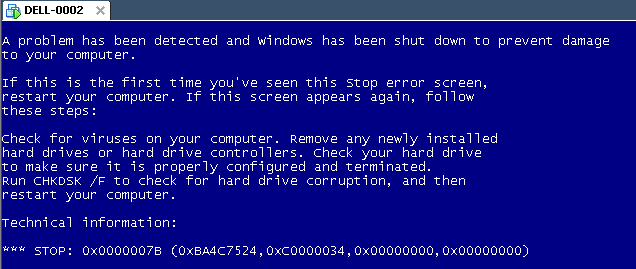
The same stop [Wayback] stop 0x0000007B can happen when converting a physical machine to VMware (I will schedule a separate post about this):
Windows XP Virtual Machine failing with stop 0x0000007B
Steps:
Put the SATA disk of the XP machine in a different one.
Disk2Vhd on the new machine to create a VHDX of the XP hard disk.
Install Hyper-V on the target Windows 8.1 machine (you need at least Pro for that).
Setup the base VM directory.
Setup a virtual network switch (decide if you want it to be internal, external or private, then bind it to a network adapter if needed).
Add a new VM.
Assign a new directory to it.
Assign memory to it.
Assign the virtual network switch to it.
Save it.
Edit the settings, then bind the DVD drive on the IDE controller 1 to C:\Windows\System32\vmguest.iso.
Connect to the VM.
Start it.
If you get a stop 0x0000007B (usually because of SATA/AHCI/IDE or other MassStorage controller driver issues), then read [Wayback] Jon’s Project Blog » disk2vhd using [Wayback] UBCD for Windows to solve the issue as there is no BIOS screen in Hyper-V that allows you to switch from AHCI to SATA and back.
As a follow up on the Cntlm configuration post last week, here is a small batch file that will find Cntlm.exe (on x86 and x64 systems) then start it in verbose mode.
This file contains hidden or bidirectional Unicode text that may be interpreted or compiled differently than what appears below. To review, open the file in an editor that reveals hidden Unicode characters. Learn more about bidirectional Unicode characters
OpenSSL: Documents, openssl(1), as I always forget this nice list of commands:
openssl [ list-standard-commands | list-message-digest-commands | list-cipher-commands | list-cipher-algorithms | list-message-digest-algorithms | list-public-key-algorithms]
I’ve converted them to batch files that run fine when copied to the directory where you put the x86 or x64 Windows version of OpenSSL (they assume %~dp0openssl.exe for the location of the OpenSSL.exe binary, just in case it is not on the path, or you have various tools that scattered around incompatible copies of OpenSSL binaries).
OpenSSL defaults to PEM format (that has text base64 strings), so if you get DER format (binary) you need to convert them.
This error means that the recipient of the email does not match the certificate you pass in. What happens is that OpenSSL tries to decrypt the mail, it cannot match the certificate to the mail, and barfs. It usually happens when you have From/To reversed by accident.
Error decrypting PKCS#7 structure
Error decrypting PKCS#7 structure

4948:error:0B080074:x509 certificate routines:X509_check_private_key:key values mismatch:.\crypto\x509\x509_cmp.c:330:

4948:error:2107207F:PKCS7 routines:PKCS7_decrypt:private key does not match certificate:.\crypto\pkcs7\pk7_smime.c:552:
This means somewhere you mixed up a private and public key in the certificate files.
Verification failure

8228:error:21075075:PKCS7 routines:PKCS7_verify:certificate verify error:.\crypto\pkcs7\pk7_smime.c:342:Verify error:self signed certificate in certificate chai

n
Installing drivers on Windows 8.1 x64 turned out to be really easy despite the fact that the Canon site does not offer them: just install the “Windows Vista (64-bit)” drivers from this Canon link: [Wayback] PIXMA mini260 – Canon Europe.
This works as the printer driver model hasn’t changed much since Vista and the Vista drivers do not contain limits on future version numbers (see [Wayback] Getting older Windows drivers to work in Windows 8 for another example).
Despite the link name, you can get the Win64 binaries from there too..
Besides binaries, they also have the source to build them from, and any other redistributable you’d need.
They run on virtually any Windows version, though I only used them on NT based Windows versions of XP/2003 and younger.
Two notes:
you usually need the Visual C++ 2008 redistributables, of which there is both an x86 and an x64 version (the OpenSSL installer just tells you it is missing, and assumes you know if it is the x86 or x64 one).
unless you are a software developer wanting to link to OpenSSL, the “Light” versions of the installs suffice.
Getting at them, I usually start with an EPS file, then downscale to the right resolution, and save the resulting files as PNG images, then assemble those together.
A while ago, I had some icons with nice long diagonal line, then I found out the hard way I should not have used ConvertICO.org. I often prefer on-line tools over off-line, especially for actions I rarely do (this is one of them). It saves you from installing software, and on-line sites usually get better over time.
In this case, I shouldn’t have gone online: Just look at the jagged edges in the 200% zoom below: the image on the right is from ConvertICO.org, on the left it is from IcoFX.
What you clearly see is that ConvertICO messes around with the 256×256 image (it doesn’t mess around with the other resolution), but IcoFX doesn’t mess around.




 The Wiert Corner - irregular stream of stuff