I love DVCS for one single reason: merges are so much easier than with traditional version control systems, and you can use it in a disconnected way for almost 100% of the time. Coming from a traditional world, interoperability is key. So here are some links that greatly helped my getting started with DVCS (a really long while ago; this post has been way overdue).
The meaning of D
Usually, the D in DVCS is regarded as distributed. But it can have multiple meanings (even at the same time), depending on how you use it.
- Distributed (the repository is available on all systems that have forked it, lessening the need centralized backups)
- Decentralized (there is no need for a central server, though a certain structure in how you fork, pull and push (or pull request) can make life a lot easier)
- Disconnected (a big plus: you can work off-line most of the time, and still perform your day to day work, but sometimes you want it to be truly distributed, and tools for that exist too)
- Dynamic (especially for open source projects: being able to fork projects and perform pull requests has allowed to open source world to work in a much more dynamic way)
The reason to go D
Because it leads to experimenting, which makes you a better programmer: Version Control Makes You A Better Programmer | Cocoa Is My Girlfriend.
Because you will never lose your repository: Embarcadero Discussion Forums: XanaNews users ….
Because… Intro to Distributed Version Control (Illustrated) | BetterExplained.
Because of the demise of traditional version control systems: SVN projects on SourceForge, CodePlex and other sites are massively migrated to DVCS.
Hosting
Note that for by hosting on USA based or USA related providers, NSA can probably do whatever they please.
There are various lists of hosting sites, for instance:
I have experience with the sites I mention below. When time permits, I’m going to try some non-USA hosted providers as well.
can host both GIT and HG for you. (it is from Atlassian; both public and private projects; free for private projects up to 5 users).
Notes:
Tip for a first commit: make sure you have a good README file in your rout (you can use various extensions), as it will get a prominent place at your bitbucket repository page.
can host GIT for you. It can also hosts GISTs (small code snippets). Note it is USA based too.
can host both TFVC and GIT for you (it is from Microsoft; payed if you have over 5 developers). Note it is USA based as well.
can host TFVC, GIT and Mercurial for you (also from Microsoft, but free, though supports only public projects) . Note it is USA based.
Bridging / conversion
can put migrate from SVN to TFVC in TFS. I have not used this myself, but did use:
an SVN front-end to TFVC. CodePlex uses this a lot, and I used it client-side to pull a TFS 2005 repository to a user that could only do SVN. I could never get this to work on TFS 2005 server side, then never bothered as I switched to GIT/Mercurial soon after.
SVN to Mercurial: HGSVN and HGSubversion
There are three tools that can help you integrate SVN and Mercurial:
GIT and Visual Studio / TFS
Getting Started with Git in Visual Studio and Team Foundation Service – Visual Studio ALM + Team Foundation Server Blog – Site Home – MSDN Blogs. GIT TF: Announcing Git Integration with TFS – Brian Harry’s blog – Site Home – MSDN Blogs. GIT TFS: similar to GIT-TF, but works cross platform. git-tfs; How do I use git-tfs and idiomatic git branching against a TFS repository? – Stack Overflow.
GIT / Mercurial
GIT and Mercurial are so so similar that there is both a Hg-Git Mercurial Plugin (free command-line tool) and Kiln Harmony (payed hosting service, but free for teams up to 2 developers).
D Workflow
Normally you work on a local for of a more global repository. Locally you branch/tag on work (then merge back into a more mainstream branch) and finally push your work (or create a pull request) to integrated it in other repositories. But if you are going to do major work that you are not sure you are willing to push back, then you are going to fork locally as well: Forking a Repository – Bitbucket – Atlassian Documentation.
Note that pull requests between BitBucket/GitHub/GoogleCode are not possible (hopefully yet). Actually it takes a bit of effort to push to multiple servers so I’ll ever that to another blog post.
Currently, the best practice is to use either of these two workflow models:
Both are a set of scripts (Python for HG Flow, Shell for Git flow) assisting in managing your workflow.
The concept behind HG Flow is based on Git Flow, which has been made after the article A successful Git branching model » nvie.com (see also the list below).
For an example, examine the commit flow of the HG Flow project itself.
There are various pages with nice graphs and diagrams on what kind of workflows you can use, for instance:
Fork, Pull request: the Integrators workflow
The best is to do all your work in feature branches, as that makes working with pull requests a lot easier.
Even in a shared repository model, forks and pull requests have benefit as they allow for discussion / mentoring / code review.
Various VCS/DVCS links
Maintain the integrity of your .hg, .git and .svn directories
One of the drawbacks of files-based repository databases is that if they get damaged, you are hosed as downloading a fresh repository can take a long time. HG, GIT and SVN store their database in local directories named .hg, .git and .svn. You should be extra careful with them. So first and for all: make backups! Then: make sure you disable virus scanners for your .hg, .git and .svn directories.

SourceTree GUI on a Mac
GUI Installation / Commandline versions
For GUI tools, I’ve switched from TortoiseGit and TortoiseHG to SourceTree: see image on the right. It is the most powerful standalone VCS GUI I know about, and is available both on Windows (written in .NET using WPF controls; supporting HG and Git) and Mac OS X (supporting HG and Git, and importing from SVN). Actually, the Mac version was there first; the Windows version got released in March 2013 (:
For both SourceTree for Windows and Mac OS X, you can choose to use System (pre-existing) command-line versions of HG and Git, or embedded versions of HG and Git. Their clear aim here is that you should seldom be bothered with using the command-line tools, and that indeed works for most of the time.
Another very strong feature is that SourceTree supports both HG Flow and Git Flow out of the box: no need to use the flow command-line tools here. There is a good Git Flow guide here: Smart branching with SourceTree and Git-flow | SourceTree Blog.
Finally, SourceTree has some extra built-in support for the repository hosters Bitbucket and GitHub making it easier to interact with those.
All Tortoise* downloads, except TortoiseGit (go figure!) can install command-line versions of the tools. TortoiseGIT requires the commandline tools for msysgit to function at all.

Tortoise HG Werkbench
In my experience (before discovering SourceTree), I needed to go to the command-line a lot, especially for TortoiseGit and TortoiseSVN. TortoiseHG has a way better GUI: they include HG Workbench – see image on the right – , which none of the other Tortoise implementations have leaving a clear gap for SourceTree (next to the virtually non-existence of good other GUI based VCS tools on Mac OS X).
If you want to do command-line only, here are some sources:
Encoding
The best is to use ASCII filenames and comments. Be very careful when using non-ASCII filenames, especially across operating systems. The main reason is that the Windows Console does not use the UTF-8 codepage. Some links (mainly about HG, but all version control systems have issues here):
Be careful with file content. For instance, TortoiseHG does not like UTF-16 files with BOM: it thinks they are binary: Converted `GroupProj.xsd` from UTF-16 to UTF-8 as TortoiseHg does not like UTF-16 files (it thinks they are binary).
Atomicity
Since the local operations are on your file system, they are not atomic. Which means that when a command is interrupted, your local state can be corrupted. This can hold for any version control (SVN, GIT, HG, TFS, etc). This leads to answers and comments like with these questions:
Status info
One of the really powerful features of SVN is that you can get status info in XML format for easier parsing. Without it, you get questions like these:
For GIT and HG you need this a lot less, but when you need it, they don’t have it.
Relative URLs
SVN 1.5 added a great feature (improved with 1.6) called relative URLs (they start with ^, .., / or //) which made a lot of commands easier. Since HG and GIT contain the complete repository history, virtually any path can be relative.
Ignore lists
Ignore lists are path patterns to ignore in your version control system. There is a whole bunch of pattern examples for various languages at Github. Setting up Ignore lists under GIT and Mercurial is easy: add a .gitignore or .hgignore file in the root of your repository. They are version controlled, so apply to all clients. HG ignore allows to kinds of patterns: glob and regex. For SVN it is a lot harder, so here are some links that can serve as a good starting point:
For all version control systems: Don’t use a client-side global ignore list; they only apply at that particular client. Even if you have ignore lists, thinks can seem to be strange. A few examples:
Renaming / Moving files
This is a bit tricky as the standard rename/move in Windows explorer does not notify the version control system about the operation. So you have to perform the rename or move in your version control tool or on the commandline.
Cheat sheets

Version control Icon overlays in the Windows Explorer
Explorer overlay icons
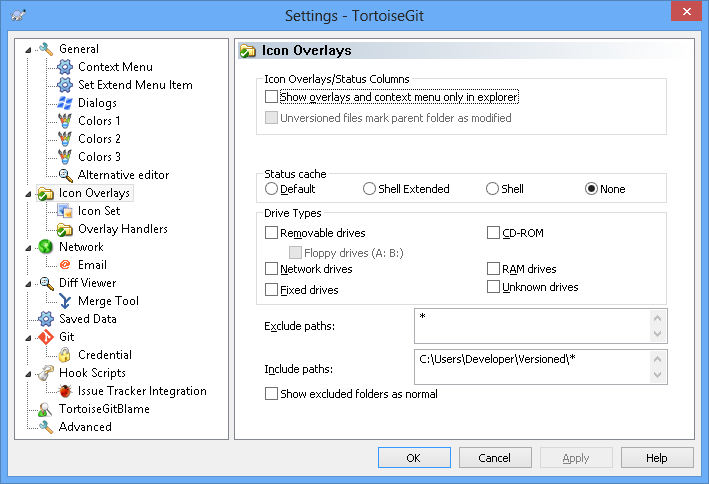
Version control Icon overlays in the Windows Explorer can have a big system impact. TortoiseHG does handle this in a very smart way, that’s why TortoiseHG does not have Icon Overlay include, exclude paths. TortoiseSVN and TortoiseGIT however do, as they share large parts of the code (hence the dialogs look very similar), and this is how you configure them:
- Both:
- Disable default showing on all kinds of media.
- Exclude all paths.
- Include only the paths you perform version control in.
- TortoiseGIT: Make sure that you have a * at the end of the include paths:

20130820-TortoiseGit-overlay-icons-setti ngs (click to enlarge)
- TortoiseSVN: No need to include a * at the end of the include paths:

20130820-TortoiseSVN-overlay-icons-setti ngs (click to enlarge)
For all three, there can be various reasons for overlay icons not to show up, varying from wrong configuration to crossing the Windows limit of 15 overlay icons (which is the reason that all three use the same overlay icon set).
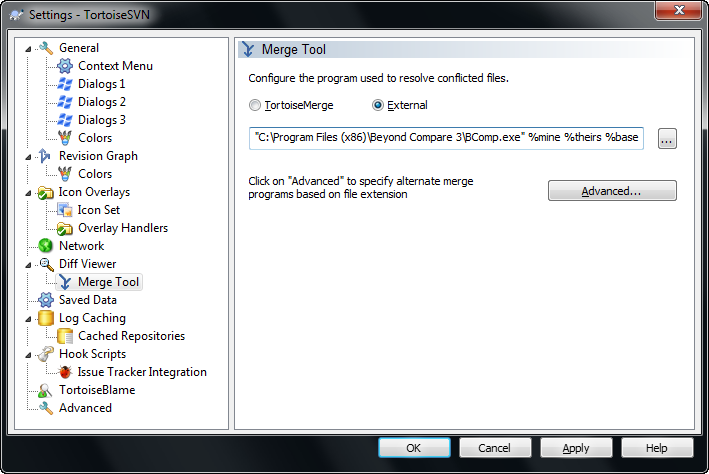
External Comparison Tools example: Beyond Compare integration
I love Beyond Compare very much as a diff/merge tool as it supports to many file and archive formats.
Their support list lists a large number of other tools they integrate with, including many version control systems.
Integration screenshots (click on each to get a larger version):
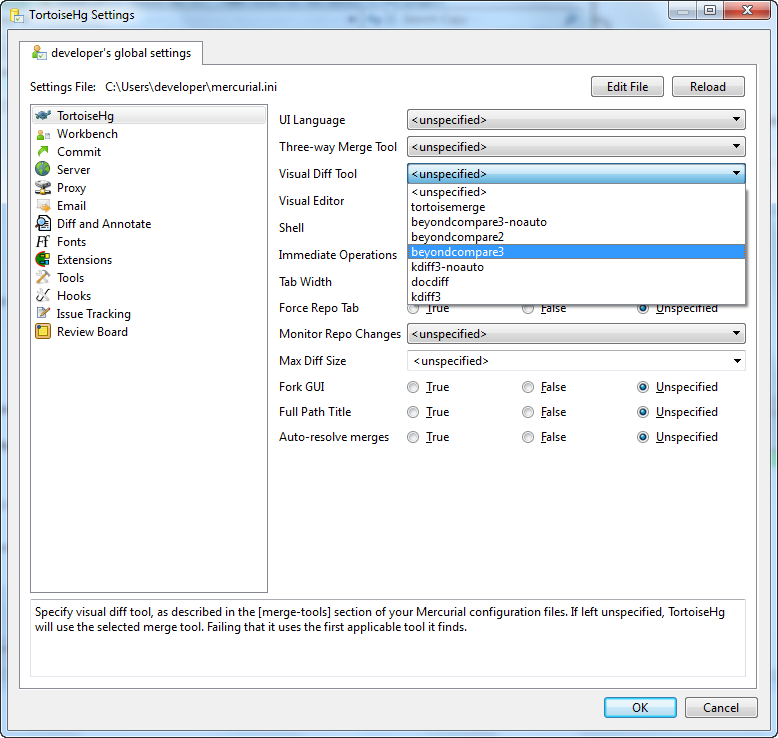
TortoiseHG
- A dropbox selection

Select “beyondcompare3” from the dropdowns in both “Three-way Merge Tool” and “Visual Diff Tool”
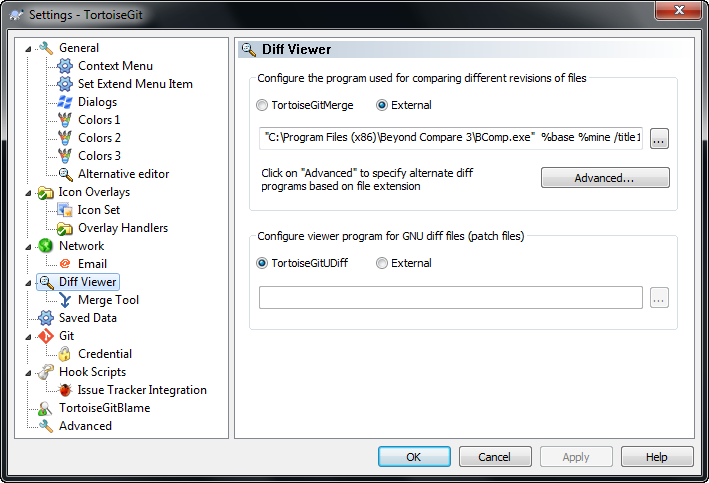
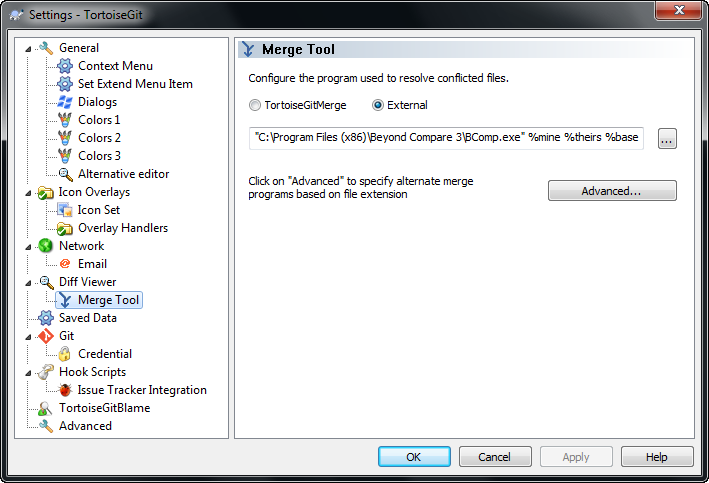
TortoiseGit
- Compare: Fill in the path plus parameters:
“C:\Program Files (x86)\Beyond Compare 3\BComp.exe” %base %mine /title1=%bname /title2=%yname /leftreadonly

Switch the radiobutton to “External” then fill in the path and parameters.
- Diff: Fill in the path plus parameters:
“C:\Program Files (x86)\Beyond Compare 3\BComp.exe” %mine %theirs %base %merged /title1=%yname /title2=%tname /title3=%bname /title4=%mname

Switch the radiobutton to “External” then fill in the path and parameters.
TortoiseSVN
- Compare: Fill in the path plus parameters:
“C:\Program Files (x86)\Beyond Compare 3\BComp.exe” %base %mine /title1=%bname /title2=%yname /leftreadonly

Switch the radiobutton to “External” then fill in the path and parameters.
- Diff: Fill in the path plus parameters:
“C:\Program Files (x86)\Beyond Compare 3\BComp.exe” %mine %theirs %base %merged /title1=%yname /title2=%tname /title3=%bname /title4=%mname

Switch the radiobutton to “External” then fill in the path and parameters.
Line ending conversion
Be careful that you do not accidentally change CRLF line endings into LF ones: Delphi still does not like those. See You Clumsy GIT – DelphiFeeds.com.
Multiple upstreams
Both Mercurial/HG and GIT support multiple upstreams.
I need to put some more research in this though.
Making the move from SVN to HG (or GIT)
Mercurial/HG
- HgInit: Subversion Re-education.
- HgInit: Ground Up Mercurial.
- HgInit: Setting up for a Team.
- HgInit: Fixing Goofs.
- HgInit: Merging.
- HgInit: Repository Architecture.
- Mercurial: The Definitive Guide. (hosted at Red Bean, see below)
- Mercurial repository identification – Stack Overflow.
- Do not fork an empty repository: as soon as you commit changes to both, they loose their connection because an empty repository has a nullid first changeset to which the fork is bound, but the nullid gets overwritten at the first commit.
GIT
- Learning GIT | gitmap.
- Git Workflows, Branching & Merging Q&A – blogs.collab.netblogs.collab.net.
- Introduction to Git Concepts | Intertech Blog.
Red Bean: Books and more about VCS and OSS
Next to Mercurial: The Definitive Guide, there is quite bit of other stuff around version control and open source software at Red Bean, for instance these three books are great:
DVCS differences
Syncing a fork on BitBucket HG or GitHub GIT
You use forks when you do not have write access to a public repository. Pull requests than allows you to offer your changes back to the original repository. But what if the original repository changes? You want to sync your fork, right? On BitBucket with HG, this is easy: they offer a sync button. On GitHub with GIT it is a bit more work: you have to sync through your local clone through what is usually called the `upstream` (the original repository), then push the changes back to your fork. GitHub explains this using the command-line tools at Syncing a fork · GitHub Help, and manojlds for TortoiseGit at github – Can I update a forked project, on git, to the original/master copy? – Stack Overflow.
TFS and Mercurial, SVN, and GIT
Real-World use of Mercurial with a Team Foundation Server? – Stack Overflow. This explains how to use HG, and how to push/pull from the TFVC. The comments and answers also talk about SVN, and other version control systems.
TFS migration itself
–jeroen









 The Wiert Corner - irregular stream of stuff