The Wiert Corner – irregular stream of stuff

Jeroen W. Pluimers on .NET, C#, Delphi, databases, and personal interests

  • My badges

  • Twitter Updates

  • My Flickr Stream

  • Pages

  • All categories

  • Enter your email address to subscribe to this blog and receive notifications of new posts by email.

    Join 1,839 other subscribers

Archive for the ‘Scripting’ Category

ESXi ash/dash/busybox shell getting current timestamp in UTC ISO8601 format without colons or dashes

Posted by jpluimers on 2022/01/17

On VMware ESXi, with the  Busybox ash/dash shell, I wanted to get the current UTC timestamp in ISO 8601 format without dashes (-) or especially colons (:) and plus-signs (+) you have to back-slash escape colons or double quote parameters, which is often can be a pain).

This is why we can’t have good things: Getting the UTC 8610 timestamp was far less easy than I hoped for.

First of all, Busybox only allows for a precision of seconds, not milliseconds, and the specification format needs better documentation as per [Wayback] embedded linux – How to get ISO8601 seconds format from “date” in busybox? – Stack Overflow:

Read the rest of this entry »

Posted in *nix, *nix-tools, ash/dash, ash/dash development, Development, ESXi6, ESXi6.5, ESXi6.7, ESXi7, Power User, Scripting, sed, sed script, Software Development, Virtualization, VMware, VMware ESXi | Leave a Comment »

On learning vi/vim

Posted by jpluimers on 2022/01/13

I saved below thread (if you cannot read German: try Google Translate on it [Archive.is]).

The part that – translated – strikes me most is this:

A mini-challenge where I want to spent 15 minutes per day on: when I need some functionality, instead of hacking around, research how it really is supposed to be done and internalise that way.

This totally aligns with me “learn new things every day” mantra.

Also some interesting vi/vim resources and approaches are mentioned:

If you are better at reading tables or lists for commands, I can recommend [Wayback] Basic vi Commands (Computer Science Department, Colorado State University).

One of the hardest things for me to remember somehow is the search/replace syntax, though it is very similar to that of sed. Useful examples of most permutations are at [Wayback] Vi For Smarties – Lesson Eight under “Advanced Search and Replace”:

  1. Use :s/foo/bar/ to replace the first occurrence of the word foo on the current line with the word bar.
  2. Use :s/foo/bar/g to replace all occurrences of the word foo on the current line with the word bar.
  3. Use :%s/foo/bar/g to replace all occurrences of the word foo in the current file with the word bar. Leaving off the g at the end only replaces the first occurrence of foo on each line of the current file.
  4. Use :%s/foo//g to delete all occurrences of the word foo in the current file. Leaving off the percent sign (%), of course, only does this for the current line.
  5. Use :%s/foo/bar/gc to have Vi query you before each attempt to replace the word foo with the word bar.

It is part of a series of tutorials starting at [Wayback] Vi For Smarties – Lesson One, and after the last lesson directs to the in-depth – as prose written – tutorial series [Archive.is] Wayback: The Vi/Ex Editor (which, despite marked by “[ Editor’s Note: . This tutorial series is a “work in progress” and will evolve over time. We’ll announce each new addition and expand this table of contents.]” got ditched shortly after January 2006)

https://web.archive.org/web/20160108053134/http://www.networkcomputin…

.

Note that like sed, you can use a different search/replace character than /: [Wayback] vim – / in vi Search and replace? – Stack Overflow

  • Escape the / with \ like this: \/.
  • Use different search character than /, for instance ., or #.

Back to the twitter thread

[Archive.is] Das königliche Wir on Twitter: “Ich lerne jetzt vi(m). Klingt beknackt, oder? Aber ich hab überlegt: ich möchte effizienter werden, meinen Kram stressfreier bewältigen. Und ich finde, es bietet sich an da an Baustellen anzusetzen, die täglich relevant sind. Und vi(m) nutze ich in der Tat täglich. 1/”

Ich lerne jetzt vi(m).

Klingt beknackt, oder? Aber ich hab überlegt: ich möchte effizienter werden, meinen Kram stressfreier bewältigen. Und ich finde, es bietet sich an da an Baustellen anzusetzen, die täglich relevant sind. Und vi(m) nutze ich in der Tat täglich.

Aber auch wenn ich ihn nutze und über den »Hilfe, wie komm ich aus dem Editor wieder raus?!«-Witz nur sehr müde die Augen rolle gehe ich davon aus, dass ich nicht mal einen Bruchteil der Möglichkeiten ausschöpfe, die er bietet (1. Release 1976, älter als ich!). Das ist spannend.

Das ist jetzt meine Mini-Challenge, auf die ich jeden Tag eine Viertelstunde verwenden will: wenn ich eine Funktion brauche mich nicht mehr drum herum zu hacken, sondern recherchieren wie es richtig geht und das dann gefälligst auch verinnerlichen. Mal sehen, ob das so klappt

In dem Zuge will ich auch wieder verstärkt (neo)mutt in Verbindung mit vim nutzen – das wäre ein wunderbares tägliches Training 😎 Mails schreiben muss man irgendwie immer.

neomutt bietet leider auch einen Eimer voll Funktionen, die ich noch nicht ordentlich nutze. Gnah.

An euren Replies erkenne ich, dass das mit dem »sich die Kürzel merken« echt heikel zu sein scheint 🤔 Wie handhabt ihr das im Alltag? Einfach ein paar Basics wie :u und CTRL+r und gut ist? Ich bin neugierig. Oder nutzt ihr alle nano? (Ich glaub, dann muss ich entfolgen) 😂

Nur als kleinen Zwischenstand: nach dem Lesen eurer Antworten schließe ich, dass ich mich mit meinem Kenntnisstand nicht verstecken muss 😂 Da hat mir der virtuelle Schulterblick schon weiter geholfen.

vi(m), weil ich Admin bin und dieses Tool auf jedem System und ohne X-Geraffels üblicherweise vorfinde (wenn auch bei neueren Installationen dieser absurde „visual mode“ der Default ist 😳). Auch unter (Open)Solaris, IRIX, was weiß ich.

Antworten:

Patrick Ben Koetter (@patrickbkoetter)

Ich habe diverse Plugins ausprobiert und lande immer wieder bei “normal“, weil ich einfach nicht die Disziplin aufbringe das Zeug richtig zu üben.

Marcel Weinberg (@winem_)

Denke so geht es vielen, die eben teilweise auch schon viele Jahre in der IT sind. Ist dir vimtutor bekannt? Den regelmäßig durchzutanzen hilft auch etwas, auch wenn man einiges immer mal vergisst oder einfach nicht nutzt.

Kristian Köhntopp (@isotopp)

vi movement Kommandos haben System. Erkenne und lerne das System. hjkl + prefix+hjkl, Marken, prefix+jump to mark und so weiter.

Und bleibe von den verblödeten Plugins weg. Die braucht kein Mensch und machen vim nur langsam im Start und kompliziert.

Boris (@k3rvyn)

Was mich so richtig weiter gebracht hat, war dieser Talk:
https://www.youtube.com/watch?v=5r6yzFEXajQ

winfreak (@winfreak)

Ich bilde mir kleine Merkphrasen für movements…
Aus „ciw“ wird „change inner word“, z.B.
Das kann ich mir deutlich besser merken.

–jeroen

Read the rest of this entry »

Posted in *nix, *nix-tools, Development, Power User, Scripting, Software Development, vi/vim | Leave a Comment »

A few tools on my list for research: fswatch, entr, ack and ag

Posted by jpluimers on 2022/01/12

Based on the below tweet and replies, these tools are not on my research list:

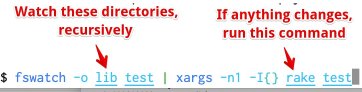
[Archive.is] Aaron Patterson on Twitter: “Here is my “autotest for lazy people”. It watches for changes in the lib or test directory, and runs rake test on change. There are definitely better, purpose built tools for this. But I am lazy…”

–jeroen

Posted in *nix, *nix-tools, Development, fgrep, find, grep, Power User, Scripting, Software Development | Leave a Comment »

Twitter: find my new-style retweets that have images

Posted by jpluimers on 2022/01/11

This gets the tweets I retweeted and have images in them:

from:@jpluimers filter:images filter:nativeretweets

Based on:

  • [Wayback] twitter – How do I find my retweets of a certain account? – Web Applications Stack Exchange
    from:@someone filter:nativeretweets [KEYWORD(s)]
    

    This shows all retweets of @someone (including the optional KEYWORD(s)). If you retweeted the same tweet you can use @yourtwittername instead of @someone.

  • This article gives you a robust overview of everything you need to know about advanced TweetDeck features.[Wayback] About advanced TweetDeck features

    To search for mentions of #space from verified accounts, excluding Retweets, type the following in the search box: #space filter:verified -filter:nativeretweets

  • [Wayback] Difference between -filter:retweet and -filter:nativeretweets in Twitter Search API 1.1 – Stack Overflow

    I believe per TweetDeck documentation (https://support.twitter.com/articles/20170322) this is the difference:

    filter:nativeretweets shows retweets from users who have hit the retweet button. filter:retweets shows old style retweets (“RT”) + quoted tweets.

    Those are filtering FOR those types of results, but as you’ve done, the – is necessary to filter them out -filter:nativeretweets or -filter:retweets

  • [Wayback/Archive.is] Twitter API 1.1 tweets / favorites (likes) / following / followers backup in web browser
    /* Twitter API 1.1 tweets / favorites (likes) / following / followers backup in web browser
     * Get your access keys to use Twitter API 1.1: https://dev.twitter.com/docs/auth/tokens-devtwittercom
     * You can change Twitter API URL and Twitter screen_name, then execute script from a trusted web page without CSP protection like about:blank in a web browser console (F12 or Ctrl+Shift+K shortcut)
     * A textarea will appear so you can copy/paste to save data as a CSV file or search tweets / users in your web browser (Ctrl+F shortcut)
     * You can then view your backup in a spreadsheet editor like LibreOffice Calc
     * You can also compare the backup with another one to see who unfollowed you, who changed their Twitter username by looking at the user ID or which tweet you retweeted / favorited was deleted (e.g. with the Linux diff command)
     * 
     * Note about the tweets backup:
     * Usually you will search tweets that you retweeted using Twitter web version (https://twitter.com/search) with a search like "from:your_username filter:nativeretweets keyword"
     * But it is limited to the retweets of the last 7 days, like for the free version of the search API (https://developer.twitter.com/en/docs/tweets/search/overview/standard)
     * An alternative is to search tweets in your user timeline with this script but it is limited to your last 3200 tweets (including retweets and replies)
     * This script can be combined with the Twitter feature to backup data, which is not limited to your last 3200 tweets but you can only request a backup every 30 days
     * To find tweets that you retweeted or favorited / liked from a specific person, you can open the CSV file with LibreOffice Calc, click on the column you want to search and press Ctrl+H to search a username
    */

–jeroen

Posted in Development, JavaScript/ECMAScript, Power User, Scripting, SocialMedia, Software Development, Twitter | Leave a Comment »

Winbox configuration files

Posted by jpluimers on 2021/12/31

A few notes:

  • WinBox configuration files are under %APPDATA%\Mikrotik\Winbox
    • The subdirectory sessions contains binary *.viw files that seem to represent “view” configurations (the positions, dimensions and other properties of the open Windows in a Winbox session) where the * of the name seems to be an IPv4 address of a machine.
    • Directories named like 6.40.3-2932358209 and 6.43.13-695307561 contain configuration files that seem to determine what WinBox features a certain RouterOS version should reveal; files in those directories seem to always be these:
      • advtool.crc / advtool.jg
      • dhcp.crc / dhcp.jg
      • hotspot.crc / hotspot.jg
      • icons.crc / icons.png
      • mpls.crc / mpls.jg
      • ppp.crc / ppp.jg
      • roteros.crc / roteros.jg
      • roting4.crc / roting4.jg
      • secure.crc / secure.jg
      • wlan6.crc / wlan6.jg
    • There are binary files Addresses.cdb and settings.cfg.viw
    • A text file named sessionpath contains the expanded path %APPDATA%\Mikrotik\Winbox\sessions

The *.crc files contain a CRC code, presumably on the contents of the correspoding *.jg file. The *.jg files seem to contain some kind of JSON.

Some links I found:

Read the rest of this entry »

Posted in Development, Hardware, Internet, MikroTik, Network-and-equipment, Power User, RouterOS, routers, Scripting, Software Development, WinBox | Leave a Comment »

windows 7 – How can I eject a CD via the cmd? – Super User

Posted by jpluimers on 2021/12/30

Quite a while ago I found [Wayback] windows 7 – How can I eject a CD via the cmd? – Super User, but forgot to document that in the batch-files I created from it.

It shows both this one-liner:

powershell "(new-object -COM Shell.Application).NameSpace(17).ParseName('D:').InvokeVerb('Eject')"

The hardcoded const 17 is for the ssfDRIVES element in the ShellSpecialFolderConstants, which is documented at [Wayback] ShellSpecialFolderConstants (shldisp.h) – Win32 apps | Microsoft Docs.

There is no PowerShell equivalent of that element, hence the hardcoded value 17.

The script invokes the verb Eject, which works on any kind of removable media (not just optical drives). If you want to limit it to only certain drive types, then you would need to compare the Type of the ParseName() result. However, that result has a Type property returns a string for which the possible values are not documented.

Here are some links I tried to find out what is returned:

In addition to the Shell.Application, there also is Scripting.FileSystemObject, which allows enumerating the drives and filter on DriveType. This is the relevant documentation:

The second example in the above mentioned answer shows how to use this to filter for optical drives.

It also shows a cool technique to have a hybrid batch-file/JScript script:

@if (@CodeSection == @Batch) @then

@echo off
setlocal

cscript /nologo /e:JScript "%~f0"

goto :EOF

@end // end batch / begin JScript hybrid chimera

// DriveType=4 means CD drive for a WScript FSO object.
// See http://msdn.microsoft.com/en-us/library/ys4ctaz0%28v=vs.84%29.aspx

// NameSpace(17) = ssfDRIVES, or My Computer.
// See http://msdn.microsoft.com/en-us/library/windows/desktop/bb774096%28v=vs.85%29.aspx

var oSH = new ActiveXObject('Shell.Application'),
    FSO = new ActiveXObject('Scripting.FileSystemObject'),
    CDdriveType = 4,
    ssfDRIVES = 17,
    drives = new Enumerator(FSO.Drives);

while (!drives.atEnd()) {
    var x = drives.item();
    if (x.DriveType == CDdriveType) {
        oSH.NameSpace(ssfDRIVES).ParseName(x.DriveLetter + ':').InvokeVerb('Eject');
        while (x.IsReady)
            WSH.Sleep(50);
    }
    drives.moveNext();
}

–jeroen

Posted in Batch-Files, Development, JScript, PowerShell, Scripting, Software Development | Leave a Comment »

Run the latest RDP session in full-screen

Posted by jpluimers on 2021/12/28

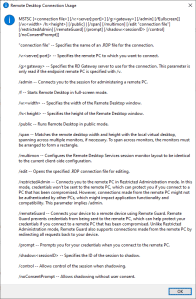
MSTSC.exe helptext

MSTSC.exe helptext

I created this small batch file:

:: start last RDP session (or new one with command-line parameters) full-screen
:: see https://interworks.com/blog/ijahanshahi/2012/01/02/mstsc-commands-and-creating-custom-remote-desktop-shortcut/
mstsc /f %*

It is based on [Wayback] MSTSC Commands and Creating a Custom Remote Desktop Shortcut | InterWorks, which has the helptext for MSTSC.exe (which stands for MicroSoft Terminal Services).

Later I found out a way easier method to get that helptext is to run MSTSC.exe /?, which shows a nice dialog:

[Window Title]
Remote Desktop Connection Usage

[Content]
MSTSC [] [/v:<server[:port]>] [/g:] [/admin] [/f[ullscreen]] [/w: /h:] [/public] | [/span] [/multimon] [/edit "connection file"] [/restrictedAdmin] [/remoteGuard] [/prompt] [/shadow: [/control] [/noConsentPrompt]]

"connection file" -- Specifies the name of an .RDP file for the connection.

/v:<server[:port]> -- Specifies the remote PC to which you want to connect.

/g: -- Specifies the RD Gateway server to use for the connection. This parameter is only read if the endpoint remote PC is specified with /v.

/admin -- Connects you to the session for administering a remote PC.

/f -- Starts Remote Desktop in full-screen mode.

/w: -- Specifies the width of the Remote Desktop window.

/h: -- Specifies the height of the Remote Desktop window.

/public -- Runs Remote Desktop in public mode.

/span -- Matches the remote desktop width and height with the local virtual desktop, spanning across multiple monitors, if necessary. To span across monitors, the monitors must be arranged to form a rectangle.

/multimon -- Configures the Remote Desktop Services session monitor layout to be identical to the current client-side configuration.

/edit -- Opens the specified .RDP connection file for editing.

/restrictedAdmin -- Connects you to the remote PC in Restricted Administration mode. In this mode, credentials won't be sent to the remote PC, which can protect you if you connect to a PC that has been compromised. However, connections made from the remote PC might not be authenticated by other PCs, which might impact application functionality and compatibility. This parameter implies /admin.

/remoteGuard -- Connects your device to a remote device using Remote Guard. Remote Guard prevents credentials from being sent to the remote PC, which can help protect your credentials if you connect to a remote PC that has been compromised. Unlike Restricted Administration mode, Remote Guard also supports connections made from the remote PC by redirecting all requests back to your device.

/prompt -- Prompts you for your credentials when you connect to the remote PC.

/shadow: -- Specifies the ID of the session to shadow.

/control -- Allows control of the session when shadowing.

/noConsentPrompt -- Allows shadowing without user consent.

[OK]

–jeroen

Posted in Batch-Files, Development, Power User, Remote Desktop Protocol/MSTSC/Terminal Services, Scripting, Software Development, Windows | Leave a Comment »

Windows: get CPU information on the console

Posted by jpluimers on 2021/12/28

It still seems that WMIC is the quickest way to get CPU information on the console:

T510-PSO C:\bin\rdp> wmic cpu get name,CurrentClockSpeed,MaxClockSpeed
CurrentClockSpeed  MaxClockSpeed  Name
2667               2667           Intel(R) Core(TM) i5 CPU       M 560  @ 2.67GHz

T510-PSO C:\bin\rdp> wmic path win32_Processor get Name,NumberOfCores,NumberOfLogicalProcessors
Name                                             NumberOfCores  NumberOfLogicalProcessors
Intel(R) Core(TM) i5 CPU       M 560  @ 2.67GHz  2              4

Actually, wmic cpu is shorthand for wmic path win32_Processor, so this works fine:

T510-PSO C:\bin\rdp> wmic cpu get name,CurrentClockSpeed,MaxClockSpeed,NumberOfCores,NumberOfLogicalProcessors
CurrentClockSpeed  MaxClockSpeed  Name                                             NumberOfCores  NumberOfLogicalProcessors
2667               2667           Intel(R) Core(TM) i5 CPU       M 560  @ 2.67GHz  2              4

The reason is that cpu is an alias:

T510-PSO C:\bin\rdp> wmic alias cpu list brief
FriendlyName  PWhere              Target
CPU           Where DeviceID='#'  Select * from WIN32_PROCESSOR

Via:

–jeroen

Posted in Batch-Files, Console (command prompt window), Development, Power User, Scripting, Software Development, T510, ThinkPad, Windows | Leave a Comment »

Twitter wayback_exe generates screenshots of old websites in old browsers every two hours

Posted by jpluimers on 2021/12/22

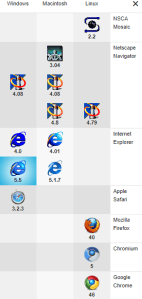
Classic browsers

Classic browsers

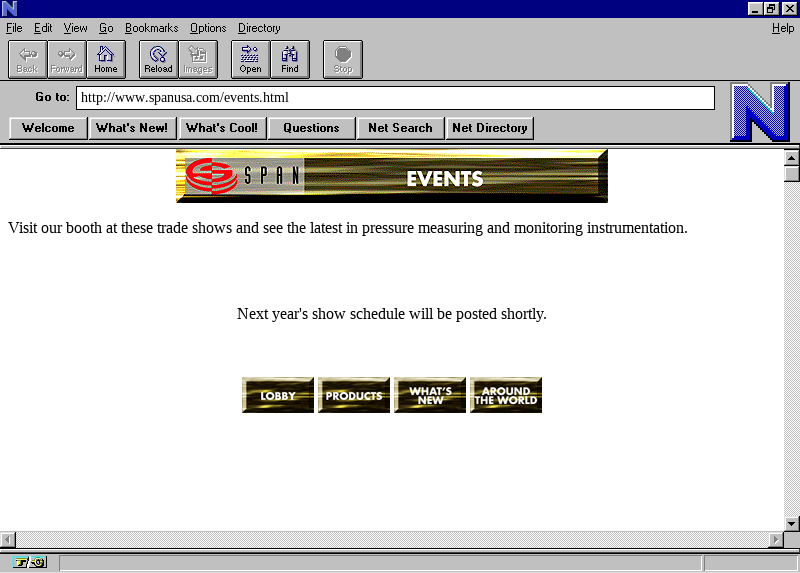
Going back to in time old web-pages using old web-browsers is fun!

[Archive.is] wayback_exe (@wayback_exe) | Twitter automatically does it for you.

A short introduction is at [Wayback] muffinlabs – @wayback_exe.

There is a playground at [Archive.is] oldweb.today where you can choose which classic browser to use for viewing and what page to view with it.

You can fiddle around with the node.js based code that is available on GitHub: [Wayback/Archive.is] muffinista/wayback_exe: code for twitter bot @wayback_exe

Some screenshots:


–jeroen

Read the rest of this entry »

Posted in Development, Fun, JavaScript/ECMAScript, Node.js, Power User, Scripting, Software Development, Web Browsers | Leave a Comment »

Busybox ash/dash – Hexadecimal To Decimal in Shell Script (via Stack Overflow)

Posted by jpluimers on 2021/12/21

This works fine on “BusyBox v1.29.3 (2019-05-21 15:22:06 PDT) multi-call binary.” that is included with VMware ESXi 6.5 update 3:

[Wayback] bash – Hexadecimal To Decimal in Shell Script – Stack Overflow

Dealing with a very lightweight embedded version of busybox on Linux means many of the traditional commands are not available (bc, printf, dc, perl, python)

echo $((0x2f))
47

hexNum=2f
echo $((0x${hexNum}))
47

Credit to [Wayback] Peter Leung for this solution.

–jeroen

Posted in *nix, *nix-tools, ash/dash, ash/dash development, Development, Power User, Scripting, Software Development | Leave a Comment »