The Wiert Corner – irregular stream of stuff

Jeroen W. Pluimers on .NET, C#, Delphi, databases, and personal interests

  • My badges

  • Twitter Updates

  • My Flickr Stream

  • Pages

  • All categories

  • Enter your email address to subscribe to this blog and receive notifications of new posts by email.

    Join 1,839 other subscribers

Archive for the ‘Scripting’ Category

Select-Object versus Write-Output: “The input object cannot be bound to any parameters for the command either because the command does not take pipeline input or the input and its properties do not match any o f the parameters that take pipeline input.”

Posted by jpluimers on 2021/09/23

I bumped in the error [WayBack] “The input object cannot be bound to any parameters for the command either because the command does not take pipeline input or the input and its properties do not match any of the parameters that take pipeline input.” when using [WayBack] Write-Output where [WayBack] Select-Object worked just fine.

This happened when playing around with detecting empty Chocolatey .nupkg package files.

$LibPath = Join-Path $env:ChocolateyInstall 'lib'
$NupkgFilter = '*.nupkg'

Get-ChildItem -Path $LibPath -Recurse -Filter $NupkgFilter | 
    Where-Object {($_.Length -eq 0) -and ($_.BaseName -eq "hg")} | 
        Sort-Object LastWriteTime | 
            Select-Object BaseName

<#
Get-ChildItem -Path $LibPath -Recurse -Filter $NupkgFilter | 
    Where-Object {($_.Length -eq 0) -and ($_.BaseName -eq "hg")} | 
        Sort-Object LastWriteTime | 
            Write-Output BaseName
## Write-Output : The input object cannot be bound to any parameters for the command either because the command does not take pipeline input or the input and its properties do not match any of the parameters that take pipeline input.
#>

Get-ChildItem -Path $LibPath -Recurse -Filter $NupkgFilter | 
    Where-Object {($_.Length -eq 0) -and ($_.BaseName -eq "hg")} | 
        Sort-Object LastWriteTime | 
            ForEach-Object { Write-Output $_.BaseName }

The output is also slightly different, hinting on the root cause:

BaseName
--------
hg      
hg

The above shows that Select-Object selects a list of BaseName properties (italic part), whereas Write-Output shows a single BaseName property content (bold part).

Read the rest of this entry »

Posted in .NET, CommandLine, Development, PowerShell, PowerShell, Scripting, Software Development | Leave a Comment »

GitHub – metasfresh/metasfresh: We do Open Source ERP – Fast, Flexible & Free Software to scale your Business.

Posted by jpluimers on 2021/09/22

For my link archive: [WayBack] GitHub – metasfresh/metasfresh: We do Open Source ERP – Fast, Flexible & Free Software to scale your Business.

It’s mainly written in JavaScript and Java with a PostgreSQL database and elasticsearch search.

There is plenty of [WayBack] metasfresh documentation (for users, administrators and developers), all with markdown source.

The developer documentation starts with a nice diagram of the [WayBack] metasfresh Architecture:

Markdown source of the architecture page: [WayBack] metasfresh-documentation/metasfresh_architecture.md at gh-pages · metasfresh/metasfresh-documentation · GitHub: Docs and Manuals for Devs, Users, Admins.

Via:

–jeroen

Posted in Development, Java, Java Platform, JavaScript/ECMAScript, Scripting, Software Development | Leave a Comment »

Twitter thread by thread by @0xdade; More unicode shit: zero width space and a zero width nonjoiner in filenames

Posted by jpluimers on 2021/09/22

[WayBack] Thread by @0xdade: Today I learned that you can put zero width spaces in file names on Linux. Have fun. I’m playing with this because punycode/IDN is fascinati…

Today I learned that you can put zero width spaces in file names on Linux. Have fun.

I’m playing with this because punycode/IDN is fascinating, and I wanted to know what happened when I started shoving unicode in the path portion of the url, which isn’t part of how browsers try to protect URLs, as far as I can tell

wiki.mozilla.org/IDN_Display_Al…

I think it’s more entertaining to have a file that is named *only* a zero width space, but I think using them throughout a filename is better to break tab completion and not stand out too much. A filename that is just blank looks strange in ls output.
Thank goodness adduser is looking out for our best interests.
Oooh this one is pretty subtle.
Just about pissed myself with this one.

Not related to the terminal fun, but related to zero width characters:

You can:
– Break url previews https://0xda​​​​​​.​de
– @​0xdade without tagging
– Make a word like system​d not searchable twitter.com/search?q=from%…

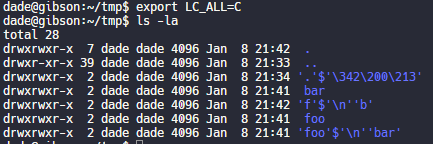
Okay but back to command line crap. I really like this one. Create a directory named .[ZWS]

One thing that is cool about using zero width spaces is that “ls” has a flag, “-b”, that is meant to escape non-graphic characters. Inserting a newline, for instance, would be escaped to \n. But the zero width space is technically a graphic character, so nothing happens.

Fun.

Have no fear, though. It’s not unbeatable. It’s only fun if the language and LC settings are set to support utf-8. If you set LC_ALL=C or whatever that isn’t utf-8, then it looks like this.

Putting a link to this tweet here so that I don’t lose it again in the future.

dade@0xdade

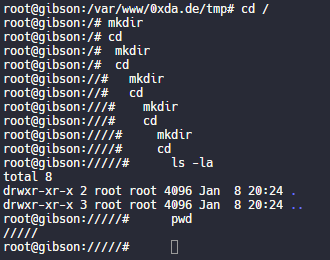
My god, it is beautiful. I mean except all the whitespace I can’t get rid of before the command lmao.

View image on Twitter
But on the other hand if you just have a search for the zws, then whatever you find is probably worth investigating. 
I guess I’ll start the hashtag before @QW5kcmV3 does for #irresponsibleutf8 🤭😏😂 

And these tweets:

[WayBack] Thread by @Plazmaz: @0xdade Was doing some real fucking around with urls recently: gist.github.com/Plazmaz/565a5c… (was gonna flesh it out more but didn’t find…:

mentions Was doing some real fucking around with urls recently:
mentions This one is my fave:
‘⁄’ (\u2044)
or
‘∕’ (\u2215)
Allow for this:
google.com⁄search⁄query⁄.example.com
google.com⁄search⁄query⁄@example.com 

[WayBack] url-screwiness.md · GitHub:

This is a list of methods for messing with urls. These are often useful for bypassing filters, SSRF, or creating convincing links that are difficult to differentiate from legitimate urls.

And a bit of documentation links:

–jeroen


Posted in *nix, .NET, C#, Development, NTFS, Power User, Python, Scripting, Software Development, Windows | Leave a Comment »

Code Layout and Formatting: Indentation · PowerShell Practice and Style

Posted by jpluimers on 2021/09/22

Since I switch a lot between languages, I tend to forget what indentation, spacing and termination to use.

So from the Indentation/Length/Spacing/Termination sections in [WayBack] Code Layout and Formatting · PowerShell Practice and Style:

Read the rest of this entry »

Posted in .NET, CommandLine, Development, PowerShell, PowerShell, Scripting, Software Development | Leave a Comment »

Overview of Client Libraries · Internet Archive

Posted by jpluimers on 2021/09/14

Besides manual upload at [Archive.is] Upload to Internet Archive, there are also automated ways of uploading content.

One day I need this to archive pages or sites into the WayBack machine: [WayBack] Overview of Client Libraries · Internet Archive (most of which is Python based):

Read the rest of this entry »

Posted in Bookmarklet, Development, Internet, InternetArchive, Power User, Python, Scripting, Software Development, WayBack machine, Web Browsers | Leave a Comment »

Run chrome in fullscreen mode on Windows – Stack Overflow

Posted by jpluimers on 2021/09/14

Since Chrome changes over time, the batch file below from [WayBack] Run chrome in fullscreen mode on Windows – Stack Overflow also changes:

@echo off
echo Countdown to application launch...
timeout /t 10
"C:\Program Files (x86)\chrome-win32\chrome.exe" --chrome --kiosk http://localhost/xxxx --incognito --disable-pinch --no-user-gesture-required --overscroll-history-navigation=0
exit

On most of my systems. Chrome is at C:\Program Files (x86)\Google\Chrome\Application\chrome.exe, so I need to change the path anyway.

–jeroen

Posted in Batch-Files, Chrome, Development, Google, Power User, Scripting, Software Development, Windows | Leave a Comment »

PowerShell: recovering from corrupt empty *.nupkg files after a disk was accidentally full during update

Posted by jpluimers on 2021/09/09

When you do a choco upgrade all --yes on a system that – during upgrade – becomes low on disk space, you can end up with a lot of empty .nupkg files.

For those package, Chocolatey will not recognise they are installed any more.

The fix is this:

  1. increase disk space so at least 5 gigabytes is free
  2. split the choco upgrade process so it checks before each upgrade that this diskspace is indeed free
  3. list all choco .nupkg files of length zero ordered from oldest to newest
  4. for each package, delete the .nupkg file if it exists, then force install it with the --force parameter before the --yes parameter like in

    choco install --force --yes chocolatey

  5. when all packages have been done, then choco upgrade --all --yes

I wrote a few PowerShell scripts assisting me in cleaning up the mess.

choco-list-installed.bat

:: https://superuser.com/questions/890251/how-to-list-chocolatey-packages-already-installed-and-newer-version-available-fr
choco list --localonly %*

choco-show-installed-package-names.bat

:: `--limit-output`  does not show Chocolatey version header and count footer.
:: `--id-oonly`      omits the version number, so you only get the package name
choco list --local-only --limit-output --id-only

choco-show-installed-package-names-and-versions.bat

:: `--limit-output`  does not show Chocolatey version header and count footer.
choco list --local-only --limit-output %*

choco-reinstall-empty-nupkg-by-names.ps1

  • [WayBack] Powershell – Finding 0-byte Files | Another computer blog
  • [WayBack] windows – Where is the Chocolatey installation path? – Stack Overflow:

    There is an environment variable set on installation, ChocolateyInstall, which is set to C:\Chocolatey by default in versions of Chocolatey less than 0.9.8.27. After that, this defaults to C:\ProgramData\Chocolatey.

    NOTE: By default, the C:\ProgramData folder on Windows is hidden. You will either need to enable hidden files and folders through Folder Options | View or you can navigate directly to the path shown above by copy/pasting directly into the Windows Explorer address bar.

    In version 0.9.9 of Chocolatey, it actively moves from the old folder location to the new one.

  • [WayBack] string – Powershell concatenate an Environment variable with path – Stack Overflow

    A convenient way to obtain the string value rather than the dictionary entry (which is technically what Get-ChildItem is accessing) is to just use the variable syntax: $Env:USERPROFILE rather than Get-ChildItem Env:USERPROFILE.

    $localpath = "$env:USERPROFILE\some\path"

    Also, the Join-Path cmdlet is a good way to combine two parts of a path.

    $localpath = Join-Path $env:USERPROFILE 'some\path'
<#
https://learningpcs.blogspot.com/2009/12/powershell-finding-0-byte-files.html

Zero length .nupkg files sorted by oldest first.

These are packages that choco will not show and likekly need a forced reinstall.

Choco does remember the version that was installed (so not all the choco config is hosed).

- https://stackoverflow.com/questions/28235388/where-is-the-chocolatey-installation-path/28239451#28239451
- https://stackoverflow.com/questions/41047123/powershell-concatenate-an-environment-variable-with-path/41047343#41047343

/#>
$LibPath = Join-Path $env:ChocolateyInstall 'lib'
$NuPkgExtension = 'nupkg'
$NupkgFilter = "*.$NuPkgExtension"

## Remove the empty .nupkg files for each argument
$args | ForEach-Object {
    $PackageName = $_ 
    Write-Output "Deleting any empty $PackageName.$NuPkgExtension under $LibPath :"

    Get-ChildItem -Path $LibPath -Recurse -Filter $NupkgFilter | Where-Object {
        ($_.Length -eq 0) -and ($_.BaseName -eq $PackageName)
    } | Sort-Object LastWriteTime | ForEach-Object { 
        $PackageFullName = $_.FullName
        Write-Output "Deleting $PackageFullName"
        Remove-Item $PackageFullName
    }
}

## Force install the chocolatey package for each argument
$args | ForEach-Object {
    $PackageName = $_ 
    Write-Output "Installing $PackageName with Chocolatey:"
    choco install --force --yes $PackageName
}

Link lists

Some more links that helped me solve this:

Some links on errors I encountered while recovering from this:

  • Checksum errors like[WayBack] (sysinternals) checksum error · Issue #756 · chocolatey-community/chocolatey-coreteampackages · GitHub are often caused by the chocolatey package downloading the most recent installer despite the package version. Two solutions:
    1. Pass --ignorechecksum to choco --install (see [WayBack] CommandsInstall · chocolatey/choco Wiki · GitHub)
    2. First uninstall using the --force parameter
      [Archive.is] Chocolatey Software | Sysinternals 2019.6.29

      Sysinternals Suite is going to be installed in ‘C:\ProgramData\chocolatey\lib\sysinternals\tools’
      File appears to be downloaded already. Verifying with package checksum to determine if it needs to be redownloaded.
      Error – hashes do not match. Actual value was ‘A510C31C2CC591A16F342E7CBA5DC8409EAF08C9B56729CF132C95C69E196787’.
      Downloading sysinternals
      from ‘https://download.sysinternals.com/files/SysinternalsSuite.zip&#8217;
      Progress: 100% – Completed download of C:\Users\devCrPhoneDebug\AppData\Local\Temp\2\chocolatey\sysinternals\2018.12.27\SysinternalsSuite.zip (23.51 MB).
      Download of SysinternalsSuite.zip (23.51 MB) completed.
      Error – hashes do not match. Actual value was ‘A510C31C2CC591A16F342E7CBA5DC8409EAF08C9B56729CF132C95C69E196787’.
      ERROR: Checksum for ‘C:\Users\devCrPhoneDebug\AppData\Local\Temp\2\chocolatey\sysinternals\2018.12.27\SysinternalsSuite.zip’ did not meet ‘b14466c6bf3be216ea71610a3f455030e791cd5ad1b42a283886194205d176b0’ for checksum type ‘sha256’. Consider passing the actual checksums through with –checksum –checksum64 once you validate the checksums are appropriate. A less secure option is to pass –ignore-checksums if necessary.
      The install of sysinternals was NOT successful.
      Error while running ‘C:\ProgramData\chocolatey\lib\sysinternals\tools\chocolateyInstall.ps1’.
      See log for details.

      Chocolatey installed 0/1 packages. 1 packages failed.
      See the log for details (C:\ProgramData\chocolatey\logs\chocolatey.log).

  • Packages that cannot be found at all:[WayBack] “imagemagick not installed. The package was not found with the source(s) listed” – Google Search
    • This means that Chocolatey cannot find a dependency, but will not tell you which one. It also happens during package testing:[WayBack] imagemagick v7.0.9.7 – Failed – Package Tests Results · GitHub
      • Solve this by fixing all other empty .nupkg files first, which will give you an idea on the potential missing dependencies. Retry by forcing reinstall each dependency.
  • Dependencies that cannot be found, which can be caused by more empty .nupkg files. Example: [WayBack] Unable to resolve dependency · Issue #206 · chocolatey/choco · GitHub
    • Solve this by each time a dependency is not found, include on the choco-reinstall-empty-nupkg-by-names.ps1command, then retry.

–jeroen

Posted in Chocolatey, COBOL, Development, Power User, PowerShell, PowerShell, Scripting, Software Development, Windows, Windows 10 | Leave a Comment »

Opening shell folders from the command-prompt

Posted by jpluimers on 2021/09/09

I knew I could run shell:startup and similar shortcuts from the Explorer address bar or the Windows-R “run” prompt.

First I learned that via [WayBack] tablet – How to set Google Chrome to automatically open up and in full screen – Super User.

Then via [WayBack] “shell:startup” – Google Search, I found [WayBack] Location of the Startup folder in Windows 10.

It took a while before I realised you can also run them from the command-prompt, batch-files or PowerShell scripts prepending them with start:

start shell:startup

That one will open a new explorer window in the user startup folder from either the command-prompt, a batch file or PowerShell script..

The shell: shortcuts can contain spaces. So for instance there is shell:common startup that opens the common startup folder.

Starting it from the command prompt, batch file or PowerShell script is different: because of the spaces you will get the error on the right unless you add double quotes:

start "shell:common statartup"

All shell: commands that you can run in the same way: double quotes work for both the ones requiring spaces and the simple ones nor requiring spaces.

Virtually each new Windows version (even most Windows 10 major builds) gets new shell: commands.

A good source with an up-to-date and historically accurate of shell: commands list is at [WayBack] Shell Commands to Access the Special Folders in Windows 10/8/7/Vista/XP » Winhelponline,

You can get the current list by recursively enumerating the HKEY_LOCAL_MACHINE\SOFTWARE\Microsoft\Windows\CurrentVersion\Explorer\FolderDescriptions registry key, which consists of a list of Explorer folder GUIDs having Name, ParentFolder and RelativePath value names.

–jeroen

Read the rest of this entry »

Posted in Batch-Files, Console (command prompt window), Development, Power User, Scripting, Software Development, Windows | Leave a Comment »

Chocolatey parameter order: `–yes` becomes before `–force`

Posted by jpluimers on 2021/09/08

Not sure why, bit if you want to force install a package, answering yes to all prompts, the chocolaty parameter order needs to be --yes --force instead of --force --yes.

This works:

choco install --yes --force git.install --params "/GitAndUnixToolsOnPath /NoGitLfs /SChannel /NoAutoCrlf /WindowsTerminal"

This fails:

choco install --force --yes git.install --params "/GitAndUnixToolsOnPath /NoGitLfs /SChannel /NoAutoCrlf /WindowsTerminal"

–jeroen

Posted in Chocolatey, Development, DevOps, Power User, Scripting, Software Development, Windows | Leave a Comment »

PowerShell OS Support Matrix – mohitgoyal.co

Posted by jpluimers on 2021/09/08

By now, probably newer versions have come out, but this should give a rough indication of the 2019 state of [WayBack] PowerShell OS Support Matrix – mohitgoyal.co:

For 5.1 and lower, you can find the prerequisites in [WayBack] Windows PowerShell System Requirements – PowerShell | Microsoft Docs.

–jeroen

Posted in .NET, CommandLine, Development, PowerShell, PowerShell, Scripting, Software Development | Leave a Comment »