The Wiert Corner – irregular stream of stuff

Jeroen W. Pluimers on .NET, C#, Delphi, databases, and personal interests

  • My badges

  • Twitter Updates

  • My Flickr Stream

  • Pages

  • All categories

  • Enter your email address to subscribe to this blog and receive notifications of new posts by email.

    Join 1,854 other subscribers

Archive for the ‘Power User’ Category

Awesome Cookie Manager: popup URI

Posted by jpluimers on 2021/06/14

I blogged about [WayBack] Awesome Cookie Manager before. The Awesome Cookie Manager lets the user manage cookies in Google Chrome. It is great.

It is even greater that the pop-up dialog has a URI:

chrome-extension://hcpidejphgpcgfnpiehkcckkkemgneif/popup.html

Get it at [Archive.is] Awesome Cookie Manager – Chrome Web Store:

Displays a list of all Google Chrome cookies. Allows searching, viewing, editing, saving, restoring, and deleting cookies.

It helped me solve the below cases, where I had too many cookies, to the Web Archive bailed out; Awesome Cookie Manager helped me to clear the right cookies:

Edit 20231230: Awesome Cookie Manager source repository at [Wayback/Archive] Phatsuo/awesome-cookie-manager: Awesome Cookie Manager.

--jeroen

Posted in Chrome, Google, Power User | Leave a Comment »

MacOS: killing Chrome from the terminal

Posted by jpluimers on 2021/06/14

Every now and then, Chrome hangs to badly on MacOS that the whole Mac GUI becomes unresponsive so even the “Force Quit” dialog does not appear.

Sometimes you are lucky enough that you have a (remote) terminal shell open.

Then you can do either of these:

  • Less hard kill:
    • killall 'Google Chrome'
    • killall Google\ Chrome
  • Hard kill:
    • killall -9 'Google Chrome'
    • killall -9 Google\ Chrome

The less hard kill sometimes brings up an unresponsive task and still allows you to save any changed.

Via:

–jeroen

Posted in Apple, Chrome, Google, Mac OS X / OS X / MacOS, Power User | Leave a Comment »

Keyboard Shortcuts, Markdown, and Autocomplete – Atlassian Documentation

Posted by jpluimers on 2021/06/14

Details at [WayBack] Keyboard Shortcuts, Markdown, and Autocomplete – Atlassian Documentation; summary:

To view all Confluence keyboard shortcuts, do any of the following:

  • Choose the help icon  from the universal sidebar, then choose Keyboard Shortcuts.
  • When viewing a page, press shift+?
  • While editing a page, choose the question mark icon from the editor toolbar.

a list of some of the most common shortcuts:

Markdown

Use markdown shortcuts to format text from the comfort of your keyboard.

  1. Either:
    • Type [ and then the first few characters of the page title, user’s name, image name or file name.
    • Type the first few characters of the page title, user’s name, image name, or file name (or select relevant text) and then press ctrl+shift+k.
  2. Click the relevant link from the list of suggestions.

If the item you need is not in the list, either choose Search for ‘xxx’ to continue looking for the page within Confluence, or Insert Web Link to link to an external page.

When a Windows shortcut has Ctrl in it, the MacOS shortcut uses Command.

–jeroen

Posted in Development, Keyboards and Keyboard Shortcuts, Lightweight markup language, MarkDown, Power User, Software Development | Leave a Comment »

Still relevant for current Windows versions: hard drive – defrag /x – consolidate free space not really working – Windows Server 2012 – Server Fault

Posted by jpluimers on 2021/06/11

From my answer at [WayBack] hard drive – defrag /x – consolidate free space not really working – Windows Server 2012 – Server Fault

I’ve tried many tools, starting with defrag C: /X (which tries, but doesn’t give good results) and found out these steps give the best results:

  1. Perform an Ultradefrag full optimisation
  2. Perform a MyDefrag Consolidate free space script on the drive.

Note that MyDefrag (formerly named JkDefrag) is not maintained any more but the 4.3.1 version in the WayBack machine still works very well as the underlying defragmentation APIs in Windows haven’t changed.

References:

The original MyDefrag disappeared two times (temporarily in 2014 because the domain expired, then permanently in 2017 because the domain went off-line).

Luckily, the WayBack machine at archive.org has the latest version saved (not all the links from the archive.org search page have an executable as sometimes it shows the expired domain or a non-existing redirect when the domain got off-line):

Note that chocolatey install --yes mydefrag --version 4.3.11 fails because of the missing download. See [WayBack] Chocolatey Software | MyDefrag 4.3.1.

(The --version parameter trick is from [WayBack] Chocolatey – How to install hidden and unlisted package? – Super User, via [WayBack] “This package is unlisted and hidden from package listings.” – Google Search).

–jeroen

Posted in Power User, Windows, Windows 10, Windows 7, Windows 8, Windows 8.1, Windows Server 2008, Windows Server 2008 R2, Windows Server 2012, Windows Server 2012 R2, Windows Server 2016, Windows Vista, Windows XP | Leave a Comment »

Winword: parts of the document with numbered, but other parts (Table of Contents, Summary) without numbering

Posted by jpluimers on 2021/06/11

Steps to have only the body parts of your Winword document Heading 1 numbered, but parts like Summary and Table of Contents without numbering.

Related:

Steps:

  1. Create a document with
    • some paragraphs of body text, intertwined with:
      • some paragraphs that should become numbered headings,
      • some paragraphs that should become non-numbered headings
      • room for a table of context
  2. Go to the “Styles” popup (keyboard shortcut Ctrl+Shift+Alt+S, or ribbon “Home” -> section “Styles” -> small button on the lower right of the ribbon section
  3. For each paragraph that should become a heading, apply style “Heading 1” (you can also use keyboard shortcut Ctrl+Alt+1 for this)
  4. Modify the various heading levels so they become numbered: see [WayBack] How to create numbered headings or outline numbering in Word 2007 and Word 2010 | ShaunaKelly.com. I prefer the hierarchical numbered multilevel list without the numbers being indented for the body text, but with indented numbers in the Table of Contents, so lets go.
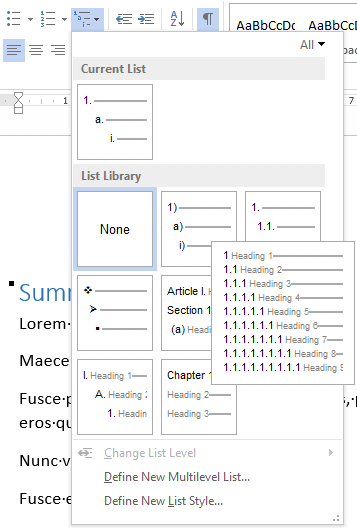
    1. Start with the stock multi-leveled list definition:
      1. Change from “None” to the multi-level one:
      2. Now create a new one based on it:
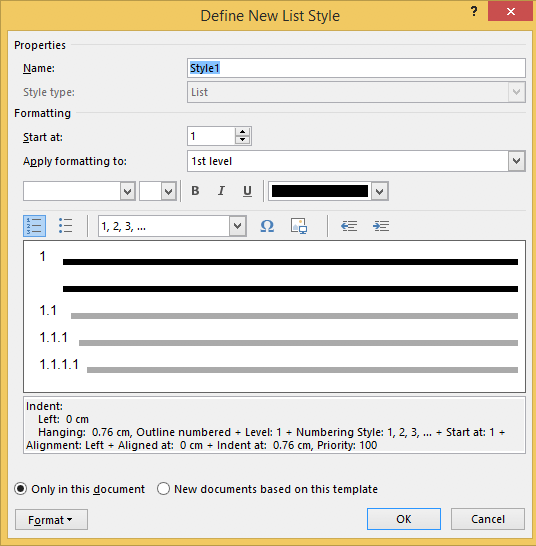
        1. “Define New List Style…”:
        2. Rename from “Style1” to “Heading
    2. This involves creating a new list style called “Headings”, based on the numbered list style you like
      • ).
    3. Since by default, these bind to all levels, your document styles “Heading 1”..”Heading 9″ are covered. If for one or more styles, you do not want numbering, see below how to fix that (I do that for a “Heading 1 – no-numbering” style used for the “Summary” heading, and for the “TOC Heading” style.
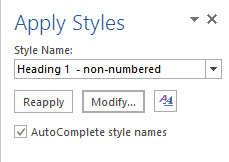
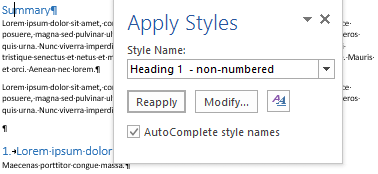
  5. Mark the “Summary” heading as a new style “Heading 1 – non-numbered”:
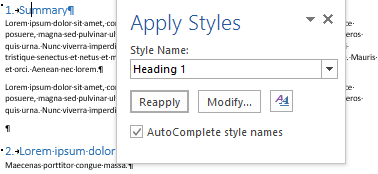
    1. Press Ctrl+Shift+S to get to the “Apply Styles” 
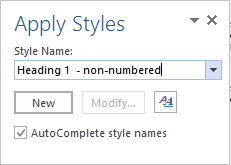
    2. Enter the new name “Heading 1 – non-numbered” and press the “New” button: 
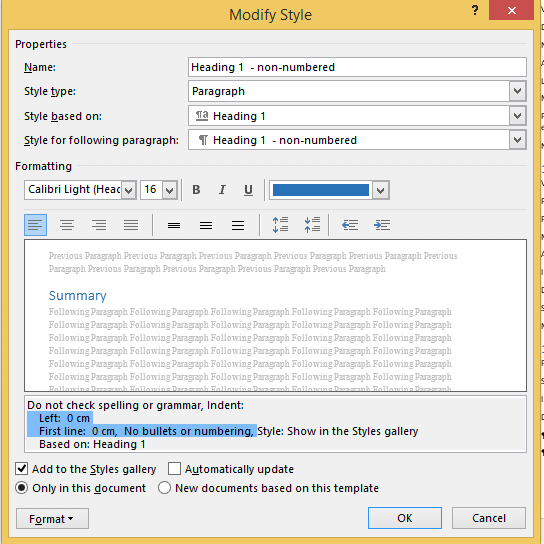
    3. Press the “Modify” button 
    4. to view the current style
    5. Press “Format” ->     
    6. Change it from “None” to “None” and press “OK”
    7.  Observe the numbering is gone:
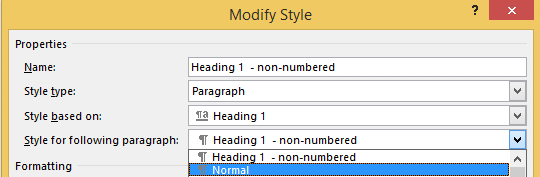
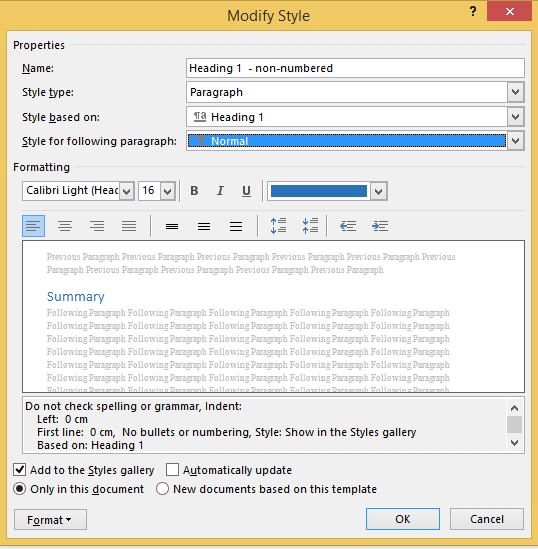
    8. Unlike the “Heading 1” style, the “Style for following paragraphs” is wrong: it needs to be
    9. Now we are done, so press the “OK” button:
    10. Then observe the first numbered “Heading 1” now has got the number “1” instead of the “Summary”:
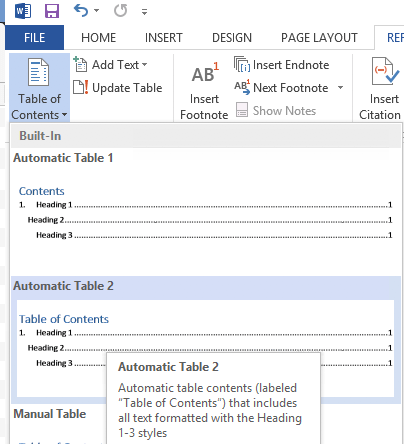
  6. Insert a “Table of Contents”, for instance after the “Summary”
    1. You might think it will start with a heading “Table of Contents”:
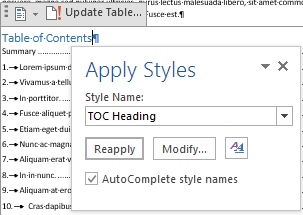
    2. Im some localisations of office, it is prepended with a “1.” and becomes “1. Table of Contents”. If it does, then you have to change style “TOC Heading” and undo the numbering as done with “Heading 1 – non-numbering” by pressing Ctrl+Shift+S when you are in the “Table of Contents” heading:
    3. From there, press the “Modify” button and continue as done with “Heading 1 – non-numbering”:

–jeroen

Posted in Office, Office 2007, Office 2010, Office 2013, Office 2016, Power User, Word | Leave a Comment »

Check if this still happens: some Twitter content in the WayBack machine gets a slash in the URL removed during rendering on Chrome

Posted by jpluimers on 2021/06/11

From my research list; check if this still happens: [WayBack] Saving Twitter content in the WayBack archive: the fully loaded page has a wrong trailing URL (missing the second slash before the authority) · GitHub

  1. Visited https://twitter.com/MarkGraham
  2. Saved it using https://web.archive.org/save/https://twitter.com/MarkGraham
  3. Waited for the save to complete and the page to fully load and got https://web.archive.org/web/20190607081047/https:/twitter.com/MarkGraham
  4. Observed the trailing part is not a valid URL any more https:/twitter.com/MarkGraham: it is missing the second slash before the authority (see https://en.wikipedia.org/wiki/Uniform_Resource_Identifier#Generic_syntax)

This might be a Twitter.com thing:

Notes:

  • I have only tested this with my Chrome configurations on various machines (both regular and anonymous tabs) over at least a year; I need to figure out what happens when using different browsers.
  • It does not always happen.

Via: [WayBack] Jeroen Pluimers on Twitter: “I understand that the sites themselves pay a big role in this. That’s why I have the mangling of URLs that sometimes happens on my research list. I made this quick summary: …”

–jeroen

Read the rest of this entry »

Posted in Internet, InternetArchive, Power User, SocialMedia, Twitter, WayBack machine | Leave a Comment »

Sulfur Argon Calcium Samarium

Posted by jpluimers on 2021/06/10

Got this from a friend: Sulfur Argon Calcium Samarium (SArCaSm): the Primary Elements of Humor.

Of course there is Iridium Oxygen Nitrogen Yttrium (IrONy) as well.

–jeroen

Read the rest of this entry »

Posted in Fun, LifeHacker, Power User, Quotes | Leave a Comment »

CloudKey ESXi Appliance – Google Search

Posted by jpluimers on 2021/06/07

Via [Archive.is] CloudKey ESXi Appliance – Google Search:

–jeroen

Posted in *nix, Cloud Key, ESXi6, ESXi6.5, ESXi6.7, Internet, Network-and-equipment, Power User, Unifi-Ubiquiti, Virtualization, VMware, VMware ESXi | Leave a Comment »

Random, Quick Brown Fox and Lorem Ipsum – How to Add Filler Text in Microsoft Word Documents

Posted by jpluimers on 2021/06/07

Choices:

  • =lorem(...): Ramdom Lorem Ipsum text paragraphs.
    • The sentences are roughly between 0.25 and 1.0 document widths in length.
  • =rand(...): Random English help text like paragraphs.
    • The sentences are roughly between 0.5 and 1.5 document width in length.
  • =rand.old(...): “The quick brown fox jumps over the lazy dog.” paragraphs (up until Word 2003, this was what rand(...) returned).
    • The sentences are always the same length.

(...) parameters:

  • (x,y): x paragraphs of y sentences of text
  • (y): y paragraphs of 3 sentences of text (lorem more towards 1, rand more towards 3)
  • (): depends on the function:
    • =lorem(): 5 paragraphs of 3 sentences of text
    • =rand(): 5 paragraphs of 3 sentences of text
    • =rand.old(): 3 paragraphs of 3 sentences of text

Note:

  • There is no way to specify x paragraphs of random number lines of text.
  • They need to have “Replace text as you type” enabled (see menu option “File” -> “Options” -> “Proofing” -> “Autocorrect Options”)
  • Word 2003 and lower only have =rand(...)

Based on:

Related: [WayBack] 10 awesome Lorem Ipsum alternatives – Justinmind via [WayBack] rand () in word – Microsoft Tech Community – 325554

For a random document demo, I usually do this:

  1. =lorem(100,1) to get 100 paragraphs of 1 line of text
  2. About every 10 paragraphs, I mark a paragraph with a relevant Heading style
  3. Inside the remaining text, I combine some paragraphs to get longer ones

–jeroen

Posted in Office, Office 2003, Office 2007, Office 2010, Office 2013, Office 2016, Power User, Word | Leave a Comment »

Contact for when WayBack internet archival fails to grab content

Posted by jpluimers on 2021/06/07

For my link archive, some tweets. [WayBack] Mark Graham is the person to contact in case archiving a link in the WayBack machine fails.

These are the steps for my link archival:

  1. check if it saves and renders with the WayBack machine, if so, copy the saved URL and the original URL
  2. check if it saves and renders with archive.is, if so, copy the saved URL and the original URL
  3. if neither saved, then use the original URL and link text, but note it was unsavable; otherwise prepend the original URL and link text with [WayBack] or [Archive.is] containing the saved URL

Reporting history gist: https://gist.github.com/jpluimers/6115b3cd6dab568ebd1c10ebddfaf140

–jeroen

Read the rest of this entry »

Posted in Internet, InternetArchive, Power User, WayBack machine | Leave a Comment »