Archive for the ‘Windows 9’ Category
Posted by jpluimers on 2016/08/29

Sometimes RDP limits you to 2048 pixels vertical (or 4096 pixels horizontal)
Just found out why on some Windows versions, the RDP sessions form my 4K monitor has some small black bands on top/bottom: older versions of Windows limit their RDP server to 4096 x 2048.
A 4K monitor will not hit the width limit (as 4K cheats: it is usually “just” 3840 pixels wide), but it does hit the height limitation (2160 is slightly more than 2048: you miss 112 pixels that show as two small black bands).
A 5K monitor is worse: it will hit both limits (5K does not cheat: at 5120 × 2880 it is exactly 5*1024 pixels wide) so you miss 124 pixels horizontally and a whopping 832 pixels vertically.
Don’t buy a 5K monitor yet if you do a lot of RDP work to older Windows versions.
The link below has a table listing various Windows versions, but it omits end-of-life versions so I’ve done some testing: Windows XP, Windows Vista, Windows Server 2003 and Windows Server 2003 R2 share the same limitations as Windows Server 2008 most likely because their latest service packs share the same RDP 6.1 version.
I updated this in the table:
Read the rest of this entry »
Posted in 4K Monitor, 5K monitor, Displays, Hardware, Microsoft Surface on Windows 7, Power User, Windows, Windows 10, Windows 7, Windows 8, Windows 8.1, Windows 9, Windows Server 2003, Windows Server 2003 R2, Windows Server 2008, Windows Server 2008 R2, Windows Server 2012, Windows Server 2012 R2, Windows Vista, Windows XP | Leave a Comment »
Posted by jpluimers on 2016/08/22
I’ve had a SUA3000XLI for years using the USB cable and default Windows support as PowerChute Personal Edition would fail to recognise it and abort installation (so I could not use APC drivers as described on youtube).
A while ago, Liander – the energy distribution company – wanted to replace both the gas and electricity meters to become “smart” during day time. The server configuration load was heavy enough for Windows to indicate the UPS would last about 30 minutes. At night that’s not much of a problem but during 1 hour replacement day-time it would be a problem.
So I bought a SUA48XLBP battery pack (and a SUA039 cable as the cable wasn’t long enough to keep an inch or so air space between UPS and battery pack) so the battery would last about 3 times as long.
Windows would still show it would last about 30 minutes. Strange. So I started looking around and it appeared the SUA3000XLI needed calibration which requires PowerChute. Since PowerChute won’t work, I was almost back at square 1. Almost, as I know knew it required calibration.
In the past I had come across apcupcd but that was a long time ago when it supported a limited set of operating systems and a limited set of features so I never installed it.
But when searching how to calibrate the without using PowerChute, it quickly appeared that the apctest part of apcupsd can do just that: soft calibrate the UPS/battery combo. There are some steps and prerequisites (the most important ones are to turn off the apcupsd and provide enough load and 100% battery charge at start).
Spoiler: the combined UPS/battery-pack now lasts for almost 2 hours which is long enough.
Installing apcupsd
I’m describing this from a Windows perspective and it’s dead easy:
- download the latest release
- run the installer
- allow the driver to be installed
- indicate it’s OK to install an unsigned driver
- now Windows won’t recognise the UPS any more, but in a few steps the apcupsd and helper program will
- update the configuration file (no changes needed when it’s a USB connected one)
- wait for the service to start
- wait for the apctray helper program to start
- look in the “system tray” for apctray helper program icon

- optionally configure your system to auto-start apctray after logon
The USB connection to the UPS delivers slightly less options than using a serial cable
Using a serial cable instead of a USB one
Read the rest of this entry »
Posted in APC Smart-UPS, apcupsd, ESXi5, ESXi5.1, ESXi5.5, ESXi6, Liander, Power User, UPS, Virtualization, VMware, VMware ESXi, Windows, Windows 10, Windows 7, Windows 8, Windows 8.1, Windows 9, Windows Server 2003, Windows Server 2003 R2, Windows XP | 1 Comment »
Posted by jpluimers on 2016/08/09
Obwohl das Angebot eigentlich am 29. Juli endete, stellt Microsoft selbst das Werkzeug zum Download bereit, das man zum Umwandeln einer Windows-7/8.1-Installation in Windows 10 braucht.
Sources:
Via:
Posted in Power User, Windows, Windows 10, Windows 7, Windows 8, Windows 8.1, Windows 9 | Leave a Comment »
Posted by jpluimers on 2016/08/08
Attack from the ’90s resurfaces more deadly than before
Source: Windows Flaw Reveals Microsoft Account Passwords, VPN Credentials
TL;DR: block LAN->WAN port 445
Note this won’t affect web-dav shares like \live.sysinternals.com\DavWWWRoot as that uses ports 443 and 80.
–jeroen
via:
Posted in Communications Development, Development, https, Internet protocol suite, Microsoft Surface on Windows 7, NTLM, Power User, Security, SMB, TCP, WebDAV, Windows, Windows 10, Windows 7, Windows 8, Windows 8.1, Windows 9, Windows Server 2008, Windows Server 2008 R2, Windows Server 2012, Windows Server 2012 R2, Windows Vista, Windows XP | Leave a Comment »
Posted by jpluimers on 2016/07/29
One day I’m going to need this: Make A Bootable Windows 10 USB Install Stick On Linux With WinUSB Fork ~ Web Upd8: Ubuntu / Linux blog
So I’m glad WinUSB (which hadn’t been maintained for a long time) got forked on github by slaka.
Since my day-to-day unix-like system is OS X, I’d love a good working solution there too which means I probably need to investigate a bit along these lines:
- Using diskpart in a Windows VM (which is kind of backwards):
- Using Disk Utility and UEFI (only works for Windows 8 and up):
- Using Boot Camp Assistant and a modified Info.plist (which for El Capitan needs some extra work):
–jeroen
via: Make A Bootable Windows 10 USB Install Stick On Linux With WinUSB Fork WebUpd8 – Google+ / DoorToDoorGeek “Stephen McLaughlin” – Google+
Posted in *nix, Apple, BIOS, Boot, BSD, Linux, Mac OS X / OS X / MacOS, OS X 10.10 Yosemite, OS X 10.11 El Capitan, OS X 10.9 Mavericks, Power User, Ubuntu, UEFI, Windows, Windows 10, Windows 7, Windows 8, Windows 8.1, Windows 9, Windows Server 2000, Windows Server 2003, Windows Server 2003 R2, Windows Server 2008, Windows Server 2008 R2, Windows Server 2012, Windows Server 2012 R2, Windows Vista, Windows XP | Leave a Comment »
Posted by jpluimers on 2016/07/25
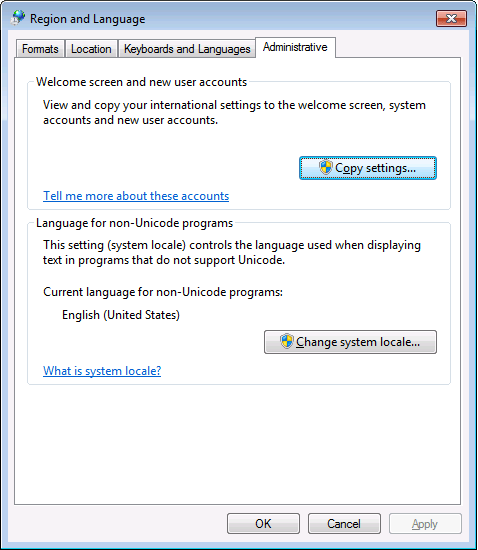
PowerShell 4.0 is madly in love with “English (United States)”
A long time ago I started writing up my blog post like this in March 2015 when I bumped into this the first time when upgrading from PowerShell 2 to PowerShell 4:
It seems there is no real workaround:
Good and not so good news: after reading the below linked posts, this is what works:
- PowerShell 4 and up works fine with any [Wayback] Lucida Console size (including 12) and boldness
- only when the “Language for non-Unicode programs” is set to “English (United States)”.
- PowerShell 4 works fine with [Wayback] Consolas on any size and boldness
- for any “Language for non-Unicode programs”
So if you’re like me and switch between “Dutch (Netherlands)” and “English (Ireland)” a lot (both use the EURO as currency, but have distinct enough other locale settings to cover a lot of European stuff) then you need to get used to the Consolas font.
Source:
Edit 20210930: a possible solution
I need to fire up some old systems having PowerShell v3 or v4 on them to test the below possible solution.
Read the rest of this entry »
Posted in CommandLine, Development, Font, Lucida Console, Power User, PowerShell, PowerShell, Scripting, Software Development, Windows, Windows 10, Windows 7, Windows 8, Windows 8.1, Windows 9 | Leave a Comment »
Posted by jpluimers on 2016/07/22
One of the things I figured out with Windows 7 and up is that when logging in over RDP an existing user would be disconnected unlike Windows XP that would logoff the existing user.
If you want them to logoff there are basically two options:
I will dig into the scripts one day as I’ve not needed this too often (I use Task Manager for now).
–jeroen
Posted in Power User, Windows, Windows 10, Windows 7, Windows 8, Windows 8.1, Windows 9, Windows XP | Leave a Comment »
Posted by jpluimers on 2016/07/01
Very interesting question and answers: windows 7 – Available memory differs by several GiB from what is installed – Super User.
Basically the missing memory can be due to:
- Windows licensing limitations
- Mapping of device memory into virtual memory space (especially on x86 systems)
This affects both server and client versions of Windows. Client versions are more restrictive because of the vast amounts of potentially faulty drivers involved.
Some links (read the full question for details):
–jeroen
Posted in Power User, SysInternals, Windows, Windows 7, Windows 8, Windows 8.1, Windows 9, Windows NT, Windows Server 2000, Windows Server 2003, Windows Server 2003 R2, Windows Server 2008, Windows Server 2008 R2, Windows Server 2012, Windows Server 2012 R2, Windows Vista, Windows XP | Leave a Comment »
Posted by jpluimers on 2016/06/17
The article I quote from is about Windows Server 2003 and Windows XP, but still holds for modern Windows Server and Client versions:
After you enable roaming profiles for a couple of users, the first thing that you will probably notice is that logins and log offs become extremely slow for those users. […]
The solution to obscenely long logons and log offs is to use folder redirection. Folder redirection allows you to save portions of the user’s profile in a different location on the network. […]
You can’t redirect every folder in a user’s profile.[…] The folders that you can redirect are:
- Application Data,
- Desktop,
- My Documents, and
- Start Menu.
[…] I recommend creating a share point on the server to which you can redirect these folders. […]
To redirect a folder, open the Group Policy Editor and navigate to User Settings | Windows Settings | Folder Redirection. The group policy requires you to redirect each of the four folders separately, but the procedure for doing so is the same for each folder:
- Set the folder’s Setting option to “Basic – Redirect Everyone’s Folder To The Same Location”.
- Next, select the Create A Folder For Each User Under The Root Path option from the Target Folder Location drop down list.
- Finally, enter your root path in the place provided.
–jeroen
via: Profile and Folder Redirection In Windows Server 2003 :: Windows 2003 :: Articles & Tutorials :: WindowsNetworking.com.
Posted in Power User, Windows, Windows 7, Windows 8, Windows 8.1, Windows 9, Windows Server 2003, Windows Server 2003 R2, Windows Server 2008, Windows Server 2008 R2, Windows Server 2012, Windows Server 2012 R2, Windows Vista, Windows XP | Leave a Comment »


 The Wiert Corner - irregular stream of stuff