Archive for the ‘Windows Server 2008 R2’ Category
Posted by jpluimers on 2012/09/14
A while ago, I got a question from a colleague on how to silence RoboCopy.
The RoboCopy /? help is a bit awkward to read, so there is this nice SO answer by Ruben Koene:
So together with previous answer you get the following and it’s silent:
ROBOCOPY [target] /njh /njs /ndl /nc /ns /np /nfl
And there is the FIND way where I marked the relevant options with an asterisk (*):
C:\Users\jeroenp>robocopy /? | find /i "No"
                 /S :: copy Subdirectories, but not empty ones.
            /NOCOPY :: COPY NO file info (useful with /PURGE).
             /PURGE :: delete dest files/dirs that no longer exist in source.
                /PF :: check run hours on a Per File (not per pass) basis.
                       n must be at least 1 and not greater than 128.
                /XJ :: eXclude Junction points. (normally included by default).
                 /X :: report all eXtra files, not just those selected.
*               /NS :: No Size - don't log file sizes.
*               /NC :: No Class - don't log file classes.
*              /NFL :: No File List - don't log file names.
*              /NDL :: No Directory List - don't log directory names.
*               /NP :: No Progress - don't display percentage copied.
*              /NJH :: No Job Header.
*              /NJS :: No Job Summary.
              /NOSD :: NO Source Directory is specified.
              /NODD :: NO Destination Directory is specified.
–jeroen
via: backup – How can I make robocopy silent in the command line except for progress? – Stack Overflow.
Posted in Power User, RoboCopy, Windows, Windows 7, Windows 8, Windows Server 2000, Windows Server 2003, Windows Server 2003 R2, Windows Server 2008, Windows Server 2008 R2, Windows Vista, Windows XP | 4 Comments »
Posted by jpluimers on 2012/09/07
Note: modifying DisableLastAccess using fsutil is only supported on Windows Server 2008 R2 and higher, and on Windows 7 and higher.
The comment says that older versions of Windows (Windows Server 2000 through Windows Server 2008, and Windows XP through Windows Vista) need the registry way to do this.
This is not true, as the fsutil way works for Windows Server 2003.
Both ways require a reboot and require Administrator access.
It works like this (on Windows Server 2003 x86 as an Administrator user):
C:\Documents and Settings\jeroenp>fsutil behavior query disablelastaccess
disablelastaccess is not currently set

C:\Documents and Settings\jeroenp>fsutil behavior set disablelastaccess 1

C:\Documents and Settings\jeroenp>fsutil behavior query disablelastaccess
disablelastaccess = 1

C:\Documents and Settings\jeroenp>
Note that fsutil does not need –help, -? or -h on the command-line to display help; just omit stuff and you get help: Read the rest of this entry »
Posted in Power User, Windows, Windows 7, Windows 8, Windows Server 2000, Windows Server 2003, Windows Server 2003 R2, Windows Server 2008, Windows Server 2008 R2, Windows Vista, Windows XP | Leave a Comment »
Posted by jpluimers on 2012/08/31
On monday, I wrote it was Time to disable Java for a while: Zero-Day Season is Not Over Yet.
Today Oracle released a fix, which you should either install immediately (that is NOW, don’t hesitate!).
For this vulnerability, it is enough to disable Java from your browser – see: How to disable Java in your web browser – but as with any software: if you don’t need it, just disable/uninstall it.
Disabling/uninstalling on a Mac may impose a problem, as Apple hasn’t come with an update for the OS X editions that came with Java pre-installed.
Most other users can either install the version on their current system on-line from Download Free Java Software, or download offline installers for other systems at Java Downloads for All Operating Systems.
I might actually try the Java Unattended Silent Installer and Updater from Ninite – Install or Update Multiple Apps at Once.
–jeroen
via:
Posted in *nix, Apple, LifeHacker, Mac, Mac OS X / OS X / MacOS, Mac OS X 10.4 Tiger, Mac OS X 10.5 Leopard, Mac OS X 10.6 Snow Leopard, Mac OS X 10.7 Lion, MacBook, MacBook-Air, MacBook-Pro, Power User, Windows, Windows 7, Windows 8, Windows Server 2000, Windows Server 2003, Windows Server 2003 R2, Windows Server 2008, Windows Server 2008 R2, Windows Vista, Windows XP | Leave a Comment »
Posted by jpluimers on 2012/08/30
Too often I see quesions like the one below on software that people distribute:
The Program can’t start becuase MSVCR100.dll is missing from your computer. Try reinstalling the program to fix this problem.
I am getting follwing error when i am trying to open Computer management in windows 7,the error is as follows ,
The Program can’t start becuase MSVCR100.dll is missing from your computer. Try reinstalling the program to fix this problem.
Where can i found this dll file, and help me to download and install.
The reason is that many programmers and companies still fail to ship the correct Visual C++ run-time.
Even for a one-off, you should need to get your installation set right. And writing stuff in a version of Visual C++ almost always means you need to ship the run-time for that particular version of Visual C++ with your application (though sometimes you can get away by putting the DLLs in the directory of your application, this is not recommended, as that way you won’t receive security updates).
User Marilyn O was so kind to sum up most of the download locations (I did a bit of post-editing, added all the non-“FamilyID” links, all naming differences are from the MS site):
I would install the Microsoft Visual C++ Redistributable dll that is needed for projects built with Visual Studio 2010.
Download the files below depending on your operating system version. […] Check in Programs and Features, do you show that you have installed Microsoft Visual C++ … Redistributable? If not, download from the links here.
- 2005: msvcr80.dll
- 2008: msvcr90.dll
- 2008 SP1: msvcr90.dll
- 2010: msvcr100.dll
- 2010 SP1: msvcr100.dll
- 2012: msvcr110.dll
–jeroen
via: The Program can’t start becuase MSVCR100.dll is missing from your – Microsoft Answers.
Posted in C++, Development, Power User, Software Development, Visual Studio 2005, Visual Studio 2008, Visual Studio 2010, Visual Studio and tools, Windows, Windows 7, Windows 8, Windows Server 2000, Windows Server 2003, Windows Server 2003 R2, Windows Server 2008, Windows Server 2008 R2, Windows Vista, Windows XP | 3 Comments »
Posted by jpluimers on 2012/08/18
Never new that – as an Administrator – you could log off other login sessions in Windows Vista and up through the task manager.
I only knew the Terminal Server way. Using the task manager is way more convenient!
–jeroen
via: Task Manager Users – Log Off a Local User – Vista Forums.
Posted in Power User, Windows, Windows 7, Windows 8, Windows Server 2008, Windows Server 2008 R2, Windows Vista | Leave a Comment »
Posted by jpluimers on 2012/01/27
At a client that still runs Windows Server 2003 (despite the fact that it is in the extended support phase now), I needed to enable automatic logon (one of the tools they run sometimes fails when nobody is logged on).
This was a bit more tricky than just reading [WayBack] How to turn on automatic logon in Windows (now at How to turn on automatic logon in Windows) and following these steps:
To use Registry Editor (Regedt32.exe) to turn on automatic logon, follow these steps:
- Click Start, and then click Run.
- In the Open box, type Regedt32.exe, and then press ENTER.
- Locate the following subkey in the registry:
HKEY_LOCAL_MACHINE\SOFTWARE\Microsoft\Windows NT\CurrentVersion\Winlogon
- Double-click the DefaultUserName entry, type your user name, and then click OK.
- Double-click the DefaultPassword entry, type your password, and then click OK.NOTE: If the DefaultPassword value does not exist, it must be added. To add the value, follow these steps:
- On the Edit menu, click New, and then point to String Value.
- Type DefaultPassword, and then press ENTER.
- Double-click DefaultPassword.
- In the Edit String dialog, type your password and then click OK.
NOTE: If no DefaultPassword string is specified, Windows automatically changes the value of the AutoAdminLogon key from 1 (true) to 0 (false), disabling the AutoAdminLogon feature.
- On the Edit menu, click New, and then point to String Value.
- Type AutoAdminLogon, and then press ENTER.
- Double-click AutoAdminLogon.
- In the Edit String dialog box, type 1 and then click OK.
- Quit Registry Editor.
- Click Start, click Shutdown, and then type a reason in the Comment text box.
- Click OK to turn off your computer.
- Restart your computer. You can now log on automatically.
Since this depends on some registry settings, you need to make sure they are actually set.
And logging on as someone else will reset the DefaultUserName registry setting.
The article points to another article on “AutoAdminLogon looses DefaultUserName” to solve this using REGINI (and optionally REGDMP which can provide sample output for REGINI), but there is a much easier solution using RegEdit which – as Rob van der Woude points out – can be used unattended as well (besides: REGDMP cannot be downloaded any more, and REGINI requires an additional download).
This is how to do force the DefaultUserName to be reset after logon using RegEdit:
- Open an explorer Window in “
%ALLUSERSPROFILE%\Start Menu\Programs\Startup“
- Create a batch file “
run-RegEdit-DefaultUserName.bat” there with this content:
regedit /s Administrator-DefaultUserName.reg
- Create a text file “
Administrator-DefaultUserName.reg” in the same directory with content like this:
Windows Registry Editor Version 5.00

[HKEY_LOCAL_MACHINE\SOFTWARE\Microsoft\Windows NT\CurrentVersion\Winlogon]
"DefaultUserName"="Administrator"
Replace “Administrator” with the username you are actually using.
–jeroen
Via: How to turn on automatic logon in Windows.
Read the rest of this entry »
Posted in Power User, Windows, Windows 10, Windows 7, Windows 8, Windows 8.1, Windows 9, Windows Server 2003, Windows Server 2003 R2, Windows Server 2008, Windows Server 2008 R2, Windows Server 2012, Windows Server 2012 R2, Windows Server 2016, Windows Vista | 2 Comments »
Posted by jpluimers on 2011/10/07
You cannot move the C:\Program Files directory to another volume without installing Windows on that volume.
A small abstract from the explanation by Raymond Chen: The symbiotic relation between C:\Windows\WinSxS and C:\Program Files through NTFS hard links prevents you to move C:\Program Files (nor WinSxS) to a different disk volume. Both directories need to be on the same volume because of the NTFS hard link limitation.
NTFS hardlinks do save a ton of diskspace, even though WinSxS will keep growing over time, which means you need to do some careful disk volume planning, especially on SSD drives.
–jeroen
via: Why can’t I move the Program Files directory via the unattend file? – The Old New Thing – Site Home – MSDN Blogs.
Posted in Microsoft Surface on Windows 7, Power User, Windows, Windows 7, Windows 8, Windows Server 2000, Windows Server 2003, Windows Server 2003 R2, Windows Server 2008, Windows Server 2008 R2, Windows Vista, Windows XP | Leave a Comment »
Posted by jpluimers on 2011/09/23
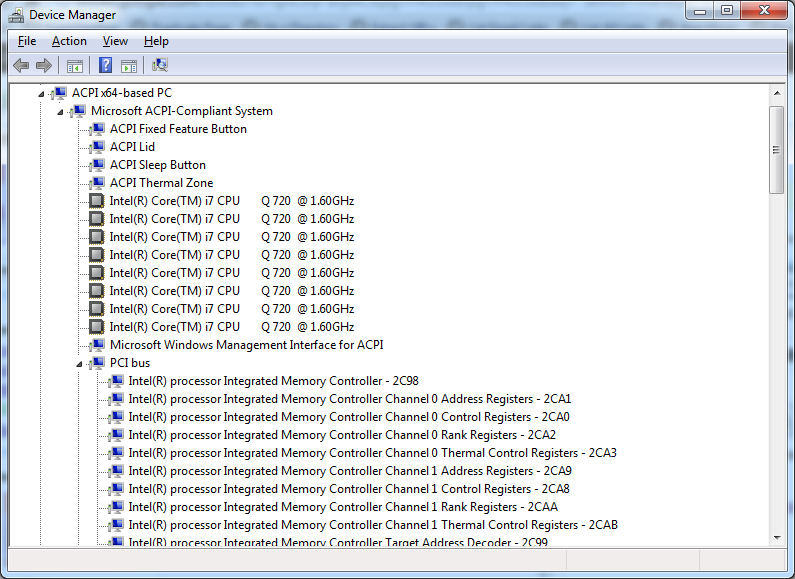
With the increasing number of devices, it really helps to expand all nodes in the Device Manager’s tree view.
You cannot do this with the mouse, as none of the menu options contain an “Expand All” option.
But since the treeview, is the built-in Windows treeview (used in many places, like Windows explorer), you can use these shortcuts to expand/collapse nodes:
- Numeric Keypad *: Expands everything under the current selection
- Numeric Keypad +: Expands the current selection
- Numeric Keypad -: Collapses the current selection.
- RIGHT ARROW: Expands the current selection if it is not expanded, otherwise goes to the first child
- LEFT ARROW: Collapses the current selection if it is expanded, otherwise goes to the parent
This not only works in Microsoft Windows 7: Visual … – Google Books, I think it has been introduced as far back as Windows 95.
–jeroen
Posted in Keyboards and Keyboard Shortcuts, Power User, Windows, Windows 10, Windows 7, Windows 8, Windows 8.1, Windows 9, Windows Server 2003, Windows Server 2003 R2, Windows Server 2008, Windows Server 2008 R2, Windows Server 2012, Windows Server 2012 R2, Windows Vista, Windows XP | 1 Comment »
Posted by jpluimers on 2010/09/01
From a batch-file I recently had to start Windows Explorer, at the same time select a specific file or directory.
This turned out pretty easy: use the /select command-line switch from Windows Explorer.
In fact, Windows Explorer has a few command-line switches, and the “explorer” commandline parameters “/n” “/e” “/select” “/root” “/start” site:microsoft.com query will find quite a few topics about it: Read the rest of this entry »
Posted in Power User, Windows, Windows 10, Windows 7, Windows 8, Windows 8.1, Windows 9, Windows 95, Windows 98, Windows ME, Windows NT, Windows Server 2000, Windows Server 2003, Windows Server 2003 R2, Windows Server 2008, Windows Server 2008 R2, Windows Server 2012, Windows Server 2012 R2, Windows Server 2016, Windows Vista, Windows XP | 1 Comment »
Posted by jpluimers on 2009/09/18
Some things to check when clipboard sharing for Remote Desktop (RDP/MSTSC) or VMware is broken. Read the rest of this entry »
Posted in Fusion, Power User, Remote Desktop Protocol/MSTSC/Terminal Services, View, VMware, VMware Workstation, Windows, Windows 7, Windows Server 2000, Windows Server 2003, Windows Server 2003 R2, Windows Server 2008, Windows Server 2008 R2, Windows Vista, Windows XP | Leave a Comment »


 The Wiert Corner - irregular stream of stuff