Archive for the ‘Internet protocol suite’ Category
Posted by jpluimers on 2023/03/28
Posted in *nix, *nix-tools, Communications Development, ConPTY, Console (command prompt window), Development, Internet protocol suite, OpenSSH, Power User, SSH, ssh/sshd, TCP, Windows, Windows 10, Windows 11 | Leave a Comment »
Posted by jpluimers on 2022/12/28
Years ago, I wrote Getting your public IP address from the command-line. All methods were http based, so were very easy to execute using cURL.
But then in autumn 2021, Chris Bensen wrote this cool little blog-post [Wayback/Archive] Chris Bensen: How do I find my router’s public IP Address from the command line?:
dig -4 TXT +short o-o.myaddr.l.google.com @ns1.google.com
At first sight, I thought it was uncool, as the command was quite long and there was no explanation of the dig command trick.
But then, knowing that dig is a DNS client, it occurred to me: this perfectly works when http and https are disabled by your firewall, but the DNS protocol works and gives the correct result:
# dig -4 TXT +short o-o.myaddr.l.google.com @ns1.google.com
"80.100.143.119"
This added the below commands and aliases to my tool chest for *nix based environments like Linux and MacOS (not sure yet about Windows yet :), but that still doesn’t explain why it worked. So I did some digging…
- command:
dig -4 TXT +short o-o.myaddr.l.google.com @ns1.google.com
- command removing outer double quotes:
dig -4 TXT +short o-o.myaddr.l.google.com @ns1.google.com | xargs
- alias:
alias "whatismyipv4_dns=dig -4 TXT +short o-o.myaddr.l.google.com @ns1.google.com | xargs"
- command:
dig -6 TXT +short o-o.myaddr.l.google.com @ns1.google.com
- command removing outer double quotes:
dig -6 TXT +short o-o.myaddr.l.google.com @ns1.google.com | xargs
- alias:
alias "whatismyipv6_dns=dig -6 TXT +short o-o.myaddr.l.google.com @ns1.google.com | xargs"
How it works
Let’s stick to dig and IPv4 as that not having IPv6 (regrettably still) is the most common situation today:
# dig -4 TXT +short o-o.myaddr.l.google.com @ns1.google.com
"80.100.143.119"
What it does is request the DNS TXT record of o-o.myaddr.l.google.com from the Google DNS server ns1.google.com and returns the WAN IPv4 address used in the DNS request, which is for instance explained in [Wayback/Archive] What is the mechanics behind “dig TXT o-o.myaddr.l.google.com @ns1.google.com” : linuxadmin.
Since these are TXT records, dig will automatically double quote them, which xargs can remove (see below how and why):
# dig -4 TXT +short o-o.myaddr.l.google.com @ns1.google.com | xargs
80.100.143.119
The DNS query will fail when requesting the Google Public DNS servers 8.8.8.8 or 8.8.4.4:
# dig -4 TXT +short o-o.myaddr.l.google.com @8.8.8.8
"2a00:1450:4013:c1a::103"
"edns0-client-subnet 80.101.239.0/24"
Or, with quotes removed (the -L 1 ensures that xargs performs the quote-pair removal action on each line):
# dig -4 TXT +short o-o.myaddr.l.google.com @8.8.8.8 | xargs -L 1
2a00:1450:4013:c1a::103
edns0-client-subnet 80.101.239.0/24
This request is both slower than requesting the ns1.google.com server and wrong.
The reason is that only ns1.google.com understands the special o-o.myaddr.l.google.com hostname which instructs it to return the IP address of the requesting dig DNS client.
That 8.8.8.8 returns a different IP address and an additional edns0-client-subnet with less accurate information is explained in an answer to [Wayback/Archive] linux – Getting the WAN IP: difference between HTTP and DNS – Stack Overflow by [Wayback/Archive] argaz referring to this cool post: [Wayback/Archive] Which CDNs support edns-client-subnet? – CDN Planet.
Not just ns1.google.com: any DNS server serving the google.com domain
Since o-o.myaddr.l.google.com is part of the google.com domain, the above works for any DNS server serving the google.com domain (more on that domain: [Wayback/Archive] General DNS overview | Google Cloud).
Getting the list of DNS servers is similar to getting the list of MX servers which I explained in Getting the IP addresses of gmail MX servers, replacing MX record type (main exchange) with the NS record type (name server) and the gmail.com domain with the google.com domain:
# dig @8.8.8.8 +short NS google.com
ns3.google.com.
ns1.google.com.
ns2.google.com.
ns4.google.com.
The ns1.google.com DNS server is a special one of the NS servers: it is the start of authority server, which you can query using the SOA record type that also gives slightly more details for this server:
# dig @8.8.8.8 +short SOA google.com
ns1.google.com. dns-admin.google.com. 410477869 900 900 1800 60
The difference between using NS and SOA records with dig are explained in the [Wayback] dns – How do I find the authoritative name-server for a domain name? – Stack Overflow answer by [Wayback/Archive] bortzmeyer who also explains how to help figuring out SOA and NS discrepancies (note to self: check out the check_soa tool originally by Michael Fuhr (I could not find recent content of him, so he might have passed away) of which source code is now at [Wayback/Archive] Net-DNS/check_soa at master · NLnetLabs/Net-DNS).
So this works splendid as well using ns4.google.com on my test system:
# dig -4 TXT +short o-o.myaddr.l.google.com @ns4.google.com | xargs
80.100.143.119
The xargs removes outer quotes removal trick
[Wayback/Archive] string – Shell script – remove first and last quote (“) from a variable – Stack Overflow (thanks quite anonymous [Wayback/Archive] user1587520):
> echo '"quoted"' | xargs
quoted
xargs uses echo as the default command if no command is provided and strips quotes from the input.
More on https versus DNS requests
Some notes are in [Wayback/Archive] How to get public IP address from Linux shell, but note the telnet trick now fails as myip.gelma.net is gone (latest live version was archived in the Wayback Machine in august 2019).
Via
–jeroen
Posted in *nix, *nix-tools, Apple, bash, bash, Batch-Files, Communications Development, Development, DNS, Internet protocol suite, Linux, Mac, Mac OS X / OS X / MacOS, Power User, Scripting, Software Development, TCP | Leave a Comment »
Posted by jpluimers on 2022/05/25
Since I will be bitten by this someday, here the september 2021 observation that [Wayback] By default, scp(1) now uses SFTP protocol.
The original scp/rcp protocol remains available via the -O flag.
It refers to the august 2021 announcement in the [Wayback] OpenSSH: Release Notes – OpenSSH 8.7/8.7p1 (2021-08-20) that scp supported SFTP (like the sftp tool) and that it would become default soon:
Read the rest of this entry »
Posted in *nix, *nix-tools, Communications Development, Development, Internet protocol suite, OpenSSH, Power User, rsync, scp, SFTP, SSH, TCP | Leave a Comment »
Posted by jpluimers on 2022/05/12
Last year, I wrote about Filezilla: figuring out the cause of “Connection timed out after 20 seconds of inactivity” about sftp connection problems.
The solution there was to exclude part of bashrc with an if [Wayback] statement so bash would skip it during sftp, but not during ssh login:
[WayBack] linux – Use .bashrc without breaking sftp – Server Fault
- From answer 1 (thanks [WayBack] Mike):
Try doing this instead
if [ "$SSH_TTY" ]
then
source .bashc_real
fi
- From Answer 2 (thanks [WayBack] Insyte):
A good trick for testing the cleanliness of your login environment is to ssh in with a command, which simulates the same way scp/sftp connect. For example: ssh myhost /bin/true will show you exactly what scp/sftp sees when they connect.
That caused some scripts not to be run when switching user, for instance by doing sudo su -.
The reason for that was that I forgot to put enough research in part of Answer 2, so I quote a few bits more of it (highlights and code markup mine):
… it’s worth pointing out that you can accomplish this carefully selecting which startup files to put the verbose stuff in. From the bash man page:
When bash is invoked as an interactive login shell, or as a non-interactive shell with the --login option, it first reads and executes commands from the file /etc/profile, if that file exists. After reading that file, it looks for ~/.bash_profile, ~/.bash_login, and ~/.profile, in that order, and reads and executes commands from the first one that exists and is readable. The --noprofile option may be used when the shell is started to inhibit this behavior.
When an interactive shell that is not a login shell is started, bash reads and executes commands from ~/.bashrc, if that file exists. This may be inhibited by using the --norc option. The --rcfile file option will force bash to read and execute commands from file instead of ~/.bashrc.
The sftp/scp tools start an interactive non-login shell, so .bashrc will be sourced.
For further reading, there is the underlying bash manual as a PDF file [Wayback] and html document tree [Wayback]. Note it is large (the PDF is 190 pages).
I find the easiest way to navigate around bash documentation through these links:
Types of shell invocations: to login or to non-login and to interactive or to non-interactive
Basically, from the above answer there are [Archive.is] 4 types of shells (confirmed by these parts of the bash documentation: [Wayback] Section 6.1: Invoking-Bash and [Wayback] Section 6.2: Bash-Startup-Files):
- interactive login
- interactive non-login
- non-interactive login
- non-interactive non-login
And there are various means the shells can start (ssh, local console, …). The "$SSH_TTY" trick only checks interactive login via ssh, but fails to detect others.
So I did some digging for the correct information to log, which including the above are:
From theory to practice
After reading the above documentation links, I put the below code in the global .bashrc (which of course caused trouble with sftp, so I commented it out later):
echo "Option flags: '$-'"
echo "PS1: '$PS1'"
echo "shopt login_shell: '$(shopt login_shell)'"
echo "Parameter zero: '$0'"
[ "$SSH_TTY" ] ; echo "[ \"\$SSH_TTY\" ] outcome: $?"
And the output after these commands:
-
ssh user@host
Option flags: 'himBH'
PS1: '\u@\h:\w> '
shopt login_shell: 'login_shell on'
Parameter zero: '-bash'
[ "$SSH_TTY" ] outcome: 0
Verdict: interactive, login
-
ssh user@host
followed by
sudo su -
Option flags: 'himBH'
PS1: '\[\]\h:\w #\[\] '
shopt login_shell: 'login_shell on'
Parameter zero: '-bash'
[ "$SSH_TTY" ] outcome: 1
Verdict: interactive, login
-
ssh user@host
followed by
bash
Option flags: 'himBH'
PS1: '\u@\h:\w> '
shopt login_shell: 'login_shell off'
Parameter zero: 'bash'
[ "$SSH_TTY" ] outcome: 0
Verdict: interactive, non-login
-
ssh user@host
followed by
sudo su -
then by
bash
Option flags: 'himBH'
PS1: '\[\]\h:\w #\[\] '
shopt login_shell: 'login_shell off'
Parameter zero: 'bash'
[ "$SSH_TTY" ] outcome: 1
Verdict: interactive, non-login
-
ssh user@host /bin/true
Option flags: 'hBc'
PS1: ''
shopt login_shell: 'login_shell off'
Parameter zero: 'bash'
[ "$SSH_TTY" ] outcome: 1
Verdict: non-interactive, non-login
The final one is what for instance sftp will see. It excludes the non-interactive mark in the shopt option flags.
Modifications to my .bashrc file
Since the [Wayback] test for "$SSH_TTY" is inconsistent with the login being interactive, I modified the .bashrc section
if [ "$SSH_TTY" ]
then
source .bashc_real
fi
to become
if [[ $- =~ i ]]
then
# only during interactive login shells
source .bashc_real
fi
I know the [[...]] over test shorthand [...] is a bashism, see [Wayback] if statement – Is double square brackets [[ ]] preferable over single square brackets [ ] in Bash? – Stack Overflow for why I like it.
More relevant documentation
I based the above changes not only on the mentioned StackOverflow post, but also doing some more Googling revealing these useful documentation and question/answer links:
- [Wayback] Section 3.2.5.2: Conditional Constructs;
[[ expression ]]
[[…]]
Return a status of 0 or 1 depending on the evaluation of the conditional expression expression. Expressions are composed of the primaries described below in Bash Conditional Expressions. Word splitting and filename expansion are not performed on the words between the [[ and ]]; tilde expansion, parameter and variable expansion, arithmetic expansion, command substitution, process substitution, and quote removal are performed. Conditional operators such as ‘-f’ must be unquoted to be recognized as primaries.
…
An additional binary operator, ‘=~’, is available, with the same precedence as ‘==’ and ‘!=’. When it is used, the string to the right of the operator is considered a POSIX extended regular expression and matched accordingly (using the POSIX regcomp and regexec interfaces usually described in regex(3)). The return value is 0 if the string matches the pattern, and 1 otherwise. If the regular expression is syntactically incorrect, the conditional expression’s return value is 2.
- [Wayback] Section 4.1: Bourne Shell Builtins;
test or [...] (Bash Reference Manual)
Evaluate a conditional expression expr and return a status of 0 (true) or 1 (false). Each operator and operand must be a separate argument. Expressions are composed of the primaries described below in Bash Conditional Expressions. test does not accept any options, nor does it accept and ignore an argument of -- as signifying the end of options.
When the [ form is used, the last argument to the command must be a ].
- [Wayback] bash – What are the special dollar sign shell variables? – Stack Overflow (thanks [Wayback] kojiro!):
$1, $2, $3, … are the positional parameters.
"$@" is an array-like construct of all positional parameters, {$1, $2, $3 ...}.
"$*" is the IFS expansion of all positional parameters, $1 $2 $3 ....
$# is the number of positional parameters.
$- current options set for the shell.
$$ pid of the current shell (not subshell).
$_ most recent parameter (or the abs path of the command to start the current shell immediately after startup).
$IFS is the (input) field separator.
$? is the most recent foreground pipeline exit status.
$! is the PID of the most recent background command.
$0 is the name of the shell or shell script.
Most of the above can be found under Special Parameters in the Bash Reference Manual. There are all the environment variables set by the shell.
For a comprehensive index, please see the Reference Manual Variable Index.
- [Wayback] bash – Differentiate Interactive login and non-interactive non-login shell – Ask Ubuntu (thanks [Wayback] terdon)
Briefly (see here for more details), with examples:
- interactive login shell: You log into a remote computer via, for example
ssh. Alternatively, you drop to a tty on your local machine (Ctrl+Alt+F1) and log in there.
- interactive non-login shell: Open a new terminal.
- non-interactive non-login shell: Run a script. All scripts run in their own subshell and this shell is not interactive. It only opens to execute the script and closes immediately once the script is finished.
- non-interactive login shell: This is extremely rare, and you’re unlikey to encounter it. One way of launching one is
echo command | ssh server. When ssh is launched without a command (so ssh instead of ssh command which will run command on the remote shell) it starts a login shell. If the stdin of the ssh is not a tty, it starts a non-interactive shell. This is why echo command | ssh server will launch a non-interactive login shell. You can also start one with bash -l -c command.
If you want to play around with this, you can test for the various types of shell as follows:
Putting all this together, here’s one of each possible type of shell:
$ echo $-; shopt login_shell
himBHs
login_shell off
$ bash -l
$ echo $-; shopt login_shell
himBHs
login_shell on
$ bash -c 'echo $-; shopt login_shell'
hBc
login_shell off
$ echo 'echo $-; shopt login_shell' | ssh localhost
Pseudo-terminal will not be allocated because stdin is not a terminal.
hBs
login_shell on
- [Wayback] Difference between Login Shell and Non-Login Shell? – Unix & Linux Stack Exchange
A login shell is the first process that executes under your user ID when you log in for an interactive session. The login process tells the shell to behave as a login shell with a convention: passing argument 0, which is normally the name of the shell executable, with a - character prepended (e.g. -bash whereas it would normally be bash. Login shells typically read a file that does things like setting environment variables: /etc/profile and ~/.profile for the traditional Bourne shell, ~/.bash_profile additionally for bash†, /etc/zprofile and ~/.zprofile for zsh†, /etc/csh.login and ~/.login for csh, etc.
When you log in on a text console, or through SSH, or with su -, you get an interactive login shell. When you log in in graphical mode (on an X display manager), you don’t get a login shell, instead you get a session manager or a window manager.
It’s rare to run a non-interactive login shell, but some X settings do that when you log in with a display manager, so as to arrange to read the profile files. Other settings (this depends on the distribution and on the display manager) read /etc/profile and ~/.profile explicitly, or don’t read them. Another way to get a non-interactive login shell is to log in remotely with a command passed through standard input which is not a terminal, e.g. ssh example.com <my-script-which-is-stored-locally (as opposed to ssh example.com my-script-which-is-on-the-remote-machine, which runs a non-interactive, non-login shell).
When you start a shell in a terminal in an existing session (screen, X terminal, Emacs terminal buffer, a shell inside another, etc.), you get an interactive, non-login shell. That shell might read a shell configuration file (~/.bashrc for bash invoked as bash, /etc/zshrc and ~/.zshrc for zsh, /etc/csh.cshrc and ~/.cshrc for csh, the file indicated by the ENV variable for POSIX/XSI-compliant shells such as dash, ksh, and bash when invoked as sh, $ENV if set and ~/.mkshrc for mksh, etc.).
When a shell runs a script or a command passed on its command line, it’s a non-interactive, non-login shell. Such shells run all the time: it’s very common that when a program calls another program, it really runs a tiny script in a shell to invoke that other program. Some shells read a startup file in this case (bash runs the file indicated by the BASH_ENV variable, zsh runs /etc/zshenv and ~/.zshenv), but this is risky: the shell can be invoked in all sorts of contexts, and there’s hardly anything you can do that might not break something.
† I’m simplifying a little, see the manual for the gory details.
If you want to avoid the [[...]] bashishm, then read [Wayback] Bashism: How to make bash scripts work in dash – Greg’s Wiki.
–jeroen
Posted in *nix, *nix-tools, ash/dash, bash, bash, Communications Development, Conference Topics, Conferences, Development, Event, Internet protocol suite, Power User, Scripting, SFTP, Software Development, SSH, TCP | Leave a Comment »
Posted by jpluimers on 2022/05/05
Last week, I posted about Setting up a GitHub project so it is served over https as a custom github.io subdomain.
Today it’s the equivalent, but on GitLab.
Why GitLab? Two major reasons: unlike GitHub:
- it’s open source
- provides way more granular control over permissions
- allows a hierarchy of repositories on which you can specify that permission control
Already 2. and 3. combined are a huge advantage, though we will see that 3. also makes some of the subcases (hosting as user.gitlab.io from account gitlab.com/user where user is your username) is harder than the similar user.github.io, github.com/user combo.
So here we go, starting with a similar set of links:
The goal is to have
- page projects as or under
wiert.gitlab.io (like wiert.gitlab.io/wiert)
- a
gitlabstatus.wiert.me plain html (or maybe markdown) page project that eventually will show some status information (kind of like status.gitlab.com, but for different things).
The beauty of GitLab is that it supports hierarchies of repositories through groups and subgroups, so I already had these subgroups hoping they would cover both the first and second kind of page projects:
Steps I did
Since there are quite a few links above, here are the steps I took from my gitlab.com/wiert account and gitlab.com/wiert.me group.
- For wiert.gitlab.io/wiert, try A (failed in part, and therefore interesting to understand why):
- Under leaf group gitlab.com/wiert.me/public/web/sites/gitlab.io, created a new GitLab repository
- Chose “Create from template”
- Chose the template “Pages/Plain HTML”
- Named the project “
wiert” (with slug “wiert“) so it would appear at gitlab.com/wiert.me/public/web/sites/gitlab.io/wiert
- From the left sidebar, navigated to your project’s “CI/CD”, then “Pipelines”
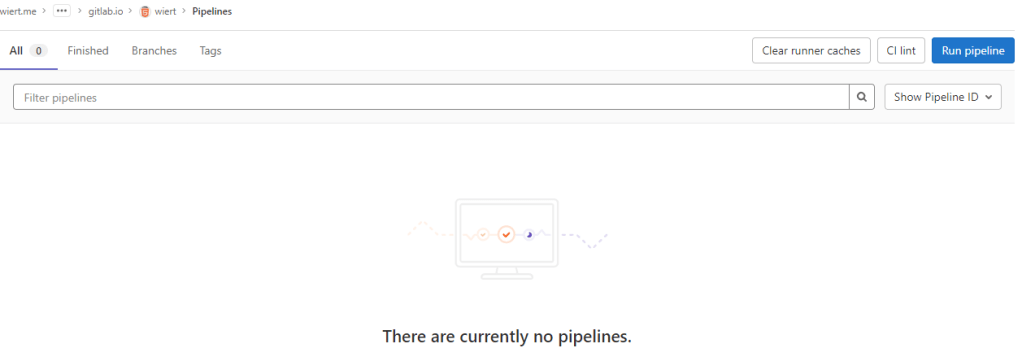
- Now I got in a confusing situation as the page indicated “There are currently no pipelines.”, but an enabled blue “Run pipeline” button:

By default there is no CI/CD pipeline, but there is an enabled blue “Run pipeline” button: confusing.
- Clicked the “Run pipeline” button nonetheless, and that created [Wayback/Archive.is] a pipeline asking for parameters (that already had correct default values) and revealed a new blue “Run pipeline” button.
- Clicked that new “Run pipeline button” which created [Wayback/Archive.is] a job and deployed the page.
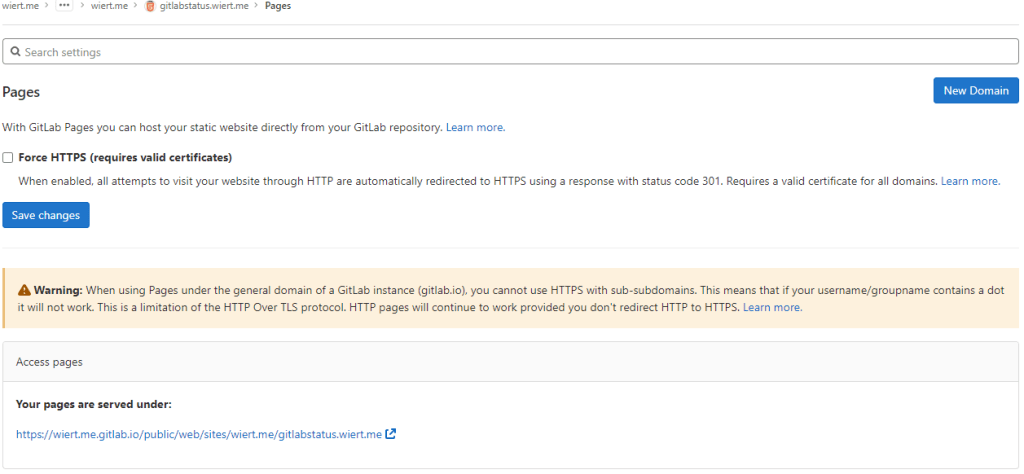
- From the left sidebar, navigated to “Settings”, then “Pages” to get the links to the pages site: http://wiert.me.gitlab.io/public/web/sites/gitlab.io/wiert/ and https://wiert.me.gitlab.io/public/web/sites/gitlab.io/wiert/

Warning: When using Pages under the general domain of a GitLab instance (gitlab.io), you cannot use HTTPS with sub-subdomains.
The sites do work (see the [Archive.is http version] and [Archive.is https version]), but the HTTPS fails because wiert.me.gitlab.io does not match the SANs (Subject Alternative Names) in the certificate: *.gitlab.io, gitlab.io
- For wiert.gitlab.io/wiert, try B (failed, and therefore interesting to understand why):
- In my my groups gitlab.com/dashboard/groups, added a new group
wiert
- Added subgroups until the leaf
gitlab.com/wiert/public/web/sites/gitlab.io which as URL is gitlab.com/wier1/public/web/sites/gitlab.io because user account wiert already occupies gitlab.com/wiert.
- Under leaf group gitlab.com/wier1/public/web/sites/gitlab.io, created a new GitLab repository
- Chose “Create from template”
- Chose the template “Pages/Plain HTML”
- Named the project “
wiert” (with slug “wiert“) so it would appear at gitlab.com/wiert.me/public/web/sites/gitlab.io/wiert
- From the left sidebar, navigated to your project’s “CI/CD”, then “Pipelines”
- Again there was “There are currently no pipelines.”, but an enabled blue “Run pipeline” button, which I clicked
- That created [Wayback/Archive.is] a pipeline asking for parameters (that already had correct default values) and revealed a new blue “Run pipeline” button.
- Clicked that new “Run pipeline button” which created [Wayback/Archive.is] a job deployed the page.
- From the left sidebar, navigated to “Settings”, then “Pages” to get the links to the pages site: http://wier1.gitlab.io/public/web/sites/gitlab.io/wiert and https://wier1.gitlab.io/public/web/sites/gitlab.io/wiert.
Bummer: again not the wiert.gitlab.io/wiert I hoped for
The sites do work (see the [Archive.is http version] and [Archive.is https version]). The HTTP does not redirect to the HTTP version, as I did not tick the
☐ Force HTTPS (requires valid certificates)
-
If a user wiert exists and occupies gitlab.com/wiert, then a group named wiert cannot occupy gitlab.com/wiert, and therefore a project named wiert within that group won’t be deployed to wiert.gitlab.io/wiert.
Maybe this can be shortened like “if there is a user wiert, then no group named wiert cannot be used to contain a project named wiert to host as wiert.gitlab.io/wiert“.
Let’s find out!
- For wiert.gitlab.io/wiert, try C (success, steps 1, 3, 4, 7 and 8 were the key ones):
- In my user gitlab.com/wiert, created a new GitLab repository
- Chose “Create from template”
- Chose the template “Pages/Plain HTML”
- Named the project “
wiert” (with slug “wiert“) so it would appear at gitlab.com/wiert
- The odd but cool thing is that the actual project now ended up at gitlab.com/wiert/wiert:
- From the left sidebar, navigated to your project’s “CI/CD”, then “Pipelines”
- Again there was “There are currently no pipelines.”, but an enabled blue “Run pipeline” button, which I clicked
- That created [Wayback/Archive.is] a pipeline asking for parameters (that already had correct default values) and revealed a new blue “Run pipeline” button.
- Clicked that new “Run pipeline button” which created [Wayback/Archive.is] a job deployed the page.
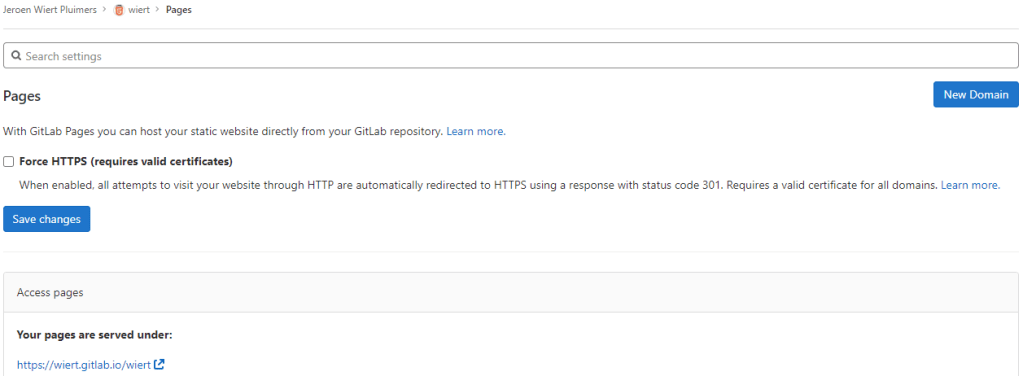
- From the left sidebar, navigated to “Settings”, then “Pages” to get the links to the pages site: http://wiert.gitlab.io/wiert/ and https://wiert.gitlab.io/wiert/.
Success: finally the wiert.gitlab.io/wiert I hoped for:
The sites do work fine (see the [Archive.is http version] and [Archive.is https version]). The HTTP does not redirect to the HTTP version, as I did not tick the
☐ Force HTTPS (requires valid certificates)
- For wiert.gitlab.io, try A (failed, and therefore interesting to understand why):
- Under leaf group gitlab.com/wiert.me/public/web/sites/gitlab.io, created a new GitLab repository
- Chose “Create from template”
- Chose the template “Pages/Plain HTML”
- Named the project “
wiert.gitlab.io” (with slug “wiert.gitlab.io“) so it would appear at gitlab.com/wiert.me/public/web/sites/gitlab.io/wiert.gitlab.io
- From the left sidebar, navigated to your project’s “CI/CD”, then “Pipelines”
- Again there was “There are currently no pipelines.”, but an enabled blue “Run pipeline” button, which I clicked
- That created [Wayback/Archive.is] a pipeline asking for parameters (that already had correct default values) and revealed a new blue “Run pipeline” button.
- Clicked that new “Run pipeline button” which created [Wayback/Archive.is] a job deployed the page.
- From the left sidebar, navigated to “Settings”, then “Pages” to get the links to the pages site: http://wiert.me.gitlab.io/public/web/sites/gitlab.io/wiert.gitlab.io and https://wiert.me.gitlab.io/public/web/sites/gitlab.io/wiert.gitlab.io.
Failure: not the wiert.gitlab.io I hoped for.
The sites do work (see the [
Archive.is http version] and [
Archive.is https version]), but the HTTPS fails because
wiert.me.gitlab.io does not match the
SANs (Subject Alternative Names) in the certificate:
*.gitlab.io, gitlab.io. The HTTP does not redirect to the HTTP version, as I did not tick the
☐ Force HTTPS (requires valid certificates)
- For wiert.gitlab.io, try B (failed, and therefore interesting to understand why):
- Under leaf group gitlab.com/wier1/public/web/sites/gitlab.io, created a new GitLab repository
- Chose “Create from template”
- Chose the template “Pages/Plain HTML”
- Named the project “
wiert.gitlab.io” (with slug “wiert.gitlab.io“) so it would appear at gitlab.com/wier1/public/web/sites/gitlab.io/wiert.gitlab.io
- From the left sidebar, navigated to your project’s “CI/CD”, then “Pipelines”
- Again there was “There are currently no pipelines.”, but an enabled blue “Run pipeline” button, which I clicked
- That created [Wayback/Archive.is] a pipeline asking for parameters (that already had correct default values) and revealed a new blue “Run pipeline” button.
- Clicked that new “Run pipeline button” which created [Wayback/Archive.is] a job deployed the page.
- From the left sidebar, navigated to “Settings”, then “Pages” to get the links to the pages site: http://wier1.gitlab.io/public/web/sites/gitlab.io/wiert.gitlab.io and https://wier1.gitlab.io/public/web/sites/gitlab.io/wiert.
Bummer: again not the wiert.gitlab.io I hoped for
The sites do work (see the [Archive.is http version] and [Archive.is https version]). The HTTP does not redirect to the HTTP version, as I did not tick the
☐ Force HTTPS (requires valid certificates)
-
Try A and B were almost identical to
wiert.gitlab.io/wiert try A and B, so let’s see if the solution C for that also works for us:
- For wiert.gitlab.io, try C (success, steps 1, 3, 4, 7 and 9 were the key ones)
- In my user gitlab.com/wiert, created a new GitLab repository
- Chose “Create from template”
- Chose the template “Pages/Plain HTML”
- Named the project “
wiert.gitlab.io” (with slug “wiert.gitlab.io“) so it would appear at gitlab.com/wiert/wiert.gitlab.io.
- From the left sidebar, navigated to your project’s “CI/CD”, then “Pipelines”
- Again there was “There are currently no pipelines.”, but an enabled blue “Run pipeline” button, which I clicked
- That created [Wayback/Archive.is] a pipeline asking for parameters (that already had correct default values) and revealed a new blue “Run pipeline” button.
- Clicked that new “Run pipeline button” which created [Wayback/Archive.is] a job deployed the page.
- From the left sidebar, navigated to “Settings”, then “Pages” to get the links to the pages site: http://wiert.gitlab.io/ and https://wiert.gitlab.io/.
Success: finally the wiert.gitlab.io I hoped for with working sites (see the [Archive.is http version] and [Archive.is https version]).
- Note the HTTP does not redirect to the HTTP version, as I did not tick the
☐ Force HTTPS (requires valid certificates)
Having learned from the GitHub githubstatus.wiert.me procedure (where I had to wait a long time for the default *.wiert.me domain mapping timeout and the githubstatus.wiert.me DNS CNAME record to become effective), I started on the DNS CNAME record side which is documented at [Wayback] Custom domains and SSL/TLS certificates: Section 3. Set up DNS records for Pages: For subdomains | GitLab:
Subdomains (subdomain.example.com) require:
- A DNS
CNAME record pointing your subdomain to the Pages server.
- A DNS
TXT record to verify your domain’s ownership.
| From |
DNS Record |
To |
subdomain.example.com |
CNAME |
namespace.gitlab.io |
_gitlab-pages-verification-code.subdomain.example.com |
TXT |
gitlab-pages-verification-code=00112233445566778899aabbccddeeff |
Note that, whether it’s a user or a project website, the CNAME should point to your Pages domain (namespace.gitlab.io), without any /project-name.

The value for the TXT record is only known after you created the pages project, but the value for the CNAME record is known beforehand:
| From |
DNS Record |
To |
gitlabstatus.wiert.me |
CNAME |
namespace.gitlab.io |
So let’s see if I can do this in one try, with these steps:
- For gitlabstatus.wiert.me, try A (success, steps 1, 3, 4, 7 and 9 were the key ones)
- In my DNS settings of the wiert.me domain, created a
CNAME record from gitlabstatus.wiert.me to namespace.gitlab.io:

gitlabstatus.wiert.me CNAME record pointing to namespace.gitlab.io
- Under leaf group gitlab.com/wiert.me/public/web/sites/wiert.me, created a new GitLab repository
- Chose “Create from template”
- Chose the template “Pages/Plain HTML”
- Named the project “
gitlabstatus.wiert.me” (with slug “gitlabstatus.wiert.me“) so it would appear at gitlab.com/wiert.me/public/web/sites/wiert.me/gitlabstatus.wiert.me
- From the left sidebar, navigated to your project’s “CI/CD”, then “Pipelines”
- Again there was “There are currently no pipelines.”, but an enabled blue “Run pipeline” button, which I clicked
- That created [Wayback/Archive.is] a pipeline asking for parameters (that already had correct default values) and revealed a new blue “Run pipeline” button.
- Clicked that new “Run pipeline button” which created [Wayback/Archive.is] a job deployed the page.
- From the left sidebar, navigated to “Settings”, then “Pages” to get the links to the pages site: http://wiert.me.gitlab.io/public/web/sites/wiert.me/gitlabstatus.wiert.me and https://wiert.me.gitlab.io/public/web/sites/wiert.me/gitlabstatus.wiert.me.
- Now it is time to get the DNS
CNAME record from gitlabstatus.wiert.me to namespace.gitlab.io into operation by clicking the “New Domain” button:

“New Domain” button in the “Pages” settings.
-
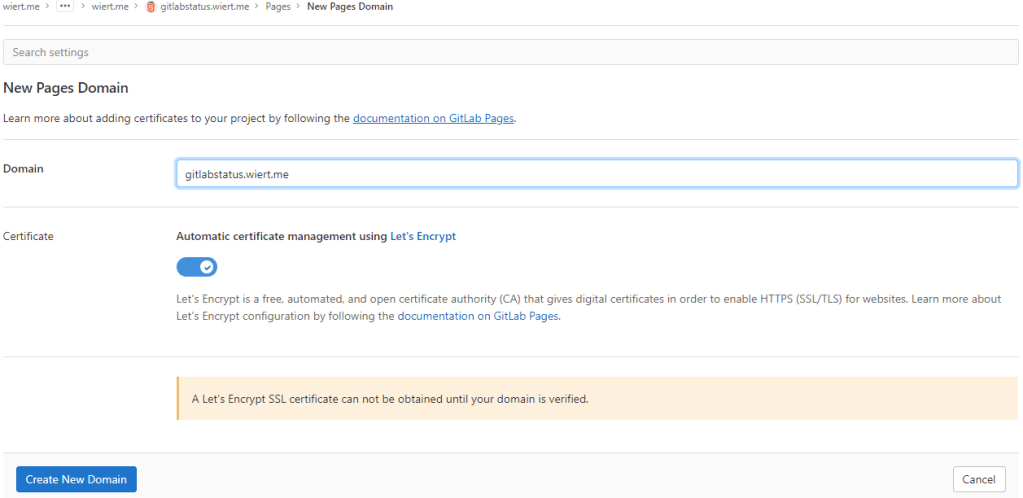
There I filled in the correct gitlabstatus.wiert.me domain name, then pressed the “Create New Domain” button:

New domain becomes gitlabstatus.wiert.me
- Then a page appeared voiding the DNS
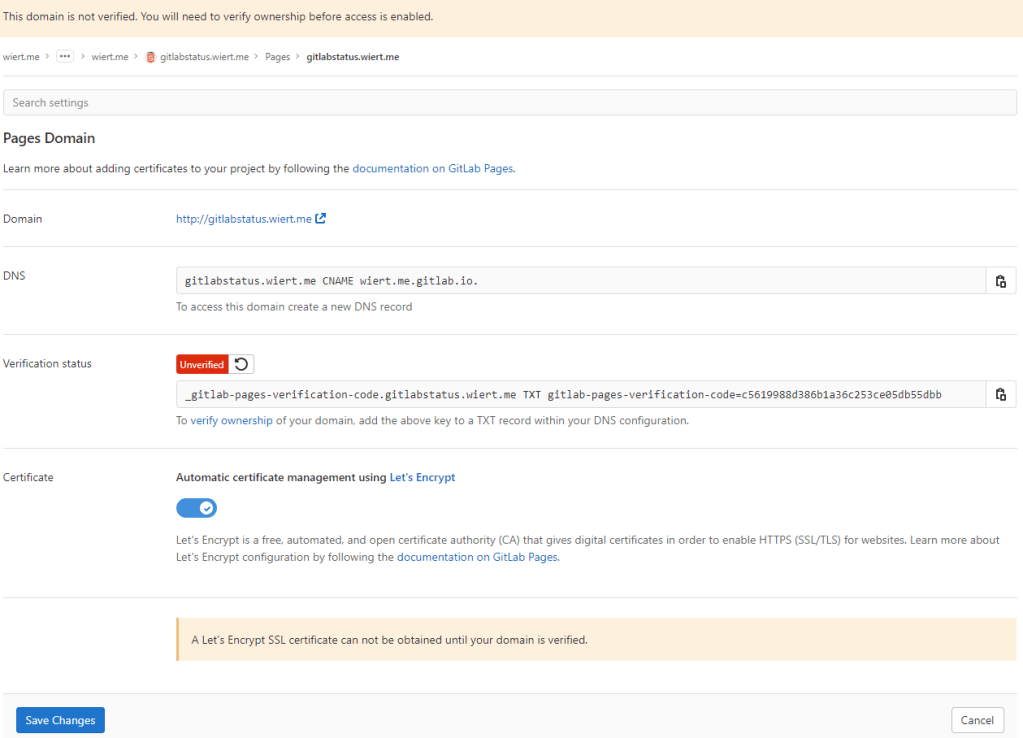
CNAME work I already did: the documentation is clearly wrong as these are the two DNS record entries to be made as shown by gitlab.com/wiert.me/public/web/sites/wiert.me/gitlabstatus.wiert.me/pages/domains/gitlabstatus.wiert.me:

Correct instructions for the DNS records to get gitlabstatus.wiert.me working
Subdomains (gitlabstatus.wiert.me) require:
- A DNS
CNAME record pointing your subdomain to the Pages server.
- A DNS
TXT record to verify your domain’s ownership.
| From |
DNS Record |
To |
gitlabstatus.wiert.me |
CNAME |
wiert.me.gitlab.io. |
_gitlab-pages-verification-code.gitlabstatus.wiert.me |
TXT |
gitlab-pages-verification-code=c5619988d386b1a36c253ce05db55dbb |
Basically the whole namespace.gitlab.io part of the documentation is a placeholder for the actual namespace that belongs to the leaf group the pages project is in (in my case wiert.me).
So this is the new DNS entry, for which I had to wait until the
DNS TTL to time out and effectuate:

New DNS gitlabstatus.wiert.me CNAME record pointing to wiert.me.gitlab.io
Note that this DNS administrative interface from WordPress.com does omit the final period of the CNAME destination (officially this would be wiert.me.gitlab.io.)
- After the
CNAME DNS record, I also made the TXT DNS record:

New DNS TXT record for verification of gitlabstatus.wiert.me
Then I waited a little for the DNS TXT record to be saved and try the verification of the TXT record.
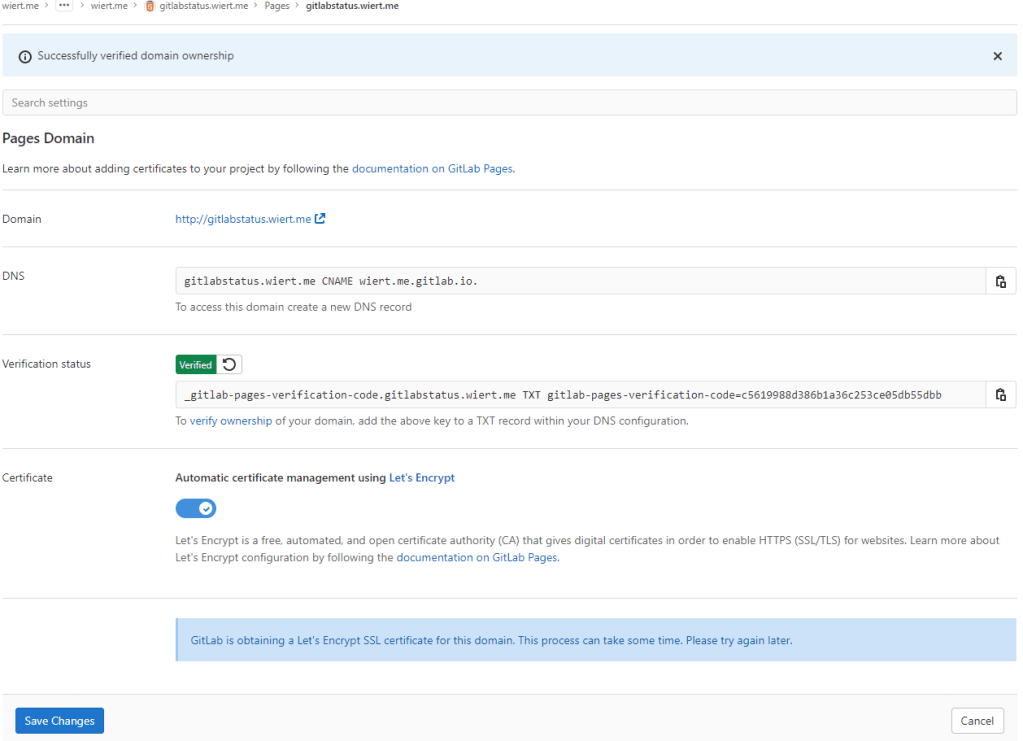
- Even then, verification took some time. I had to click the refresh button a few times before verification succeeded:

The DNS TXT record for gitlabstatus.wiert.me finally got verified
- Now I could press blue “Save Changes” button below and waited for the
CNAME record DNS TTL to expire so I could check the domain and – hopefully – the TLS certificate to be requested by Let’s Encrypt:

After the gitlabstatus.wiert DNS TXT record got verified, I could save the domain information
- After the old
CNAME record DNS TTL expired and the new CNAME record came into effect, the domain became available as http://gitlabstatus.wiert.me/:

Waiting for gitlabstatus.wiert.me to become active
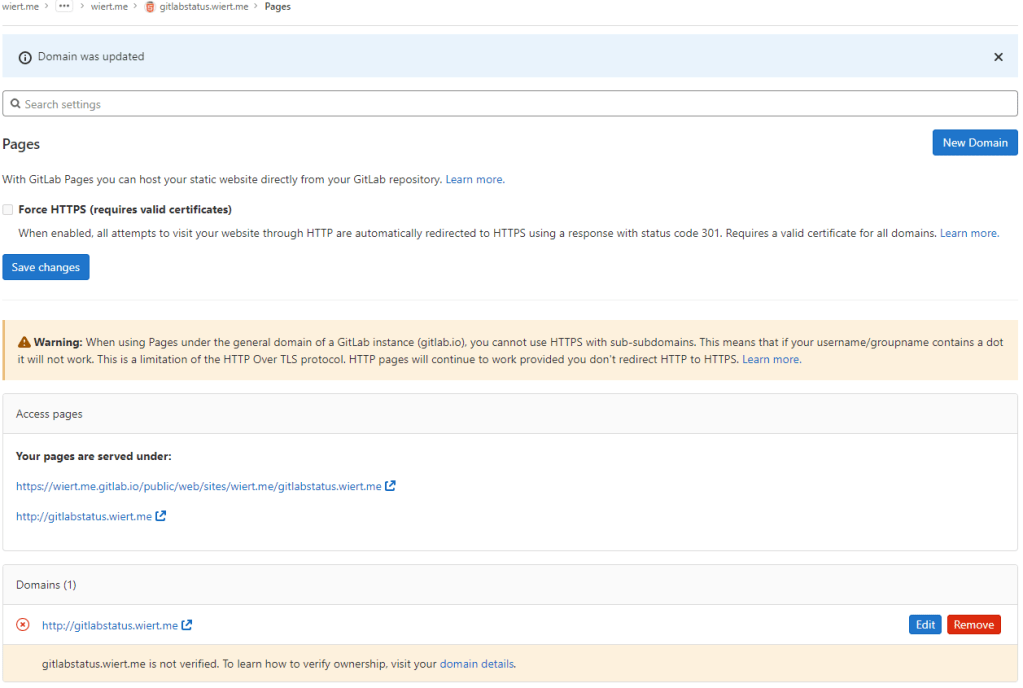
- After verification, the “Domains (1)” bit changed from this:

Domain gitlabstatus.wiert.me information before verification
to this:

Domain gitlabstatus.wiert.me information after verification
- In the mean time, also the TLS certificate got issued by Let’s Encrypt, so the final sites now both worked: http://gitlabstatus.wiert.me/ and https://gitlabstatus.wiert.me/.
- Success: finally the
gitlabstatus.wiert.me I hoped for with working sites (see the [Archive.is http version] and [Archive.is https version] for the wiert.me domain, and [Archive.is http version] and [Archive.is https version] for the wiert.me domain).
- Note the HTTP does not redirect to the HTTP version, as I did not tick the
☐ Force HTTPS (requires valid certificates)
In retrospect, this could have been shorter when I had done the DNS part later, which is contrary to how to do this with GitHub.
Conclusion
The conclusion seems this:
Gitlab Page repositories to be published as or under wiert.gitlab.io need to reside directly under user wiert. Having them reside under a different group like wiert or wiert.me won’t work.
Or in more generic terms:
When creating pages as user.gitlab.io you have to put your pages projects directly under your user account gitlab.com/user.
Putting them under groups or leaf groups fails, no matter if the (leaf) group is named user or otherwise.
In addition, you can add custom domains to any Gitlab repository (even one that never stated out as a GitLab Pages repository). It will work as soon as the domain DNS mapping is setup through both a CNAME mapping record and TXT verification record.
The steps for this in your GitLab repository are:
- Ensure you have a valid
.gitlab-ci.yml file at the root of your repository; I used the [Wayback/Archive.is] one from [Wayback/Archive] GitLab Pages examples / plain-html · GitLab as my site is purely static
- Ensure you have a valid
index.html file in the public directory of your repository, similar to [Wayback/Archive] GitLab Pages examples / plain-html · GitLab
- When both 1. and 2. are committed in your repository at GitLab, then it will automatically be deployed to a docker container on
gitlab.io, which allows the outside world to visit your GitHub Pages sie, and the Let’s Encrypt Certificate to be generated (and prevents this error: [Wayback/Archive] GitLab Pages integration with Let’s Encrypt | GitLab: “Something went wrong while obtaining the Let’s Encrypt certificate”).
- Under “Settings” -> “Pages”, add a new domain name to the repository: now it automatically becomes a GitLab Pages repository.
- When adding the domain, the settings page will show both a DNS
CNAME record and DNS TXT record; ensure both are applied on your primary DNS name server and replicated to all authoritative DNS name servers.
- Save the new page.
- Check if the page is available on the new domain you added.
- Optionally under “
Settings” -> “Pages” enable the “Force HTTPS (requires valid certificates)” option and save.
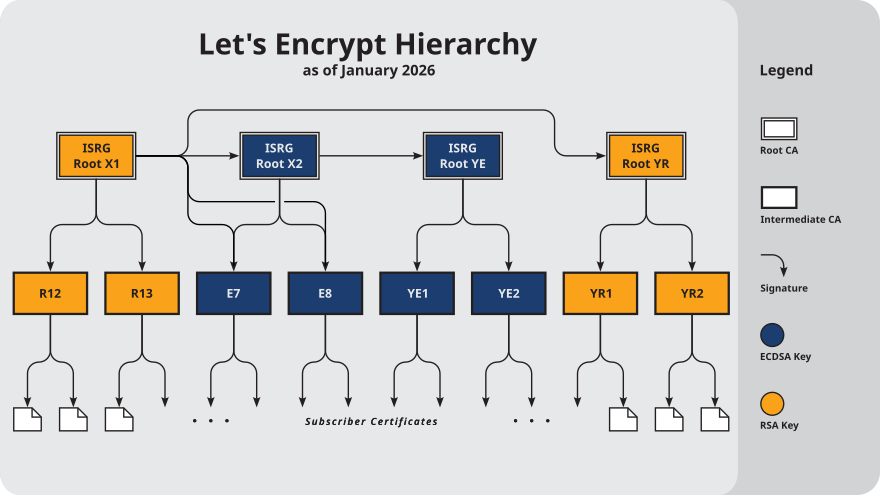
TLS information
Note: I saved the TLS information – including certificates here:
More about the Let’s Encrypt certificates at [Wayback] Chain of Trust – Let’s Encrypt:

–jeroen
Read the rest of this entry »
Posted in Cloud, Communications Development, Development, DNS, Encryption, GitLab, Hosting, HTML, HTTPS/TLS security, Infrastructure, Internet, Internet protocol suite, Let's Encrypt (letsencrypt/certbot), Power User, Software Development, Source Code Management, TCP, TLS, Web Development | Leave a Comment »
Posted by jpluimers on 2022/05/03
[Wayback/Archive.is] capitaltg/thea: Certificate Checker
Certificate Checker provides an easy-to-use solution to check certificates, certificate chains, and TLS configurations. To run Certificate Checker for publicly-accessible web sites you can go to:
https://certchecker.app and enter in there a URL to check.
Users can easily run Certificate Checker in an internal network to validate or troubleshoot their TLS configuration. To run it on a local network you can run the Docker image as described below. You can also build the application and deploy it on an existing server.
It runs on [Wayback/Archive.is] Certificate Checker.
I used it to check various certificates and chains, including those for my GitHub Pages explained last week in Setting up a GitHub project so it is served over https as a custom subdomain.
–jeroen
Posted in Communications Development, Development, Encryption, HTTPS/TLS security, Internet protocol suite, Let's Encrypt (letsencrypt/certbot), Power User, Security, Software Development, TCP, TLS, Web Development | Leave a Comment »
Posted by jpluimers on 2022/04/27
Some links that helped me getting this working:
Read the rest of this entry »
Posted in Cloud, Cloudflare, Communications Development, Development, Encryption, GitHub, HTML, HTTP, HTTPS/TLS security, Infrastructure, Internet protocol suite, Let's Encrypt (letsencrypt/certbot), Power User, Security, Software Development, Source Code Management, TCP, TLS, Web Development | Leave a Comment »
Posted by jpluimers on 2022/03/15
This is cool: [Wayback] Cryptosense Discovery:
Free tool that discovers security configuration errors in SSH and TLS servers and explains how to fix them. Supports STARTTLS and can also scan HTTPS, POP3, IMAP and SMTP servers.
It gives you a list of servers a target domain uses (for purposes like web, email, etc) that can have external encryption enabled, then allows you to test these.
The list by default has only servers within that target domain enabled, but you can optionally include other servers (for instance if a domain uses a third party for their SMTP handling).
Basically it is the web-counterpart of a tool like testssl.sh (which I have written about before).
Found while checking out how to test the MX security of a domain using [Wayback] testssl.sh as I forgot the syntax, which in retrospect is dead easy as per [Wayback] tls – How to use testssl.sh on an SMTP server? – Information Security Stack Exchange (thanks [Wayback] Z.T.!):
…
testssl.sh --mx <domain name>
works fine.
testssl.sh -t smtp <ip>:25
and
testssl.sh -t smtp <ip>:587
also work fine.
Note that not specifying the port assumes port 443, despite specifying protocol smtp. That doesn’t work.
…
Also, you might try discovery.cryptosense.com which does the same thing only better
That website is made by the cool people at [Wayback] Cryptosense.
Both are a lot easier than the alternatives described in [Wayback] Blog · How to test SMTP servers using the command-line · Halon MTA: using nslookup and dig for determining the affected hosts, using nc or telnet for testing basic connectivity, using [Wayback/Archive.is] openssl s_client to test TLS, and [Wayback/Archive.is] smtpping for measuring throughput.
In addition to the above tools mentioned in the blog, I’ve also used sendEmail (note case sensitivity), ehlo-size, and swaks.
This is what I tested:
- [Wayback] Cryptosense Discovery: clientondersteuningplus.nl
We found these machines for clientondersteuningplus.nl. Select those you would like to scan:
|
clientondersteuningplus.nl |
185.37.70.68 |
|
localhost.clientondersteuningplus.nl |
127.0.0.1 |
|
pop.clientondersteuningplus.nl |
5.157.84.75 |
These machines are also used by clientondersteuningplus.nl. They seem to be managed by a third party:
…
–jeroen
Posted in *nix, *nix-tools, Awk, bash, bash, Communications Development, Development, DNS, Encryption, grep, HTTPS/TLS security, Internet, Internet protocol suite, Power User, Scripting, Security, SMTP, Software Development, SSH, ssh/sshd, TCP, testssl.sh, TLS | Leave a Comment »
Posted by jpluimers on 2022/02/28
Got this on two Dutch Windows machines, not sure why yet:

Missing information on security certificate retraction

Certificate path is OK
–jeroen
Posted in Communications Development, Development, Encryption, Internet protocol suite, Power User, Security, TCP, TLS | Leave a Comment »
Posted by jpluimers on 2022/02/24
IoT devices still often use the ‘Basic’ HTTP Authentication Scheme for authorisation, see [Wayback] RFC7617: The ‘Basic’ HTTP Authentication Scheme (RFC ) and [Wayback] RFC2617: HTTP Authentication: Basic and Digest Access Authentication (RFC ).
Often this authentication is used even over http instead of over https, for instance the Egardia/Woonveilig alarm devices I wrote about yesterday at Egardia/Woonveilig: some notes about logging on a local gateway to see more detailed information on the security system. This is contrary to guidance in:
- RFC7617:
This scheme is not considered to be a secure method of user
authentication unless used in conjunction with some external secure
system such as TLS (Transport Layer Security, [RFC5246]), as the
user-id and password are passed over the network as cleartext.
- RFC2617:
"HTTP/1.0", includes the specification for a Basic Access
Authentication scheme. This scheme is not considered to be a secure
method of user authentication (unless used in conjunction with some
external secure system such as SSL [5]), as the user name and
password are passed over the network as cleartext.
Fiddling with those alarm devices, I wrote these two little bash functions (with a few notes) that work both on MacOS and in Linux:
# `base64 --decode` is platform neutral (as MacOS uses `-D` and Linux uses `-d`)
# `$1` is the encoded username:password
function decode_http_Basic_Authorization(){
echo $1 | base64 --decode
echo
}
# `base64` without parameters encodes
# `echo -n` does not output a new-line
# `$1` is the username; `$2` is the password
function encode_http_Basic_Authorization(){
echo $1:$2 | base64
}
The first decodes the <credentials> from a Authorization: Basic <credentials> header into a username:password clean text followed by a newline.
The second one encodes a pair of username and password parameters into such a <credentials> string.
They are based on these initial posts that were not cross platform or explanatory:
- [Wayback] Decode HTTP Basic Access Authentication – Stack Pointer
- [Wayback] Create Authorization Basic Header | MJ’s Web Log
–jeroen
Posted in *nix, *nix-tools, Apple, Authentication, bash, bash, Communications Development, Development, HTTP, Internet protocol suite, Linux, Mac OS X / OS X / MacOS, Power User, Scripting, Security, Software Development, TCP, Web Development | Leave a Comment »