The Wiert Corner – irregular stream of stuff

Jeroen W. Pluimers on .NET, C#, Delphi, databases, and personal interests

  • My badges

  • Twitter Updates

  • My Flickr Stream

  • Pages

  • All categories

  • Enter your email address to subscribe to this blog and receive notifications of new posts by email.

    Join 1,861 other subscribers

Archive for the ‘C# 1.0’ Category

.NET/C#/WinForms: small code snippet to enable Ctrl-A for select all in a single/multi-line TextBox

Posted by jpluimers on 2012/12/04

WinForms does not automatically enable Ctrl-A as “Select All” action.

The below code snippet works when you bind it to the KeyDown event of a TextBox (actually the event is on Control).

The e.SuppressKeyPress = true suppresses the bell sound in a multiline TextBox, as e.Handled = true won’t.

        private void textBox_KeyDown_HandleCtrlAToSelectAllText(object sender, KeyEventArgs e)
        {
            TextBox textBox = sender as TextBox;
            if (null != textBox)
            {
                if (e.Control && e.KeyCode == Keys.A)
                {
                    textBox.SelectAll();
                    e.SuppressKeyPress = true;
                }
            }
        }

–jeroen

Posted in .NET, .NET 1.x, .NET 2.0, .NET 3.0, .NET 3.5, .NET 4.0, .NET 4.5, C#, C# 1.0, C# 2.0, C# 3.0, C# 4.0, C# 5.0, Development, Software Development | Leave a Comment »

.NET/C# duh moment of the day: “A char can be implicitly converted to ushort, int, uint, long, ulong, float, double, or decimal (not the other way around; implicit != implicit)”

Posted by jpluimers on 2012/11/20

A while ago I had a “duh” moment while calling a method that had many overloads, and one of the overloads was using int, not the char I’d expect.

The result was that a default value for that char was used, and my parameter was interpreted as a (very small) buffer size. I only found out something went wrong when writing unit tests around my code.

The culprit is this C# char feature (other implicit type conversions nicely summarized by Muhammad Javed):

A char can be implicitly converted to ushort, int, uint, long, ulong, float, double, or decimal. However, there are no implicit conversions from other types to the char type.

Switching between various development environments, I totally forgot this is the case in languages based on C and Java ancestry. But not in VB and Delphi ancestry  (C/C++ do numeric promotions of char to int and Java widens 2-byte char to 4-byte int; Delphi and VB.net don’t).

I’m not the only one who was confused, so Eric Lippert wrote a nice blog post on it in 2009: Why does char convert implicitly to ushort but not vice versa? – Fabulous Adventures In Coding – Site Home – MSDN Blogs.

Basically, it is the C ancestry: a char is an integral type always known to contain an integer value representing a Unicode character. The opposite is not true: an integer type is not always representing a Unicode character.

Lesson learned: if you have a large number of overloads (either writing them or using them) watch for mixing char and int parameters.

Note that overload resolution can be diffucult enough (C# 3 had breaking changes and C# 4 had breaking changes too, and those are only for C#), so don’t make it more difficult than it should be (:

Below a few examples in C# and VB and their IL disassemblies to illustrate their differnces based on asterisk (*) and space ( ) that also show that not all implicits are created equal: Decimal is done at run-time, the rest at compile time.

Note that the order of the methods is alphabetic, but the calls are in order of the type and size of the numeric types (integral types, then floating point types, then decimal).

A few interesting observations:

  • The C# compiler implicitly converts char with all calls except for decimal, where an implicit conversion at run time is used:
    L_004c: call valuetype [mscorlib]System.Decimal [mscorlib]System.Decimal::op_Implicit(char)
    L_0051: call void CharIntCompatibilityCSharp.Program::writeLineDecimal(valuetype [mscorlib]System.Decimal)
  • Same for implicit conversion of byte to the other types, though here the C# and VB.NET compilers generate slightly different code for run-time conversion.
    C# uses an implicit conversion:
    L_00af: ldloc.1
    L_00b0: call valuetype [mscorlib]System.Decimal [mscorlib]System.Decimal::op_Implicit(uint8)
    L_00b5: call void CharIntCompatibilityCSharp.Program::writeLineDecimal(valuetype [mscorlib]System.Decimal)
    VB.NET calls a constructor:
    L_006e: ldloc.1
    L_006f: newobj instance void [mscorlib]System.Decimal::.ctor(int32)
    L_0075: call void CharIntCompatibilityVB.Program::writeLineDecimal(valuetype [mscorlib]System.Decimal)

Here is the example code: Read the rest of this entry »

Posted in .NET, Agile, Algorithms, C#, C# 1.0, C# 2.0, C# 3.0, C# 4.0, C# 5.0, C++, Delphi, Development, Encoding, Floating point handling, Java, Software Development, Unicode, Unit Testing, VB.NET | 1 Comment »

Some notes on finding the cause of a .NET app generating a “application has generated an exception that could not be handled”

Posted by jpluimers on 2012/11/15

A while ago, one of the users at a client got an error in a .NET 1.1 app of which the sources were not readily available:

“application has generated an exception that could not be handled”

I think it is a e0434f4d  exception.

This particular site has very strict rules about what you can and cannot do as a developer. Which means that on a production system, you basically cannot do anything.

A few links that should help me finding the solution, and escalate far enough upstream to get someone with local admin rights to assist me:

If WinDbg is allows to be ran, these should help me:

–jeroen

Posted in .NET, .NET 1.x, .NET 2.0, .NET 3.0, .NET 3.5, .NET 4.0, .NET 4.5, C#, C# 1.0, C# 2.0, C# 3.0, C# 4.0, C# 5.0, Development, Software Development | Leave a Comment »

C# Code fragments of the week

Posted by jpluimers on 2012/11/06

Boy, was I astonished to see the code fragments below in production apps. It is far more Daily WTF than Coding Horror.

However, it did make debugging the production problem at hand a lot worse than it should be.

First a few short pieces:

        private void method(Word.Application objNewDoc, string stringWithCsvSeparatedDotFileNames)
        {
            char c = char.Parse(",");
            string[] wordAddIns = stringWithCsvSeparatedDotFileNames.ToString().Split(c);
        }

It took me almost a minute to understand what happened here. Especially because the names of parameters actually were pretty meaningless.

                foreach (string sFilename in attachments)
                {
                    Word.Application mailDocument = new Word.Application();

                    string[] filePath = sFilename.Split('\\');

                    string tempDirectory = GetTempDirectoryFromConfigFile();
                    object fileName = tempDirectory + filePath[filePath.Length - 1];

                    File.Copy(sFile, (string)fileName, true);
                    // some code that actually does something with the attachment
                }

It took me more than a few minutes to realize that:

  1. The tempDirectory needs to end with a backslash
  2. mailDocument (not a document, see below), will stay alive when File.Copy(…) throws an exception.
        internal virtual bool Method(/* parameters */, Word.Application objDoc)
        {
            // lots of pre-initialized empty string variables that are used at the very end of the method

            Word.Application objNewDoc;
            if (objDoc != null)
            {
                objNewDoc = objDoc;
            }
            else
            {
                objNewDoc = new Word.Application();
            }

            // lots of Object variables for COM, including:
            Object missing = Missing.Value;
            Object bFalse = false;

            try
            {
                // lots of code that does not use objNewDoc
            }
            catch (IOException IOex)
            {
                objNewDoc.Quit(ref bFalse, ref missing, ref missing);
                objNewDoc = null;
                throw IOex;
            }
            catch (Exception ex)
            {
                objNewDoc.Quit(ref bFalse, ref missing, ref missing);
                objNewDoc = null;
                throw new Exception("Some error message.", ex);
            }
            finally
            {
                // empty finally block
            }

            try
            {
                // actual coder that does use objNewDoc
            }
            catch (Exception ex)
            {
                objNewDoc.Quit(ref bFalse, ref missing, ref missing);
                objNewDoc = null;
                throw new Exception("Some error message.", ex);
            }
            return true;
        }

I rewrote the whole piece into separate methods.

Luckily the person who wrote this got promoted away from programming a few years ago.

–jeroen

Posted in .NET, C#, C# 1.0, C# 2.0, C# 3.0, C# 4.0, C# 5.0, Development, Software Development | Leave a Comment »

.net – WinForms Load vs. Shown events – Stack Overflow

Posted by jpluimers on 2012/10/31

The order of events and what you can do in events is very important in Windows applications.

This includes the WinForms applications – still popular for business applications – the first .NET framework that supported building Windows applications.

WinForms has two important event/method combo’s:

In descendants, you override the methods. In the form designer, you use the events.

Both the methods and events rely on Windows messages to get fired. This means they depends on which message loop is active. And this limits in what you can do during them.

One of the things you should not do in Load or Show is perform a MessageBox, ShowDialog or any other form of message pumping (like in COM).

Hans Passant explains it this way:

Avoid using MessageBox.Show() to debug this [ed: debug Shown/Load behaviour]. It pumps a message loop, disturbing the normal flow of events. The Load event is triggered by Windows sending the WM_SHOWWINDOW message, just before the window becomes visible. There is no Windows notification for “your window is now fully shown”, so the WF designers came up with a trick to generate the Shown event. They use Control.BeginInvoke(), ensuring the OnShown() method gets called as soon as the program goes idle again and re-enters the message loop.

This trick has lots of other uses, particularly when you have to delay the execution of code started by an event. However, in your case it falls apart because you use MessageBox.Show(). Its message loop dispatches the delegate registered with BeginInvoke(), causing the Shown event to run before the window is shown.

Krishnan Sriram explains that if you use proper debug logging (see what Hans wrote), you get this order of events:

  1. Form – Client Size Changed : 8/14/2010 10:40:28 AM
  2. Form – Control Added – button1 : 8/14/2010 10:40:29 AM
  3. Form – Constructor : 8/14/2010 10:40:29 AM
  4. Form – Handle Created : 8/14/2010 10:40:29 AM
  5. Form – Invalidated : 8/14/2010 10:40:29 AM
  6. Form – Form Load event : 8/14/2010 10:40:29 AM
  7. Form – Loaded : 8/14/2010 10:40:29 AM
  8. Form – Create Control : 8/14/2010 10:40:29 AM
  9. Form – OnActivated : 8/14/2010 10:40:29 AM
  10. Form – Shown : 8/14/2010 10:40:29 AM
  11. Form – OnPaint : 8/14/2010 10:40:29 AM
  12. Form – Invalidated : 8/14/2010 10:40:29 AM
  13. Form – OnPaint : 8/14/2010 10:40:29 AM

Finally, Ahmed Said indicates that there can be form size differences in the Load and Shown state:

The Shown event occured after the load event, the main difference is not in the visibility but in state of the form (width,hieght,..etc). I will give you an example to clarify if we create a form with default size 100,200 and set the windowstate = Maximized in the load event the size will be 100,200 but in shown event the size will be your screen size

–jeroen

via: .net – WinForms Load vs. Shown events – Stack Overflow.

Posted in .NET, C#, C# 1.0, C# 2.0, C# 3.0, C# 4.0, C# 5.0, Development, Software Development, WinForms | Leave a Comment »

Please fellow programmers, name variables more properly.

Posted by jpluimers on 2012/09/25

The code I had a hard time understanding

The below code didn’t compile during a .NET 1.1 to 4 migration.

Downstream code:

Word.Document document = app.Documents.Add(ref FileName, ref missing, ref missing, ref missing);

Upstream code (6 layers up!):

string filename = Path.Combine(ConfigurationSettings.AppSettings["MSWordTemplateDirectory"], (string)status["CoverLetter"]);

And somewhere in the middle:

public bool GenerateLetter(Word.Application app, DataRow row, object FileName, object FilePathAndName)

Afterwards the code is this

Downstream code:

Word.Document document = app.Documents.Add(ref templateFileName, ref missing);

Upstream code (6 layers up!):

templateFileName = Path.Combine(ConfigurationSettings.AppSettings["MSWordTemplateDirectory"], (string)status["CoverLetter"]);

And somewhere in the middle:

public bool GenerateLetter(Word.Application app, DataRow row, object templateFileName, object documentFileName)

Coincidentally, parameters are now all lowercase.

–jeroen

Posted in .NET, C#, C# 1.0, C# 2.0, C# 3.0, C# 4.0, C# 5.0, Development, Software Development | Leave a Comment »

Creating a blank Visual Studio solution without a directory, and sln Format Version numbers

Posted by jpluimers on 2012/09/06

A while ago, I blew quite a few Visual Studio Solution and Project builds because I was experimenting in a suite of solutions with the Configuration Manager adding other Solution Configurations than Release and Debug, and mixing x86/AnyCPU platforms to facilitate Debug & Continue.

Lesson learned: don’t do that!

Keep it simple:

  1. Keep your Solution Configurations at Release and Debug,
  2. Perform conditional defines in your automated build server,
  3. Limit the mixing your platforms to a minimum.

We noted the anomalies a little late in the process (in retrospect, when taking over the solution suite, we should have started with setting up and Build Automation right at the beginning, then fix all the solutions that came from Visual Source Shredder, but alas: you are never too old to learn from your mistakes).

The anomalies were spurious (and hard to reproduce) build failures at developer workstations, wrong builds of assemblies ending up on the final build directories and more. And best of all: Visual Studio not failing, warning or hinting upon most issues.

Fixing projects and solutions from wrong Solution Configurations

The history in the version control system was not helpful enough to assist in fixing it, so the fix was this:

  1. Manually edit the .csproj files, and remove the PropertyGroup elements other than “Debug|AnyCPU” and “Release”AnyCPU”.
    This is easy to do inside Visual Studio and with automatic checkout from TFS of the project files:

    1. In the Solution Explorer, select all the projects
    2. Right click on a project
    3. Choose “Unload Project”
      (because you selected all the projects, it is the second menu item from the bottom, and way easier to find when you do this per project)
    4. For each project
      1. Right click the project
      2. Choose “Edit ….”
      3. Remove the PropertyGroup elemts you don’t need
      4. Save and close the file
      5. Right click the project
      6. Choose “Reload Project”
  2. Fix the solution files

The last step is a lot more complex, because of a couple of reasons:

My workaround was as follows:

  1. Start with an empty solution in the same directory as the original solution
  2. Add all the Solution Folders, Solution Items, and projects to it that  were in the original solution
    (having two copies of Visual Studio next to each other on a dual monitor setup is of great help)
  3. Compare the .sln files to each other
  4. Check out the original .sln file
  5. Merge any changes into the original .sln file
  6. Build it
  7. Check in
  8. Run a build on the CruiseControl.net automated build server
  9. Fix build errors
  10. Delete the temporary local .sln file

Creating an empty solution in a directory

Finally, I get to the title of this blog entry: Visual Studio will always generate a directory when creating a Blank Solution, and does not support creating an Empty Solution in a directory.

There are many posts describing how to workaround this, but the actual downloads are usually gone because of link rot (Jakob Nielsen’s alert from 1998 still is totally right about it). Thanks to they webarchive.org WayBackMachine though for keeping some of them alive.

So I went with Peter Provost’s solution, and amended it from Visual Studio 2005 to all Visual Studio versions that support .NET that I have used or still use: 2002, 2003, 2005, 2008, 2010 and 2012 a.k.a. VS11.

All files are in Change set 89386 on BeSharp.CodePlex.com.

His solution uses the ShellNew command for .sln file extensions that is stored in the registry:

  1. Create an empty solution file for the Visual Studio version you are using
  2. Copy that as a template file to %Windir%\ShellNew
    (you need to be administrator for that)
  3. Import a small .reg file binding that template file to the ShellNew command for .sln files

ShellNew is versatile, so you can also embed the fresh solution file into the .reg file, see this ShellNew article for a few nice examples.

Note that generating a new ShellNew verb for .sln is something other than loading a .sln (loading a .sln is done through VisualStudioLauncher).

Back to the .sln file: this one is different for any version of Visual Studio. Historically, the basic format is the same though (and I think this – in combination with VisualStudioLauncher – is the main reason it is not XML).

An empty solution file looks like this (note the empty line at the beginning), as described in Hack the Project and Solution Files:


Microsoft Visual Studio Solution File, Format Version 12.00
# Visual Studio 11
Global
	GlobalSection(SolutionProperties) = preSolution
		HideSolutionNode = FALSE
	EndGlobalSection
EndGlobal

The accompanying .reg file like this:

Windows Registry Editor Version 5.00

[HKEY_CLASSES_ROOT\.sln\ShellNew]
"FileName"="Visual Studio Solution - VS11.sln"

When you look at the Format Version inside the .sln version, you see that it (12) is one bigger than the internal Visual Studio Version (11).

That is because Microsoft stepped up the internal version from Visual Studio .NET (2002) and Visual Studio 2003 from 7.0 to 7.1, but the solution file format version from 7.00 to 8.00 as the table below shows.

Note that the .NET 1.x versions of Visual Studio (2002 for .NET 1.0, 2003 for .NET 1.1) don’t have the GlobalSection/HideSolutionNode/EndGlobalSection part and the # Visual Studio xx line.

With a little bit of querying, I got at this table:

Visual Studio version Internal version Solution file format version
Visual Studio .NET (2002) 7.0 Microsoft Visual Studio Solution File, Format Version 7.00
Visual Studio 2003 7.1 Microsoft Visual Studio Solution File, Format Version 8.00
Visual Studio 2005 8.0 Microsoft Visual Studio Solution File, Format Version 9.00
Visual Studio 2008 9.0 Microsoft Visual Studio Solution File, Format Version 10.00
Visual Studio 2010 10.0 Microsoft Visual Studio Solution File, Format Version 11.00
Visual Studio 2012 (a.k.a. VS11) 11.0 Microsoft Visual Studio Solution File, Format Version 12.00

All files to get you going are in Change set 89386 on BeSharp.CodePlex.com.

It was a bit hard to get all those version numbers, so here are the sources I used:

–jeroen

Posted in .NET, C#, C# 1.0, C# 2.0, C# 3.0, C# 4.0, C# 5.0, Development, Internet, link rot, Power User, Software Development, Visual Studio 11, Visual Studio 2002, Visual Studio 2003, Visual Studio 2005, Visual Studio 2008, Visual Studio 2010, Visual Studio and tools, WWW - the World Wide Web of information | Leave a Comment »

Solving the “Some projects have been bound to server locations that may be incorrect.” in Visual Studio 2010 when using Team Foundation System 2010 #VS2010 #TFS2010

Posted by jpluimers on 2012/08/23

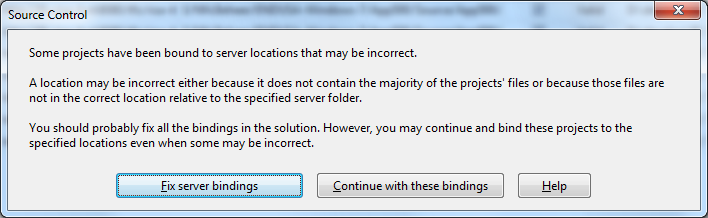
A while ago, I inherited a bunch of C# and VB.NET projects. One of them always generated the below error when including it in Team Foundation System (yes, the original projects were salvaged from Visual Source Shredder version 6.0c):

[Source Control]
Some projects have been bound to server locations that may be incorrect.
A location may be incorrect either because it does not contain the majority of the projects' files or because those files are not in the correct location relative to the specified server folder.
You should probably fix all the bindings in the solution. However, you may continue and bind these projects to the specified locations even when some may be incorrect.
[Fix server bindings] [Continue with these bindings] [Help]

First I tried the Help button: it links to a Help page on MSDN explaining the error can be cause with some statistics on projects not being in the source control system. Since all projects were, there, I looked for more information.

I tried finding a “Fix Server Bindings” or a 2010 “Some projects have been bound to server locations that may be incorrect” link that fitted my use case (getting projects from VSS into TFS), but the solutions I tried eventually all led to the same issue.

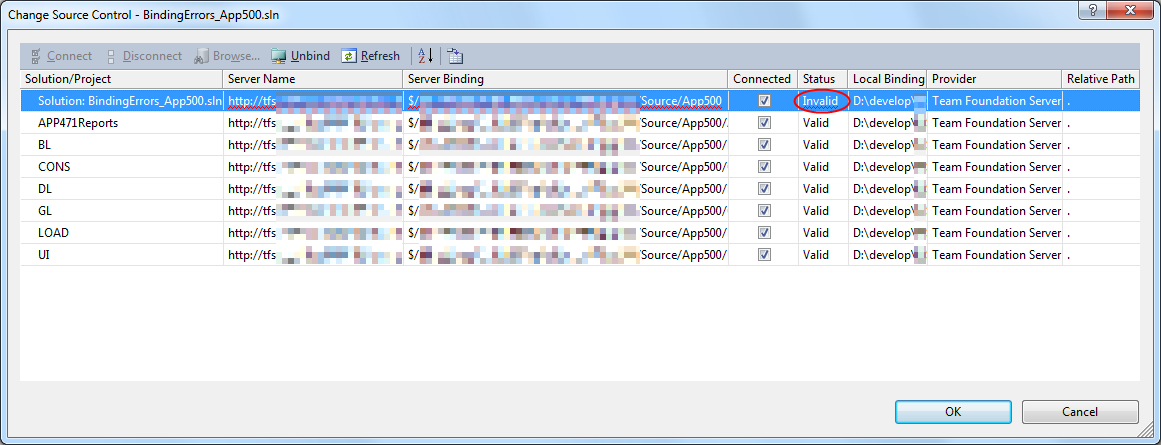
Fixing the server bindings would always fail: the solution (which itself is also a project) would get the status Invalid.

The next steps were these:

  1. add an empty solution in the same directory as the original one,
  2. add that solution to TFS
  3. add the projects from the original solution to this solution one by one
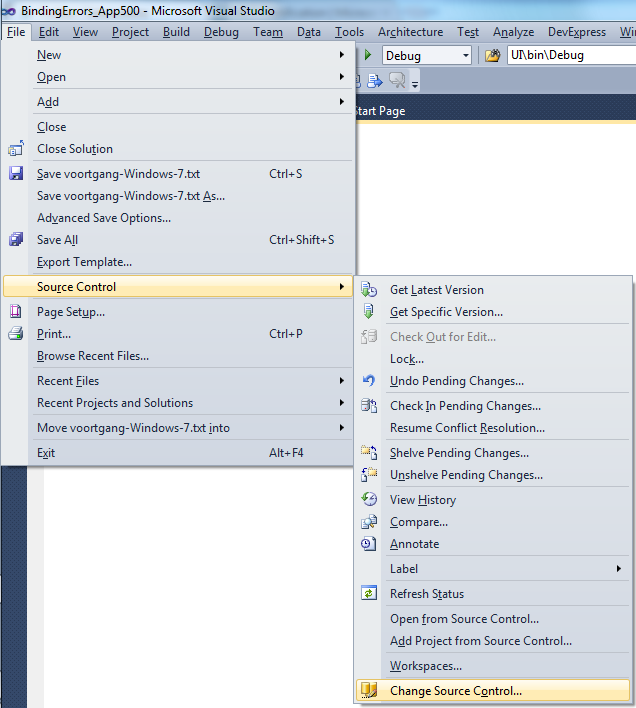
  4. check after each addition of the bindings were still OK using the “File”, “Source Control”, “Change Source Control” sequence on the right.
    (note that you don’t always see “Change Source Control”, if you don’t select the solution in the Solution Explorer before going to the File menu).
  5. text compare both .SLN solution files
  6. observe that “Solution Items” actually is a project just like the others:
    Project("{2150E333-8FDC-42A3-9474-1A3956D46DE8}") = "Solution Items", "Solution Items", "{8D9964D4-6129-4B8F-9238-F9161A02B968}"
    ProjectSection(SolutionItems) = preProject
    ...
    Framework\Config.dll = Framework\Config.dll
    ...
    EndProjectSection
    EndProject
  7. add the existing solution item from the original solution to this solution one by one, check
  8. check after each addition of the bindings were still OK using the “File”, “Source Control”, “Change Source Control” sequence on the right.
    (note that you don’t always see “Change Source Control”, if you don’t select the solution in the Solution Explorer before going to the File menu).
  9. copy the non-existing solution items to the solution one by one using the text compare tool (yes, a lot of the projects are dirty and contain references to files that are not in the version control system)
    save after every copy, then reload the project in Visual Studio
  10. check after each addition of the bindings were still OK using the “File”, “Source Control”, “Change Source Control” sequence on the right.
    (note that you don’t always see “Change Source Control”, if you don’t select the solution in the Solution Explorer before going to the File menu).
  11. after a few files, suddenly the “Invalid” appeared, so the issue has to do with missing files.

Reading the Help more carefully, with in the back of my mind keeping “Solution Items” all as projects, I finally got the cause:

When some percentage of Solution Items cannot be found locally, and are not in the version control system, Visual Studio marks the solution binding to the version control system as “Invalid”.

The temporary solution is to ignore the error, until I have found all the missing files (they are scattered around some network shares), or made sure they are not needed at all.
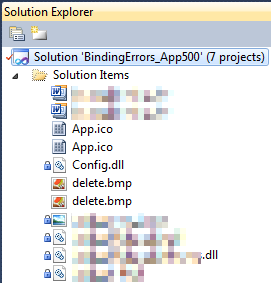
There are many of those (you recognize them from the missing padlock icon in the Solution Explorer).

Version control rot is just like link rot, that’s why one of the high priority action items is to introduce for build automation at this client, then deploy those as clean builds into the Develop and Test stages of the DTAP, then verify if the solutions still work).

–jeroen

Posted in .NET, C#, C# 1.0, C# 2.0, C# 3.0, C# 4.0, C# 5.0, Development, Internet, link rot, Power User, Software Development, Source Code Management, TFS (Team Foundation System), VB.NET, Visual Studio 2010, Visual Studio and tools, WWW - the World Wide Web of information | Leave a Comment »

Great session on how to prevent SQL Injection Myths and Fallacies

Posted by jpluimers on 2012/08/15

A few weeks ago, Bill Karwin did a must watch webinar on the prevention SQL Injection titled  “SQL Injection Myths and Fallacies“.

Bill Karwin (twitter, new blog, old blog, Amazon) is famous for much work in the SQL database community, including InterBase/Firebird, mySQL, Oracle and many more.

He also:

Anyway, his webinar is awesome. Be sure to get the slides, watch the replay, and read the questions follow up.

Watching it you’ll get a better understanding of defending against SQL injection.

A few very valuable points he made: Read the rest of this entry »

Posted in .NET, .NET 3.5, .NET 4.5, .NET ORM, ASP.NET, Batch-Files, C#, C# 1.0, C# 2.0, C# 3.0, C# 4.0, C# 5.0, C++, Cloud Development, COBOL, CommandLine, Database Development, Delphi, Delphi for PHP, Delphi x64, Delphi XE2, Development, EF Entity Framework, F#, Firebird, FireMonkey, History, InterBase, iSeries, Java, JavaScript/ECMAScript, Jet OLE DB, LINQ, LLBLGen, MEF, Microsoft Surface, Mobile Development, PHP, PowerShell, Prism, Scripting, SharePoint, SilverLight, Software Development, SQL, SQL Server, SQL Server 2000, SQL Server 2005, SQL Server 2008, SQL Server 2008 R2, SQL Server 2012, SQL Server 7, VB.NET, VBS, Visual Studio 11, Visual Studio 2002, Visual Studio 2003, Visual Studio 2005, Visual Studio 2008, Visual Studio 2010, Visual Studio and tools, Web Development, Windows Azure, WinForms, WPF, XAML, xCode/Mac/iPad/iPhone/iOS/cocoa | 1 Comment »

.NET/C#: ExpandEnvironmentStrings equivalent is Environment.ExpandEnvironmentVariables; expands environment strings

Posted by jpluimers on 2012/08/09

A while ago, I needed a way to defer settings to environment variables in a .NET application written in C#.

The easiest way to do this is to keep the same syntax as for expanding environment variables in batch files: use the %ENVIRONMENTVARIABLE% syntax (not the delayed expansion !ENVIRNMENTVARIABLE! syntax).

The reason is that there is a Windows API function ExpandEnvironmentStrings that handles all the expansion magic.

Don’t P/Invoke that function yourself, as there is already a very nice Environment.ExpandEnvironmentVariables wrapper since the .NET framework 1.1 that handles all the gory details for you (like marshalling the strings, making sure that lpDst contains enough space for the expansion).

–jeroen

Posted in .NET, C#, C# 1.0, C# 2.0, C# 3.0, C# 4.0, C# 5.0, Development, Software Development | Leave a Comment »