


| How | Upper | Lower | Comment |
|---|---|---|---|
| Keyboard | CTRL + SHIFT + U | CTRL + U | |
| Menu | Edit -> Advanced -> Make Uppercase | Edit -> Advanced -> Make Lowercase | |
| Command | Edit.MakeUppercase | Edit.MakeLowercase | |
| Versions | 2008, 2010, 11 | ||
–jeroen
Posted by jpluimers on 2012/09/28
| How | Upper | Lower | Comment |
|---|---|---|---|
| Keyboard | CTRL + SHIFT + U | CTRL + U | |
| Menu | Edit -> Advanced -> Make Uppercase | Edit -> Advanced -> Make Lowercase | |
| Command | Edit.MakeUppercase | Edit.MakeLowercase | |
| Versions | 2008, 2010, 11 | ||
–jeroen

Posted in .NET, Development, Keyboards and Keyboard Shortcuts, Power User, Software Development, Visual Studio 11, Visual Studio 2008, Visual Studio 2010, Visual Studio and tools | Leave a Comment »
Posted by jpluimers on 2012/09/20
This post describes the TFS workspace cleanup features Treeclean and Scorch.
Both are not in the Visual Studio UI nor TFS tool, but are available form the ftpt command from the optional Team Foundation Power Tools package.
The main reason you need these two features is that TFS does not always clean up after it self when you perform get latest. For instance renamed directories, as well as bin and obj directories are not automatically removed.
The tfpt command I most often use this this one:
tfpt treeclean /exclude:*.suo,*.user
This deletes files from your local TFS workspace directory tree that are not in the source control system, but skips the *.suo and *.user files.
Tfpt also allows you to scorch files from your TFS.
So my second most used tfpt command is scorch in either of the two below forms:
tfpt scorch /recursive /diff

tfpt scorch /recursive /diff /exclude:*.suo,*.user
The first form is for the automatic build environment, the second for my normal development workspace.
Below is the explanation of treeclean and scorch.
First some other great commands from this StackOverflow answer by Martin Woodward:
Not quite, however you might want to download the TFS Power Tools and check out the command line utility tfpt.exe.
The “tfpt online” and “tfpt treeclean” might be most useful to you when working outside of an integrated TFS client. tfpt online will look for files in your local directory that are not under version control, treeclean will show you files in your local directory that are not under version control so that you can remove then if they are not required.
Scorch does more than Treeclean.
I use Treeclean for 90% of my normal workspace work, Scorch (with exclude) for about 10% of the time in my regular workspace.
For my CCnet build integration workspace, I only use Scorch (without exclude).
Treeclean just cleans the tree of stuff that is not in TFS:
B:\MasterWorkingDir>tfpt treeclean /?
tfpt treeclean - Delete files and folders not under version control

Usage: tfpt treeclean [/exclude:filespec1,filespec2,...] [filespec...]
[/recursive] [/batchsize:num] [/noprompt [/preview]]
Scorch does more work: at the end, both source control and the local disk situation are identical.
B:\MasterWorkingDir>tfpt scorch /?
tfpt scorch - Ensure source control and the local disk are identical

Your local disk will be scanned for:
 (1) items that are not in source control
 (2) items which are different on disk from the workspace version
 (3) items which are in the workspace but are missing on disk
Items not in source control will be deleted from disk, just as with the
 tfpt treeclean command. Items determined to be different on disk from the
 workspace version will be redownloaded from the server. Items missing on
 disk will also be redownloaded. Items with pending changes are exempted.

By default, items deleted from your local disk (#3 above) will not be
scanned for, and local items are determined to be identical/different from
the workspace version *solely by examining the read-only bit on the file*.

To redownload items deleted from your local disk (#3 above), supply the
/deletes option. To detect items which are different from the workspace
version but still have their read-only bit set (+R), supply the /diff option.
When using either or both of these options, tfpt scorch runs more slowly.

Usage: tfpt scorch [/exclude:filespec1,filespec2,...] [filespec...]
[/recursive] [/batchsize:num] [/noprompt [/preview]]
[/deletes] [/diff]
The commandline options are also different.
Scorch has these extra when compared to Treeclean:
 /batchsize:num Set the batch size for server calls (default 500)

/deletes Detect and replace items missing from the local disk

/diff Use MD5 hashes to compare items with source control
Treeclean can have these options:
 /noprompt Operate in command-line mode only

/exclude:filespec[,..] Files and directories matching a filespec in this list

are excluded from processing

/preview Do not make changes; only list the potential actions

/recursive Switch from one level of recursion to full recursion

/batchsize:num Set the batch size for server calls (default 500)

filespec... Only files and directories matching these filespecs

are processed
Scorch can have these options:
 /noprompt Operate in command-line mode only

/exclude:filespec[,..] Files and directories matching a filespec in this list

are excluded from processing

/preview Do not make changes; only list the potential actions

/recursive Switch from one level of recursion to full recursion

/batchsize:num Set the batch size for server calls (default 500)

filespec... Only files and directories matching these filespecs

are processed
–jeroen
via:
Posted in CodePlex, Development, Software Development, Source Code Management, TFS (Team Foundation System), Visual Studio 11, Visual Studio 2002, Visual Studio 2003, Visual Studio 2005, Visual Studio 2008, Visual Studio 2010, Visual Studio and tools | 4 Comments »
Posted by jpluimers on 2012/09/06
A while ago, I blew quite a few Visual Studio Solution and Project builds because I was experimenting in a suite of solutions with the Configuration Manager adding other Solution Configurations than Release and Debug, and mixing x86/AnyCPU platforms to facilitate Debug & Continue.
Lesson learned: don’t do that!
Keep it simple:
- Keep your Solution Configurations at Release and Debug,
- Perform conditional defines in your automated build server,
- Limit the mixing your platforms to a minimum.
We noted the anomalies a little late in the process (in retrospect, when taking over the solution suite, we should have started with setting up and Build Automation right at the beginning, then fix all the solutions that came from Visual Source Shredder, but alas: you are never too old to learn from your mistakes).
The anomalies were spurious (and hard to reproduce) build failures at developer workstations, wrong builds of assemblies ending up on the final build directories and more. And best of all: Visual Studio not failing, warning or hinting upon most issues.
The history in the version control system was not helpful enough to assist in fixing it, so the fix was this:
The last step is a lot more complex, because of a couple of reasons:
My workaround was as follows:
Finally, I get to the title of this blog entry: Visual Studio will always generate a directory when creating a Blank Solution, and does not support creating an Empty Solution in a directory.
There are many posts describing how to workaround this, but the actual downloads are usually gone because of link rot (Jakob Nielsen’s alert from 1998 still is totally right about it). Thanks to they webarchive.org WayBackMachine though for keeping some of them alive.
So I went with Peter Provost’s solution, and amended it from Visual Studio 2005 to all Visual Studio versions that support .NET that I have used or still use: 2002, 2003, 2005, 2008, 2010 and 2012 a.k.a. VS11.
All files are in Change set 89386 on BeSharp.CodePlex.com.
His solution uses the ShellNew command for .sln file extensions that is stored in the registry:
ShellNew is versatile, so you can also embed the fresh solution file into the .reg file, see this ShellNew article for a few nice examples.
Note that generating a new ShellNew verb for .sln is something other than loading a .sln (loading a .sln is done through VisualStudioLauncher).
Back to the .sln file: this one is different for any version of Visual Studio. Historically, the basic format is the same though (and I think this – in combination with VisualStudioLauncher – is the main reason it is not XML).
An empty solution file looks like this (note the empty line at the beginning), as described in Hack the Project and Solution Files:
Microsoft Visual Studio Solution File, Format Version 12.00
# Visual Studio 11
Global
	GlobalSection(SolutionProperties) = preSolution
		HideSolutionNode = FALSE
	EndGlobalSection
EndGlobal
The accompanying .reg file like this:
Windows Registry Editor Version 5.00

[HKEY_CLASSES_ROOT\.sln\ShellNew]
"FileName"="Visual Studio Solution - VS11.sln"
When you look at the Format Version inside the .sln version, you see that it (12) is one bigger than the internal Visual Studio Version (11).
That is because Microsoft stepped up the internal version from Visual Studio .NET (2002) and Visual Studio 2003 from 7.0 to 7.1, but the solution file format version from 7.00 to 8.00 as the table below shows.
Note that the .NET 1.x versions of Visual Studio (2002 for .NET 1.0, 2003 for .NET 1.1) don’t have the GlobalSection/HideSolutionNode/EndGlobalSection part and the # Visual Studio xx line.
With a little bit of querying, I got at this table:
| Visual Studio version | Internal version | Solution file format version |
|---|---|---|
| Visual Studio .NET (2002) | 7.0 | Microsoft Visual Studio Solution File, Format Version 7.00 |
| Visual Studio 2003 | 7.1 | Microsoft Visual Studio Solution File, Format Version 8.00 |
| Visual Studio 2005 | 8.0 | Microsoft Visual Studio Solution File, Format Version 9.00 |
| Visual Studio 2008 | 9.0 | Microsoft Visual Studio Solution File, Format Version 10.00 |
| Visual Studio 2010 | 10.0 | Microsoft Visual Studio Solution File, Format Version 11.00 |
| Visual Studio 2012 (a.k.a. VS11) | 11.0 | Microsoft Visual Studio Solution File, Format Version 12.00 |
All files to get you going are in Change set 89386 on BeSharp.CodePlex.com.
It was a bit hard to get all those version numbers, so here are the sources I used:
–jeroen
Posted in .NET, C#, C# 1.0, C# 2.0, C# 3.0, C# 4.0, C# 5.0, Development, Internet, link rot, Power User, Software Development, Visual Studio 11, Visual Studio 2002, Visual Studio 2003, Visual Studio 2005, Visual Studio 2008, Visual Studio 2010, Visual Studio and tools, WWW - the World Wide Web of information | Leave a Comment »
Posted by jpluimers on 2012/08/30
Too often I see quesions like the one below on software that people distribute:
The Program can’t start becuase MSVCR100.dll is missing from your computer. Try reinstalling the program to fix this problem.
I am getting follwing error when i am trying to open Computer management in windows 7,the error is as follows ,
The Program can’t start becuase MSVCR100.dll is missing from your computer. Try reinstalling the program to fix this problem.
Where can i found this dll file, and help me to download and install.
The reason is that many programmers and companies still fail to ship the correct Visual C++ run-time.
Even for a one-off, you should need to get your installation set right. And writing stuff in a version of Visual C++ almost always means you need to ship the run-time for that particular version of Visual C++ with your application (though sometimes you can get away by putting the DLLs in the directory of your application, this is not recommended, as that way you won’t receive security updates).
User Marilyn O was so kind to sum up most of the download locations (I did a bit of post-editing, added all the non-“FamilyID” links, all naming differences are from the MS site):
I would install the Microsoft Visual C++ Redistributable dll that is needed for projects built with Visual Studio 2010.
Download the files below depending on your operating system version. […] Check in Programs and Features, do you show that you have installed Microsoft Visual C++ … Redistributable? If not, download from the links here.
- 2005: msvcr80.dll
- Visual C++ 2005 Redistributable Package (x86)
http://www.microsoft.com/downloads/en/details.aspx?FamilyId=32BC1BEE-A3F9-4C13-9C99-220B62A191EE- Visual C++ 2005 Redistributable Packager (x64)
http://www.microsoft.com/downloads/en/details.aspx?FamilyID=eb4ebe2d-33c0-4a47-9dd4-b9a6d7bd44da- 2008: msvcr90.dll
- Microsoft Visual C++ 2008 Redistributable Package (x86)
http://www.microsoft.com/downloads/en/details.aspx?FamilyID=9B2DA534-3E03-4391-8A4D-074B9F2BC1BF- Microsoft Visual C++ 2008 Redistributable Package (x64)
http://www.microsoft.com/en-us/download/details.aspx?id=15336- 2008 SP1: msvcr90.dll
- Microsoft Visual C++ 2008 SP1 Redistributable Package (x86)
http://www.microsoft.com/en-us/download/details.aspx?id=5582- Microsoft Visual C++ 2008 SP1 Redistributable Package for (x64)
http://www.microsoft.com/downloads/en/details.aspx?familyid=BA9257CA-337F-4B40-8C14-157CFDFFEE4E- 2010: msvcr100.dll
- Microsoft Visual C++ 2010 Redistributable Package (x86)
http://www.microsoft.com/download/en/details.aspx?id=5555- Microsoft Visual C++ 2010 Redistributable Package (x64)
http://www.microsoft.com/download/en/details.aspx?id=14632- 2010 SP1: msvcr100.dll
- Microsoft Visual C++ 2010 SP1 Redistributable Package (x86)
http://www.microsoft.com/en-us/download/details.aspx?id=8328- Microsoft Visual C++ 2010 SP1 Redistributable Package (x64)
http://www.microsoft.com/en-us/download/details.aspx?id=13523- 2012: msvcr110.dll
- Microsoft Visual C++ Redistributable for Visual Studio 2012 (3 downloads: arm, x86 and x64)
http://www.microsoft.com/en-us/download/details.aspx?id=30679
–jeroen
via: The Program can’t start becuase MSVCR100.dll is missing from your – Microsoft Answers.
Posted in C++, Development, Power User, Software Development, Visual Studio 2005, Visual Studio 2008, Visual Studio 2010, Visual Studio and tools, Windows, Windows 7, Windows 8, Windows Server 2000, Windows Server 2003, Windows Server 2003 R2, Windows Server 2008, Windows Server 2008 R2, Windows Vista, Windows XP | 3 Comments »
Posted by jpluimers on 2012/08/18
A question like How do you clear your MRU list in Visual Studio? is why I still like Stack Overflow.
The answers explain how to solve this in a version neutral way, including other MRU lists, and as a bonus point you to handy Visual Studio tools.
–jeroen
via: registry – How do you clear your MRU list in Visual Studio? – Stack Overflow.
Posted in Development, Software Development, Visual Studio 11, Visual Studio 2002, Visual Studio 2003, Visual Studio 2005, Visual Studio 2008, Visual Studio 2010, Visual Studio and tools | Leave a Comment »
Posted by jpluimers on 2012/08/15
A few weeks ago, Bill Karwin did a must watch webinar on the prevention SQL Injection titled “SQL Injection Myths and Fallacies“.
Bill Karwin (twitter, new blog, old blog, Amazon) is famous for much work in the SQL database community, including InterBase/Firebird, mySQL, Oracle and many more.
He also:
Anyway, his webinar is awesome. Be sure to get the slides, watch the replay, and read the questions follow up.
Watching it you’ll get a better understanding of defending against SQL injection.
A few very valuable points he made: Read the rest of this entry »
Posted in .NET, .NET 3.5, .NET 4.5, .NET ORM, ASP.NET, Batch-Files, C#, C# 1.0, C# 2.0, C# 3.0, C# 4.0, C# 5.0, C++, Cloud Development, COBOL, CommandLine, Database Development, Delphi, Delphi for PHP, Delphi x64, Delphi XE2, Development, EF Entity Framework, F#, Firebird, FireMonkey, History, InterBase, iSeries, Java, JavaScript/ECMAScript, Jet OLE DB, LINQ, LLBLGen, MEF, Microsoft Surface, Mobile Development, PHP, PowerShell, Prism, Scripting, SharePoint, SilverLight, Software Development, SQL, SQL Server, SQL Server 2000, SQL Server 2005, SQL Server 2008, SQL Server 2008 R2, SQL Server 2012, SQL Server 7, VB.NET, VBS, Visual Studio 11, Visual Studio 2002, Visual Studio 2003, Visual Studio 2005, Visual Studio 2008, Visual Studio 2010, Visual Studio and tools, Web Development, Windows Azure, WinForms, WPF, XAML, xCode/Mac/iPad/iPhone/iOS/cocoa | 1 Comment »
Posted by jpluimers on 2012/08/02
Your CodeRush SolutionCache folder (which is in your roaming profile, how bad!) can grow to multi-gigabyte proportions as it is not auto-cleaned.
This can lead to very long times for doing logon/logoff in a corporate network.
Mike Christian describes how to clean it.
Note that as of a few versions ago, the AssemblyCache is now a subfolder inside the SolutionCache folder.
Another reason to clean it is when CodeRush starts acting weird.
–jeroen
via: The Curly Brace: How to Clear DevExpress CodeRush Assembly and Solution Cache.
Posted in .NET, C#, Development, Software Development, VB.NET, Visual Studio 11, Visual Studio 2005, Visual Studio 2008, Visual Studio 2010, Visual Studio and tools | Leave a Comment »
Posted by jpluimers on 2012/07/25
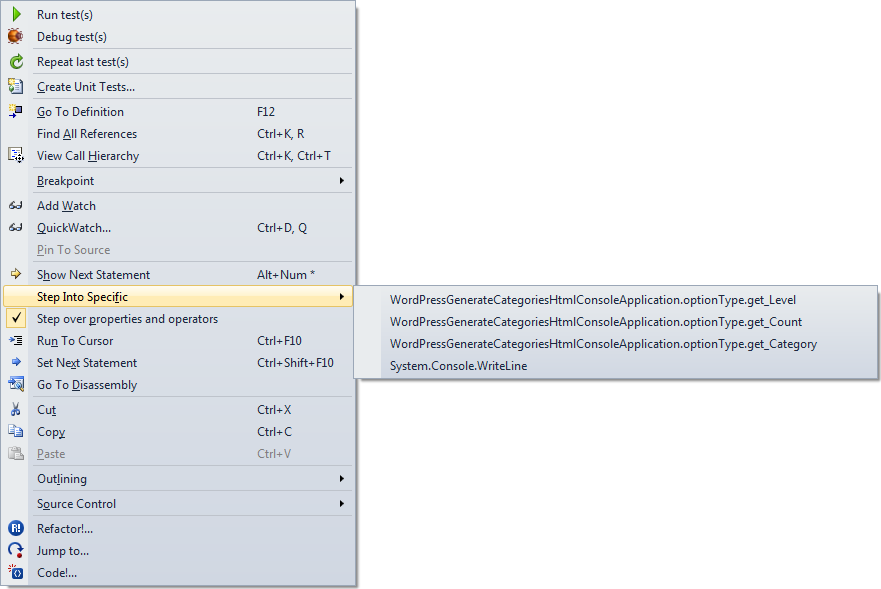
Boy I wish Visual Studio had a “Step into first property or operator” command. You can only do this through the context menu, and that is awfully cumbersome to use.
Just look at the context menu at the end of the post to see why.
Luckily, the option below it is “Step over properties and operators”, which you can easily disable. I usually have it disabled, so for me it is the way to temporarily enable it when I want to skip properties and operators.
If you don’t then you get this message when tracing into properties (or operators)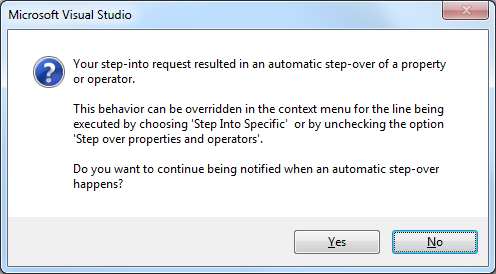 :
:
[Microsoft Visual Studio]

Your step-into request resulted in an automatic step-over of a property or operator.

This behavior can be overridden in the context menu for the line being executed by choosing 'Step Into Specific' or by unchecking the option 'Step over properties and operators'.

Do you want to continue being notified when an automatic step-over happens?

[Yes] [No]
–jeroen

Posted in .NET, Development, Software Development, Visual Studio 11, Visual Studio 2005, Visual Studio 2008, Visual Studio 2010, Visual Studio and tools | Leave a Comment »
Posted by jpluimers on 2012/07/17
There are features you rarely use. I once screwed up my Visual Studio desktop. Resetting to the default is easy, if you remember it is in the import/export settings dialog, which I didn’t (:
This is how I got back to the default:
To reset your settings
- On the Tools menu, click Import and Export Settings.
- On the Welcome to the Import and Export Settings Wizard page, click Reset all settings and then click Next.
- If you want to save your current settings combination, click Yes, save my current settings, specify a file name, and then click Next.
—or—
If you want to delete your current settings combination, choose No, just reset settings, overwriting my current settings, and then click Next. This option does not delete default settings, which will still be available the next time you use the wizard.- In Which collection of settings do you want to reset to, select a settings collection from the list.
- Click Finish.
The Reset Complete page alerts you to any problems encountered during the reset.
–jeroen
via: How to: Reset Your Settings.
Posted in .NET, Development, Software Development, Visual Studio 11, Visual Studio 2005, Visual Studio 2008, Visual Studio 2010, Visual Studio and tools | Leave a Comment »
Posted by jpluimers on 2012/07/04
I’m a keyboard fan, so recently I have put up a new Keyboards and Keyboard Shortcuts category and tried to add all old relevant posts to it (staying organized is time consuming, but in the end it pays back by being able to find back stuff faster).
At conferences, presentations, and clients people often wonder “how do you get to such-and-such IDE feature so quickly” and the answer usually is: be sure you know your keyboard shortcuts. Which isn’t easy, as documentation for them is often spread out, and to find the information: you have to know how the underlying actions are called.
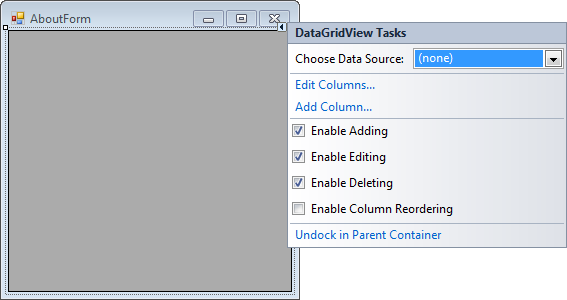
A long time ago (I think it was in version 2005) Visual Studio introduced Smart Tags. Most posts talk only about one kind of Smart Tags, but the Visual Studio IDE has two kinds:
Both listen to these keyboard shortcuts (most cheat sheets miss at least one of these, but you can find them at Pre-defined keyboard shortcuts and at the VS2008 C# keyboard cheatsheet):
The pictures below show the Smart Tag in action.
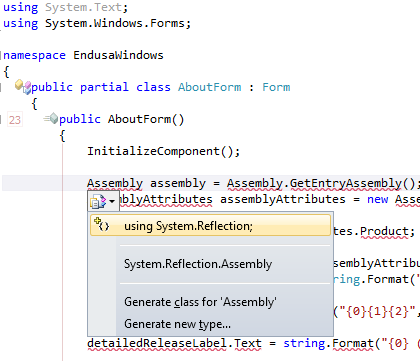
Oh BTW: the red squiggly lines and some of the other adornments in the screenshot are from CodeRush, one of the most keyboard-centric additions to Visual Studio I know.
–jeroen

Posted in Keyboards and Keyboard Shortcuts, Visual Studio 11, Visual Studio 2005, Visual Studio 2008, Visual Studio 2010, Visual Studio and tools | Leave a Comment »
 The Wiert Corner - irregular stream of stuff