Archive for the ‘vscode Visual Studio Code’ Category
Posted by jpluimers on 2022/06/21
If you are still on Atom, try to see if other cross platform open source editors suit your needs.
Myself, I have moved to Visual Studio Code quite some time ago as, though based on Electron – the core of Atom, it is way faster and much better supported than Atom.
The official announcement is at [Wayback/Archive] Sunsetting Atom | The GitHub Blog.
Various sites reported it in different phrasings:
Read the rest of this entry »
Posted in .NET, atom editor, Development, Missed Schedule, Power User, SocialMedia, Software Development, Text Editors, vscode Visual Studio Code, WordPress | Leave a Comment »
Posted by jpluimers on 2022/06/16
Adapted from [Archive.is] How can you export the Visual Studio Code extension list? – Stack Overflow, presuming that code is on the PATH:
- From the command-line interface on MacOS, Linux, BSD or on Windows with
git installed:
code --list-extensions | xargs -L 1 echo code --install-extension
- From the command-line interface on MacOS, Linux, BSD or on Windows without
git installed:
code --list-extensions | % { "code --install-extension $_" }
or, as I think, more clearly (see also [WayBack] syntax – What does “%” (percent) do in PowerShell? – Stack Overflow):
code --list-extensions | foreach { "code --install-extension $_" }
or even more explanatory:
code --list-extensions | ForEach-Object { "code --install-extension $_" }
- From the command-line interface on Windows as a plain
cmd.exe command:
@for /f %l in ('code --list-extensions') do @echo code --install-extension %l
- On Windows as a plain
cmd.exe batch file (in a .bat/.cmd script):
@for /f %%l in ('code --list-extensions') do @echo code --install-extension %%l
- The above two on Windows can also be done using PowerShell:
PowerShell -Command "code --list-extensions | % { """""code --install-extension $_""""" }"
Note that here too, the % can be expanded into foreach or ForEach-Object for clarity.
All of the above prepend “code --install-extension ” (note the trailing space) before each installed Visual Studio Code extension.
They all give you a list like this which you can execute on any machine having Visual Studio Code installed and its code on the PATH, and a working internet connection:
code --install-extension DavidAnson.vscode-markdownlint
code --install-extension ms-vscode.powershell
code --install-extension yzhang.markdown-all-in-onex
(This is about the minimum install for me to edit markdown documents and do useful things with PowerShell).
Of course you can pipe these to a text-file script to execute them later on.
The double-quote escaping is based on [Wayback/Archive.is] How to escape PowerShell double quotes from a .bat file – Stack Overflow:
you need to escape the " on the command line, inside a double quoted string. From my testing, the only thing that seems to work is quadruple double quotes """" inside the quoted parameter:
powershell.exe -command "echo '""""X""""'"
Via: [Archive.is] how to save your visual studio code extension list – Google Search
--jeroen
Posted in *nix, *nix-tools, .NET, bash, Batch-Files, CommandLine, Console (command prompt window), Development, Mac OS X / OS X / MacOS, Power User, PowerShell, PowerShell, Software Development, Visual Studio and tools, vscode Visual Studio Code, Windows, Windows 10, Windows 7, Windows 8, Windows 8.1, Windows Development, Windows Server 2008, Windows Server 2008 R2, Windows Server 2012, Windows Server 2012 R2, Windows Server 2016, WSL Windows Subsystem for Linux, xargs | Leave a Comment »
Posted by jpluimers on 2022/01/03
In Visual Studio Code: blazingly fast text expansion with Emmet I wrote:
One of my behaviours I wanted to get rid of is heavily use of keyboard macros, so when doing more web-stuff, I bumped into Emmet (that in the past was called Zen Code).
That didn’t fully cut it, not even in combination with regular expression based search/replace, so I finally to some time to look at some links that might help me out with keyboard macros.
The links for my archive, most via [Wayback/Archive] vscode macro recorder – Google Search:
- [Wayback/Archive] VSCode HackerTyper – Visual Studio Marketplace
Great for live coding presentations, impressing your friends, or just trying to look busy at work.
HackerTyper allows you to record yourself programming, and to replay the same keystrokes by wildly mashing any key. Supports typing, editing, selections (including multicursor) and autocompletions. Basically, it looks like you have programming superpowers.
Features
- Record and replay macros.
- Insert stop points, so you don’t accidentally overrun your talking point while live coding.
- [Wayback/Archive] VSCode HackerTyper modified by nodename – Visual Studio Marketplace
Hacker Typer allows you to record your keystrokes in VSCode, and to play them back either automatically or by typing random keys. Supports typing, editing, selections (including multicursor) and autocompletions.
Features
- Record and play macros.
- Insert stop points, so you don’t accidentally overrun your talking points while “live coding.”
- Play macros back either automatically or by typing randomly.
- Via [Wayback/Archive] Recording a ‘macro’? or a series of actions in Visual Studio Code? – Stack Overflow
- [Wayback/Archive] visual studio code – How to simultaneously create a new folder and multiple files in VSCode? – Stack Overflow
- [Wayback/Archive] macro-commander (Command Runner) – Visual Studio Marketplace
It lets you write a quick sequence of commands/scripts to automate VS Code tasks. Example sub-actions are; running command line commands, opening a debugging session, pushing git changes, renaming many files, creating smart snippets, formatting the current file and more.
What are some use-case examples?
- A run command that opens up a terminal, starts an SSH connection, and then runs commands on the SSH server
- A new-project command that goes to where ever you typically save projects, uses the GUI to ask for the name of the project, creates the folder, creates a .gitignore with your preferences, runs an init command, and then opens the folder in your current VS Code window.
- A command that opens a project folder, pulls the latest changes, opens several files in that folder, and then displays the recent changes in those files.
- A folder-specific start command, that pulls the latest changes, installs dependiences, formats files, and then opens the debugger with a specific file.
- Via [Wayback/Archive] Macro recording · Issue #4490 · microsoft/vscode:
- [Wayback/Archive] macros – Visual Studio Marketplace (playback programmed macros)
Brings simple, powerful custom macros support to VS Code. Made with <3 by
geddskiCreate Custom Macros
Create your own custom macros by adding them to your settings.json (Code|File > Preferences > User Settings)
For example:
"macros": {
    "commentDown": [
        "editor.action.copyLinesDownAction",
        "cursorUp",
        "editor.action.addCommentLine",
        "cursorDown"
    ]
}
This macro creates a copy of the current line, comments out the original line, and moves the cursor down to the copy.
…
- [Wayback/Archive] multi-command – Visual Studio Marketplace
This extension can create command sequence as one command and bind a key, or call it manually.
Features
- create command sequence as one command and bind a key.
- call command sequence manually.
- set interval between each command execution.
–jeroen
Posted in Development, Software Development, vscode Visual Studio Code | Leave a Comment »
Posted by jpluimers on 2021/10/04
From a while back: [Archive.is] Jeroen Wiert Pluimers on Twitter: ‘Answering Yes to “You have an older version of PackageManagement known to cause issues with the PowerShell extension. Would you like to update PackageManagement (You will need to restart the PowerShell extension after)?” hung my Visual Studio Code.… ‘

After clicking “Yes”, the the only thing visible was this notification that had an ever running “progress bar”:
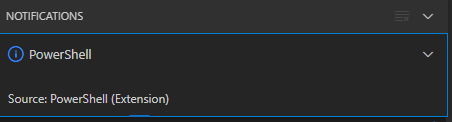
Notifications – Powershell – Source: Powershell (Extension)
The first part of the solution was relatively simple: restart Visual Studio code, then the original notification showed, and after clicking “Yes”, the “Panel” (you can toggle it with Ctrl+J) showed the “Terminal” output (yes, I was working on [Wayback/Archive.is] PowerShell script for sending Wake-on-LAN magic packets to given machine hardware MAC address, more about that later):
Read the rest of this entry »
Posted in .NET, Communications Development, Development, Encryption, HTTP, HTTPS/TLS security, Internet protocol suite, Power User, Security, Software Development, TCP, Visual Studio and tools, vscode Visual Studio Code, Windows, Windows 10 | Leave a Comment »
Posted by jpluimers on 2021/05/27
A few links for my link archive, as I often edit XML files (usually with different extensions than .xml, because historic choices that software development vendors make, which makes it way harder to tell editors “yes, this too is XML).
- Visual Studio Code
- Visual Studio
- [WayBack] XPath Tools – Visual Studio Marketplace: Extension for Visual Studio – Run XPaths and XPath functions. Browse through results at the click of a button.Track and copy XPaths incl. XML namespaces in various formats, taking the hassle out of complex documents
- Via:
- Notepad++ (note you have to install the plugin as Administrator, and restart Notepad++ to take effect)
–jeroen
Read the rest of this entry »
Posted in .NET, Development, Notepad++, Power User, Software Development, Text Editors, Visual Studio and tools, vscode Visual Studio Code, XML, XML/XSD | Leave a Comment »
Posted by jpluimers on 2021/02/03
Sometimes I forget the choco install mnemonics for various tools, so here is a small list below.
Of course you have to start with an administrative command prompt, and have a basic Chocolatey Installation in place.
If you want to clean cruft:
choco install --yes choco-cleaner
Basic install:
choco install --yes 7zip
choco install --yes everything
choco install --yes notepadplusplus
choco install --yes beyondcompare
choco install --yes git.install --params "/GitAndUnixToolsOnPath /NoGitLfs /SChannel /NoAutoCrlf /WindowsTerminal"
choco install --yes hg
choco install --yes sourcetree
choco install --yes sysinternals
For VMs (pic one):
choco install --yes vmware-tools
choco install --yes virtio-drivers
For browsing (not sure yet about Chrome as that one has a non-admin installer as well):
choco install --yes firefox
For file transfer (though be aware that some versions of Filezilla contained adware):
choco install --yes filezilla
choco install --yes winscp
For coding:
choco install --yes vscode
choco install --yes atom
For SQL server:
choco install --yes sql-server-management-studio
For web development / power user:
choco install --yes fiddler
For SOAP and REST:
choco install --yes soapui
If you don’t like manually downloading SequoiaView at gist.github.com/jpluimers/b0df9c2dba49010454ca6df406bc5f3d (e8efd031d667de8a1808d6ea73548d77949e7864.zip):
choco install --yes windirstat
For drawing, image manipulation (paint.net last, as it needs a UI action):
choco install --yes gimp
choco install --yes imagemagick
choco install --yes paint.net
For ISO image mounting in pre Windows 10:
choco install --yes wincdemu
For hard disk management:
choco install --yes hdtune
choco install --yes seatools
choco install --yes speedfan
For Fujitsu ScanSnap scanners (not sure yet this includes PDF support):
choco install --yes scansnapmanager
–jeroen
Posted in 7zip, atom editor, Beyond Compare, Chocolatey, Compression, Database Development, Development, DVCS - Distributed Version Control, Everything by VoidTools, Fiddler, Firefox, Fujitsu ScanSnap, git, Hardware, Mercurial/Hg, Power User, Scanners, SOAP/WebServices, Software Development, Source Code Management, SQL Server, SSMS SQL Server Management Studio, SysInternals, Text Editors, Versioning, Virtualization, VMware, VMware ESXi, vscode Visual Studio Code, Web Browsers, Web Development, Windows | Leave a Comment »
Posted by jpluimers on 2020/11/11
Sometimes you are in search of a real TAB character, as most editors (except a few like the ones for Golang) I bump into are space-based. A great answer at [WayBack] visual studio code – VSCode insert tab character manually – Stack Overflow:
Quick-and-dirty solution: Find a tab somewhere else, then copy-paste.
Chances are that you already have a tab character in the file you are editing, but if not you can generate one in another application or text editor.
You can also generate a tab programmatically in a bash shell with the following command (the brackets are optional):
echo -e [\\t]
For your more immediate needs, I have inserted a tab character below…
There is a tab character between these brackets: [ ]
–jeroen
Posted in Development, Software Development, Visual Studio and tools, vscode Visual Studio Code | Leave a Comment »
Posted by jpluimers on 2020/08/12
This and built-in markdown support made the switch to Visual Studio code from Atom.io so much easier: [WayBack] PlantUML – Visual Studio Marketplace.
Atom.io was already on my list of tools to say good bye to: though a good project to show the versatility of the Electron Framework, over time – like Google Chrome – it had become a memory and CPU hog and a drag to use and update.
Integrating debuggers and other parts of the development life cycle involved too much fuzz, for which Visual Studio code (also known as vscode) was much easier from the start.
Probably Visual Studio code did not suffer from what the Dutch call Law of the handicap of a head start: it is much more responsive and versatile than Atom.io. Also the plugins – despite having come to the market later – feel way more mature in Visual Studio code than Atom.io.
Finally, the PlantUML support extension for vscode is so much nicer than in Atom.io, it for instance supports live updating and in addition to local rendering, rendering through a PlantUML server (see [WayBack] GitHub – plantuml/plantuml-server: PlantUML Online Server).
Source code is at [WayBack] GitHub – qjebbs/vscode-plantuml: Rich PlantUML support for Visual Studio Code.
Read the rest of this entry »
Posted in .NET, atom editor, Development, Diagram, PlantUML, Power User, Software Development, Text Editors, UML, Visual Studio and tools, vscode Visual Studio Code | Leave a Comment »
Posted by jpluimers on 2020/05/27
At the time of looking, FiraCode would not work in Delphi but would in Visual Studio. Reminder for me to look at it again: [WayBack] GitHub – tonsky/FiraCode: Monospaced font with programming ligatures.
A cool feature of the font is that it has ligatures for common multi-character combinations like := or ...
Back when scheduling this, I was still at Lucida Console because of its large x-height and small line spacing.
It is time to revisit my font choice, so lets include at least these candidates:
–jeroen
related:
Edit 20200527: observations by Uwe Schuster
Posted in .NET, Delphi, Development, Font, Power User, Programmers Font, Software Development, Visual Studio 2015, Visual Studio and tools, vscode Visual Studio Code | Leave a Comment »


 The Wiert Corner - irregular stream of stuff