The Wiert Corner – irregular stream of stuff

Jeroen W. Pluimers on .NET, C#, Delphi, databases, and personal interests

  • My badges

  • Twitter Updates

  • My Flickr Stream

  • Pages

  • All categories

  • Enter your email address to subscribe to this blog and receive notifications of new posts by email.

    Join 1,860 other subscribers

Archive for the ‘Hardware’ Category

Mikrotik Remote Access via Multiple WAN Links | Syed Jahanzaib Personal Blog to Share Knowledge !

Posted by jpluimers on 2020/11/04

Multi-WAN routing always involves marking incoming connections to the replies go out on the same connection: [WayBack] Mikrotik Remote Access via Multiple WAN Links | Syed Jahanzaib Personal Blog to Share Knowledge !

# Mirkotik IP Firewall Mangle Section
/ ip firewall mangle
# Mark traffic coming via WAN-1 link
add chain=input in-interface=WAN1 action=mark-connection new-connection-mark=WAN1_incoming_conn
# Mark traffic coming via WAN-2 link
add chain=input in-interface=WAN2 action=mark-connection new-connection-mark=WAN2_incoming_conn
# Mark traffic routing mark for above marked connection for WAN-1 , so that mikrotik will return traffic via same interface it came in
add chain=output connection-mark=WAN1_incoming_conn action=mark-routing new-routing-mark=to_WAN1
# Mark traffic routing mark for above marked connection for WAN-2, so that mikrotik will return traffic via same interface it came in
add chain=output connection-mark=WAN2_incoming_conn action=mark-routing new-routing-mark=to_WAN2
# Finally Add appropriate routes in ROUTE section
/ ip route
add dst-address=0.0.0.0/0 gateway=1.1.1.2 routing-mark=to_WAN1 check-gateway=ping
add dst-address=0.0.0.0/0 gateway=2.2.2.2 routing-mark=to_WAN2 check-gateway=ping

Related:

–jeroen

Posted in Development, Internet, MikroTik, Power User, RouterOS, routers, Scripting, Software Development | Leave a Comment »

Making Fujitsu ix500 scanner’s CardMinder Viewer not globally steal the Alt-F3 shortcut

Posted by jpluimers on 2020/10/30

I hate applications that globally install Windows shortcut keys without the setup/install either warn about it or make it configurable.

In this case it is about CardMinder Viewer that ships with the Fujitsu ix500 scanner and installs a global shortcut, by default Alt-F3.

CardMinder Viewer is especially bad because the “settings” are not in the application: the settings are part of the Windows notification area (usually on the lower left of your screen; many people call it “the tray” as it was called tray in the Cairo research that led to Windows 95 and Windows NT 3.5).

So here is how to get rid of the AltF3 shortcut to be stolen:

Read the rest of this entry »

Posted in Fujitsu ScanSnap, Hardware, ix500, Power User, Scanners, Windows | Leave a Comment »

pfSense OpenVPN server configuration steps

Posted by jpluimers on 2020/09/28

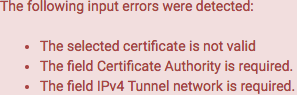
Saving an initial configuration without changing anything gives these errors:
Self signed certificate

If you are OK with self-signed certificates, then the first is solved by using this as the Server certificate:

Certificate authority

The second needs an additional step: you have to select or create a certificate authority first at hostname/system_camanager.php?act=new where hostname is the hostname or IP address of your pfSense configuration.

This order is actually explained in [WayBack] OpenVPN – The Open Source VPN: HOWTO and [WayBack] OpenVPN Configuration (pfSense) – ELITS, but I like stronger security.

For the Internal Certificate Authority (CA), use at least these settings:

  • “Key length (bits)” at least 2048 bits, but I prefer 3072 bits (to be safe after about 2030) as per
  • “Digest Algorithm” at least sha256, but I prefer sha512 as it will be safe for a longer period of time.
  • “Lifetime” by default is 3650 (10 years); can you keep your VM safe for that long? If longer, you can increase the lifetime, but also have to ensure you take large enough values for the Key length and Digest Algorithm.

You can view the possible settings in [WayBack] pfsense/system_camanager.php at master · pfsense/pfsense · GitHub.

Straightforward parameters

Further encryption hardening

  • DH Parameter Length
    • One problem here is that pfSense ships with pre-generated Diffie Helman (DH) parameters:

      This means they can potentially be re-used as an attack-vector, so you need to manually re-generate them as per [WayBack] DH Parameters – pfSense Documentation by using /usr/bin/openssl dhparam

      In order to speed that up, you have to either manually add a lot of entropy, or ensure your VM uses the host entropy by installing the open-vm-tools and rebooting.

      This can take quite some time as it depends on /dev/random as a pure random number source, which will wait if there is not enough initial entropy available yet (see [WayBack] prng – differences between random and urandom – Stack Overflow).

      In order to speed that up, you have to either manually add a lot of entropy, or ensure your VM uses the host entropy by installing the open-vm-tools and rebooting.

      On a single-coreIntel(R) Xeon(R) CPU E5-2630L v4 @ 1.80GHz, the timings of these

      /usr/bin/openssl dhparam -out /etc/dh-parameters.1024 1024
      /usr/bin/openssl dhparam -out /etc/dh-parameters.2048 2048
      /usr/bin/openssl dhparam -out /etc/dh-parameters.4096 4096

      using the [WayBack] FreeBSD Manual Pages: time command are (each measured twice):

      • ~4.5 seconds for 1024 bits:

      • ~23 seconds for 2048 bits:

      • ~150 seconds for 4096 bits:

      • You see that even within the same length, the duration varies highly.
    • Given you already burned those CPU cycles, choose the largest one: 4096
  • Encryption Algorithm
  • Enable NCP(Negotiable Cryptographic Parameters)
    • I enabled this, because I consider the ones below safe enough. If you just want to go for one algorithm, then disable this.
  • NCP Algorithms
    • See the previous one; only list the algorithm-length-mode combinations that you want to allow.. Since I am on AES, prefer GCM, and all key sizes are considered safe, my list is the one on the right:

      This is in decreasing order of secureness:

      • AES-256-GCM
      • AES-192-GCM
      • AES-128-GCM
  • Auth digest algorithm
  • Certificate depth
    • For now it is 1 (as it is self-signed)
    • In the future I will experiment with proper (hopefully Let’s Encrypt) signed certificates. I am not yet sure if that might need a larger depth.

Other settings

All networks are in CIDR notation, like 192.168.3.0/24.

  • IPv4 Tunnel network
  • IPv6 Tunnel network
    • I still need to implement IPv6 in full, so that is empty for now.
  • IPv4 Local networks
    • These are my local networks. Still need to test how well routing works, but given the default gateway knows about them too, I do not suspect problems.
  • IPv4 Remote networks
    • Empty as I do not use site-to-site VPN yet.
  • IPv4 Remote networks
    • I still need to implement IPv6 in full, so that is empty for now.
  • Concurrent connections
    • Still need to measure performance, so empty for now.
  • Compression
    • I kept the default “Omit Preference (Use OpenVPN Default)”.
    • I might choose compression lz4 or compression lz4-v2 in the future.
  • Push compression
    • Kept to unchecked: I dislike other VPN connections to push settings to me, so I do not want to push settings to others.
  • Type-of-Service
    • Kept to unchecked, although I might opt for checked later on: need to do some testing first.
  • Inter-client communication
    • Kept to unchecked: I do not want clients to talk to each other in this particular network, though I might for some specific OpenVPN setup
  • Duplicate Connection
    • Kept to unchecked
  • Dynamic IP
    • I have enabled this as I expect clients to switch IP addresses because of switching between networks
  • [WayBack] Topology: choose subnet (use net30 only for old 2.0.9 client compatibility on Windows; use p2p if you only have non-Windows clients)
  • Advanced client options
    • All defaults, as currently I do not run an internal DNS, but those will probably change in the future:
      • DNS Default Domain
      • DNS Server enable
      • DNS Server 1..4
      • Force DNS Cache Update
  • Custom options
    • None, but I will need to do some deeper reading on the possibilities here
  • UDP Fast I/O
    • Disabled as experimental
  • Send/Receive Buffer
    • Default, although I might increase this if speed is too slow.
  • Gateway creation
    • I choose the default Both
  • Verbosity level
    • Default


Enabling AES

Even if the underlying Intel/AMD processor supports AES, it is not enabled by default in pfSense as per web UI home page:

Intel(R) Xeon(R) CPU E5-2630L v4 @ 1.80GHz
AES-NI CPU Crypto: Yes (inactive)

I was quite surprised, but then remembered that enabling RDRAND in the OpenVPN settings was also non-default and dug a bit deeper into ….

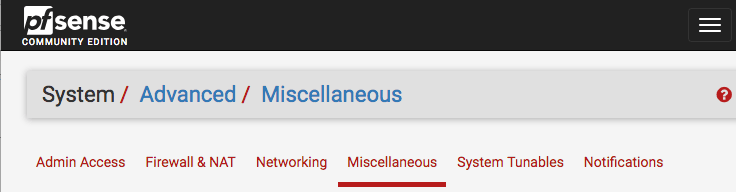
There I found you have to go to the System menu, choose Advanced, then the Miscellaneous tab:
From there, browse down (or search for Hardware) to “Cryptographic & Thermal Hardware”, then enable the CPU based accelleration:
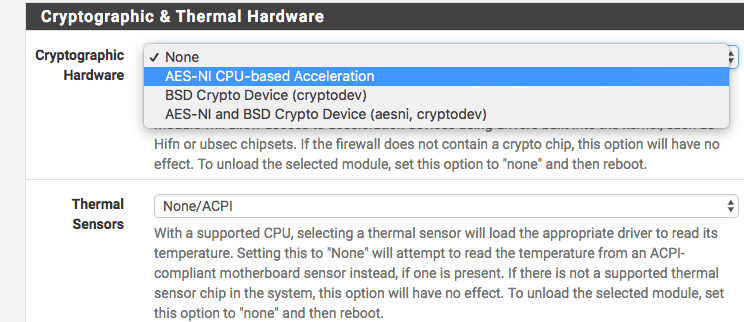
After pressing the Save button at the bottom, you are done:

AES-NI CPU Crypto: Yes (active)

I got this via [WayBack] AES-IN Inactive?, which also mentions this:

  • AES-NI loads aesni.ko
  • BSD Crypto loads cryptodev.ko
  • AES-NI and BSD Crypto loads both

Note that AES – as of FreeBSD-10 – AES-NI and other hardware implementations are only indirectly incorporated into /dev/random. The Linux kernel already did this in an indirect way. I think that is a good idea as when multiple entropy sources are merged together, it makes it much harder to influence to total entropy. FreeBSD implemented this using the Yarrow algorithm – Wikipedia and now has moved to a successor, the Fortuna (PRNG) – Wikipedia.

More background information:

padlock ACE support

Note there is a message about ACE support on the console and in the boot log that is related to AES:

padlock0: No ACE support.
aesni0: <AES-CBC, AES-XTS, AES-GCM, AES-ICM> on motherboard

The cause is that in the past, VIA PadLock Advanced Cryptography Engine (ACE) in the mid 2000s introduced encryption acceleration (see [WayBack] VIA PadLock support for Linux) a few years before AES-NI, so ACE is incompatible with AES-NI. AES-NI is now much more widespread than ACE, even the wikipedia VIA page padlock information has been removed.

An odd thing: unlike AES-NI which needs to be specifically enabled, VIA Padlock is always enabled, see

OpenVPN Client Export Package

Ensure you install the (optional, but highly recommended) [WayBack] OpenVPN Client Export Package:

Allows a pre-configured OpenVPN Windows Client or Mac OS X’s Viscosity configuration bundle to be exported directly from pfSense.

These config files work with Tunnelblick as well, which is a great free and open source OpenVPN tool on Mac OS X / MacOS:

Creating and exporting users

I have yet to cover these two; for now read [WayBack] How to setup OpenVPN on pFSense? | IT Blog and [WayBack] OpenVPN Remote Access Server – pfSense Documentation.

Further reading

I like this overview a lot:

–jeroen

Read the rest of this entry »

Posted in Internet, pfSense, routers | Leave a Comment »

During pfSense boot: syslogd “operation not supported by device” messages

Posted by jpluimers on 2020/09/25

If during a pfSense reboot you get one or more messages from syslog about “operation not supported by device” on various log files, then they are likely corrupt.

I had this when a pfSense 2.4.x RELEASE version VM was accidentally power-cycled during initial setup.

A side effect was that no logs showed in the web UI either, nor would clog on any file in the /var/log directory.

The solution was to choose option 8 (Shell), then in the /var/log directory, remove all files with extension .log, then reboot.

Now the messages were gone and the web UI showed logs. clog /var/log/system.log showed content as well.

Solution based on these posts:

–jeroen

Posted in Internet, pfSense, Power User, routers | Leave a Comment »

Supermicro Bios Update – YouTube

Posted by jpluimers on 2020/09/14

I needed to get myself an OOB license for the BIOS update over the IPMI console or SUM (Supermicro Update Manager). An IPMI update can be done without an OOB license from the IPMI console, but the BIOS requires a license.

Links that initially helped me with that to get a feel for what I needed:

I thought that likely I need to purchase a key for it:

Obtain the license code from your IPMI BMC MAC address

But then I found out the below links on reverse engineering.

From those links, I checked both the Perl and Linux OpenSSL versions. Only the Perl version works on MacOS.

Then I fiddled with the bash version: unlike the OpenSSL version above, this one printed output. It wrongly printed the last groups of hex digits instead of the first groups of hex digits that the Perl script prints.

Here is the corrected bash script printing the first groups of hex digits (on my systems, I have an alias supermicro_hash_IPMI_BMC_MAC_address_to_get_OOB_license_for_BIOS_update for it):

#!/bin/bash
function hash_mac {
  mac="$1"
  key="8544e3b47eca58f9583043f8"
  sub="\x"
  #convert mac to hex
  hexmac="\x${mac//:/$sub}"
  #create hash
  code=$(printf "$hexmac" | openssl dgst -sha1 -mac HMAC -macopt hexkey:"$key")
  #DEBUG
  echo "$mac"
  echo "$hexmac"
  echo "$code"

  echo "${code:0:4}-${code:4:4}-${code:8:4}-${code:12:4}-${code:16:4}-${code:20:4}"
}

Steps

Reverse engineering links

  • [WayBack] The better way to update Supermicro BIOS is via IPMI – VirtualLifestyle.nl

    Another way to update the BIOS via the Supermicro IPMI for free is simply calculating the license key yourself as described here: https://peterkleissner.com/2018/05/27/reverse-engineering-supermicro-ipmi/ [WayBack].

    • [WayBack] Reverse Engineering Supermicro IPMI – peterkleissner.com

      Algorithm:

      MAC-SHA1-96(INPUT: MAC address of BMC, SECRET KEY: 85 44 E3 B4 7E CA 58 F9 58 30 43 F8)

      Update 1/14/2019: The Twitter user @astraleureka posted this code perl code which is generating the license key:

      #!/usr/bin/perl
      use strict;
      use Digest::HMAC_SHA1 'hmac_sha1';
      my $key  = "\x85\x44\xe3\xb4\x7e\xca\x58\xf9\x58\x30\x43\xf8";
      my $mac  = shift || die 'args: mac-addr (i.e. 00:25:90:cd:26:da)';
      my $data = join '', map { chr hex $_ } split ':', $mac;
      my $raw  = hmac_sha1($data, $key);
      printf "%02lX%02lX-%02lX%02lX-%02lX%02lX-%02lX%02lX-%02lX%02lX-%02lX%02lX\n", (map { ord $_ } split '', $raw);

      Update 3/27/2019: There is also Linux shell version that uses openssl:

      echo -n 'bmc-mac' | xxd -r -p | openssl dgst -sha1 -mac HMAC -macopt hexkey:8544E3B47ECA58F9583043F8 | awk '{print $2}' | cut -c 1-24
    • [WayBack] Modular conversion, encoding and encryption online — Cryptii

      Web app offering modular conversion, encoding and encryption online. Translations are done in the browser without any server interaction. This is an Open Source project, code licensed MIT.

      Steps:

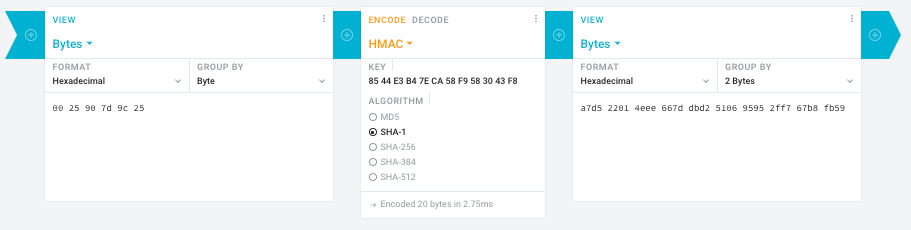
      1. In the left pane, select the “View” drop-down to be “Bytes”, then paste the HEX bytes of your IPMI MAC address there (like 00 25 90 7d 9c 25)
      2. In the middle pane, select the drop-down to become “HMAC” followed by the radio-group to be “SHA1“, then paste these bytes into the “Key” field: 85 44 E3 B4 7E CA 58 F9 58 30 43 F8
      3. In the right pane, select the drop-down to become “Bytes”, then the “Group by” to become “2 bytes”, which will you give the output (where the bold part is the license key: 6 groups of 2 bytes): a7d5 2201 4eee 667d dbd2 5106 9595 2ff7 67b8 fb59

      Result:

    • Michael Stapelberg’s private website, containing articles about computers and programming, mostly focused on Linux.[WayBack] Securing SuperMicro’s IPMI with OpenVPN
    • [WayBack] GitHub – ReFirmLabs/binwalk: Firmware Analysis Tool
  • [WayBack] The better way to update Supermicro BIOS is via IPMI – VirtualLifestyle.nl

    Ahh…..a few corrections :-P

    #!/bin/bash
    function hash_mac {
      mac="$1"
      key="8544e3b47eca58f9583043f8"
      sub="\x"
      #convert mac to hex
      hexmac="\x${mac//:/$sub}"
      #create hash
      code=$(printf "$hexmac" | openssl dgst -sha1 -mac HMAC -macopt hexkey:"$key")
      #DEBUG
      echo "$mac"
      echo "$hexmac"
      echo "$code"
      echo "${code:9:4} ${code:13:4} ${code:17:4} ${code:21:4} ${code:25:4} ${code:29:4}"
    }
    #hex output with input
    hash_mac "$1"
    
    #Look out for the quotes, they might get changed by different encoding
  • [WayBack] The better way to update Supermicro BIOS is via IPMI – VirtualLifestyle.nl

    Thanks Peter. For anyone interested, here’s a bash script that takes the MAC as the only argument and outputs the activation key:

    #!/bin/bash
    function hash_mac {
      mac="$1"
      key="8544e3b47eca58f9583043f8"
      sub="\x"
      #convert mac to hex
      hexmac="\x${mac//:/$sub}"
      #create hash
      code=$(printf "$hexmac" | openssl dgst -sha1 -mac HMAC -macopt hexkey:"$key")
      ## DEBUG
      echo "$mac"
      echo "$hexmac"
      echo "$code"
      echo "${code:9:4} ${code:13:4} ${code:17:4} ${code:21:4} ${code:25:4} ${code:29:4}"
    }
    ## hex output with input
    hash_mac "$1"


–jeroen

Read the rest of this entry »

Posted in Development, Encoding, Hardware, Hashing, HMAC, Mainboards, OpenSSL, Power User, Security, SHA, SHA-1, Software Development, SuperMicro, X10SRH-CF | Leave a Comment »

I need to dig into IPP / driverless printer confuguration

Posted by jpluimers on 2020/09/07

It looks like I need to learn about IPP and driverless based on [WayBack] TIL that your Linux desktop can probably use your somewhat recently made printer, efficiently, with all major features exposed, without needing to download a ton of vendor shitware, without needing to find a PPD file in the depths of hell, without needing to pay extra for explicit PostScript 3 support, and without needing to accept that it will do 0.2 instead of 20 pages per minute because the in-printer PostScript rasterizer runs on a Z80…. – Maik Zumstrull – Google+.

So here are some links:

Via: [WayBack] TIL that your Linux desktop can probably use your somewhat recently made prin… – Kristian Köhntopp – G+

When adding my printer in the Chrome tool, it can properly detect it:

Printer information
Printer make/model: OKI-MC342-36855D
Printer state: idle
Accepting jobs: true
IPP server version: 1.1
Supports PDF natively: true
Supports PWG raster: false
Supports Postscript: true
Supports Unirast: true
Supports application/octet-stream: true
CUPS server: No
Compatability report: PASS Printer should be compatible – try printing

–jeroen

Posted in *nix, *nix-tools, Hardware, OKI C332, OKI Printers, Power User, Printers | 2 Comments »

GL-AR300M – GL.iNet: nice small device allowing NAT over WAN, WiFi, 3G/4G modem, or OpenVPN

Posted by jpluimers on 2020/08/28

Still glad I got a few of [WayBack] GL-AR300M – GL.iNet: it makes travel life so much easier when you cannot use tethering.

I got the model GL-AR300M with external antennas (the GL-AR300M only has internal ones with a much shorter range).

Powered over USB, it runs OpenWRT and can NAT a local network towards an external network on the WAN, WiFi or (via USB) 3G/4G modem.

Despite doing only 2.4Ghz, it was a life saver in many occasions (there is a 5Ghz model, but it has over heating issues).

Read the rest of this entry »

Posted in Development, Ethernet, GL-AR300M, GL.iNet, Hardware, Hardware Development, LifeHacker, Network-and-equipment, Power User, Raspberry Pi, routers, VPN, WiFi | Leave a Comment »

Computer Hardware Chart – Imgur

Posted by jpluimers on 2020/08/28

Geek pr0n from now all the way back to the 1980s [WayBackComputer Hardware Chart – Imgur.

Basically all sorts of modules and connectors you find in computers:

  • Notebook RAM
  • Desktop RAM
  • Hard Drives
  • CPU Sockets
  • Processor Card Slots
  • Processor Card Sockets
  • I/O ports
  • Peripheral Cards
  • Desktop Card Slots
  • Power Connectors

Via: [WayBack] #NerdPorn Computer Hardware Chart https://imgur.com/gallery/hBE7ZF8 – DoorToDoorGeek “Stephen McLaughlin” – Google+

–jeroen

Read the rest of this entry »

Posted in Hardware, History, Power User | Leave a Comment »

Some more interesting OpenWrt capable routers/ATAs

Posted by jpluimers on 2020/08/24

Interesting devices running OpenWrt:

–jeroen

Posted in Internet, Power User, routers | Leave a Comment »

Firewall whitelist for Windows Update

Posted by jpluimers on 2020/08/14

In the end, this list worked on a Fritz!Box, but I still do not know which other subdomains and protocols they silently let pass:

windowsupdate.microsoft.com
*.windowsupdate.microsoft.com
*.update.microsoft.com
*.windowsupdate.com
download.windowsupdate.com
download.microsoft.com
*.download.windowsupdate.com
test.stats.update.microsoft.com
ntservicepack.microsoft.com
update.microsoft.com
*.update.microsoft.com
*.download.microsoft.com
windowsupdate.com
wustat.windows.com
login.live.com
mp.microsoft.com
*.mp.microsoft.com
www.update.microsoft.com
support.microsoft.com
www.msftconnecttest.com

Some source materials:

–jeroen

Read the rest of this entry »

Posted in Fritz!, Fritz!Box, Internet, Power User, Windows, Windows 10, Windows 7 | Leave a Comment »