Archive for the ‘Windows 8.1’ Category
Posted by jpluimers on 2014/04/02
Wow, I totally missed the introduction of SETX.
From TechNet:
SETX:
Creates or modifies environment variables in the user or system environment, without requiring programming or scripting. The Setx command also retrieves the values of registry keys and writes them to text files.
Even better, is that it allows you take values from these sources so it is easy to get those into environment variables:
- Command-line parameter
- Registry key
- Text file (with some filtering/search options)
From a bit of searching around, I think it got introduced in a Windows Resource Kit, and got included by default starting Windows Vista.
Excellent addition to my toolset (:
–jeroen
via Setx.
Posted in Batch-Files, Development, Power User, Scripting, Software Development, Windows, Windows 7, Windows 8, Windows 8.1, Windows Server 2008, Windows Server 2008 R2, Windows Vista | Leave a Comment »
Posted by jpluimers on 2014/03/30
Read this very nice post on Nex7’s Blog: ECC vs non-ECC RAM: The Great Debate.
There is no debate. Use ECC dude.
Use ECC especially for server side things (storage, virtualization, databases, etc) where you employ some kind of redundancy/correction in the storage (ZFS, RAID, etc) side of things.
And think about using ECC for the rest of your stuff, especially when things stay in memory for a longer period of time (in-memory processing of data can speed up things a lot, but also increase the risk).
Summary:
There is no debate here. None.
[…]
if you think non-ECC RAM can compete with ECC RAM, you are mistaken. If you think there’s a risk/reward analysis here, you’re correct. The risk is not gigantic, and there’s a real cost to alleviating that risk. You have to decide if that cost is worth alleviating that risk.
[…]
If you believe there’s a risk/reward plan where you can take the reward and apply to to mitigate the risk, you are back to being mistaken. The only benefit of non-ECC RAM (and thus the only reward in its choice over ECC RAM) is it will make the solution cheaper. There is not, however, any way (that I’ve heard of, yet) you can use the cost savings to mitigate the risk using non-ECC RAM will introduce.
[…]
If you choose to use non-ECC RAM, you open yourself up to a new vector for data corruption/loss/downtime/errors/etc,
one that could (rarely) even cause you to lose your entire filesystem, and one ZFS does not (cannot) resolve for you. Indeed, one it likely can’t even see at all. If you choose to employ non-ECC RAM, or are forced to do so because of circumstance or environmental constraint, that’s potentially understandable (and even acceptable) – but do not then attempt to validate or explain away that choice with pseudoscience or downplaying the risk you’ve added. You are using an inferior solution with an extra vector for data corruption/loss that ECC RAM solutions simply do not have. It is that simple.
[…]
Hint 3: There’s a reason we’re so gung-ho about using ECC RAM for ZFS, and it’s not just because we’re paranoid about data loss (which goes hand in hand with being a ZFS zealot, really). It is because you likely don’t realize how at risk you are. Due to the nature of how ZFS handles writes, your incoming (write) data is at risk of RAM-related bit errors for likely significantly longer than traditional storage solutions or alternative filesystems. 5, 10, 30, 60 or more seconds in a state where it is at risk.
Read the rest of this entry »
Posted in *nix, ECC memory, Endian, ESXi4, ESXi5, ESXi5.1, ESXi5.5, Hardware, Hyper-V, Linux, Memory, Power User, SuSE Linux, VMware, VMware ESXi, Windows, Windows 7, Windows 8, Windows 8.1, Windows Server 2008, Windows Server 2008 R2 | Tagged: ECC RAM, ZFS | Leave a Comment »
Posted by jpluimers on 2014/03/29
Until recently, I had all my VMware vSphere Client installations inside a Windows XP VM because Windows XP: relatively light weight, but (as of writing almost) End-of-Life.
I am upgrading that install now, and actually making two installs:
- on Windows Server 2003 R2 (the main VM management VM)
- on Windows 8.1 (my main Windows work laptop)
Of course I needed the installers for vSphere Client 4.1, 5.0, 5.1 and 5.5. The easiest os to get them through the direct download links at VMware: Vsphere Client Direct Download Links | tech :: stuff Read the rest of this entry »
Posted in ESXi4, ESXi5, ESXi5.1, ESXi5.5, Power User, VMware, VMware ESXi, Windows, Windows 8.1, Windows Server 2003 R2, Windows XP | Tagged: VMware, Windows Server 2003 R2, Windows XP, Windows XP SP2 | Leave a Comment »
Posted by jpluimers on 2014/03/29
The upside of findstr is that it is included with Windows since a long time (at least since Windows XP, later: indeed since Windows ME) and supports a form of regex.
But often it drives you crazy.
When it does, read What are the undocumented features and limitations of the Windows FINDSTR command? – Stack Overflow.
–jeroen
Posted in Power User, Windows, Windows 7, Windows 8, Windows 8.1, Windows ME, Windows Server 2000, Windows Server 2003, Windows Server 2003 R2, Windows Server 2008, Windows Server 2008 R2, Windows Vista, Windows XP | Leave a Comment »
Posted by jpluimers on 2014/03/29
Brilliant piece of open source:
SmallestDotNet – SmallestDotNet.com is a single page site that does one thing. It tells you the smallest, easiest download you’d need to get the .NET Framework on your system.
Even on Mac OS X it is helpful and recommends Mono and on iOS it recommends looking at MonoTouch.
Thanks Scott Hanselman for making this available!
–jeroen
via:
Posted in .NET, .NET 1.x, .NET 2.0, .NET 3.0, .NET 3.5, .NET 4.0, .NET 4.5, Apple, Development, Mac, Mac OS X / OS X / MacOS, Mac OS X 10.4 Tiger, Mac OS X 10.5 Leopard, Mac OS X 10.6 Snow Leopard, Mac OS X 10.7 Lion, MacBook, MacBook Retina, MacBook-Air, MacBook-Pro, OS X 10.8 Mountain Lion, OS X 10.9 Mavericks, Power User, Software Development, Windows, Windows 7, Windows 8, Windows 8.1, Windows Server 2003, Windows Server 2003 R2, Windows Server 2008, Windows Server 2008 R2, Windows Vista, Windows XP | Tagged: .NET Framework, scott hanselman | Leave a Comment »
Posted by jpluimers on 2014/03/27
Sound of facepalm hitting my head, as I totally by accident found out that as of Windows 8 (un)mounting of ISO files is built into Windows.
Mounting
- Open the folder where you’ve stored your ISO file.
- Right-click on the ISO and select Mount
- You’ll now see the ISO mounted inside your Computer.
- That’s it!
Unmounting:
- Open Computer on your PC.
- Right-click on the virtual drive that was created while mounting ISO file and select Eject.
- The drive disappears after the ISO image is “ejected”.
- That’s it!
–jeroen
via: How to Mount and Unmount ISO Files in Windows 8 | TheUnlockr.
Posted in Power User, Windows, Windows 8, Windows 8.1 | Leave a Comment »
Posted by jpluimers on 2014/03/23
I’ve bitten by this too many times, so here is the link: How to install/upgrade to Windows 8.1 RTM without a Microsoft account.
And the steps:
- Almost af the bottom of the “Sign in to your Microsoft account” screen is a seemingly disabled “Create a new account” clickable area.
Click it!
- Then you get into a new screen with a deceiving “Create a Microsoft account” title, but also a “Sign in without a Microsoft account” clickable area.
Click there.
- Now create a new local account that is not bound to any email address.
Thanks magicandre1981 for the pictures in the linked post: very helpful!
–jeroen
via: How to install/upgrade to Windows 8.1 RTM without a Microsoft account – Super User.
Posted in Power User, Windows, Windows 8.1 | Leave a Comment »
Posted by jpluimers on 2012/01/27
At a client that still runs Windows Server 2003 (despite the fact that it is in the extended support phase now), I needed to enable automatic logon (one of the tools they run sometimes fails when nobody is logged on).
This was a bit more tricky than just reading [WayBack] How to turn on automatic logon in Windows (now at How to turn on automatic logon in Windows) and following these steps:
To use Registry Editor (Regedt32.exe) to turn on automatic logon, follow these steps:
- Click Start, and then click Run.
- In the Open box, type Regedt32.exe, and then press ENTER.
- Locate the following subkey in the registry:
HKEY_LOCAL_MACHINE\SOFTWARE\Microsoft\Windows NT\CurrentVersion\Winlogon
- Double-click the DefaultUserName entry, type your user name, and then click OK.
- Double-click the DefaultPassword entry, type your password, and then click OK.NOTE: If the DefaultPassword value does not exist, it must be added. To add the value, follow these steps:
- On the Edit menu, click New, and then point to String Value.
- Type DefaultPassword, and then press ENTER.
- Double-click DefaultPassword.
- In the Edit String dialog, type your password and then click OK.
NOTE: If no DefaultPassword string is specified, Windows automatically changes the value of the AutoAdminLogon key from 1 (true) to 0 (false), disabling the AutoAdminLogon feature.
- On the Edit menu, click New, and then point to String Value.
- Type AutoAdminLogon, and then press ENTER.
- Double-click AutoAdminLogon.
- In the Edit String dialog box, type 1 and then click OK.
- Quit Registry Editor.
- Click Start, click Shutdown, and then type a reason in the Comment text box.
- Click OK to turn off your computer.
- Restart your computer. You can now log on automatically.
Since this depends on some registry settings, you need to make sure they are actually set.
And logging on as someone else will reset the DefaultUserName registry setting.
The article points to another article on “AutoAdminLogon looses DefaultUserName” to solve this using REGINI (and optionally REGDMP which can provide sample output for REGINI), but there is a much easier solution using RegEdit which – as Rob van der Woude points out – can be used unattended as well (besides: REGDMP cannot be downloaded any more, and REGINI requires an additional download).
This is how to do force the DefaultUserName to be reset after logon using RegEdit:
- Open an explorer Window in “
%ALLUSERSPROFILE%\Start Menu\Programs\Startup“
- Create a batch file “
run-RegEdit-DefaultUserName.bat” there with this content:
regedit /s Administrator-DefaultUserName.reg
- Create a text file “
Administrator-DefaultUserName.reg” in the same directory with content like this:
Windows Registry Editor Version 5.00

[HKEY_LOCAL_MACHINE\SOFTWARE\Microsoft\Windows NT\CurrentVersion\Winlogon]
"DefaultUserName"="Administrator"
Replace “Administrator” with the username you are actually using.
–jeroen
Via: How to turn on automatic logon in Windows.
Read the rest of this entry »
Posted in Power User, Windows, Windows 10, Windows 7, Windows 8, Windows 8.1, Windows 9, Windows Server 2003, Windows Server 2003 R2, Windows Server 2008, Windows Server 2008 R2, Windows Server 2012, Windows Server 2012 R2, Windows Server 2016, Windows Vista | 2 Comments »
Posted by jpluimers on 2011/09/23
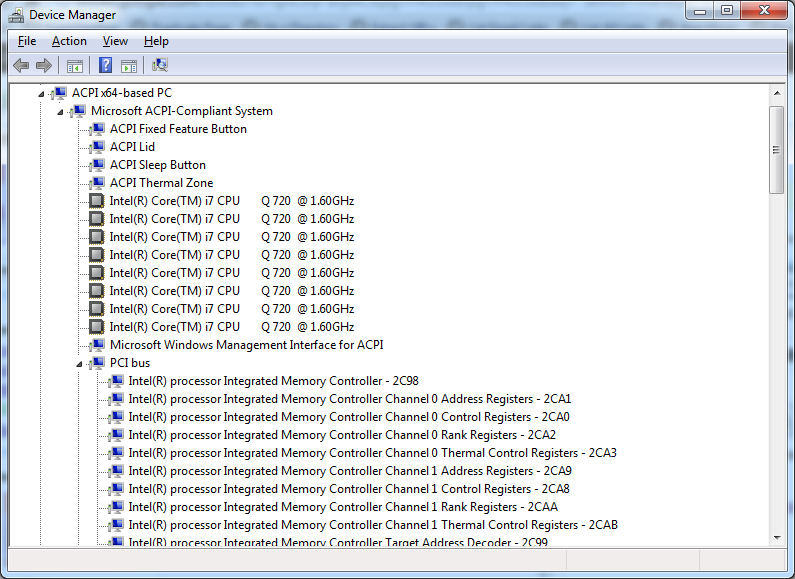
With the increasing number of devices, it really helps to expand all nodes in the Device Manager’s tree view.
You cannot do this with the mouse, as none of the menu options contain an “Expand All” option.
But since the treeview, is the built-in Windows treeview (used in many places, like Windows explorer), you can use these shortcuts to expand/collapse nodes:
- Numeric Keypad *: Expands everything under the current selection
- Numeric Keypad +: Expands the current selection
- Numeric Keypad -: Collapses the current selection.
- RIGHT ARROW: Expands the current selection if it is not expanded, otherwise goes to the first child
- LEFT ARROW: Collapses the current selection if it is expanded, otherwise goes to the parent
This not only works in Microsoft Windows 7: Visual … – Google Books, I think it has been introduced as far back as Windows 95.
–jeroen
Posted in Keyboards and Keyboard Shortcuts, Power User, Windows, Windows 10, Windows 7, Windows 8, Windows 8.1, Windows 9, Windows Server 2003, Windows Server 2003 R2, Windows Server 2008, Windows Server 2008 R2, Windows Server 2012, Windows Server 2012 R2, Windows Vista, Windows XP | 1 Comment »
Posted by jpluimers on 2010/09/01
From a batch-file I recently had to start Windows Explorer, at the same time select a specific file or directory.
This turned out pretty easy: use the /select command-line switch from Windows Explorer.
In fact, Windows Explorer has a few command-line switches, and the “explorer” commandline parameters “/n” “/e” “/select” “/root” “/start” site:microsoft.com query will find quite a few topics about it: Read the rest of this entry »
Posted in Power User, Windows, Windows 10, Windows 7, Windows 8, Windows 8.1, Windows 9, Windows 95, Windows 98, Windows ME, Windows NT, Windows Server 2000, Windows Server 2003, Windows Server 2003 R2, Windows Server 2008, Windows Server 2008 R2, Windows Server 2012, Windows Server 2012 R2, Windows Server 2016, Windows Vista, Windows XP | 1 Comment »


 The Wiert Corner - irregular stream of stuff