The Wiert Corner – irregular stream of stuff

Jeroen W. Pluimers on .NET, C#, Delphi, databases, and personal interests

  • My badges

  • Twitter Updates

  • My Flickr Stream

  • Pages

  • All categories

  • Enter your email address to subscribe to this blog and receive notifications of new posts by email.

    Join 1,860 other subscribers

Archive for June, 2021

File Line Count: “built-in” line count for Windows

Posted by jpluimers on 2021/06/22

Windows if full of undocumented gizmo’s, like find alternative for wc -l counting all lines in a file: [WayBack] File Line Count

Use FIND command to count file lines, store line count into a variable.

Description: Running the FIND command with option /v and empty search string will find all lines
Running the FIND command with option /c will output the line count only.
The FOR command with option /f will parse the output, the line count in this case, and the set command put the line number into the cnt variable.
Script:
1.
2.
3.
4.
set file=textfile.txt
set /a cnt=0
for /f %%a in ('type "%file%"^|find "" /v /c') do set /a cnt=%%a
echo %file% has %cnt% lines
Script Output:
 DOS Script Output
textfile.txt has 50 lines

[WayBack] Stupid command-line trick: Counting the number of lines in stdin | The Old New Thing

Windows doesn’t come with wc,
but there’s a sneaky way to count the number of lines anyway:

some-command-that-generates-output | find /c /v ""

It is a special quirk of the find command
that the null string is treated as never matching.
The /v flag reverses the sense of the test,
so now it matches everything.
And the /c flag returns the count.

The reason dates back to the original MS-DOS
version of find.exe,
which according to the comments appears to have been written
in 1982.
And back then, pretty much all of MS-DOS was written in assembly
language.

Via: batch file line count – Google Search and [WayBack] windows – How to count no of lines in text file and store the value into a variable using batch script? – Stack Overflow

–jeroen

Posted in Batch-Files, Development, Scripting, Software Development, Windows Development | Leave a Comment »

“Not having done docker, but having developed enough software to have the impression that as soon as things get hierarchical, things eventually end up in a mess. Somewhere down the road something won’t cope with depth/breadth/size and break badly.”

Posted by jpluimers on 2021/06/22

I originally posted this in a docker on docker thread, but I think it holds universally:

[WayBack] Jeroen Pluimers on Twitter: “Not having done docker, but having developed enough software to have the impression that as soon as things get hierarchical, things eventually end up in a mess. Somewhere down the road something won’t cope with depth/breadth/size and break badly.”

This despite the cool gif in the reply:

[WayBack] Duffie Cooley on Twitter: “… “

I found the below video files by searching for zzzz

Original thread start:

[WayBack] Duffie Cooley on Twitter: “When you hear Docker in Docker what do you think of? docker socket: Mounting in the underlying docker.sock and allowing a container to make new containers. kernel privs: Giving enough privs to a new container that it can make new containers cause it shares a kernel.”

–jeroen

Read the rest of this entry »

Posted in Algorithms, Cloud, Containers, Development, Docker, Infrastructure, Kubernetes (k8n), Software Development | Leave a Comment »

“Delphi” “Data provider or other service returned an E_FAIL status” “NVARCHAR” – Google Search

Posted by jpluimers on 2021/06/22

For my link archive: [Archive.is] “Delphi” “Data provider or other service returned an E_FAIL status” “NVARCHAR” – Google Search

In this case it was while reading data. Cause yet unknown, as over time the error disappeared before it could be investigated further.

My initial thoughts:

  • local field size too small for actual content
  • character set mapping issue for certain locales

I recommended checking with [WayBack/Archive.is] bitbucket.org/jeroenp/wiert.me/src/default/Native/Delphi/Library/RTL/i18n/FormatSettingsHelperUnit.pas to see which locale ID and name the process was running under.

Related (but not the cause as this occurred while writing data, not reading): [WayBack] sql server 2008 – Why am I getting Data provider or other service returned an E_FAIL status? SQL Native Client – Stack Overflow

–jeroen

Posted in Delphi, Development, Software Development | Leave a Comment »

Need to figure uit: MacOS High Sierra suddenly holding a key down does not produce an accented character any more

Posted by jpluimers on 2021/06/21

Logging on as a different user, holding a vowel key produces a small menu with accented characters.

Inspecting the keyboard preferences for both users did not show obvious differences.

On my list to figure out if it ever happens again.

These links might help me then:

This failed me on a few  occasions so far.

Sometimes a reboot is required. Sometimes quitting the most memory hungry applications, then restarting them (Chrome! Microsoft Remote Desktop!) re-enables it.

Related twitter thread below.

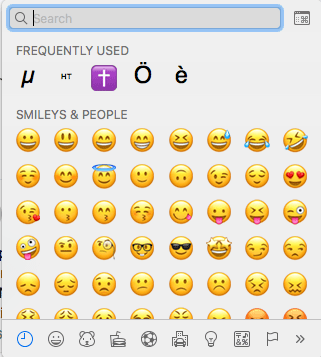
Learned new shortcut Command+Option+Space: shows the character viewer:

More of these at [WayBack] Mac keyboard shortcuts – Apple Support

There I learned about these Sleep, log out, and shut down shortcuts:

You might need to press and hold some of these shortcuts for slightly longer than other shortcuts. This helps you to avoid using them unintentionally.

  • Power button: Press to turn on your Mac or wake it from sleep. Press and hold for 1.5 seconds to put your Mac to sleep.* Continue holding to force your Mac to turn off.
  • Option–Command–Power button* or Option–Command–Media Eject : Put your Mac to sleep.
  • Control–Shift–Power button* or Control–Shift–Media Eject : Put your displays to sleep.
  • Control–Power button* or Control–Media Eject : Display a dialog asking whether you want to restart, sleep, or shut down.
  • Control–Command–Power button:* Force your Mac to restart, without prompting to save any open and unsaved documents.
  • Control–Command–Media Eject : Quit all apps, then restart your Mac. If any open documents have unsaved changes, you will be asked whether you want to save them.
  • Control–Option–Command–Power button* or Control–Option–Command–Media Eject : Quit all apps, then shut down your Mac. If any open documents have unsaved changes, you will be asked whether you want to save them.
  • Shift-Command-Q: Log out of your macOS user account. You will be asked to confirm. To log out immediately without confirming, press Option-Shift-Command-Q.

* Does not apply to the Touch ID sensor.

–jeroen

Read the rest of this entry »

Posted in Apple, Mac OS X / OS X / MacOS, macOS 10.12 Sierra, Power User | Leave a Comment »

VMware VMRC: connect to a remote console without the vSphere Client

Posted by jpluimers on 2021/06/21

Interesting tool: https://www.vmware.com/go/download-vmrc.

Back when scheduling this post in 2019, this was the most recent version: [WayBack] Download VMware vSphere: Download VMware Remote Console 10.0.4

From [WayBack] ovf – How to connect ESXi vm console from ESXi host console – Stack Overflow:

Example of vmrc.exe command :

"C:\Program Files (x86)\VMware\VMware Remote Console\vmrc.exe" vmrc://<ESXi host username>@<ESXi host IP>/?moid=<VM ID>

Basically it uses the vmrc scheme to start a connection to the remote screen for a specific MoRef ID. On ESXi, this is actually the VM ID that you get from vim-cmd vmsvc/getallvms. In that sense this is very similar to getting a single screenshot for the VM from the ESXi host by using the https://%5BHOST%5D:%5BPORT%5D/?id=%5BVM-MOREF%5D like described in ESXi and VMware Workstation: quick way of getting Console screenshots in PNG format; some URLs on your ESXi machine.


In MacOS, starting VMware Remote Console is slightly different as you have to start it through a URI using using the vmrc scheme from either a browser or with the open command on the console.

The reason is that there is no vmrc binary on MacOS.

  • [WayBack] Using VMware’s Standalone Remote Console for OS X with free ESXi | Der Flounder:

    vmrc://@[HOST]:[PORT]/?moid=[VM-MOREF]

    • HOST = the hostname or IP address of the ESXi server
    • PORT = the HTTPS port of the ESXi server, which is usually 443

    open 'vmrc://@server_name_here:port_number_here/?moid=vmid_number_here'

  • [WayBack] Standalone VMRC now available for Mac OS X:

    just provide the following URI which will prompt for your ESXi credentials

    vmrc://@[HOST]:[PORT]/?moid=[VM-MOREF]

    Once you have generated the VMRC URI, you MUST launch it through a web browser as that is how it is passed directly to the Standalone VMRC application. In my opinion, this is not ideal especially for customers who wish to automatically generate this as part of a VM provisioning workflow to their end users and not having to require a browser to launch the Standalone VMRC application. If you have some feedback on this, please do leave a comment.

    In the mean time, a quick workaround is to use the “open” command on Mac OS X along with the VMRC URI which will automatically load it into your default browser and launch the Standalone VMRC application for you.

    open 'vmrc://@192.168.1.60:443/?moid=vm-18'

On one of my test systems, for VMID 3 (see below), this comes down to this:

open 'vmrc://@192.168.71.94:443/?moid=3'

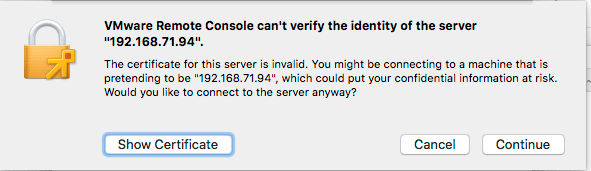
Note you have to accept the ESXi self generated TLS certificate once on MacOS:

After this, these processes were started (note there is no vmrc like on Windows):

± ps -ax | grep -i "\(vmware\|vmrc\)"
65239 ?? 0:04.15 /Applications/VMware Remote Console.app/Contents/MacOS/VMware Remote Console
65343 ?? 0:00.01 /Applications/VMware Remote Console.app/Contents/Library/services/VMRC Services 3 4
65360 ?? 0:00.16 /Applications/VMware Remote Console.app/Contents/Library/vmware-usbarbitrator
65363 ?? 0:00.01 /Applications/VMware Remote Console.app/Contents/Library/services/VMware USB Arbitrator Service 3 4
65393 ?? 0:01.29 /Applications/VMware Remote Console.app/Contents/Library/vmware-remotemks -@ vmdbPipeHandle=42; vm=_7FD2A461E8E0_3; gui=true -H 44 -R -P 2 -# product=256;name=VMware Remote Console;version=10.0.1;buildnumber=5898794;licensename=VMware Remote Console;licenseversion=10.0; -s libdir=/dev/null/Non-existing DEFAULT_LIBDIRECTORY
65872 ttys001 0:00.00 grep -i \(vmware\|vmrc\)

VM IDs (or VM-MOREFs)

You get the VM IDs using the vim-cmd vmsvc/getallvms command; they appear in the left column:

[root@ESXi-X9SRI-3F:/] vim-cmd vmsvc/getallvms
Vmid         Name                                 File                               Guest OS       Version   Annotation
1      Lampje             [EVO860_250GB] Lampje/Lampje.vmx                       opensuse64Guest    vmx-14              
3      X9SRI-3F-W10P-NL   [EVO860_250GB] X9SRI-3F-W10P-NL/X9SRI-3F-W10P-NL.vmx   windows9_64Guest   vmx-14    

Note that in practice, this is much harder so I wrote a script for that which you can find in VMware ESXi console: viewing all VMs, suspending and waking them up: part 1.

bundle files

I did not know about bundle files, but they seem to be sh scripts that precede a binary: [WayBack] What is a .bundle file and how do I run it? – Super User.

Inspecting such a files, shows it starts with this code:

#!/usr/bin/env bash
#
# VMware Installer Launcher
#
# This is the executable stub to check if the VMware Installer Service
# is installed and if so, launch it.  If it is not installed, the
# attached payload is extracted, the VMIS is installed, and the VMIS
# is launched to install the bundle as normal.

# Architecture this bundle was built for (x86 or x64)
ARCH=x64

if [ -z "$BASH" ]; then
   # $- expands to the current options so things like -x get passed through
   if [ ! -z "$-" ]; then
      opts="-$-"
   fi

   # dash flips out of $opts is quoted, so don't.
   exec /usr/bin/env bash $opts "$0" "$@"
   echo "Unable to restart with bash shell"
   exit 1
fi

–jeroen

Posted in Apple, ESXi6, ESXi6.5, ESXi6.7, Mac OS X / OS X / MacOS, macOS 10.12 Sierra, macOS 10.13 High Sierra, Power User, Virtualization, VMware, VMware ESXi, Windows, Windows 10, Windows 7, Windows 8, Windows 8.1 | Leave a Comment »

Some more G+ / Plexodus links

Posted by jpluimers on 2021/06/21

From a long time ago, in case I ever need them:

–jeroen

Posted in G+: GooglePlus, SocialMedia | Leave a Comment »

After the freenode to libera transition: openSUSE:IRC list – openSUSE Wiki

Posted by jpluimers on 2021/06/18

For my link archive: [Wayback] openSUSE:IRC list – openSUSE Wiki

–jeroen

Posted in *nix, Chat, IRC, Linux, openSuSE, Power User, SocialMedia, SuSE Linux | Leave a Comment »

mnot S05E03 – Boba – Met Nerds om Tafel

Posted by jpluimers on 2021/06/18

Some links via [WayBack] S05E03 – Boba – Met Nerds om Tafel:

–jeroen

Read the rest of this entry »

Posted in LifeHacker, Power User, Privacy, Security | Leave a Comment »

Email contact OHRA Zorg (uitvoerder is CZ) ds@ohra-zorg.nl

Posted by jpluimers on 2021/06/18

Voor mijn link archief:

–jeroen

Read the rest of this entry »

Posted in LifeHacker, Power User | Leave a Comment »

Error 0x8007232b or 0x8007007B occurs when you try to activate Windows

Posted by jpluimers on 2021/06/18

Since [WayBack/Archive.is] archival of Error 0x8007232b or 0x8007007B occurs when you try to activate Windows fails (the first indicates cookies need to be enabled, the second archives a page without support content), and the Google cached URL returns a 404, here is the full content:

Error 0x8007232b or 0x8007007B occurs when you try to activate Windows

Applies to: Windows 10 Pro released in July 2015Windows 8 Enterprise NWindows 8 EnterpriseWindows 8 ProWindows 8 Pro NWindows 8.1 EnterpriseWindows 8.1 ProWindows 8.1 Pro NWindows Server 2012 R2 DatacenterWindows Server 2012 R2 StandardWindows Server 2012 DatacenterWindows Server 2012 DatacenterWindows Server 2012 FoundationWindows Server 2012 FoundationHyper-V Server 2012 R2Windows Server 2012 StandardWindows Server 2012 StandardWindows 7 EnterpriseWindows 7 Enterprise NWindows 7 ProfessionalWindows 7 Professional NWindows Server 2008 R2 DatacenterWindows Server 2008 R2 EnterpriseWindows Server 2008 R2 FoundationWindows Server 2008 R2 StandardWindows Vista BusinessWindows Vista EnterpriseWindows Vista Business 64-bit EditionWindows Vista Enterprise 64-bit EditionWindows Server 2008 StandardWindows Server 2008 EnterpriseWindows Server 2008 Standard without Hyper-VWindows Server 2008 for Itanium-Based SystemsWindows Server 2008 Enterprise without Hyper-V Less

Home users: This article is intended for use by support agents and IT professionals. If you’re looking for more information about Windows 10 activation error messages, see the following Windows website:

Symptoms


When you try to activate a Windows installation (client or server), you receive one or more error messages that resembles the following.

Error message 1

Activation Error: Code 0x8007232b
DNS Name does not exist

Error message 2

Windows could not be activated.
Key management services (KMS) host could not be located in domain name system (DNS), please have your system administrator verify that a KMS is published correctly in DNS.
Error: 0x8007232b
Description: DNS name does not exist.

Error message 3

Error: 0x8007007B
The file name, directory name, or volume label syntax is incorrect

Resolution


To resolve this problem, use one or more of the following methods, as appropriate for your situation.

Method 1: Change the product key to an MAK

If KMS activation will not be used, and if there is no KMS server, the product key should be changed to an MAK. For Microsoft Developer Network (MSDN), or for TechNet, the stock-keeping units (SKUs) that are listed below the media are generally volume licensed-media, and the product key that’s provided is an MAK key.

To change the product key to an MAK, follow these steps:

  1. Open an elevated command prompt. To do this, use one of the following methods, as appropriate for your OS.
  2. At the command prompt, type the following command, and then press Enter:
    slmgr -ipk xxxxx-xxxxx-xxxxx-xxxxx-xxxxx 

    Note The xxxxx-xxxxx-xxxxx-xxxxx-xxxxx placeholder represents your MAK product key.

Method 2: Configure a KMS host server for the clients to activate against

KMS activation requires that a KMS host server be configured for the clients to activate against. If there are no KMS host servers configured in your environment, install and activate one by using an appropriate KMS host server key. After you configure a computer on the network to host the KMS software, publish the Domain Name System (DNS) settings. For information about the KMS host server configuration process, see Set up a KMS host on a Windows Server 2008 R2 machine.

For more information about how to set up a KMS server and how to publish the DNS settings, go to the following Microsoft websites:

Method 3: Manually create a KMS SRV record in a Microsoft DNS server

If your network has a KMS host computer set up, and if the client cannot locate a KMS host on the network for activation, follow these steps:

  1. Verify that the computer that has the KMS host installed and is activated by using a KMS key that’s registered in DNS. To do this, follow these steps:
    1. Open an elevated command prompt.Windows 7 or Windows Vista (Windows Server 2003)

      Select Start > All Programs > Accessories, right-click Command Prompt, and then select Run as administrator. If you are prompted for an administrator password or for confirmation, type the password or provide confirmation.

      Windows 8.1 and Windows 10 (Windows Server 2012, Windows Server 2012 R2)

      Press Windows logo key+X, and then select Command Prompt(Admin), or right-click the Start button, and then select Command Prompt(Admin). If you are prompted for an administrator password or for confirmation, type the password or provide confirmation.

    2. At the command prompt, type the following command, and then press Enter:
      nslookup -type=all _vlmcs._tcp>kms.txt 
    3. Open the KMS.txt file that’s generated by the command. This file should contain one or more entries that resemble the following entry:
      _vlmcs._tcp.contoso.com                            SRV service location:                  priority       = 0                  weight         = 0                  port           = 1688                  svr hostname   = kms-server.contoso.com 
    4. If these “_vlmcs” entries are present, and if they contain the expected KMS host names, go to Method 4.
  2. Check the registry to determine whether the KMS host server is registering with DNS. By default, a KMS host server dynamically registers a DNS SRV record one time every 24 hours. To check this setting, follow these steps:
    1. Start Registry Editor.Windows 7 or Windows Vista

      Click Start, type regedit, and then press Enter.

      Windows 8.1 and Windows 10

      Right-click Start, select Run, type regedit, and then press Enter.

    2. Locate and then click the following subkey:HKEY_LOCAL_MACHINE\SOFTWARE\Microsoft\Windows NT\CurrentVersion\SLIf the DisableDnsPublishing subkey is present and has a value of 1, the KMS service does not register in DNS.

      a If the DisableDnsPublishing subkey is missing, create a new DWORD value named DisableDnsPublishing. If dynamic registration is acceptable, change the subkey value to 0. To do this, right-click DisableDnsPublishing, click Modify, type 0 in the Value data box, and then click OK.

    Note By default, this registry key has an undefined value that results in the dynamic registration every 24 hours.

If the DNS Server service does not support dynamic updates, or if dynamic updates are not occurring, the “VLMCS._TCP, SRV” record can be manually registered.

To manually create a KMS SRV record in a Microsoft DNS server, follow these steps:

  1. On the DNS server, open DNS Manager. To open DNS Manager, click Start, click Administrative Tools, and then click DNS.
  2. Click the DNS server where you have to create the SRV resource record.
  3. In the console tree, expand Forward Lookup Zones, right-click the domain, and then click Other New Records.
  4. Scroll down the list, click Service Location (SRV), and then click Create Record.
  5. Type the following information:

    Service: _VLMCS

    Protocol: _TCP

    Port number: 1688

    Host offering the service: <FQDN_of_KMS_Host>

  6. When you are finished, click OK, and then click Done.

To manually create SRV records in a BIND 9.x Compliant DNS server include the following information when you create the record.

Note If your organization uses a non-Microsoft DNS server, you can create the required SRV records as long as the DNS server is BIND 9.x compliant.

  • Name=_vlmcs._TCP
  • Type=SRV
  • Priority = 0
  • Weight = 0
  • Port = 1688
  • Hostname = <FQDN or A-Name of the KMS host>

Note The Priority and Weight fields are not used by KMS and are ignored by the KMS client. However, they must be included in the zone file.

To configure a BIND 9.x DNS server to support KMS auto-publishing, configure the BIND server to enable resource record updates from KMS hosts. For example, add the following line to the zone definition in Named.conf or in Named.conf.local:

allow-update { any; };

Method 4: Manually assign a KMS server

By default, the KMS clients use the automatic discovery feature and query DNS for a list of servers that have published the _VLMCS record within the membership zone of the client. DNS returns the list of KMS hosts in a random order. The client picks a KMS host and tries to establish a session on it. If this attempt works, the client caches the server and tries to use it for the next renewal attempt. If the session setup fails, the client picks another server randomly. We highly recommend that you use the automatic discovery feature. However, you can manually assign a KMS server. To do this, open an elevated command prompt on the KMS client.

  1. Open an elevated command prompt.Windows 7 or Vista (Windows Server 2003)

    Click Start, type cmd in the Start Search box, right-click cmd.exe in the results list, and then click Run as administrator. If you are prompted for an administrator password or for confirmation, type the password or provide confirmation.

    Windows 10 and Windows 8.1 (Windows Server 2012 R2, Windows Server 2012)

    Press the Windows logo key+X, and then select Command Prompt(Admin), or right-click Start, and then select Command Prompt(Admin). If you are prompted for an administrator password or for confirmation, type the password or provide confirmation.

  2. Use the following commands at an elevated command prompt:
    • To assign a KMS host by using the FQDN of the host, type the following command:
      cscript \windows\system32\slmgr.vbs -skms <KMS_FQDN>:<port> 
    • To assign a KMS host by using the version 4 IP address of the host, type the following command:
      cscript \windows\system32\slmgr.vbs -skms <IPv4Address><:port> 
    • To assign a KMS host by using the version 6 IP address of the host, type the following command:
      cscript \windows\system32\slmgr.vbs -skms <IPv6Address><:port> 
    • To assign a KMS host by using the NETBIOS name of the host, type the following command:
      cscript \windows\system32\slmgr.vbs -skms <NetbiosName><:port> 
    • To revert to automatic discovery on a KMS client, type the following command:
      cscript \windows\system32\slmgr.vbs –ckms 

Method 5: Automatically publish KMS in multiple DNS domains

If the previous methods have not resolved this problem, the problem may be related to the ability of the client to resolve the DNS name of the KMS server or to connect to the KMS server. If this is the problem, follow these steps:

Note Unless otherwsie stated, do the following steps on a KMS client that has experienced the error that is mentioned in the “Symptoms” section:

  1. At a command prompt, type the following command, and then press Enter:
    IPCONFIG /all 
  2. From the command results, note the assigned IP address, the DNS server address, and the default gateway address.
  3. Verify basic IP connectivity to the DNS server by using the ping command. To do this, run the following command.
    ping <DNS_Server_IP_address> 

    Note If this command does not ping the server, this problem must be resolved first.

    For more information about how to troubleshoot TCP/IP issues if you cannot ping the DNS server, see the Microsoft TechNet topic Troubleshooting TCP/IP.

  4. Verify that the search list of the primary DNS suffix contains the DNS domain suffix that the KMS host registered.For the computers that have joined the domain, the DNS automatic discovery of KMS requires that the DNS zone contains the SRV resource record for the KMS host. This DNS zone is the DNS zone that corresponds to either the primary DNS suffix of the computer or to the domain of the Active Directory DNS.

    For workgroup computers, the DNS automatic discovery of KMS requires that the DNS zone contains the SRV resource record for the KMS host. This DNS zone is the DNS zone that corresponds to either the primary DNS suffix of the computer or to the DNS domain name that is assigned by the Dynamic Host Configuration Protocol (DHCP). This domain name is defined by the option that has the code value of 15 as defined in Request for Comments (RFC) 2132.

  5. Verify that the KMS host SRV records are registered in DNS. At an elevated command prompt, type the following command, and then press Enter:
    nslookup -type=all _vlmcs._tcp>kms.txt 
  6. Open the Kms.txt file that was generated by this command. This file should contain one or more entries that resemble the following:
    _vlmcs._tcp.contoso.com SRV service location:
    priority = 0
    weight = 0
    port = 1688 svr hostname = kms-server.contoso.com

    Verify the IP address, host name, and port of the KMS host.

    Note If the nslookup command finds the KMS host, it does not mean that the DNS client can find the KMS host. If the nslookup command finds the KMS host, and if you still cannot activate the KMS host server, check the other settings, such as the primary DNS suffix and the search list of the DNS suffix.

    The SRV records are registered in the DNS zone that corresponds to the KMS host domain membership. For example, assume that a KMS host joins the contoso.com domain. In this scenario, the KMS host registers its VLMCS._TCP SRV record under the contoso.com DNS zone. Therefore, the VLMCS._TCP.CONTOSO.COM record is created.

If the clients are configured to use a different DNS zone, automatically publish KMS in multiple DNS domains. To do this, follow these steps:

  1. Log on to a KMS host.
  2. Open an elevated command prompt.Windows 7 or Vista (Windows Server 2003)

    Select Start, type cmd in the Start Search box, right-click cmd.exe in the results list, and then select Run as administrator. If you are prompted for an administrator password or for confirmation, type the password or provide confirmation.

    Windows 8.1 and Windows 10 (Windows Server 2012, Windows Server 2012 R2)

    Press the Windows logo key+X, and then select Command Prompt(Admin), or right-click Start, and then select Command Prompt(Admin). If you are prompted for an administrator password or for confirmation, type the password or provide confirmation.

  3. At the command prompt, type regedit.exe, and then press Enter.
  4. Locate and then click the following registry subkey:HKEY_LOCAL_MACHINE\SOFTWARE\Microsoft\Windows NT\CurrentVersion\SL
  5. In the navigation pane, select SL.
  6. Right-click a blank area in the details pane, point to New, and then select Multi-String Value.
  7. Type DnsDomainPublishList as the name for the new value, and then press Enter.
  8. Right-click the new DnsDomainPublishList value, and then select Modify.
  9. In the Edit Multi-String dialog box, type each DNS domain suffix that is published by KMS on a separate line, and then select OK.
  10. In the Edit Multi-String dialog box, type each DNS domain suffix that is published by KMS on a separate line, and then select OK.Note For Windows 7 and for Windows Server 2008 R2, the format for DnsDomainPublishListdiffers.

    For more information, see the Volume Activation Technical Reference Guide.

  11. Restart the Software Licensing service by using the Service administrative tool. This operation creates the SRV records.
  12. Verify that the host name that is returned in the last step can be resolved by using a typical method on the KMS client. When the name is resolved, also verify that the IP address that is returned is accurate. If either of these verifications fails, investigate this DNS client resolver issue.
  13. To use the KMS automatic discovery feature, run the following command at an elevated command prompt to clear any previously cached KMS host names:
    cscript C:\Windows\System32\slmgr.vbs –ckms 
  14. If you believe that you have an SRV record issue, you can troubleshoot it by using one of the commands that are documented in “Method 4” to statically specify a KMS host. The following commands can be used to determine whether this is a name resolution issue or an SRV record issue. If none of these commands resolves the problem, you may be encountering a blocked port or an inaccessible host (see the “More Information” section).Run the following commands:
    cscript \windows\system32\slmgr.vbs -skms <KMS_FQDN>:<port>
    
    cscript \windows\system32\slmgr.vbs –ato 

    If these commands resolve the problem, this is an SRV record issue. To fix it, you must troubleshoot the SRV record.

    If these commands do not resolve the problem, run the following commands:

    cscript \windows\system32\slmgr.vbs -skms <IP Address>:<port>
    
    cscript \windows\system32\slmgr.vbs –ato 

    If these commands resolve the problem, this is most likely a name resolution issue.

The 1688 TCP port is used for the activation communication between the KMS client and the KMS host. If the communication seems to be blocked, check the firewall configurations or anything else that may block the 1688 TCP port.

More Information


This problem may occur if one or more of the following conditions are true:

  • You use volume-licensed media with a Volume License generic product key to install one of the following operating systems:
    • Windows Server 2012 R2
    • Windows Server 2012
    • Windows Server 2008 R2
    • Windows Server 2008
    • Windows 10
    • Windows 8.1
    • Windows 8
    • Windows 7
    • Windows Vista Enterprise
    • Windows Vista Business
  • The activation wizard cannot connect to a Key Management Service (KMS) host computer.

When you try to activate the system, the activation wizard uses DNS to locate a corresponding computer that’s running the KMS software. If the wizard queries DNS and does not find the DNS entry for the KMS host computer, the wizard reports an error. If you have a KMS host computer set up, the correct DNS entries are not seen by the client computer. If you do not have a KMS host computer set up, you must either set up a KMS host computer or switch to an MAK product key method to activate your volume license installation.

Microsoft Developer Network (MSDN) and Microsoft TechNet provide volume-licensed media for the following operating system stock-keeping units (SKUs):

  • Windows Server 2012 R2
  • Windows Server 2012
  • Windows Server 2008 R2
  • Windows Server 2008
  • Windows 10 Enterprise
  • Windows 8.1 Enterprise
  • Windows 8 Enterprise
  • Windows 7 Enterprise
  • Windows Vista Enterprise

The volume-licensed media does not prompt you for a product key during installation. If you do not change the product key to the MSDN key, you receive an error message when you try to activate the operating system. If you use MSDN or TechNet media, you must change the product key to the MSDN product key. Use the “Method 1” procedure in the “Resolution” section to change the product key.

Note The MSDN or TechNet product key is the MAK product key.

References


For more information about Volume Activation, see the following Microsoft Knowledge Base article:

929712 Volume Activation information for Windows Vista, Windows Server 2008, Windows Server 2008 R2 and Windows 7

For more information about volume licensing, go to the Microsoft Volume Licensing website.

For more information about how to activate copies of Windows Vista or Windows Server 2008 that were installed by using volume-licensed media, go to the Product Activation and Key Informationwebpage.

–jeroen

Posted in Microsoft Surface on Windows 7, Power User, Windows, Windows 10, Windows 7, Windows 8, Windows 8.1, Windows Server 2008, Windows Server 2008 R2, Windows Server 2012, Windows Server 2012 R2, Windows Server 2016 | Leave a Comment »