Last week, I posted about Setting up a GitHub project so it is served over https as a custom github.io subdomain.
Today it’s the equivalent, but on GitLab.
Why GitLab? Two major reasons: unlike GitHub:
- it’s open source
- provides way more granular control over permissions
- allows a hierarchy of repositories on which you can specify that permission control
Already 2. and 3. combined are a huge advantage, though we will see that 3. also makes some of the subcases (hosting as user.gitlab.io from account gitlab.com/user where user is your username) is harder than the similar user.github.io, github.com/user combo.
So here we go, starting with a similar set of links:
The goal is to have
- page projects as or under
wiert.gitlab.io (like wiert.gitlab.io/wiert)
- a
gitlabstatus.wiert.me plain html (or maybe markdown) page project that eventually will show some status information (kind of like status.gitlab.com, but for different things).
The beauty of GitLab is that it supports hierarchies of repositories through groups and subgroups, so I already had these subgroups hoping they would cover both the first and second kind of page projects:
Steps I did
Since there are quite a few links above, here are the steps I took from my gitlab.com/wiert account and gitlab.com/wiert.me group.
- For wiert.gitlab.io/wiert, try A (failed in part, and therefore interesting to understand why):
- Under leaf group gitlab.com/wiert.me/public/web/sites/gitlab.io, created a new GitLab repository
- Chose “Create from template”
- Chose the template “Pages/Plain HTML”
- Named the project “
wiert” (with slug “wiert“) so it would appear at gitlab.com/wiert.me/public/web/sites/gitlab.io/wiert
- From the left sidebar, navigated to your project’s “CI/CD”, then “Pipelines”
- Now I got in a confusing situation as the page indicated “There are currently no pipelines.”, but an enabled blue “Run pipeline” button:
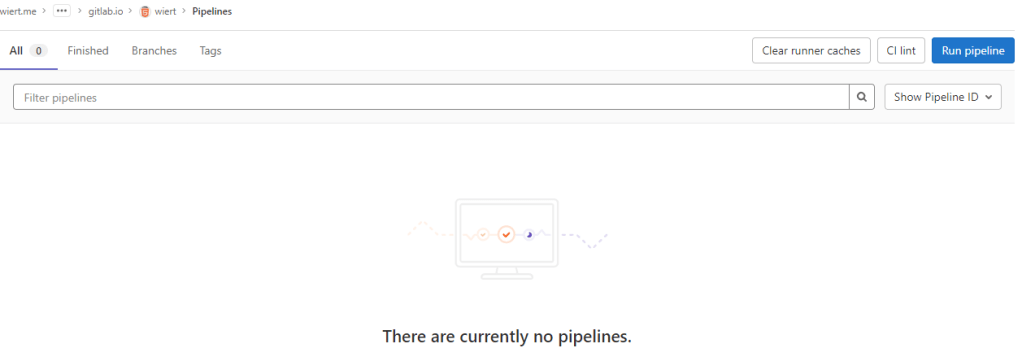
By default there is no CI/CD pipeline, but there is an enabled blue “Run pipeline” button: confusing.
- Clicked the “Run pipeline” button nonetheless, and that created [Wayback/Archive.is] a pipeline asking for parameters (that already had correct default values) and revealed a new blue “Run pipeline” button.
- Clicked that new “Run pipeline button” which created [Wayback/Archive.is] a job and deployed the page.
- From the left sidebar, navigated to “Settings”, then “Pages” to get the links to the pages site: http://wiert.me.gitlab.io/public/web/sites/gitlab.io/wiert/ and https://wiert.me.gitlab.io/public/web/sites/gitlab.io/wiert/

Warning: When using Pages under the general domain of a GitLab instance (gitlab.io), you cannot use HTTPS with sub-subdomains.
The sites do work (see the [Archive.is http version] and [Archive.is https version]), but the HTTPS fails because wiert.me.gitlab.io does not match the SANs (Subject Alternative Names) in the certificate: *.gitlab.io, gitlab.io
- For wiert.gitlab.io/wiert, try B (failed, and therefore interesting to understand why):
- In my my groups gitlab.com/dashboard/groups, added a new group
wiert
- Added subgroups until the leaf
gitlab.com/wiert/public/web/sites/gitlab.io which as URL is gitlab.com/wier1/public/web/sites/gitlab.io because user account wiert already occupies gitlab.com/wiert.
- Under leaf group gitlab.com/wier1/public/web/sites/gitlab.io, created a new GitLab repository
- Chose “Create from template”
- Chose the template “Pages/Plain HTML”
- Named the project “
wiert” (with slug “wiert“) so it would appear at gitlab.com/wiert.me/public/web/sites/gitlab.io/wiert
- From the left sidebar, navigated to your project’s “CI/CD”, then “Pipelines”
- Again there was “There are currently no pipelines.”, but an enabled blue “Run pipeline” button, which I clicked
- That created [Wayback/Archive.is] a pipeline asking for parameters (that already had correct default values) and revealed a new blue “Run pipeline” button.
- Clicked that new “Run pipeline button” which created [Wayback/Archive.is] a job deployed the page.
- From the left sidebar, navigated to “Settings”, then “Pages” to get the links to the pages site: http://wier1.gitlab.io/public/web/sites/gitlab.io/wiert and https://wier1.gitlab.io/public/web/sites/gitlab.io/wiert.
Bummer: again not the wiert.gitlab.io/wiert I hoped for
The sites do work (see the [Archive.is http version] and [Archive.is https version]). The HTTP does not redirect to the HTTP version, as I did not tick the
☐ Force HTTPS (requires valid certificates)
-
If a user wiert exists and occupies gitlab.com/wiert, then a group named wiert cannot occupy gitlab.com/wiert, and therefore a project named wiert within that group won’t be deployed to wiert.gitlab.io/wiert.
Maybe this can be shortened like “if there is a user wiert, then no group named wiert cannot be used to contain a project named wiert to host as wiert.gitlab.io/wiert“.
Let’s find out!
- For wiert.gitlab.io/wiert, try C (success, steps 1, 3, 4, 7 and 8 were the key ones):
- In my user gitlab.com/wiert, created a new GitLab repository
- Chose “Create from template”
- Chose the template “Pages/Plain HTML”
- Named the project “
wiert” (with slug “wiert“) so it would appear at gitlab.com/wiert
- The odd but cool thing is that the actual project now ended up at gitlab.com/wiert/wiert:
- From the left sidebar, navigated to your project’s “CI/CD”, then “Pipelines”
- Again there was “There are currently no pipelines.”, but an enabled blue “Run pipeline” button, which I clicked
- That created [Wayback/Archive.is] a pipeline asking for parameters (that already had correct default values) and revealed a new blue “Run pipeline” button.
- Clicked that new “Run pipeline button” which created [Wayback/Archive.is] a job deployed the page.
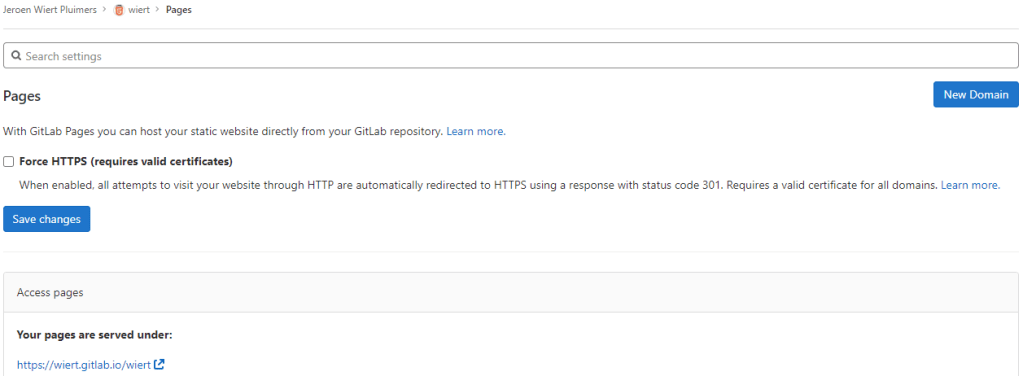
- From the left sidebar, navigated to “Settings”, then “Pages” to get the links to the pages site: http://wiert.gitlab.io/wiert/ and https://wiert.gitlab.io/wiert/.
Success: finally the wiert.gitlab.io/wiert I hoped for:
The sites do work fine (see the [Archive.is http version] and [Archive.is https version]). The HTTP does not redirect to the HTTP version, as I did not tick the
☐ Force HTTPS (requires valid certificates)
- For wiert.gitlab.io, try A (failed, and therefore interesting to understand why):
- Under leaf group gitlab.com/wiert.me/public/web/sites/gitlab.io, created a new GitLab repository
- Chose “Create from template”
- Chose the template “Pages/Plain HTML”
- Named the project “
wiert.gitlab.io” (with slug “wiert.gitlab.io“) so it would appear at gitlab.com/wiert.me/public/web/sites/gitlab.io/wiert.gitlab.io
- From the left sidebar, navigated to your project’s “CI/CD”, then “Pipelines”
- Again there was “There are currently no pipelines.”, but an enabled blue “Run pipeline” button, which I clicked
- That created [Wayback/Archive.is] a pipeline asking for parameters (that already had correct default values) and revealed a new blue “Run pipeline” button.
- Clicked that new “Run pipeline button” which created [Wayback/Archive.is] a job deployed the page.
- From the left sidebar, navigated to “Settings”, then “Pages” to get the links to the pages site: http://wiert.me.gitlab.io/public/web/sites/gitlab.io/wiert.gitlab.io and https://wiert.me.gitlab.io/public/web/sites/gitlab.io/wiert.gitlab.io.
Failure: not the wiert.gitlab.io I hoped for.
The sites do work (see the [
Archive.is http version] and [
Archive.is https version]), but the HTTPS fails because
wiert.me.gitlab.io does not match the
SANs (Subject Alternative Names) in the certificate:
*.gitlab.io, gitlab.io. The HTTP does not redirect to the HTTP version, as I did not tick the
☐ Force HTTPS (requires valid certificates)
- For wiert.gitlab.io, try B (failed, and therefore interesting to understand why):
- Under leaf group gitlab.com/wier1/public/web/sites/gitlab.io, created a new GitLab repository
- Chose “Create from template”
- Chose the template “Pages/Plain HTML”
- Named the project “
wiert.gitlab.io” (with slug “wiert.gitlab.io“) so it would appear at gitlab.com/wier1/public/web/sites/gitlab.io/wiert.gitlab.io
- From the left sidebar, navigated to your project’s “CI/CD”, then “Pipelines”
- Again there was “There are currently no pipelines.”, but an enabled blue “Run pipeline” button, which I clicked
- That created [Wayback/Archive.is] a pipeline asking for parameters (that already had correct default values) and revealed a new blue “Run pipeline” button.
- Clicked that new “Run pipeline button” which created [Wayback/Archive.is] a job deployed the page.
- From the left sidebar, navigated to “Settings”, then “Pages” to get the links to the pages site: http://wier1.gitlab.io/public/web/sites/gitlab.io/wiert.gitlab.io and https://wier1.gitlab.io/public/web/sites/gitlab.io/wiert.
Bummer: again not the wiert.gitlab.io I hoped for
The sites do work (see the [Archive.is http version] and [Archive.is https version]). The HTTP does not redirect to the HTTP version, as I did not tick the
☐ Force HTTPS (requires valid certificates)
-
Try A and B were almost identical to
wiert.gitlab.io/wiert try A and B, so let’s see if the solution C for that also works for us:
- For wiert.gitlab.io, try C (success, steps 1, 3, 4, 7 and 9 were the key ones)
- In my user gitlab.com/wiert, created a new GitLab repository
- Chose “Create from template”
- Chose the template “Pages/Plain HTML”
- Named the project “
wiert.gitlab.io” (with slug “wiert.gitlab.io“) so it would appear at gitlab.com/wiert/wiert.gitlab.io.
- From the left sidebar, navigated to your project’s “CI/CD”, then “Pipelines”
- Again there was “There are currently no pipelines.”, but an enabled blue “Run pipeline” button, which I clicked
- That created [Wayback/Archive.is] a pipeline asking for parameters (that already had correct default values) and revealed a new blue “Run pipeline” button.
- Clicked that new “Run pipeline button” which created [Wayback/Archive.is] a job deployed the page.
- From the left sidebar, navigated to “Settings”, then “Pages” to get the links to the pages site: http://wiert.gitlab.io/ and https://wiert.gitlab.io/.
Success: finally the wiert.gitlab.io I hoped for with working sites (see the [Archive.is http version] and [Archive.is https version]).
- Note the HTTP does not redirect to the HTTP version, as I did not tick the
☐ Force HTTPS (requires valid certificates)
Having learned from the GitHub githubstatus.wiert.me procedure (where I had to wait a long time for the default *.wiert.me domain mapping timeout and the githubstatus.wiert.me DNS CNAME record to become effective), I started on the DNS CNAME record side which is documented at [Wayback] Custom domains and SSL/TLS certificates: Section 3. Set up DNS records for Pages: For subdomains | GitLab:
Subdomains (subdomain.example.com) require:
- A DNS
CNAME record pointing your subdomain to the Pages server.
- A DNS
TXT record to verify your domain’s ownership.
| From |
DNS Record |
To |
subdomain.example.com |
CNAME |
namespace.gitlab.io |
_gitlab-pages-verification-code.subdomain.example.com |
TXT |
gitlab-pages-verification-code=00112233445566778899aabbccddeeff |
Note that, whether it’s a user or a project website, the CNAME should point to your Pages domain (namespace.gitlab.io), without any /project-name.

The value for the TXT record is only known after you created the pages project, but the value for the CNAME record is known beforehand:
| From |
DNS Record |
To |
gitlabstatus.wiert.me |
CNAME |
namespace.gitlab.io |
So let’s see if I can do this in one try, with these steps:
- For gitlabstatus.wiert.me, try A (success, steps 1, 3, 4, 7 and 9 were the key ones)
- In my DNS settings of the wiert.me domain, created a
CNAME record from gitlabstatus.wiert.me to namespace.gitlab.io:

gitlabstatus.wiert.me CNAME record pointing to namespace.gitlab.io
- Under leaf group gitlab.com/wiert.me/public/web/sites/wiert.me, created a new GitLab repository
- Chose “Create from template”
- Chose the template “Pages/Plain HTML”
- Named the project “
gitlabstatus.wiert.me” (with slug “gitlabstatus.wiert.me“) so it would appear at gitlab.com/wiert.me/public/web/sites/wiert.me/gitlabstatus.wiert.me
- From the left sidebar, navigated to your project’s “CI/CD”, then “Pipelines”
- Again there was “There are currently no pipelines.”, but an enabled blue “Run pipeline” button, which I clicked
- That created [Wayback/Archive.is] a pipeline asking for parameters (that already had correct default values) and revealed a new blue “Run pipeline” button.
- Clicked that new “Run pipeline button” which created [Wayback/Archive.is] a job deployed the page.
- From the left sidebar, navigated to “Settings”, then “Pages” to get the links to the pages site: http://wiert.me.gitlab.io/public/web/sites/wiert.me/gitlabstatus.wiert.me and https://wiert.me.gitlab.io/public/web/sites/wiert.me/gitlabstatus.wiert.me.
- Now it is time to get the DNS
CNAME record from gitlabstatus.wiert.me to namespace.gitlab.io into operation by clicking the “New Domain” button:
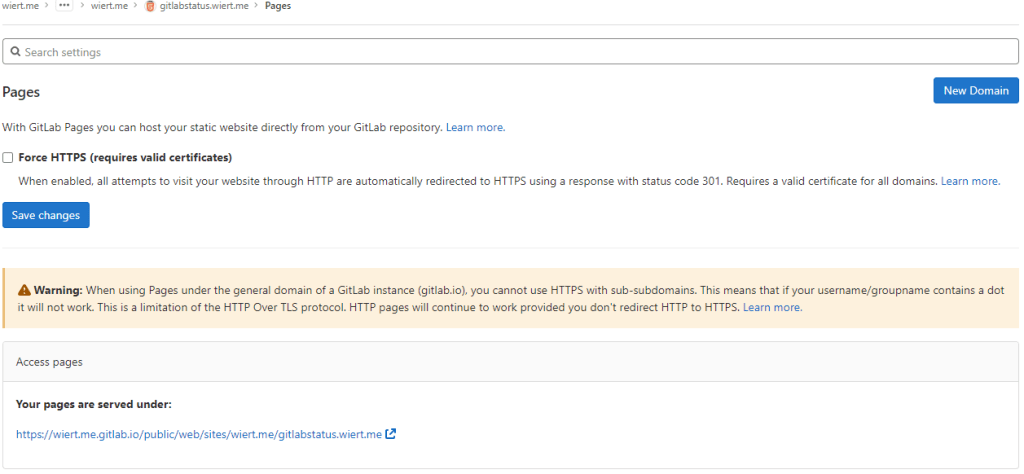
“New Domain” button in the “Pages” settings.
-
There I filled in the correct gitlabstatus.wiert.me domain name, then pressed the “Create New Domain” button:
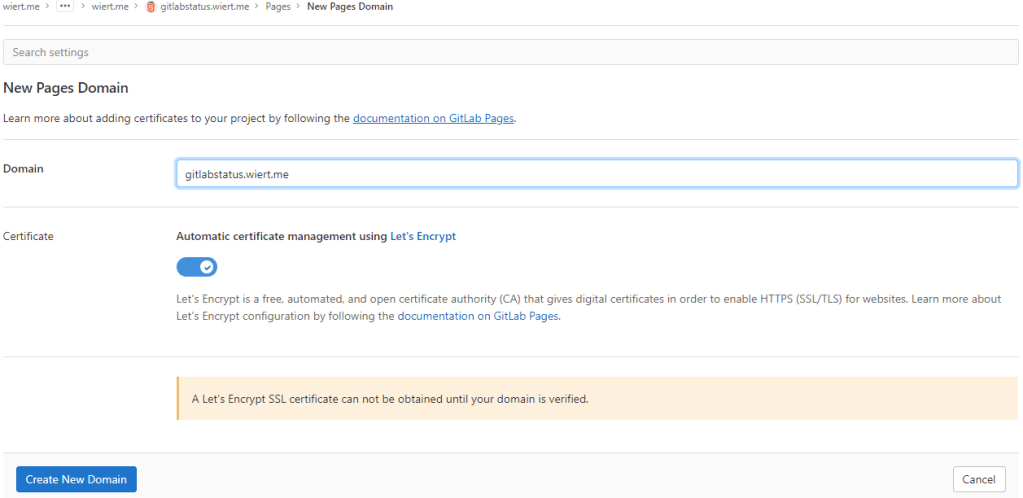
New domain becomes gitlabstatus.wiert.me
- Then a page appeared voiding the DNS
CNAME work I already did: the documentation is clearly wrong as these are the two DNS record entries to be made as shown by gitlab.com/wiert.me/public/web/sites/wiert.me/gitlabstatus.wiert.me/pages/domains/gitlabstatus.wiert.me:
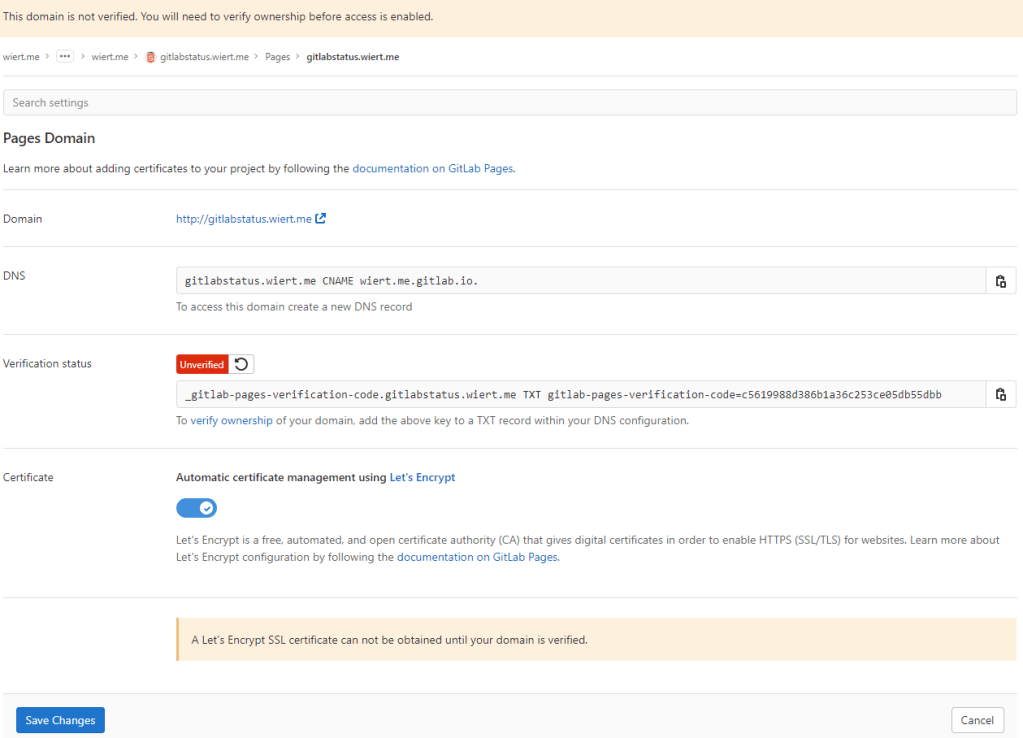
Correct instructions for the DNS records to get gitlabstatus.wiert.me working
Subdomains (gitlabstatus.wiert.me) require:
- A DNS
CNAME record pointing your subdomain to the Pages server.
- A DNS
TXT record to verify your domain’s ownership.
| From |
DNS Record |
To |
gitlabstatus.wiert.me |
CNAME |
wiert.me.gitlab.io. |
_gitlab-pages-verification-code.gitlabstatus.wiert.me |
TXT |
gitlab-pages-verification-code=c5619988d386b1a36c253ce05db55dbb |
Basically the whole namespace.gitlab.io part of the documentation is a placeholder for the actual namespace that belongs to the leaf group the pages project is in (in my case wiert.me).
So this is the new DNS entry, for which I had to wait until the
DNS TTL to time out and effectuate:

New DNS gitlabstatus.wiert.me CNAME record pointing to wiert.me.gitlab.io
Note that this DNS administrative interface from WordPress.com does omit the final period of the CNAME destination (officially this would be wiert.me.gitlab.io.)
- After the
CNAME DNS record, I also made the TXT DNS record:

New DNS TXT record for verification of gitlabstatus.wiert.me
Then I waited a little for the DNS TXT record to be saved and try the verification of the TXT record.
- Even then, verification took some time. I had to click the refresh button a few times before verification succeeded:

The DNS TXT record for gitlabstatus.wiert.me finally got verified
- Now I could press blue “Save Changes” button below and waited for the
CNAME record DNS TTL to expire so I could check the domain and – hopefully – the TLS certificate to be requested by Let’s Encrypt:
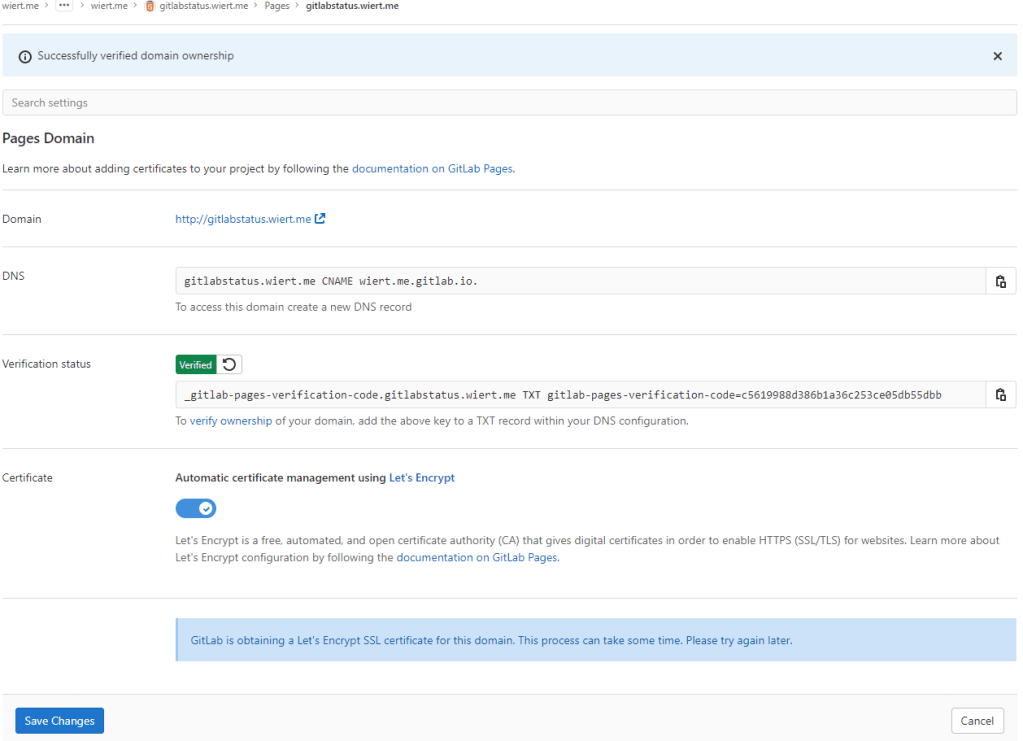
After the gitlabstatus.wiert DNS TXT record got verified, I could save the domain information
- After the old
CNAME record DNS TTL expired and the new CNAME record came into effect, the domain became available as http://gitlabstatus.wiert.me/:
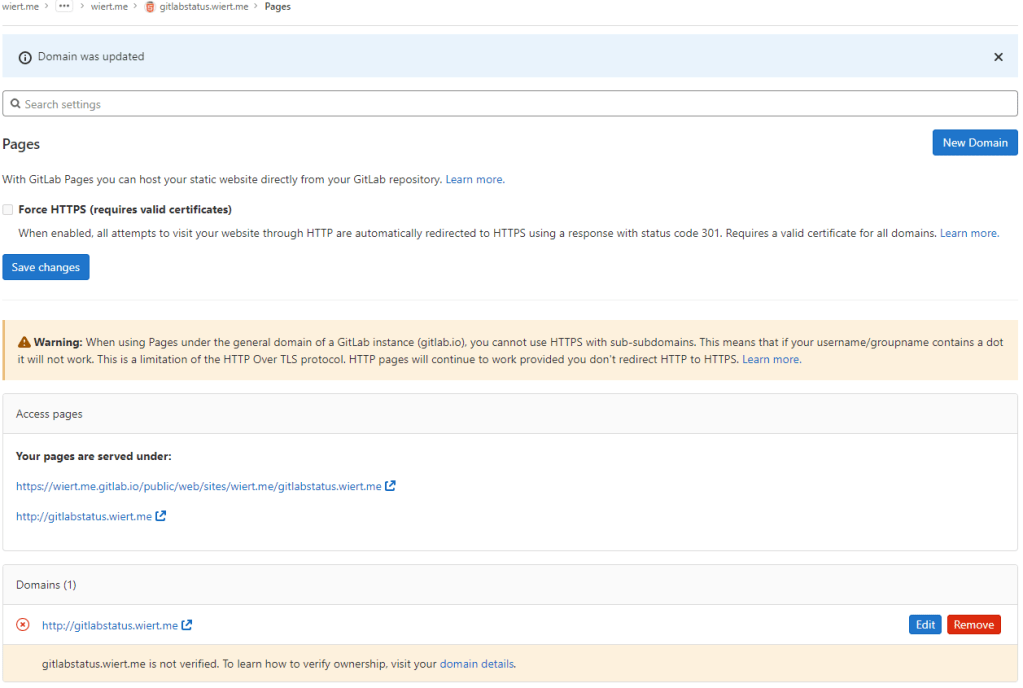
Waiting for gitlabstatus.wiert.me to become active
- After verification, the “Domains (1)” bit changed from this:

Domain gitlabstatus.wiert.me information before verification
to this:

Domain gitlabstatus.wiert.me information after verification
- In the mean time, also the TLS certificate got issued by Let’s Encrypt, so the final sites now both worked: http://gitlabstatus.wiert.me/ and https://gitlabstatus.wiert.me/.
- Success: finally the
gitlabstatus.wiert.me I hoped for with working sites (see the [Archive.is http version] and [Archive.is https version] for the wiert.me domain, and [Archive.is http version] and [Archive.is https version] for the wiert.me domain).
- Note the HTTP does not redirect to the HTTP version, as I did not tick the
☐ Force HTTPS (requires valid certificates)
In retrospect, this could have been shorter when I had done the DNS part later, which is contrary to how to do this with GitHub.
Conclusion
The conclusion seems this:
Gitlab Page repositories to be published as or under wiert.gitlab.io need to reside directly under user wiert. Having them reside under a different group like wiert or wiert.me won’t work.
Or in more generic terms:
When creating pages as user.gitlab.io you have to put your pages projects directly under your user account gitlab.com/user.
Putting them under groups or leaf groups fails, no matter if the (leaf) group is named user or otherwise.
In addition, you can add custom domains to any Gitlab repository (even one that never stated out as a GitLab Pages repository). It will work as soon as the domain DNS mapping is setup through both a CNAME mapping record and TXT verification record.
The steps for this in your GitLab repository are:
- Ensure you have a valid
.gitlab-ci.yml file at the root of your repository; I used the [Wayback/Archive.is] one from [Wayback/Archive] GitLab Pages examples / plain-html · GitLab as my site is purely static
- Ensure you have a valid
index.html file in the public directory of your repository, similar to [Wayback/Archive] GitLab Pages examples / plain-html · GitLab
- When both 1. and 2. are committed in your repository at GitLab, then it will automatically be deployed to a docker container on
gitlab.io, which allows the outside world to visit your GitHub Pages sie, and the Let’s Encrypt Certificate to be generated (and prevents this error: [Wayback/Archive] GitLab Pages integration with Let’s Encrypt | GitLab: “Something went wrong while obtaining the Let’s Encrypt certificate”).
- Under “Settings” -> “Pages”, add a new domain name to the repository: now it automatically becomes a GitLab Pages repository.
- When adding the domain, the settings page will show both a DNS
CNAME record and DNS TXT record; ensure both are applied on your primary DNS name server and replicated to all authoritative DNS name servers.
- Save the new page.
- Check if the page is available on the new domain you added.
- Optionally under “
Settings” -> “Pages” enable the “Force HTTPS (requires valid certificates)” option and save.
TLS information
Note: I saved the TLS information – including certificates here:
More about the Let’s Encrypt certificates at [Wayback] Chain of Trust – Let’s Encrypt:
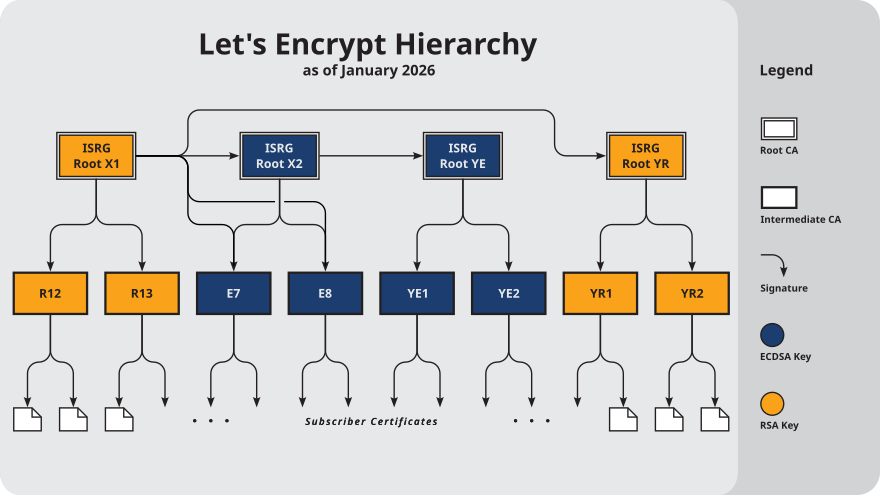
–jeroen
Read the rest of this entry »






 The Wiert Corner - irregular stream of stuff