First his site got more traffic because of the post, then within an hour traffic exploded because of a DDoS overflowing both his Raspberry Pi cluster and his mobile data capacity.
There seem to be at least three Huawei E3372 models:
Huawei E3372s
Huawei E3372h-153
Huawei E3372-h-320
4G Systems W1208 seems to have only one model (it is an OEM Huawei E3372, not sure which submodel), but it looks like it is only available in Germany, and might even be region locked.
There are various reports on which ones work/fail with Fritz!Box devices as backup-internet link.
After updating to Fritz OS 7.25(2021-03-11) , The Huawei E3372h-320 Mobile Dongle now works with the Fritzbox 7530 without any need to disable the HiLink software (aka flash into stick mode) on the Dongle
I just tested using VoIP when using the USB Mobile data on the E3372 dongle on the 7590 (Optus pre-paid mobile data plan). I was able to call out on VoIP to my mobile. I suppose incoming VoIP call would also work…
…
The secret to getting VOIP to work over a mobile connection is to set the Transport Protocol in the FritzBox to TCP. You thus need a telephony provider that supports TCP.
I’ve tested my 7590 (running FritzOS 7.20 or later) and an E3372 (using Optus) with SipTalk, and it worked correctly.
You’ll find the setting under Telephone number, Edit, Additional Settings for the Connection, Transport protocol. Other needed settings are: Username, Password and Registrar. You can leave Proxy and Stun servers blank.
Hallo, ich habe F!B 7490 international, habe Huawei E3372.USB LTE Stick mit o2.de SIM angeschlossen. LTE Internetverbindung funktioniert perfekt mit APN “internet”.
Zuerst habe ich E3372 im Tethering mode an der F!B 7490i betrieben und konnte ich auf Hilink zugreifen.
Da ich aber die native IP adresse benutzen wollte, habe
habe ich die E3372 als Modem angeschlossen. Internet mit APN “internet” funktioniert weiterhin perfekt. Bekomme eine private native IP adresse an der F!B 7490i.
Bei O2.de habe ich mir für SIM-Karte eine öffentliche IP adresse geben lassen. Dazu muste ich den APN auf “netpublic” umstellen.
Jetzt kommt die Internetverbindung nicht zu stande. F!B zeigt unter ‘Mobilfunk’ dass das Netz gefunden wurde ‘bereit’ aber SIM ist nicht registriert wurde.
Im Modem Mode kann ich über Hilink auf die Konfiguratioin der E3372 nicht zugreifen.
Die SIM Karte in einem anderen Router (TP-Link M7350) funktioniert die SIM Karte mit APN “netpublic” mit öffentliche IP adresse eiwandfrei.
Zurück zu F!B 7490i mit E3372 als Modem und APN “netpublic”.
Bis jetzt keine Hilfestellung von AVM.
Bin dabei das Problem mit F!B 7490i zu lösen.
…
Mit aktueller 7.12-DE-FW scheinen die Sticks den Tethering-Mode nicht mehr (ohne weiteres?) zu beherrschen und werden trotz-HiLink-FW (22….) trotzdem ausschließlich als Modem angesprochen bzw. umgeschaltet.
Vormals -bei älterer FW <7.xx … iirc- hing die Einbindung/Erkennung entweder als Modem oder Tethering-Device allein von der FW des 3372-Sticks ab (22er versus 21er-Version). Umso erstaunter bin ich über die eingangs zitierte Aussage, dass Du dies anscheinend wohl nach Belieben steuern könntest? Über das “how” wäre sicherlich mancher Leser hoch erfreut.
Zu Deinem Problem: Es könnte sein, dass im Modem-Mode auf vorgefertigte APN-Listen zurückgegriffen wird, die eben “netpublic” (noch) nicht kennen und eine diesbzgl. Änderung im FB-GUI gleichfalls nicht greift? Die FW des 3372 ist eh schon recht betagt, sodass dieser intern die Verschmelzung von E-Plus und O² wohl auch noch nicht vollständig mitbekommen hat.
…
Habe ich vom AVM den gleichen Typ erhalten wie Du beschreibst, es lag genau an dem dass ich ein neues Profil mit APN “netpublic” einrichten mußte. Jetzt funktioniert die F!B 7490i mit E3372 und APN “netpublic” tadenlos.
Hier noch die Angaben zu E3372h und F!B 7490i.
E3372h gekauft bei Conrad im Mai 2017
Bestell-Nr.: 1234133 – 62
EAN Code 6901443021437
HW: Hardware-Version: CL2E3372HM
FW: Software-Version: 22.328.62.00.1217
HiLink: Weboberflächen-Version: 17.100.18.05.1217
7490i Model: 20002647
ASIN:B00H3IC3FC
HWRevision 185
HWSubRevision 6
ProductID Fritz_Box_HW185
annex A
firmware_info 113.07.12
firmware_version avme
…
Habe mit dem AVM Support geschrieben. Anscheinend arbeitet AVM tatsächlich daran das Feature rauszuwerfen. Haben ja auch meine Screenshots zur 7490 113.07.19-75207 Labor gezeigt in gezeigt und zeigt auch die neue Labor FW (FRITZ.Box 7490 (UI) 113.07.19-75736 siehe Screenshot in diesem Post), die alles nochmal “klarer formuliert” aber halt nichts daran ändert, dass ein Feature entfernt wird, ohne es in die Release Notes zu schreiben. Außerdem könnte es Nutzer dazu bringen, kein Update mehr zu machen, wenn ein Feature weg gekürzt wird, dass sie früher einwandfrei genutzt haben… :/
An meiner 7490 hängt ein Huawei E3372 und macht was er soll. Einen Anschluss für eine externe Antenne hat er auch.
…
In einer FB7490 FW 7.19-81587 (inhaus) erkenne ich im Bereich “Netzverfügbarkeit” 2von5 Balken … im Telekom-Mobilfunknetz hier indoor.
Auch wenn ich nicht stündlich/täglich Ooaklo-Speedtests versuche, komme ich eher regelmäßig/ohne Probleme “eingebremst auf tarifliche 50/10MBit/s” auf die Werte.
…
Generell habe ich unmaßgeblich erkannt, dass die E3372s oder h erheblich “wärmer” werden im Betrieb als der W1208. Ein Blick auf das Konstruktionsdatum E3372 ca. 2005/2006 lt. FW der W1208 laut “Bepper” 18/8/2019 könnte doch einen markanten Hinweis liefern, womit man besser fährt?
…
Habe mir nun einen gebrauchten W1208 von 4GSystems (1und1) geholt und der läuft.
…
Ok jetzt hab ich es nochmal versucht und plötzlich wie von selbst wird der Stick korrekt erkannt auch an der 7590.
In Bezug auf den E3372s/h ist es als Backup-Lösung unerheblich, ob dieser als als usb-net Device (HiLink-FW) oder usb-modem (NoHilink-FW) arbeitet. Dies ist ausschließlich von der verwandten SIM (Tarif/Netz/Lokaler Empfang) abhängig. Gerade bei O² (Netzkonsolodierung mit Base/E-Plus) kann es lokal sinnvoller sein, sich im 3G-Modus zu bewegen statt 4G.
Damit ein usb-modem -hier ein E3372 mit NonHilink- vollständig und korrekt eingebunden wird, muss als Inet-verbindung eben der Client-Modus (hier hinter Kabelmodem) erst verlassen werden und “voll” über Mobilfunkverbindung kurz eingerichtet werden.
-Dies gilt auch für andere voicefähige UMTS-Sticks z.B. für die GSM-Gateway-Geschichte-
Danach kann man wieder auf Client-Modus umschalten. -hier I-Net via LAN1 und Kabelmodem-
…
In Verbindung bzw. dem Einsatz an einer FB7490 ist dies -aus meiner persönlichen Sichtweise heraus- nicht einfach zu beantworten, da es oftmals auch an der verwandten SIM-Karte liegt und eben der gebuchten Geschwindigkeit nebst den Empfangsverhältnissen. Oftmals kommt die Kombination eher stationär auf Campingplatz/Gartenlaube/Ferienwohnung o.ä. zum Einsatz, wo jeder dies halt persönlich Testen muss, was im Dauereinsatz stabiler läuft.
Erschwerend kommt hinzu, dass laut aktueller 7490 Intern-/Labor-FWs sich einiges tut in der Anbindung, da wohl Anpassungen im Rahmen der FB6890, die eben ein UMTS/LTE-Device schon onboard hat, ins Haus stehen. Da es keine Voicefähige FW für den E3372 gibt, kann man durchaus bei einer HiLink-FW bleiben. In Verbindung mit anderen Routern auf Linux-Basis, ist die Anbindung -lt. Tenor im lteforum.at- mit der NonHiLink-FW stabiler.
Und wo wir schon dabei sind: was ist der Unterschied zwischen dem E3372s und E3372h?
Es handelt sich nach meinen Wissen um unterschiedliche Hardware-Revisionen. Bekannt ist allerdings, dass die h-Version inpunkto Umflashen recht zickig sein kann, und es wohl öfters schon zu gebrickten Sticks dabei kam/kommt und man mit der “Nadel-Methode” und Spezialtools diese eher mühsam wiederbeleben muss/kann.
Access-point (APN) is voor een XS4ALL SIM iets van umts.xs4all.nl of
umts2.xs4all.nl, die informatie kreeg je bij de SIM.
Access number is *99#, en username/password zijn onbelangrijk, maar
moeten wel ingevuld zijn.
hat AVM auch ein neues FRITZ!Labor zum Download bereitgestellt. Dieses trägt die Versionsnummer 6.98-63245 und richtet sich an Besitzer der FRITZ!Box 4020
…
Zudem sollen sich Internet-Verbindungen mit dem Huawei-LTE-Stick mit der Seriennummer E3372h-153 wieder herstellen lassen.
als ik mijn Huawei E3272s-153 4G/LTE USB modem aansluit op 1 van de USB poorten van mijn Fritzbox 4790, loop ik tegen het rare fenomeen aan dat afhankelijk van de SIM welke in de dongel aanwezig is, ik wél of géen IP adres krijg toegewezen via het betreffende 3G/4G netwerk.
Mijn firmware van de Huawei E3272s-153 en Fritzbox 4790 zijn up to date.
Wat ik al gevonden of geprobeerd heb, met 4 verschillende SIM kaarten:
KPN SIM met data abonnement only:
Werkt met USB dongle in PC met KPN mobile connect software (LTE en HSPA+ netwerken getest).
Werkt niet icm Fritzbox 4790 (wordt wel herkend, pin is valide, KPN UMTS netwerk wordt herkend in GUI Fritzbox, maar er wordt geen IPv4 IP adres toegewezen).
KPN SIM met voice en data abonnement:
Werkt met USB dongle in PC met KPN mobile connect software (HSPA+ netwerk getest)
Werkt niet icm Fritzbox 4790 (wordt wel herkend, pin is valide, KPN UMTS netwerk wordt herkend in GUI Fritzbox, maar er wordt geen IPv4 IP adres toegewezen).
XS4ALL SIM met alleen data abonnement:
Werkt met USB dongle in PC met KPN mobile connect software (HSPA+ netwerk getest)
Werkt wel! in icm Fritzbox 4790, KPN UMTS/WCMDA wordt herkend en connecteert op UMTS, krijgt een IP adres toegewezen en LAN devices hebben daarna internet toegang.
BEN SIM met data/voice abonnement:
Werkt met USB dongle in PC met KPN mobile connect software (HSPA+ netwerk getest)
Werkt wel! in icm Fritzbox 4790, BEN UMTS wordt herkend en connecteert op UMTS, krijgt een IP adres toegewezen en LAN devices hebben daarna internet toegang.
If you do not access Cloud Shell for 120 days, we will delete your home disk. You will receive an email notification before we do so and simply starting a session will prevent its removal.
This only applies to the home directory of your Cloud Shell instance (you may want to store it on Cloud Storage anyway if you want to keep it). Any other Google services you use will be unaffected.
I hardly use the cloud shell, as it is a last resort to shell out from overly protected networks. Fewer and fewer environments restrict so much, so I’ve bumped into the home directory deletion a few times now.
I might use it more in the future, as I recently discovered there is a URL trick so you can start a cloud shell with parameters like an initial git repository: [WayBack] Open in Cloud Shell | Google Cloud
The Open in Cloud Shell feature allows you to publish a link that opens the Cloud Console and either automatically clones a Git repository into Cloud Shell or starts Cloud Shell with a custom image. It also allows for instructions to be printed to the terminal to help users interact with the content.
The Open in Cloud Shell feature helps developers experiment with code samples and APIs without having to worry about downloading Cloud SDK, installing required dependencies, or searching for relevant source files. This page explains how to add this feature to your Git repository.
Currently, only GitHub and Bitbucket repositories are whitelisted. If you would like to add a different repository, send feedback with the repository type you’d like to use with Open in Cloud Shell.
Setting up the home directory with my scripts can be a curse, so I have contemplated on these kinds of solutions:
store scripts in Google Drive, and mount part of Google Drive into the Cloud Shell
store scripts in Google Cloud Storage
script the setup of the home directory via a bash script in a gist
Cloud Shell inactivity: If you do not access Cloud Shell for 120 days, your home disk will be deleted. You will receive an email notification before its deletion and simply starting a session will prevent its removal. Please consider a different solution on Google Cloud storage for sensitive data you wish to store long term.
Non-interactive usage: Cloud Shell is intended for interactive use only. Non-interactive sessions will be ended automatically after a warning. Note that Cloud Shell sessions are capped at 12 hours, after which sessions are automatically terminated. You can use a new session immediately after.
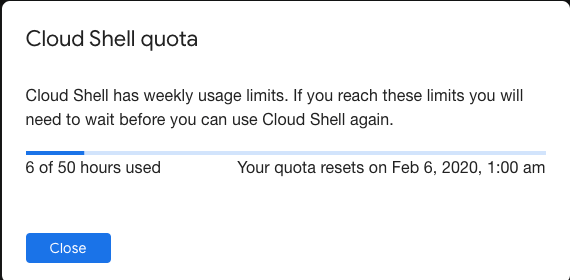
Weekly usage: Cloud Shell also has weekly usage limits. If you reach your usage limit, you’ll need to wait until the specified time (listed under Usage Quota, found under the three dots menu icon) before you can use Cloud Shell again.
Restoring a session after a service limit violation: If your session is terminated or cannot be established because you exceeded a service limit, Cloud Shell will display an error with a link to a form that allows you to appeal the limit violation. Click the feedback link and submit the form with more information about the tasks you were performing before your session was terminated.
When you want to download actual known amounts of bytes, then use the [Archive.is] XS4ALL Software download site which has plenty of files in both sizes that are powers of 1024 and powers of 1000, so you can use the units that fits you best:
Ubuntu is the only Linux system I had that – after installing a text-mode console setup – gets itself in the below state with only running apt update and apt-get upgrade.
Preparing to unpack .../archives/apt_1.2.19_armhf.deb ...
Failed to stop apt-daily.timer: Connection timed out
See system logs and 'systemctl status apt-daily.timer' for details.
Failed to get load state of apt-daily.timer: Connection timed out
dpkg: warning: subprocess old pre-removal script returned error exit status 1
I could not find meaningful search results for the above thing, nor did systemctl status apt-daily.timer return anything better than
Failed to get properties: Failed to activate service 'org.freedesktop.systemd1': timed out
Heck, it doesn’t even reboot any more (no helpful search results either):
# reboot
Failed to start reboot.target: Failed to activate service 'org.freedesktop.systemd1': timed out
See system logs and 'systemctl status reboot.target' for details.
Failed to open /dev/initctl: No such device or address
Failed to talk to init daemon.
Nor did systemctl status reboot.target return anything better than
Failed to get properties: Failed to activate service 'org.freedesktop.systemd1': timed out
If ever on openSuSE Tumbleweed you get an error ImportError: No module named pkg_resources then check you have the installed the python-setuptools package it is different from python3-setuptools which was installed by default but is not the default python used.
For my home location, this one gives me the most consistent results for my fiber connections (they’re so good and reliable that I don’t have ADSL or cable any more):
speedtest-cli --server 3629
You can get the list of servers ordered by increasing distance using this command:
# zypper dup
Warning: You are about to do a distribution upgrade with all enabled repositories. Make sure these repositories are compatible before you continue. See 'man zypper' for more information about this command.
Loading repository data...
Reading installed packages...
Computing distribution upgrade...

Problem: python3-urllib3-1.16-1.1.noarch requires python(abi) = 3.5, but this requirement cannot be provided
 Solution 1: Following actions will be done:
  deinstallation of python3-urllib3-1.15.1-2.1.noarch
  deinstallation of python3-wheel-0.29.0-2.1.noarch
  deinstallation of speedtest-cli-0.3.2-4.3.noarch
  deinstallation of python3-six-1.10.0-4.1.noarch
  deinstallation of python3-pycparser-2.14-2.1.noarch
  deinstallation of python3-pyasn1-0.1.9-2.1.noarch
  deinstallation of python3-pyOpenSSL-16.0.0-3.1.noarch
  deinstallation of python3-idna-2.1-1.1.noarch
  deinstallation of python3-chardet-2.3.0-1.4.noarch
 Solution 2: keep obsolete python-cupshelpers-1.5.7-7.2.noarch
 Solution 3: break python3-urllib3-1.16-1.1.noarch by ignoring some of its dependencies

Choose from above solutions by number or cancel [1/2/3/c] (c):
What eventually – with help from the excellent help by DimStar on the #openSUSE-factory IRC channel – led to the solution was the part Solution 2: keep obsolete python-cupshelpers-1.5.7-7.2.noarch.
But first let’s look at the installed versions and repos:


 [
[
![[ ]](https://wiert.me/wp-content/uploads/2017/05/binary.gif?w=15&h=15)

 The Wiert Corner - irregular stream of stuff