The Wiert Corner – irregular stream of stuff

Jeroen W. Pluimers on .NET, C#, Delphi, databases, and personal interests

  • My badges

  • Twitter Updates

  • My Flickr Stream

  • Pages

  • All categories

  • Enter your email address to subscribe to this blog and receive notifications of new posts by email.

    Join 1,839 other subscribers

Archive for the ‘Windows’ Category

Chris Foster: Windows Development in a KVM Virtual Machine

Posted by jpluimers on 2021/02/04

For my link archive: [WayBack] Chris Foster: Windows Development in a KVM Virtual Machine covering among others much (mostly based [WayBack] libvirt: The virtualization API) stuff:

Similar posts:

–jeroen

Posted in Development, KVM Kernel-based Virtual Machine, Power User, Proxmox, Software Development, Virtualization, Windows | Leave a Comment »

A choco install list

Posted by jpluimers on 2021/02/03

Sometimes I forget the choco install mnemonics for various tools, so here is a small list below.

Of course you have to start with an administrative command prompt, and have a basic Chocolatey Installation in place.

If you want to clean cruft:

choco install --yes choco-cleaner

Basic install:

choco install --yes 7zip
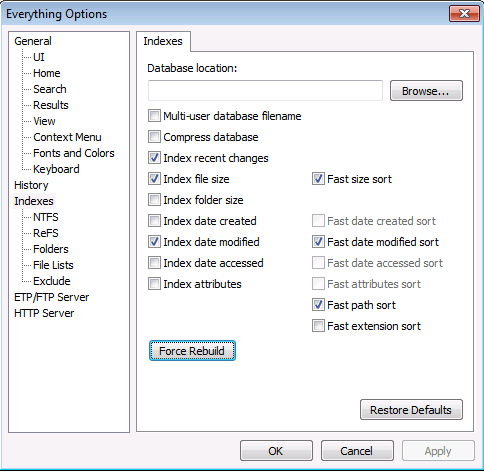
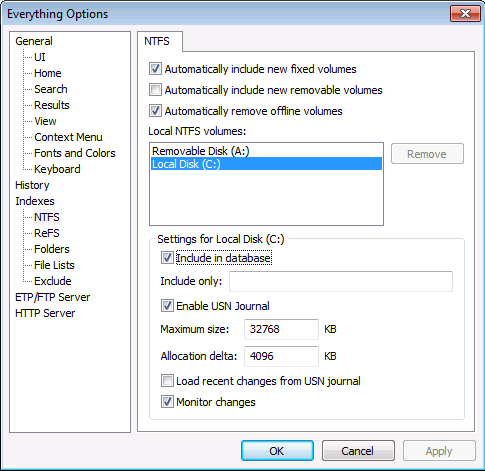
choco install --yes everything
choco install --yes notepadplusplus
choco install --yes beyondcompare
choco install --yes git.install --params "/GitAndUnixToolsOnPath /NoGitLfs /SChannel /NoAutoCrlf /WindowsTerminal"
choco install --yes hg
choco install --yes sourcetree
choco install --yes sysinternals

For VMs (pic one):

choco install --yes vmware-tools
choco install --yes virtio-drivers

For browsing (not sure yet about Chrome as that one has a non-admin installer as well):

choco install --yes firefox

For file transfer (though be aware that some versions of Filezilla contained adware):

choco install --yes filezilla
choco install --yes winscp

For coding:

choco install --yes vscode
choco install --yes atom

For SQL server:

choco install --yes sql-server-management-studio

For web development / power user:

choco install --yes fiddler

For SOAP and REST:

choco install --yes soapui

If you don’t like manually downloading SequoiaView at gist.github.com/jpluimers/b0df9c2dba49010454ca6df406bc5f3d (e8efd031d667de8a1808d6ea73548d77949e7864.zip):

choco install --yes windirstat

For drawing, image manipulation (paint.net last, as it needs a UI action):

choco install --yes gimp
choco install --yes imagemagick
choco install --yes paint.net

For ISO image mounting in pre Windows 10:

choco install --yes wincdemu

For hard disk management:

choco install --yes hdtune
choco install --yes seatools
choco install --yes speedfan

For Fujitsu ScanSnap scanners (not sure yet this includes PDF support):

choco install --yes scansnapmanager

–jeroen

Posted in 7zip, atom editor, Beyond Compare, Chocolatey, Compression, Database Development, Development, DVCS - Distributed Version Control, Everything by VoidTools, Fiddler, Firefox, Fujitsu ScanSnap, git, Hardware, Mercurial/Hg, Power User, Scanners, SOAP/WebServices, Software Development, Source Code Management, SQL Server, SSMS SQL Server Management Studio, SysInternals, Text Editors, Versioning, Virtualization, VMware, VMware ESXi, vscode Visual Studio Code, Web Browsers, Web Development, Windows | Leave a Comment »

Windows events for Remote Desktop connections

Posted by jpluimers on 2021/01/25

Some notes and links, as eventually I want to react on Windows events raised for successful Remote Desktop connections.

Log-files:

  • Name Microsoft-Windows-TerminalServices-LocalSessionManager/Admin
  • Path %SystemRoot%\System32\Winevt\Logs\Microsoft-Windows-TerminalServices-LocalSessionManager%4Admin.evtx
  • Name Microsoft-Windows-TerminalServices-LocalSessionManager/Operational
  • Path %SystemRoot%\System32\Winevt\Logs\Microsoft-Windows-TerminalServices-LocalSessionManager%4Operational.evtx

EventID 25:

<Event xmlns="http://schemas.microsoft.com/win/2004/08/events/event">
<System>
<Provider Name="Microsoft-Windows-TerminalServices-LocalSessionManager" Guid="{5D896912-022D-40AA-A3A8-4FA5515C76D7}" /> 
<EventID>25</EventID> 
<Version>0</Version> 
<Level>4</Level> 
<Task>0</Task> 
<Opcode>0</Opcode> 
<Keywords>0x1000000000000000</Keywords> 
<TimeCreated SystemTime="2019-02-06T13:48:02.978377900Z" /> 
<EventRecordID>5358</EventRecordID> 
<Correlation ActivityID="{F4203346-1BFB-421E-8668-C7503D590000}" /> 
<Execution ProcessID="308" ThreadID="12552" /> 
<Channel>Microsoft-Windows-TerminalServices-LocalSessionManager/Operational</Channel> 
<Computer>MACHINE-NAME.subdomain.domain</Computer> 
<Security UserID="S-1-5-18" /> 
</System>
<UserData>
<EventXML xmlns="Event_NS">
<User>DOMAIN\jeroen</User> 
<SessionID>2</SessionID> 
<Address>192.168.1.42</Address> 
</EventXML>
</UserData>
</Event>

Links on the events:

Links on triggers and scripts running because of events:


–jeroen

Read the rest of this entry »

Posted in Power User, Windows, Windows 10 | Leave a Comment »

How to remove (disable or hide) User Accounts on the Windows 10 Login Screen – Make Tech Easier

Posted by jpluimers on 2021/01/11

Works on my systems too (I think it works from Windows XP on) to hide users from the home screen: [WayBackHow to Hide User Accounts on the Windows 10 Login Screen – Make Tech Easier.

Show only the last logged on user, but add a switch-user dialog

Run the below .reg file on your machine, or manually add this key (does not need any value): HKEY_LOCAL_MACHINE\SOFTWARE\Microsoft\Windows NT\CurrentVersion\ProfileList\DomainStyleLogon

Windows Registry Editor Version 5.00

[HKEY_LOCAL_MACHINE\SOFTWARE\Microsoft\Windows NT\CurrentVersion\ProfileList\DomainStyleLogon]

Note the empty line at the end of the .reg file: that is by intention.

This will show the last logged-on user on the home screen, but still allows users to perform a switch to other users.

Related: [WayBack] ALWAYS display the last / default user Windows 7 welcome screen

Disable the users on the logon screen from interactive logon

Warning: do NOT disable your administrator user this way!

For why not, see the various users that lost access: [WayBackHide User Accounts on Windows 7 Logon – Windows 7 IT Pro > Windows 7 User Interface

  1. use net user on the command prompt to list the usernames and note the username you want to hide from the login screen
  2. run regedit to edit the registry
  3. ensure this registry key exists HKEY_LOCAL_MACHINE\SOFTWARE\Microsoft\Windows NT\CurrentVersion\Winlogon
  4. Under that key, create a new key SpecialAccounts
  5. Under the SpecialAccounts key, create a new key UserList
  6. Under the UserList key, create a new DWORD (32-bit) value with the Value name equal to the username and the Value data to zero (0, which is the default)
  7. Reboot
  8. Observe that user is not on the login window any more.

Example:

If you lost access because of SpecialAccounts

If you would like to unhide the hidden Administrator account on Windows 7:

  1. Boot a Windows 7 Installation DVD or ISO
  2. go to command prompt and type regedit -it
  3. click on HKLM hive and
  4. next navigate File>>Load hive
  5. navigate to C:\Windows\System32\config folder and choose `SOFTWARE` file load it and assign this hive any name for example REM_SOFTWARE
  6. open key HKEY_LOCAL_MACHINE\REM_SOFTWARE\Microsoft\Windows NT\CurrentVersion\Winlogon\SpecialAccounts\UserList
  7. remove the Administrator account
    • or better way remove the whole key HKEY_LOCAL_MACHINE\REM_SOFTWARE\Microsoft\Windows NT\CurrentVersion\Winlogon\SpecialAccounts

–jeroen

Posted in Power User, Windows, Windows 10, Windows 7, Windows 8, Windows 8.1 | Leave a Comment »

Automating the closing of the Creative Cloud signing and ABBY FindReader for ScanSnap 5.0 dialogs

Posted by jpluimers on 2021/01/06

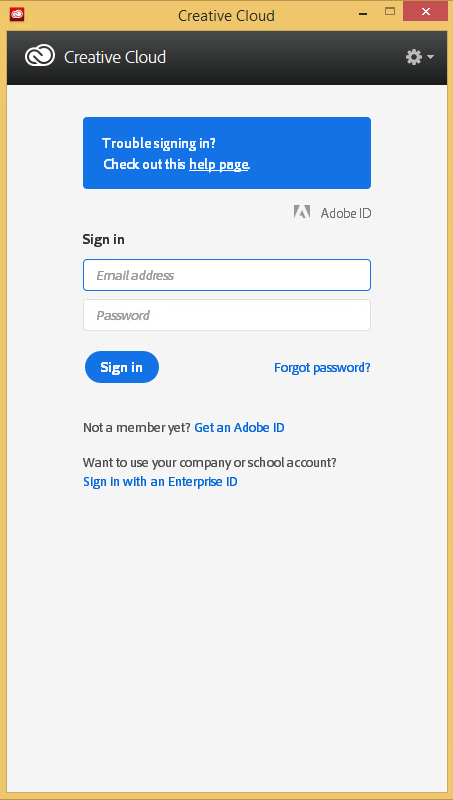
Every time my scan VM logs on I get the dialog on the right.
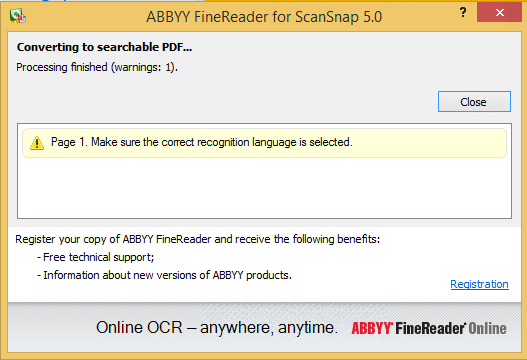
Every time I finish an OCR scan, I get the dialog below.

There are two reasons I want to close the ABBY dialog:

  1. While open, it will keep both the original PDF and OCR PDF files alive.When after a while, Windows updates auto-reboots the machine, before clicking the OK buttons I have to manually check if the conversion succeeded before removing the non-OCR PDF.This is time consuming.
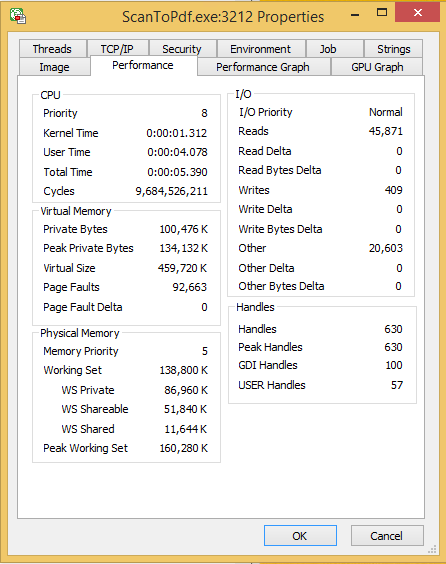
  2. While open, it still consumes a lot of system resources: about 100 megabyte for a simple single monochrome A4 page. Much more for complex, multi-page or colour documents.When scanning a lot of document this causes the system to run out of memory, after becoming much much slower because the truckload of Window handles and underlying threads drags Windows down.

I do not want to fully get rid of these dialogs, as often being aware of the progress is important, and I always forget how to re-enable things. If you can do without the dialogs, then try these:

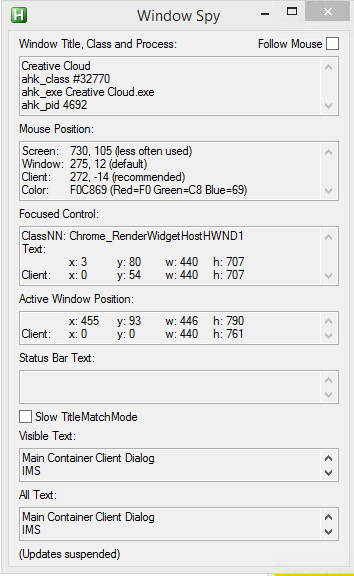
Finding the Windows and controls

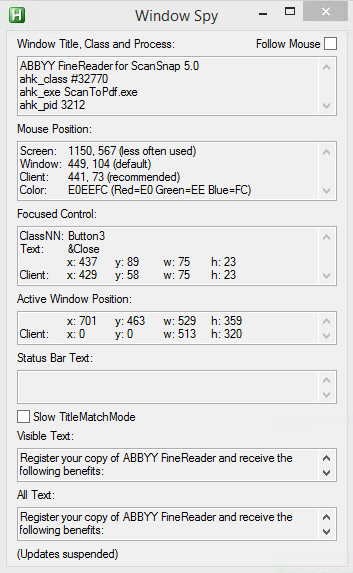
I did use one nice feature of AutoHotKey: their Windows Spy utility, which is implemented as a AHK script: [WayBack] AutoHotKey-scripts/WindowSpy.ahk at master · elig0n/AutoHotKey-scripts · GitHub. In the past this was a separate executable, so do not start looking for that any more. You can get it either after a full install of the [WayBack] Releases · Lexikos/AutoHotkey_L · GitHub, or by extracting from the most current AutoHotKey.zip from [Archive.is] AutoHotkey Downloads.

Related:

This gets these for the Create Cloud and ABBY windows:

Automating the click

I contemplated about using AutoIt (freeware, but closed source) or AutoHotKey_L (the current active fork of AutoHotKey).

AutoIt is now closed source, forked in the past as AutoHotKey, which has a lot of half backed – usually poorly documented – scripts needing you to learn a new API wrapper around existing Windows API functionality.

So I reverted back to using the Windows API using Delphi: a simple repeat loop, to check for the existence of the underlying processes, windows and controls, plus some logic to terminate then the user stops the application (Ctrl-C, Ctrl-Break), logs off, or Windows shuts down.

Releated Windows API  keywords and posts:


I could have used AutoHotKey with these hints to get it working:

MacOS

Note that when you run on MacOS, you need an alternative like for instance the video below shows via [WayBack] Stop ScanSnap From Prompting You When You Scan.

–jeroen

Read the rest of this entry »

Posted in Development, Fujitsu ScanSnap, Hardware, ix100, ix500, Power User, Scanners, Scripting, Software Development, Windows, Windows 10, Windows 8.1 | Leave a Comment »

Releases · upx/upx · GitHub

Posted by jpluimers on 2021/01/04

I totally forgot that upx – UPX – the Ultimate Packer for eXecutables has been on GitHub for quite a while, which meant I was running a really old version 3.91.

There have been quite a few things updated and documented in [Archive.is] upx-news.txt covering these milestones:

  1. [Archive.is] milestone 1 (for version 3.92)
  2. [Archive.is] milestone 2 (for version 3.93)
  3. [Archive.is] milestone 3 (for version 3.94)

Via UPX – Wikipedia

–jeroen

Posted in Development, Power User, Software Development, Windows, Windows Development | Leave a Comment »

Windows command prompt: decrementing loop

Posted by jpluimers on 2020/12/30

I needed a decrementing loop on the Windows command prompt, but that seems very hard from batch files without programming your own kind of while loop:

PowerShell to the rescue to loop back from and including 463 down to and including 290:

PowerShell -Command "for ($i=463; $i -ge 290; $i--) { Write-Host "Value " $i}"

This outputs:

Value 463
Value 462
...
Value 291
Value 290

In a similar way, you can execute a cmd command, but then you need to be careful on how to pass parameters: the \" is important to you can have quotes within quoted strings..

PowerShell -Command "for ($i=463; $i -ge 290; $i--) { & echo \"Value $i\"}"

gives this:

Value 463
Value 462
...
Value 291
Value 290

Read the rest of this entry »

Posted in Batch-Files, CommandLine, Console (command prompt window), Development, PowerShell, PowerShell, Scripting, Software Development, Windows | 1 Comment »

Windows Sandbox – Microsoft Tech Community – 301849

Posted by jpluimers on 2020/12/21

For my link archive, as I totally missed it when it was released: [WayBack] Windows Sandbox – Microsoft Tech Community – 301849:

  1. Install Windows 10 Pro or Enterprise, Insider build 18305 or newer
  2. Enable virtualization:
    • If you are using a physical machine, ensure virtualization capabilities are enabled in the BIOS.
    • If you are using a virtual machine, enable nested virtualization with this PowerShell cmdlet:
    • Set-VMProcessor -VMName <VMName> -ExposeVirtualizationExtensions $true
  3. Open Windows Features, and then select Windows Sandbox. Select OK to install Windows Sandbox. You might be asked to restart the computer.
  4. Optional Windows Features dlg.png
  5. Using the Start menu, find Windows Sandbox, run it and allow the elevation
  6. Copy an executable file from the host
  7. Paste the executable file in the window of Windows Sandbox (on the Windows desktop)
  8. Run the executable in the Windows Sandbox; if it is an installer go ahead and install it
  9. Run the application and use it as you normally do
  10. When you’re done experimenting, you can simply close the Windows Sandbox application. All sandbox content will be discarded and permanently deleted
  11. Confirm that the host does not have any of the modifications that you made in Windows Sandbox.

–jeroen

Posted in Power User, Windows, Windows 10 | Leave a Comment »

mkcert: valid HTTPS certificates for localhost (Windows/Mac/Linux) — a short blog post about it, by FiloSottile

Posted by jpluimers on 2020/12/21

Cool: [WayBack] Filippo Valsorda on Twitter: “mkcert: valid HTTPS certificates for localhost — a short blog post mkcert now that it’s almost done 🔒 “

Blog post: [WayBackmkcert: valid HTTPS certificates for localhost:

The web is moving to HTTPS, preventing network attackers from observing or injecting page contents. But HTTPS needs TLS certificates, and while deployment is increasingly a solved issue thanks to the ACME protocol and Let’s Encrypt, development still mostly ends up happening over HTTP because no one can get an…

Code: [WayBack] GitHub – FiloSottile/mkcert: A simple zero-config tool to make locally trusted development certificates with any names you’d like.

It is cross platform and works way better than good old Windows makecert (which is from the 2000’s era: [Archive.is] Public Key Infrastructure: Second European PKI Workshop: Research and … – David Chadwick, Greece) European PKI Workshop: Research and Applications (1st : 2004 : Samos Island – Google Books).

Related:

–jeroen

Read the rest of this entry »

Posted in *nix, Apple, Encryption, HTTPS/TLS security, Linux, Mac OS X / OS X / MacOS, Power User, Security, Windows | Leave a Comment »

high sierra – Remote Desktop 10.2.3 Database Creation Error; 10.2.1 runs fine; 10.2.2 crashes: how to find actual cause(s)? – Ask Different

Posted by jpluimers on 2020/12/21

From a while back:

What would be good steps to find the cause of the below errors?

I get this error when running Microsoft Remote Desktop 10.2.3 or higher on MacOS High Sierra:

Database Creation Error

"An error occurred during persistent store migration.

[Domain: NSCocoaErrorDomain, Code: 134110]"

[WayBack] high sierra – Remote Desktop 10.2.3 Database Creation Error; 10.2.1 runs fine; 10.2.2 crashes: how to find actual cause(s)? – Ask Different

Related Twitter thread: [WayBackJeroen Pluimers on Twitter: “Help! Stuck at @msremotedesktop 10.2.1 (that cannot add new users) on High Sierra because 10.2.2 keeps crashing, and both 10.2.3 and 10.2.4 cannot migrate: “An error occurred during persistent store migration. [Domain: NSCocoaErrorDomain, Code: 134110]””

Tried beta: 10.2.6 (1529) at [WayBackMicrosoft_Remote_Desktop_Beta.app.zip from [WayBack] Microsoft Remote Desktop for Mac – HockeyApp

--jeroen

Read the rest of this entry »

Posted in Apple, Mac OS X / OS X / MacOS, macOS 10.13 High Sierra, Power User, Remote Desktop Protocol/MSTSC/Terminal Services, Windows | Leave a Comment »