The Wiert Corner – irregular stream of stuff

Jeroen W. Pluimers on .NET, C#, Delphi, databases, and personal interests

  • My badges

  • Twitter Updates

  • My Flickr Stream

  • Pages

  • All categories

  • Enter your email address to subscribe to this blog and receive notifications of new posts by email.

    Join 1,854 other subscribers

Archive for the ‘Windows’ Category

Copy the full path of a file from Windows Explorer

Posted by jpluimers on 2019/06/14

Every now and then, I learn a “new” feature that has existed for a very long time.

This time it is about the Copy as Path feature from Windows Explorer context menu:

  1. hold the shift key, then right click any file or directory
  2. select Copy as Path

This was introduced in Windows Vista ([WayBack] How to Get Windows Vista and 7’s “Copy as Path” Option in Windows XP Context Menu? – AskVG).

By default the Copy as Path is not in the context menu: you have to press the shift key. In the past, I used tools like ClipName from the PC TimeWatch people – Freeware « The Wiert Corner – irregular stream of stuff.

Seems I do not use that any more for just copying one filename, only for copying multiple.

Related:

–jeroen

Posted in Power User, Windows, Windows Explorer / Windows Shell | Leave a Comment »

“Nobody” Can Ping My Windows 10 Computer

Posted by jpluimers on 2019/06/10

A problem with ICMP can be that you if you allow File and Printer Sharing, that ICMPv4 and ICMPv6 for both Private and Public networks are only allowed for the Local subnet.

For Domain networks, however it is allowed for Any subnet.

You can see the difference in this picture:

The solution presented at [WayBack] Nobody Can Ping My Computer – Technet MSDN library is to add a less restrictive set of rules:

  1. In the Windows Firewall with Advanced Security snap-in, click Inbound Rules in the tree, and click New Rule in the Actions Pane.
  2. Click Custom and click Next.
  3. Click All programs and click Next.
  4. For Protocol type, select ICMPv4.
  5. Click Customize for Internet Control Message Protocol (ICMP) settings.
  6. Click Echo Request, click OK, and then click Next.
  7. Under Which local IP address does this rule match? and for Which remote IP address does this rule match click either Any IP address or These IP Addresses. If you click These IP addresses, specify the IP addresses and click Add, then click Next.
  8. Click Allow the connection, and then click Next.
  9. Under When does this rule apply?, click the active profile, any or all profiles (Domain, Private, Public) to which you want this rule to apply, and then click Next.
  10. For Name type a name for this rule and for Description an optional description. Click Finish.
  11. Repeat steps for ICMPv6, selecting ICMPv6 for Protocol Type instead of ICMPv4.

You can also add these rules using the netsh advfirewall command as shown at [WayBack] How to Allow Pings (ICMP Echo Requests) Through Your Windows Firewall

–jeroen

Posted in Power User, Windows, Windows 10 | Leave a Comment »

When %windir%Temp is filling up your disk: some notes

Posted by jpluimers on 2019/06/07

On my research list as I’m not sure if these are related:

–jeroen

Posted in Power User, Windows | Leave a Comment »

svnrdump for dumping and loading remote svn repositories – twm’s blog

Posted by jpluimers on 2019/05/31

One day I will likely need svnrdump:

Since I keep forgetting what the tool is called and how to use it: svnrdump is a tool that can dump a remote svn repostory to a text file and also load that text file into a different remote svn repository…

Via: [WayBack] Since I keep forgetting what the tool is called and how to use it: svnrdump i…

–jeroen

Posted in *nix, Development, DVCS - Distributed Version Control, Power User, Subversion/SVN, Windows | Leave a Comment »

How to clear screen artifacts without rebooting Windows (multiple versions) – Super User

Posted by jpluimers on 2019/05/20

  1. go to control panel | display
  2. change the screen resolution. the artifact will go away
  3. click on cancel when windows asks you if you want to keep the new resolution.

this works on laptops too.

[WayBackUser mahesh – Super User answering [WayBackHow to clear screen artifacts without rebooting Windows (multiple versions) – Super User

–jeroen

Posted in Power User, Windows, Windows 10, Windows 7, Windows 8, Windows 8.1, Windows Vista, Windows XP | Leave a Comment »

Some links on ShellNew: a user local place (registry and file system) to have Visual Studio templates for Blank Solution files

Posted by jpluimers on 2019/05/14

Some systems to not have a %windir%\ShellNew directory, so here are some links and observations on ShellNew entries in the registry.

Originally, I needed this for Creating a blank Visual Studio solution without a directory, and sln Format Version numbers but found a default installation did not have a %windir%\ShellNew directory.

A similar Windows 8.1 system had these files there:

  • EXCEL12.XLSX
  • MSPUB.PUB

On the Windows 10 system, these files were in C:\Program Files (x86)\Microsoft Office\root\vfs\Windows\SHELLNEW, so apparently, Windows 10 has moved more into a Virtual File System structure.

Machine wide registered extensions

The key HKEY_CLASSES_ROOT\.zip\CompressedFolder\ShellNew on both systems has the below values, indicating you do not need a file template: a binary template in the registry suffices:

  • Data having REG_BINARY content of a 22-byte empty .zip file
  • ItemName having a REG_EXPAND_SZ content pointing to @%SystemRoot%\system32\zipfldr.dll,-10194

The key HKEY_CLASSES_ROOT\.rtf\ShellNew on both systems has the below values, indicating you do not need a file template: a text template in the registry suffices:

  • Data having REG_SZ content of a 7 character file content {\rtf1}
  • ItemName having a REG_EXPAND_SZ content pointing to @%ProgramFiles%\Windows NT\Accessories\WORDPAD.EXE,-213

The key HKEY_CLASSES_ROOT\.bmp\ShellNew on both systems has the below values, indicating you do not need a file template: a zero byte template in the registry suffices:

  • NullFile having an empty REG_SZ
  • ItemName having a REG_EXPAND_SZ content pointing to @%systemroot%\system32\mspaint.exe,-59414

User wide registered extensions

At HKEY_CURRENT_USER\Software\Microsoft\Windows\CurrentVersion\Explorer\Shell Folders, is a value named Templates having an absolute path which can be expanded from %AppData%\Microsoft\Windows\Templates.

That directory was empty, but it is connected to the HKEY_CURRENT_USER\Software\Classes counterpart of HKEY_CLASSES_ROOT (the latter is an alias for HKEY_LOCAL_MACHINE\SOFTWARE\Classes).

So in stead of putting template files in %WinDir%\ShellNew plus registering them underHKEY_CLASSES_ROOT, you can put them in %AppData%\Microsoft\Windows\Templates and register them under HKEY_CURRENT_USER\Software\Classes.

Empty Visual Studio solution files for the current user

Since people have requested empty solution files to be created without creating a directory for a long time ([WayBack] create solution without folder – Visual Studio) and Visual Studio still does not allow you to do that, I have amended the %WinDir%\ShellNew based solution I created some 7 years ago at  Creating a blank Visual Studio solution without a directory, and sln Format Version numbers, to a current user based one:

[WayBack] jeroenp / wiert.me / commit / 01e4430712a6 — Bitbucket:

Amend empty Visual Studio templates to support%AppData%\Microsoft\Windows\Templates referenced from HKEY_CURRENT_USER\Software\Classes

Future

I might be able to morph this into a registry-only solution by using REG_MULTI_SZtyped values containing the actual .sln template content as multi-line strings separated by zero bytes. Some starting links on this for future reading:

Related

–jeroen

Posted in Power User, Windows, Windows Explorer / Windows Shell | Leave a Comment »

if statement – How to ask for batch file user input with a timeout – Stack Overflow

Posted by jpluimers on 2019/05/14

The trick is to use the choice command; see [WayBackif statement – How to ask for batch file user input with a timeout – Stack Overflow

–jeroen

Posted in Batch-Files, Development, Microsoft Surface on Windows 7, Power User, Scripting, Software Development, Windows, Windows 10, Windows 7, Windows 8, Windows 8.1, Windows 9, Windows Server 2000, Windows Server 2003, Windows Server 2003 R2, Windows Server 2008, Windows Server 2008 R2, Windows Server 2012, Windows Server 2012 R2, Windows Server 2016, Windows Vista, Windows XP | Leave a Comment »

When Ctrl-Click in a Windows VMware Fusion VM does right-click, when you thought you turned that off

Posted by jpluimers on 2019/05/10

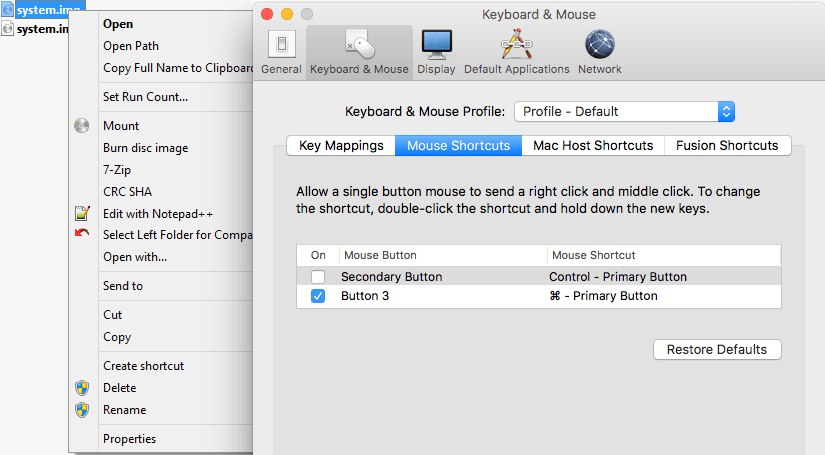
A while ago, I was surprised that in a Windows VM running under VMware Fusion, the Ctrl-Click performed a right click, despite me having changed the configuration:

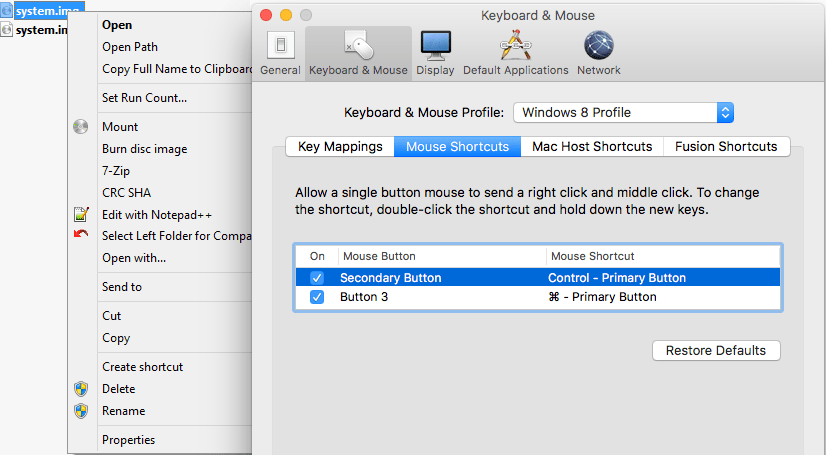
I was wrong, as I had forgotten I assigned the “Windows 8 Profile” tot hat VM (as it was running Windows 8.1), which had the Secondary Button still mapped to the Control+Primary Button:

Related:

–jeroen

Posted in Fusion, Power User, Virtualization, VMware, Windows | Leave a Comment »

AlessandroZ/LaZagne: Credentials recovery project

Posted by jpluimers on 2019/04/15

Just when I thought I made a note of a password I hardly ever use, I didn’t, luckily this open source tools understands how to recover many kinds of passwords: AlessandroZ/LaZagne: Credentials recovery project.

–jeroen

Posted in *nix, *nix-tools, Chrome, Development, DVCS - Distributed Version Control, Firefox, git, Internet Explorer, Office, Opera, Outlook, Power User, Python, Scripting, Skype, Software Development, Source Code Management, Web Browsers, WiFi, Windows | Leave a Comment »

Delphi Code Monkey: Cool Advanced Troubleshooting Technique – WinDbg

Posted by jpluimers on 2019/04/11

This so much reminds me of a struggle in the Toshiba Tecra 750CDT era: [WayBackDelphi Code Monkey: Cool Advanced Troubleshooting Technique – WinDbg.

First about Warren’s issue:

His laptop froze only in Windows 10, but not Windows 7, after doing some debugging work. Display is on, but non-responsive. He ruled out a lot of things, thought it was a video issue, looked for pointers how to research it ending to force memory dumps by keyboard then running WinDbg to further pinpoint the cause.

He solved the issue by removing the Lenovo supplied Intel graphics driver and forcing the Intel HD Graphics 520 OEM drivers onto the system and posted a few interesting links:

Then some history:

Back in the 750CDT days, the problem was the combination of Toshiba using OEM S3 Virge/MX video drivers, Windows GDI and TImageList with a lot of images in them (basically: the component palette).

Result: interrupt freeze of the laptop, so not even mouse or keyword would work.

Solutions:

  • use Windows NT, not Windows 95
  • disable all S3 hardware acceleration
  • use the Toshiba 780 series video drivers

From then on, I’ve never developed on Windows 9x based systems any more, but Windows NT based systems (even though it was much harder to get drivers for all hardware components), this despite the fact that with Windows NT 4, Microsoft video drivers from ring 3 to ring 0 (they were at ring 3 until and including Windows NT 3.51 [Archive.is]). On the one hand the move to ring 0 caused more blue screens, on the other hand made it a lot harder to directly access hardware from user software running at ring 3.


–jeroen

Posted in Development, Power User, Software Development, Windows, Windows 10 | Leave a Comment »