The Wiert Corner – irregular stream of stuff

Jeroen W. Pluimers on .NET, C#, Delphi, databases, and personal interests

  • My badges

  • Twitter Updates

  • My Flickr Stream

  • Pages

  • All categories

  • Enter your email address to subscribe to this blog and receive notifications of new posts by email.

    Join 1,854 other subscribers

Windows Sandbox: a feature I forgot about

Posted by jpluimers on 2021/09/29

The Windows Sandbox can be useful, but since it was never there in the first decades of my Windows usage, I forgot it was added.

I wonder how it is implemented, as it is really useful to test out new stuff, but I wonder what it protects against.

A few years back, I bumped into this because the [WayBack] Desktop Goose by samperson got viral (it can be downloaded from [WayBack/Archive.is] Desktop Goose v0.2.zip)

via [Archive.is] Samperson on Twitter: “I made a goose that destroys your computer Download it free here: samperson.itch.io/desktop-goose” / Twitter

So here are some links (you need at least build 1903 ([WayBack] Windows 10 May 2019 or 19H1) or Insider Preview Build 18305):

You can install it even if your Windows machine itself is a VM. For a physical machine, hardware virtualisation needs to be enabled (usually in the BIOS); for a VM, nested virtualisation enabled (check that in your virtualisation environment: Hyper-V, ESXi and others vary slightly on how to enable this).

Installation inside the Windows machine can be done via PowerShell (or the UI):

Note that starting the SandBox from an x86 process might require you to run a different WindowsSandBox.exe; see [WayBack] Launching Wsb (Windows Sandbox Config file) gives error – Total Commander:

you can use C:\WINDOWS\Sysnative\WindowsSandbox.exe in stead of C:\WINDOWS\System32\WindowsSandbox.exe in TC 32bit.

Also see:
[WayBack] On 64-bit Windows versions, some files and folders shown by Windows Explorer are not shown by Total Commander!

[WayBack] Windows x64: Explorer vs TC: Content of System32 different

–jeroen

Read the rest of this entry »

Posted in Development, Power User, Software Development, Windows, Windows Development | Leave a Comment »

Moore’s law has almost ended: back to the future

Posted by jpluimers on 2021/09/29

[WayBack] We’re approaching the limits of computer power – we need new programmers now | John Naughton | Opinion | The Guardian

Ever-faster processors led to bloated software, but physical limits may force a return to the concise code of the past

So back to optimisation and maybe even assembly language.

Which brings back the days gone by.

–jeroen

Read the rest of this entry »

Posted in Algorithms, Assembly Language, Development, Software Development | Leave a Comment »

PowerShell error in a script but not on the console: The string is missing the terminator: “.

Posted by jpluimers on 2021/09/29

The below one will fail in a script, both both work from the PowerShell prompt:

Success

Get-NetFirewallRule -DisplayGroup "File and Printer Sharing" | ForEach-Object { Write-Host $_.DisplayName ; Get-NetFirewallAddressFilter -AssociatedNetFirewallRule $_ }

Failure

Get-NetFirewallRule –DisplayGroup "File and Printer Sharing" | ForEach-Object { Write-Host $_.DisplayName ; Get-NetFirewallAddressFilter -AssociatedNetFirewallRule $_ }

The error you get this this:

At C:\bin\Show-File-and-Printer-Sharing-firewall-rules.ps1:5 char:52
+ ... -TCP-NoScope" | ForEach-Object { Write-Host $_.DisplayName ; Get-NetF ...
+                 ~~~~~~~~~~~~~~~~~~~~~~~~~~~~~~~~~~~~~~~~~~~~~~~~~~~~~~~~~
The string is missing the terminator: ".
    + CategoryInfo          : ParserError: (:) [], ParentContainsErrorRecordException
    + FullyQualifiedErrorId : TerminatorExpectedAtEndOfString

Via [WayBack] script file ‘The string is missing the terminator: “.’ – Google Search, I quickly found these that stood out:

Cause and solution

Before DisplayGroup, the first line has a minus sign and the second an en-dash. You can see this via [WayBack] What Unicode character is this ?.

Apparently, when using Unicode on the console, it does not matter if you have a minus sign (-), en-dash (–), em-dash (—) or horizontal bar (―) as dash character. You can see this in [WayBack] tokenizer.cs at function [WayBack] NextToken and [WayBack] CharTraits.cs at function [WayBack] IsChar).

When saving to a non-Unicode file, it does matter, even though it does not display as garbage in the error message.

Similarly, PowerShell has support for these special characters:

    internal static class SpecialChars
    {
        // Uncommon whitespace
        internal const char NoBreakSpace = (char)0x00a0;
        internal const char NextLine = (char)0x0085;

        // Special dashes
        internal const char EnDash = (char)0x2013;
        internal const char EmDash = (char)0x2014;
        internal const char HorizontalBar = (char)0x2015;

        // Special quotes
        internal const char QuoteSingleLeft = (char)0x2018; // left single quotation mark
        internal const char QuoteSingleRight = (char)0x2019; // right single quotation mark
        internal const char QuoteSingleBase = (char)0x201a; // single low-9 quotation mark
        internal const char QuoteReversed = (char)0x201b; // single high-reversed-9 quotation mark
        internal const char QuoteDoubleLeft = (char)0x201c; // left double quotation mark
        internal const char QuoteDoubleRight = (char)0x201d; // right double quotation mark
        internal const char QuoteLowDoubleLeft = (char)0x201E; // low double left quote used in german.
    }

The easiest solution is to use minus signs everywhere.

Another solution is to save files as Unicode UTF-8 encoding (preferred) or UTF-16 encoding (which I dislike).

–jeroen

Posted in .NET, CommandLine, Development, Encoding, PowerShell, PowerShell, Scripting, Software Development, Unicode, UTF-16, UTF-8, UTF16, UTF8 | Leave a Comment »

Google Cloud Shell: connecting to cloud storage buckets

Posted by jpluimers on 2021/09/28

One of the drawbacks of Google Cloud Shell is that it will delete the home directory after 120 days of not using it: [WayBack] Deletion notice for my Google Cloud Shell home directory – Stack Overflow

This is documented [WayBack] here:

If you do not access Cloud Shell for 120 days, we will delete your home disk. You will receive an email notification before we do so and simply starting a session will prevent its removal.

This only applies to the home directory of your Cloud Shell instance (you may want to store it on Cloud Storage anyway if you want to keep it). Any other Google services you use will be unaffected.

I hardly use the cloud shell, as it is a last resort to shell out from overly protected networks. Fewer and fewer environments restrict so much, so I’ve bumped into the home directory deletion a few times now.

I might use it more in the future, as I recently discovered there is a URL trick so you can start a cloud shell with parameters like an initial git repository: [WayBack] Open in Cloud Shell  |  Google Cloud

The Open in Cloud Shell feature allows you to publish a link that opens the Cloud Console and either automatically clones a Git repository into Cloud Shell or starts Cloud Shell with a custom image. It also allows for instructions to be printed to the terminal to help users interact with the content.

The Open in Cloud Shell feature helps developers experiment with code samples and APIs without having to worry about downloading Cloud SDK, installing required dependencies, or searching for relevant source files. This page explains how to add this feature to your Git repository.

Currently, only GitHub and Bitbucket repositories are whitelisted. If you would like to add a different repository, send feedback with the repository type you’d like to use with Open in Cloud Shell.

Setting up the home directory with my scripts can be a curse, so I have contemplated on these kinds of solutions:

  • store scripts in Google Drive, and mount part of Google Drive into the Cloud Shell
  • store scripts in Google Cloud Storage
  • script the setup of the home directory via a bash script in a gist

Some links that will hopefully help me with that:

  • [WayBack] Use the Google Cloud Shell to Upload files to Google Drive : DataHoarder
  • [WayBack] Open Your Repository In Google Cloud Shell – Daisuke Maki – Medium
  • [WayBack] gsutil – Google cloud storage – Download file from web – Stack Overflow

    mount the bucket in your Cloud Shell using gcsfuse:

    Create a directory in your Cloud Shell user home

     mkdir ~/mybucket
    

    Now mount your bucket in that directory using gcsfuse:

     gcsfuse bucket_name ~/mybucket
    

    Change the current directory to mount point directory:

     cd mybucket
    

    (if you want to have some fun run “df -h .” to see how much space you got in that mount point)

    seems to work for all file sizes:

     curl http://speedtest.tele2.net/10GB.zip | gsutil cp - gs://YOUR_BUCKET_NAME/10GB.zip
    

    Basically curl “streams” the data directly to the bucket.

  • [WayBack] Limitations and restrictions  |  Cloud Shell  |  Google Cloud

    Usage limits

    Cloud Shell inactivity: If you do not access Cloud Shell for 120 days, your home disk will be deleted. You will receive an email notification before its deletion and simply starting a session will prevent its removal. Please consider a different solution on Google Cloud storage for sensitive data you wish to store long term.

    Non-interactive usage: Cloud Shell is intended for interactive use only. Non-interactive sessions will be ended automatically after a warning. Note that Cloud Shell sessions are capped at 12 hours, after which sessions are automatically terminated. You can use a new session immediately after.

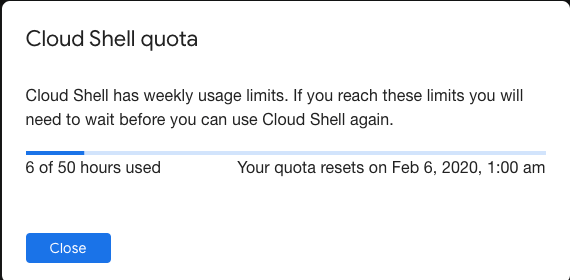
    Weekly usage: Cloud Shell also has weekly usage limits. If you reach your usage limit, you’ll need to wait until the specified time (listed under Usage Quota, found under the three dots menu icon) before you can use Cloud Shell again.

    Restoring a session after a service limit violation: If your session is terminated or cannot be established because you exceeded a service limit, Cloud Shell will display an error with a link to a form that allows you to appeal the limit violation. Click the feedback link and submit the form with more information about the tasks you were performing before your session was terminated.

–jeroen

Posted in bash, Development, Google, GoogleCloudShell, GoogleDrive, Internet, Power User, Scripting, Software Development, SpeedTest | Leave a Comment »

GitHub – proxykit/ProxyKit: A toolkit to create code-first HTTP reverse proxies on ASP.NET Core

Posted by jpluimers on 2021/09/28

Interesting: [Archive.is] GitHub – proxykit/ProxyKit: A toolkit to create code-first HTTP reverse proxies on ASP.NET Core:

Having built proxies many times before, I felt it is time to make a package. Forked from ASP.NET labs, it has been heavily modified with a different API, to facilitate a wider variety of proxying scenarios (i.e. routing based on a JWT claim) and interception of the proxy requests / responses for customization of headers and (optionally) request / response bodies. It also uses HttpClientFactory internally that will mitigate against DNS caching issues making it suitable for microservice / container environments.

Related:

–jeroen

Posted in .NET, .NET Core, .NET Standard, ASP.NET, C#, Communications Development, Development, HTTP, Internet protocol suite, Software Development, TCP | Leave a Comment »

Chocolatey: force install sysinternals after hash mismatch

Posted by jpluimers on 2021/09/28

Shortly after UltraVNC mismatching sha256 hash the chocolatey checksum check (Chocolatey: when upgrades or installs keep insisting the hash has changed, and over time the mismatch changes as well), I bumped into another occasion: now (because of a zero sized .nupkg file), I had to force reinstall sysinternals.

The problem however is that sysinternals chocolatey will always install the latest version as per [WayBack] Chocolatey Software | Sysinternals 2019.12.19

Notes

  • This package supports only latest version.
  • This package by default installs to tools directory which will create shims for all applications. When you install to different directory, shims are not created but directory is added to the PATH.
  • This package downloads the nano edition of sysinternals suite when installing it on a nano server.
  • To have GUI for the tools, install nirlauncher package and use /Sysinternals package parameter.

It means that when reinstalling an older version (in the process of fixing a broken chocolatey install), it is OK to ignore the error caused during forced reinstall:

C:\bin\bin>choco install --force --yes sysinternals
Chocolatey v0.10.15
Installing the following packages:
sysinternals
By installing you accept licenses for the packages.
sysinternals v2019.6.29 already installed. Forcing reinstall of version '2019.6.29'.
 Please use upgrade if you meant to upgrade to a new version.
Progress: Downloading sysinternals 2019.6.29... 100%

sysinternals v2019.6.29 (forced) [Approved]
sysinternals package files install completed. Performing other installation steps.
Sysinternals Suite is going to be installed in 'C:\ProgramData\chocolatey\lib\sysinternals\tools'
Downloading sysinternals
  from 'https://download.sysinternals.com/files/SysinternalsSuite.zip'
Progress: 100% - Completed download of C:\Users\jeroenp\AppData\Local\Temp\chocolatey\sysinternals\2019.6.29\SysinternalsSuite.zip (29 MB).
Download of SysinternalsSuite.zip (29 MB) completed.
Error - hashes do not match. Actual value was 'AE0AB906A61234D1ECCB027D04F5A920D78A31494372193EE944DD419842625C'.
ERROR: Checksum for 'C:\Users\jeroenp\AppData\Local\Temp\chocolatey\sysinternals\2019.6.29\SysinternalsSuite.zip' did not meet 'db59efe1739a2262104874347277f9faa0805a1a7a0acd9cc29e9544fb8040c5' for checksum type 'sha256'. Consider passing the actual checksums through with --checksum --checksum64 once you validate the checksums are appropriate. A less secure option is to pass --ignore-checksums if necessary.
The install of sysinternals was NOT successful.
Error while running 'C:\ProgramData\chocolatey\lib\sysinternals\tools\chocolateyInstall.ps1'.
 See log for details.

Chocolatey installed 0/1 packages. 1 packages failed.
 See the log for details (C:\ProgramData\chocolatey\logs\chocolatey.log).

Failures
 - sysinternals (exited -1) - Error while running 'C:\ProgramData\chocolatey\lib\sysinternals\tools\chocolateyInstall.ps1'.
 See log for details.

So in this case, as always the most recent Sysinternals file is used, it is OK to follow the bold guideline above (and quoted below) use the checksum for that file. You might even want to ignore it, as the file is downloaded over https so tampering is virtually impossible:

Consider passing the actual checksums through with --checksum --checksum64 once you validate the checksums are appropriate. A less secure option is to pass --ignore-checksums if necessary.

For this checksum, the forced reinstall becomes choco install --force --yes sysinternals --checksum AE0AB906A61234D1ECCB027D04F5A920D78A31494372193EE944DD419842625C

Alternatively (with a slight chance of yet another checksum) would be choco install --force --yes sysinternals --ignore-checksums

Related:

Read the rest of this entry »

Posted in .NET, Chocolatey, CommandLine, Development, Power User, PowerShell, PowerShell, Scripting, Software Development, SysInternals, Windows | Leave a Comment »

opensuse – How to install patterns and packages at the same time? – Unix & Linux Stack Exchange

Posted by jpluimers on 2021/09/27

appending : to the resolvable allows you to match different types in one command it seems.

zypper install java-1_6_0-openjdk-devel mercurial +pattern:devel_C_C++ +pattern:devel_java

The italic are packages; the bold are patterns.

Via: [WayBack] opensuse – How to install patterns and packages at the same time? – Unix & Linux Stack Exchange; thanks [WayBack] User llua – Unix & Linux Stack Exchange

–jeroen

Posted in *nix, *nix-tools, Linux, openSuSE, Power User, SuSE Linux, Tumbleweed | Leave a Comment »

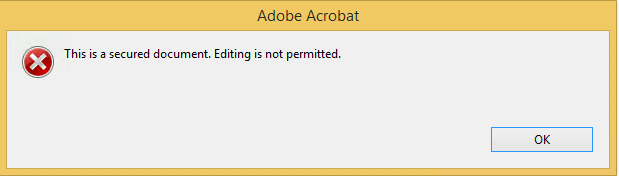
Fix Adobe Acrobat: “This is a secured document. Editing is not permitted.”

Posted by jpluimers on 2021/09/27

Every now and then you encounter brain-dead PDF forms, for instance ones that have:

  • tab order totally mixed up
  • formatting if fields in the wrong way
  • actions that clear (part or all) upon loading, saving or even moving to different fields

For those cases, especially if you need to return them in print form, it is easiest to just add new text fields so it is easier to fill them out in a readable form (trust me, my handwriting is at doctors level, so even I cannot always read it).

Welcome to the world of “This is a secured document. Editing is not permitted.”!

These all did NOT solve the problem for most of the PDF files I encountered:

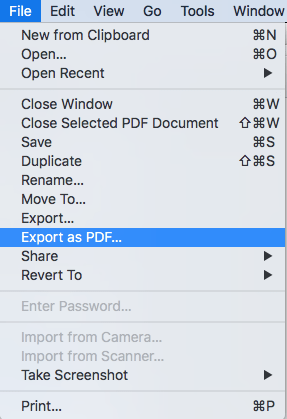
The easiest way to work around this for me is to use MacOS Preview to open the PDF, then export the PDF to a new file. This way, the protection will be removed from the new file.

I later found similar options being mentioned in [WayBack] How to remove security from a PDF file? – Super User.

I might try pdftk in the future based on [WayBack] linux – Removing PDF usage restrictions – Super User.

–jeroen


Posted in Adobe, Adobe Acrobat, Power User | Leave a Comment »

Empathy Quotient

Posted by jpluimers on 2021/09/27

–jeroen


Posted in About, LifeHacker, Personal, Power User | Leave a Comment »

MikroTik PoE: automatically power cycle and reboot device when it becomes unresponsive.

Posted by jpluimers on 2021/09/24

In the past I had these manual scripts to power-cycle a hung RaaspberryPi device:

/interface ethernet poe set ether5 poe-out=off
/interface ethernet poe set ether5 poe-out=forced-on

or on one line:

/interface ethernet poe set ether5 poe-out=off; /interface ethernet poe set ether5 poe-out=forced-on

I am going to try this script for the port having a Raspberry Pi on it (note: this requires a 48V power brick for the Mikrotik!) on RouterOS version 6.48.3 (stable):

/interface ethernet
set [ find default-name=ether5 ] comment="RaspberryPi" poe-out=\
    forced-on power-cycle-ping-address=192.168.124.38 power-cycle-ping-enabled=\
    yes power-cycle-ping-timeout=2m

The above has not worked for a long time as per [Wayback] No POE Power Cycle @ hEX POE – MikroTik:

But it might be fixed as of [Wayback] RouterOS version v6.47.3[stable] as per [Wayback] MikroTik Routers and Wireless – Software: 6.47.3 (2020-Sep-01 05:24):

*) poe – fixed “power-cycle” functionality on RB960GSP;

Similar issues exist on RB760iGS/Hex S, and there the fix requires new hardware in addition to firmware as per [Wayback] POE OUT issue on ether5 rb760igs (no power) – MikroTik

Note that I did disassemble both of these routers for inspection and there are obvious changes to the hardware to correct the PoE problems – most notably a completely different relay, capacitor and some minor circuit design changes.

If it still fails, I might try

[Wayback] No POE Power Cycle @ hEX POE – MikroTik: workaround script

:local ipPing ("x.x.x.x")
:local pingip
#
# pingip below RUNS and sets the variable
# to number of successful pings ie 3 means 3 of 45 success
# can also use ($pingip > 1) or ($pingip >= 1) both TESTED
# ($pingip >= 1) means if only 1 or 0 pings do the IF, not the ELSE
#
:log info ("ping CHECK script IS RUNNING NOW")
# first delay 90 b4 ping test incase this is running at POWER UP
:delay 90
:set pingip [/ping $ipPing count=45]
:if ($pingip <= 3) do={ :log warning (">95% lost ping LOSS to isp GW IP x.x.x.x via ether5 so DO POE powerCYCLE")
  /interface ethernet poe set ether5 poe-out=off
  :delay 12
  /interface ethernet poe set ether5 poe-out=auto-on
  :delay 10
  :log warning ("ether5 POE HAS BEEN TURNED BACK ON")
  :delay 90
  /system script run emailPOEresult
} else={
  :log warning ("PoeCyclePINGcheck ELSE ran so no ping loss detected by script")
}

Based on:

Read the rest of this entry »

Posted in Development, Hardware Development, Internet, MikroTik, Power User, Raspberry Pi, routers | Leave a Comment »