The Wiert Corner – irregular stream of stuff

Jeroen W. Pluimers on .NET, C#, Delphi, databases, and personal interests

  • My badges

  • Twitter Updates

  • Pages

  • All categories

  • Enter your email address to subscribe to this blog and receive notifications of new posts by email.

    Join 1,854 other subscribers

On Windows, having an empty password can improve security

Posted by jpluimers on 2021/08/11

From an interesting twitter thread started by SwitftOnSecurity:

Interesting thought that I need to let sink in for a while before trying it.

Great posts by Aaron

Finding out about and fixing Limited User Account bugs:

More to think about:

  • [WayBack] Table of Contents (Aaron Margosis’ Non-Admin WebLog) – Aaron Margosis’ Non-Admin, App-Compat and Sysinternals WebLog
  • [WayBack] Not running as admin… – Aaron Margosis’ Non-Admin, App-Compat and Sysinternals WebLog

    To be more secure, users should log on with a Limited (or “Least-privileged”) User account (LUA), and use elevated privileges only for specific tasks that require them.  Linux/Unix users have understood this for a long time

  • [WayBack] Why you shouldn’t run as admin… – Aaron Margosis’ Non-Admin, App-Compat and Sysinternals WebLog
    • The #1 reason for running as non-admin is to limit your exposure.
    • My #2 reason for running as non-admin applies to developers.  Developing software as User instead of Admin helps ensure that your software will run correctly on end-users’ systems.
    • My #3 reason applies just to Microsoft personnel, particularly those of us in customer-facing roles.  Hey, y’all!  We need to lead by example.
  • [WayBack] The easiest way to run as non-admin – Aaron Margosis’ Non-Admin, App-Compat and Sysinternals WebLog

    Here’s how I set up home computers for friends and relatives:

    • Create a Computer Administrator account called “Admin”.  No password.  (Read on before you flame.)
    • Create a Limited User account for each person who will be using the computer.  No passwords.
    • Enable the Guest account if it is anticipated that visitors may need to go online.

    I instruct all concerned that the Admin account is to be used only for installing software, and to use their individual accounts for all day-to-day use, including web, email, IM, etc.  This has worked quite well for everyone I’ve done this for, and don’t get calls anymore about home pages being hijacked, etc.  Users generally don’t even have to log out.  My 7-year old walks away, the screen saver kicks in, my 3-year old moves the mouse and clicks on his picture (or the frog or whatever it is now) and has his own settings.

    [added 2004.06.22]:  I also like to make the admin desktop noticeably different from normal user desktops, to help prevent accidental use.  For example, use the Windows Classic theme instead of the XP default, set a red background, or a wallpaper that says “For admin use only.  Are you sure you need to be here?”

    OK, I know you’re bursting already:  “No password?!?!  Are you insane?!?!”  Cool down, now.  Starting with Windows XP, a blank password is actually more secure for certain scenarios than a weak password.  By default, an account with a blank password can be used only for logging on at the console.  It cannot be used for network access, and it cannot be used with RunAs.  The user experience of just clicking on your name to log on can’t be beat for simplicity.  If you can trust everyone who has physical access to the computer not to log on as someone else or abuse the admin account, this is a great way to go.  If not, you can always enable passwords.

  • [WayBack] “RunAs” basic (and intermediate) topics – Aaron Margosis’ Non-Admin, App-Compat and Sysinternals WebLog

    The Secondary Logon service was first introduced in Windows 2000, and is in Windows XP and Server 2003.  When you start a new process through RunAs, you provide credentials for the account you want the process to run under – for example, the local Administrator account.  Assuming the credentials are valid, the Secondary Logon service then causes several things to happen:

    • creates a new logon session for the specified account, with a new token;
    • ensures that the new process’ token is granted appropriate access to the current window station and desktop (the specifics change somewhat for XP SP2, but aren’t important here);
    • creates a new job in which the new process and any child processes it starts will run, to ensure that the processes are terminated when the shell’s logon session ends (correcting a problem with the NT4 Resource Kit’s SU utility).
  • [WayBack] RunAs with Explorer – Aaron Margosis’ Non-Admin, App-Compat and Sysinternals WebLog
  • [WayBack] MakeMeAdmin — temporary admin for your Limited User account – Aaron Margosis’ Non-Admin, App-Compat and Sysinternals WebLog

    MakeMeAdmin.cmd invokes RunAs twice, prompting you first for your local admin password, then for your current account password.  The bit that runs as local administrator does the following:

    1. Adds your current account to the local Administrators group (using NET LOCALGROUP, avoiding the problem of needing network credentials to resolve names);
    2. Invokes RunAs to start a new instance of cmd.exe using your current account, which is at this instant a member of Administrators;
    3. Removes your current account from the local Administrators group.

    The result of the second step is a Command Prompt running in a new logon session, with a brand new token representing your current account, but as a member of Administrators.  The third step has no effect on the new cmd.exe’s token, in the same way that adding your account to Administrators does not affect any previously running processes.

  • [WayBack] MakeMeAdmin follow-up – Aaron Margosis’ Non-Admin, App-Compat and Sysinternals WebLog

    In my first MakeMeAdmin post, there’s a section called “Objects created while running with elevated privilege,” the main parts of which I’ll recap here:

    Normally, when a user creates a securable object, such as a file, folder, or registry key, that user becomes the “owner” of the object and by default is granted Full Control over it.  Prior to Windows XP, if the user was a member of the Administrators group, that group, rather than the user, would get ownership and full control….  Windows XP introduced a configurable option whether ownership and control of an object created by an administrator would be granted to the specific user or to the Administrators group.  The default on XP is to grant this to the object creator; the default on Windows Server 2003 is to grant it to the Administrators group….

    If I use MakeMeAdmin to install programs, my normal account will be granted ownership and full control over the installation folder, the program executable files, and any registry keys the installation program creates.  Those access rights will remain even when I am no longer running with administrator privileges.  That’s not what I want at all.  I want to be able to run the app, create and modify my own data files, but not to retain full control over the program files after I have installed it.

    I concluded by saying:

    For this reason, I changed the “default owner” setting on my computer to “Administrators group”.

    Today I would like to go further:  If you are going to use the same account for admin and non-admin activities (e.g., with MakeMeAdmin), I strongly recommend that you change the “Default owner” setting on your computer to “Administrators group”.

  • [WayBack] And so this is Vista… – Aaron Margosis’ Non-Admin, App-Compat and Sysinternals WebLog

    What becomes of all my earlier non-admin tips, tricks and recommendations vis-à-vis RunAsMakeMeAdminPrivBar and their interactions with IE and Explorer? The short answer is that Vista changes just about everything with respect to running with least privilege.

    Windows Vista makes running as a standard user (non-admin) much more pleasant, feasible and secure than it was on XP. I’m not going to drill into all those improvements here. Instead, the focus of this post is to update my earlier posts about running on XP as a standard user (the “Running as Admin Only When Required” posts in the Table of Contents) as they pertain to Windows Vista. To save some space, I’ll assume you’ve spent at least a little time running Vista.

    rwx—rwx

    > On XP/2003, MakeMeAdmin lets you run as a

    > standard user, and temporarily elevate your

    > standard account to run a selected program

    > with administrative privileges.

    Right.  It doesn’t mean temporarily elevating your administrative account to run elevated, it means temporarily elevating your standard account to run a selected program with administrative privileges in the context of your account.

    > Vista gives you the same ability

    It does not.  Here’s what Vista gives:

    > If you are a member of the Administrators

    > group on Vista

    Exactly.  It means temporarily elevating your administrative account to run elevated.  It doesn’t help your standard account at all.

    > “Run as administrator” serves as a superior

    > substitute. With the default settings, a

    > member of Administrators can use it as a

    > MakeMeAdmin replacement

    No, it is not a substitute, it’s different.  A member of Administrators can use it to temporarily switch context to an administrative account and run elevated in the administrative account.  If the administrator does this to install an application for all users then there’s no real problem, the application gets installed for all users just as it did in XP.  But if the administrator wanted to do this to install an application for the standard user, they can’t do it.  The administrator gets to install the application for one user’s account, which is going to be the administrator’s account, it’s not going to be the standard user’s account.  The standard user doesn’t get the benefit that MakeMeAdmin provided.

    Standard users in Vista still need a MakeMeAdmin tool.

  • [WayBack] Ctrl-C doesn’t work in RUNAS or MakeMeAdmin command shells – Aaron Margosis’ Non-Admin, App-Compat and Sysinternals WebLog

    Workaround: 

    Use Ctrl-Break instead.

    [Added, March 9, 2005: While this problem occurs on Windows XP, it does not occur on Server 2003 RTM! ]

  • [WayBack] Follow-up on “Setting color for *all* CMD shells based on admin/elevation status” – Aaron Margosis’ Non-Admin, App-Compat and Sysinternals WebLog
  • [WayBack] Running restricted — What does the “protect my computer” option mean? – Aaron Margosis’ Non-Admin, App-Compat and Sysinternals WebLog

    The bottom line is that the app runs with a “restricted token” that basically has these net effects:

    • Group membership:  If you were logged in as a member of Administrators, Power Users, or certain powerful domain groups, the app runs without the benefit of those group memberships.
    • Registry:  The app has read-only access to the registry, including HKEY_CURRENT_USER and HKEY_LOCAL_MACHINE.  The app has no access to HKCU\Software\Policies.
    • File system (assuming NTFS):  The app cannot access the user’s profile directory at all.  That includes “My Documents”, “Temporary Internet Files”, “Cookies”, etc.
    • Privileges:  The app has no system-wide privileges other than “Bypass traverse checking”.

    IE works fairly well this way, but with some odd and annoying problems:

    • You can’t use SSL (https) at all.
    • If you right-click on a hyperlink and choose “Open in New Window”, nothing happens.
    • If you enter a URL in the address bar without “http://” in front of it (e.g., “www.msn.com”), you get an error message like “C:\Documents and Settings\aaronmar\Desktop is not accessible.  Access is denied.”, before IE goes ahead and loads the site anyway.
    • On XP SP2 and on Server 2003, toolbars do not appear where you configured them, if they appear at all.  E.g., PrivBar always needs to be re-enabled; “Links” appears (on my machine) in the upper left, to the left of the menu bar.  (This wasn’t a problem with XP SP1.)

–jeroen

Posted in Development, Power User, Security, Software Development, Windows, Windows Development | Leave a Comment »

System.TypInfo.SizeOfSet – RAD Studio API Documentation

Posted by jpluimers on 2021/08/11

This seems to have been introduced into Delphi Berlin: [WayBack] System.TypInfo.SizeOfSet – RAD Studio API Documentation. Maybe slightly earlier, but at least it was not documented in XE8 [WayBack] (via [WayBack] Delphi “SizeOfSet”.).

This is a useful function, for instance to get the Cardinality of a set in [WayBack] delphi – How can I get the number of elements of any variable of type set? – Stack Overflow.

From what I can see, the undocumented TLargestSet type also got introduced in Delphi Berlin.

Few hits by Google on [WayBack] Delphi “TLargestSet”, including [WayBack] Free Automated Malware Analysis Service – powered by Falcon Sandbox – Viewing online file analysis results for ‘Coperativa.exe’.

Not much more is documented than this in Tokyo [WayBack]:

System.TypInfo.SizeOfSet

Delphi

function SizeOfSet(TypeInfo: PTypeInfo): Integer;

C++

extern DELPHI_PACKAGE int __fastcall SizeOfSet(PTypeInfo TypeInfo);

Properties

Type Visibility Source Unit Parent
function public
System.TypInfo.pas
System.TypInfo.hpp
System.TypInfo System.TypInfo

Description

Embarcadero Technologies does not currently have any additional information. Please help us document this topic by using the Discussion page!

–jeroen

Posted in Delphi, Delphi 10.1 Berlin (BigBen), Delphi 10.2 Tokyo (Godzilla), Delphi 10.3 Rio (Carnival), Delphi XE8, Development, Software Development | Leave a Comment »

Auto connect SSH without autossh?

Posted by jpluimers on 2021/08/10

Hopefully an example ssh config will follow.

[WayBack] Jeroen Pluimers on Twitter: “Would you mind sharing a trimmed down version of your ~/.ssh/config file? The bits from your posts are a bit fragmented now, so I’ve lost the overview (:”

–jeroen

Read the rest of this entry »

Posted in *nix, Communications Development, Development, Internet protocol suite, Power User, SSH, ssh/sshd, TCP | Leave a Comment »

On my list of things to try: Amazon SES for outbound/inbound email handling

Posted by jpluimers on 2021/08/10

SES mail servers at the time of writing

*n*x:

# nslookup -type=TXT amazonses.com | grep "v=spf1"
amazonses.com   text = "v=spf1 ip4:199.255.192.0/22 ip4:199.127.232.0/22 ip4:54.240.0.0/18 ip4:69.169.224.0/20 ip4:76.223.180.0/23 ip4:76.223.188.0/24 ip4:76.223.189.0/24 ip4:76.223.190.0/24 -all"I

Windows

C:\>nslookup -type=TXT amazonses.com | find "v=spf1"
Non-authoritative answer:
        "v=spf1 ip4:199.255.192.0/22 ip4:199.127.232.0/22 ip4:54.240.0.0/18 ip4:69.169.224.0/20 ip4:76.223.180.0/23 ip4:76.223.188.0/24 ip4:76.223.189.0/24 ip4:76.223.190.0/24 -all"

These addresses use a compact CIDR notation to denote ranges of networks containing ranges of network IPv4 addresses.

CIRD processing to sendmail access file

(this is linux sendmail only)

Converting the nslookup outout to a CIDR based sendmail /etc/mail/access excerpt goes via a pipe sequence of multiple sed commands:

# nslookup -type=TXT amazonses.com | grep "v=spf1" | sed 's/\(^.*"v=spf1 ip4:\| -all"$\)//g' | sed 's/\ ip4:/\n/g' | xargs -I {} sh -c "prips {} | sed 's/$/\tRELAY/g'"
199.255.192.0   RELAY
199.255.192.1   RELAY
...
76.223.190.254  RELAY
76.223.190.255  RELAY

What happens here is this:

  1. Filter out only spf1 records using grep.
  2. Remove the head (.*v=spf1 ip4:) and tail ( -all") of the output, see [WayBack] use of alternation “|” in sed’s regex – Super User.
  3. Replaces all ip4: with newlines (so the output get split over multiple lines), see [WayBack] linux – splitting single line into multiple line in numbering format using awk – Stack Overflow.
  4. Convert the CIDR notation to individual IP addresses (as sendmail cannot handle CIDR),
    1. This uses a combination of xargs with the  sh trick to split the CIDR list into separate arguments, and prips (which prints the IP addresses for a CIDR); see:
    2. Alternatively, use
  5. Replaces all end-of-line anchor ($) with a tab followed by RELAY, see

You can append the output of this command to /etc/mail/access, then re-generate /etc/mail/access.db and restart sendmail; see for instance [WayBack] sendmail access.db by example | LinuxWebLog.com.

Without the xargs, the output would look like this:

# nslookup -type=TXT amazonses.com | grep "v=spf1" | sed 's/\(^.*"v=spf1 ip4:\| -all"$\)//g' | sed 's/\ ip4:/\n/g'
199.255.192.0/22
199.127.232.0/22
54.240.0.0/18
69.169.224.0/20
76.223.180.0/23
76.223.188.0/24
76.223.189.0/24
76.223.190.0/24

Via

–jeroen

Posted in *nix, *nix-tools, Amazon SES, Amazon.com/.de/.fr/.uk/..., Cloud, Communications Development, Development, Infrastructure, Internet protocol suite, Power User, sendmail, SMTP, Software Development | Leave a Comment »

Delphi 10.2 Tokyo and up compiler issue: incompatible with Delphi 1.10.1 Berlin behaviour on unit path resolution

Posted by jpluimers on 2021/08/10

There is a very tricky compiler and IDE issue in Delphi 10.2 and up that on the compiler site behaves differently from Delphi 1.10.1 Berlin, and on the IDE side stays the same from Delphi 2005 on.

The issue baffled me, as lot’s features were not added in the Delphi compiler because of backward compatibility reasons.

The problem is that the compiler now favours the unit search path over the paths specified in the .dpr. This breaks compatibility with earlier versions and the IDE: the IDE still thinks pathnames in the .dpr files are the ones to follow.

There are some permutations on this problem, of which a few ones below.

Nonexisting unit in the project, but existing on the search path

  • .dpr file in a directory X
  • a unit inside a different directory A specified the .dpr file, but not on disk, and directory A not in the unit search path
  • a disk version of the unit in yet another directory B where directory B is in the unit search path

This results in Delphi 1..10.1 Berlin to error on compiling the project (because the unit is not found), but 10.2 and up succeeding (because the unit is found).

Existing unit in the project, but directory not on the search a path

Another permutation is this one:

  • .dpr file in a directory X
  • a unit inside a different directory A specified the .dpr file, and on disk, and directory A not in the unit search path

Two same named units, one on search path, other in project but not on search path

Yet another permutation:

  • .dpr file in a directory X
  • a unit inside a different directory A specified the .dpr file, on disk, and directory A not in the unit search path
  • a disk version of the unit in yet another directory B where directory B is in the unit search path
  • unit A and unit B have different content

This works the same in all versions of Delphi: the unit file referenced in the .dpr is compiled.

Via: [WayBack] Jeroen Pluimers on Twitter: “Delphi 10.2 Tokyo and 10.3 Rio compilers break Delphi 1…10.1 Berlin behaviour. Still reproducing and researching the consequences. It for instance means stuff suddenly compiles when it should not, or breaks when it should not. Preliminary reproduction at “

[WayBack] wiert.me / public / delphi / DelphiConsoleProjectWithMissingProjectUnitThatIsOnTheSearchPath · GitLab

–jeroen

Read the rest of this entry »

Posted in Delphi, Development, Software Development | Leave a Comment »

autossh on Windows from a service: automatically starting a tunnel no matter anyone being logged on

Posted by jpluimers on 2021/08/09

There is an autossh binary for Windows available on GitHub: [WayBack] GitHub – jazzl0ver/autossh: Windows binary for autossh v1.4c.

Combined with NSSM (which for instance you can install through [WayBack] Chocolatey Software | NSSM – the Non-Sucking Service Manager) you can not only automatically build and maintain an SSH connection, but also ensure the autossh process is up and running as a service without the need for an active logon.

This allows for SSH based tunnels from and to your Windows system.

For this usage scenario, there is no need for these tools any more:

Future research:

One time steps

These are in part based on:

1. Download autoSSH

Download the most recent [WayBack] Releases · jazzl0ver/autossh · GitHub  (see below for updates).

I used the 1.4g version: [WayBack] autossh.exe, then put on my Windows PATH.

2. Install NSSM

Since it is on chocolatey ([WayBack] Chocolatey Software | NSSM – the Non-Sucking Service Manager 2.24.101.20180116), this will suffice:

choco install --yes nssm

3 .Prepare remote computer so it allows enough SSH retries

Check the value of MaxAuthTries in /etc/ssh/sshd_config.

# grep MaxAuthTries /etc/ssh/sshd_config MaxAuthTries 1

The value needs to be at least 3 or higher for ssh-copy-id to work properly.

When changing the value, be sure to restart the sshd daemon.

Without a low value of MaxAuthTries in /etc/ssh/sshd_config, ssh-copy-id will give an error ERROR: Received disconnect from myRemoteComputer port 2222:2: Too many authentication failures.

See also these link via [WayBack ]“INFO: attempting to log in with the new key(s), to filter out any that are already installed” “Too many authentication failures” – Google Search:

4. Temporarily allow the remote account to perform interctive logon

Temporarily change the user shell to /bin/bash to allow [WayBack] ssh-copy-id to work at all.

This is explained in more detail by [WayBack] shell – ssh dissable login, but allow copy-id – Server Fault.

5. Generate public and private key pairs

You need an ssh public and private key, then transfer this to your Windows client. You can for instance use these as a base:

For instance (where myLocalUser is the local user generate the key-pair for for, and myRemoteUser plus myRemoteComputer is the remote user and computer you want to autossh to):

  • ssh-keygen -t rsa -b 4096 -f %UserProfile%\.ssh\id_rsa_myLocalUser@%ComputerName%_autossh_myRemoteUser@myRemoteComputer
  • ssh-keygen -t ed25519 -f %UserProfile%\.ssh\id_ed25519_myLocalUser@%ComputerName%_autossh_myRemoteUser@myRemoteComputer

6. install git (for ssh-copy-id and bash)

Since git includes ssh-copy-id (which you need in the next step, it is at %Program Files%\Git\usr\bin\ssh-copy-id) and git is on chocolatey ([WayBack] Chocolatey Software | Git (Install) 2.23.0):

choco install --yes git.install --params "/GitAndUnixToolsOnPath /NoGitLfs /SChannel /NoAutoCrlf /WindowsTerminal"

7. Copy the public parts of the generated key pairs to the remote account on the remote machine

Use bash with ssh-copy-id to transfer the generated public keys to a remote system (replace 2222 with the SSH port number on the remote computer; often it is just 22):

pushd %UserProfile%\.ssh
bash -c "ssh-copy-id -i %UserProfile%\.ssh\id_rsa_myLocalUser@%ComputerName%_autossh_myRemoteUser@myRemoteComputer -p 2222 myRemoteUser@myRemoteComputer"
bash -c "ssh-copy-id -i %UserProfile%\.ssh\id_ed25519_myLocalUser_%ComputerName%_autossh_myRemoteUser@myRemoteComputer -p 2222 myRemoteUser@myRemoteComputer"
popd

This sounds overly complicated, but is the only way to incorporate the environment variables.

8. Test with ssh, then with autossh

These two ssh commands should succeed; choose the one for which you prefer the rsa or ed25519 algorithm.

  • ssh -i %UserProfile%\.ssh\id_rsa_myLocalUser@%ComputerName%_autossh_myRemoteUser@myRemoteComputer -p 2222 myRemoteUser@myRemoteComputer
  • ssh -i %UserProfile%\.ssh\id_ed25519_myLocalUser_%ComputerName%_autossh_myRemoteUser@myRemoteComputer -p 2222 myRemoteUser@myRemoteComputer

After this, try with autossh:

  • autossh -M 0 -o "ServerAliveInterval 30" -o "ServerAliveCountMax 3" -i %UserProfile%\.ssh\id_rsa_myLocalUser@%ComputerName%_autossh_myRemoteUser@myRemoteComputer -p 2222 myRemoteUser@myRemoteComputer
  • autossh -M 0 -o "ServerAliveInterval 30" -o "ServerAliveCountMax 3" -i %UserProfile%\.ssh\id_ed25519_myLocalUser_%ComputerName%_autossh_myRemoteUser@myRemoteComputer -p 2222 myRemoteUser@myRemoteComputer

This disables the autossh port monitoring (the -M 0 option, but uses a combination of interval/count-max from ssh itself to monitor the connection (the -o "ServerAliveInterval 30" -o "ServerAliveCountMax 3" options).

Note that there is no default monitoring port, as it can be any one: [WayBack] linux – What is the default monitoring port for autossh? – Super User

9. Install autossh as a service

a

Steps

  1. a
  2. b
  3. c
  4. d
  5. e

SSH logon

Depending on which algorithm you like most, use either of the below 2 (replace 2222 with the SSH port number on the remote computer; often it is just 22):

  • ssh -i %UserProfile%\.ssh\id_rsa_myLocalUser@%ComputerName%_autossh_myRemoteUser@myRemoteComputer -p 2222 myRemoteUser@myRemoteComputer
  • ssh -i %UserProfile%\.ssh\id_ed25519_myLocalUser_%ComputerName%_autossh_myRemoteUser@myRemoteComputer -p 2222 myRemoteUser@myRemoteComputer


C:\Users\jeroenp>ssh-keygen -t ed25519 -f %UserProfile%\.ssh\id_ed25519_myUser_%ComputerName%_autossh_revue
Generating public/private ed25519 key pair.
Enter passphrase (empty for no passphrase):
Enter same passphrase again:
Your identification has been saved in C:\Users\jeroenp\.ssh\id_ed25519_myUser_D10U003_autossh_revue.
Your public key has been saved in C:\Users\jeroenp\.ssh\id_ed25519_myUser_D10U003_autossh_revue.pub.
The key fingerprint is:
SHA256:6qjzXhQtZpTzU6aryHMYuwVs5b4a/2COKxFGFQj0Eg4 jeroenp@D10U003
The key's randomart image is:
+--[ED25519 256]--+
|E+ oo...         |
|o =  .o.  o      |
| + .  *o.+       |
|  +. = o+        |
| . .+ o So       |
|  ...+ ..        |
|   o.=B.         |
|  o *@oo         |
|  .*O*=..        |
+----[SHA256]-----+

C:\Users\jeroenp>ssh-keygen -t rsa -b 4096 -f %UserProfile%\.ssh\id_rsa_myUser_%ComputerName%_autossh_revue
Generating public/private rsa key pair.
Enter passphrase (empty for no passphrase):
Enter same passphrase again:
Your identification has been saved in C:\Users\jeroenp\.ssh\id_rsa_myUser_D10U003_autossh_revue.
Your public key has been saved in C:\Users\jeroenp\.ssh\id_rsa_myUser_D10U003_autossh_revue.pub.
The key fingerprint is:
SHA256:WaWRoAnr4OuXAnc+MekpbdnNto71SgdMykp7XqylQr8 jeroenp@D10U003
The key's randomart image is:
+---[RSA 4096]----+
|    .   .....    |
|     o o  .+     |
|  . . o . o      |
| . o . + o       |
|  . o.o S        |
|. .o*o . .       |
| o.*oO.o* .      |
| .o %ooO+o       |
|  .= oE++o.      |
+----[SHA256]-----+

NSSM

NSSM is really cool to run any application as a service: [WayBack] NSSM – the Non-Sucking Service Manager

nssm is a service helper which doesn’t suck. srvany and other service helper programs suck because they don’t handle failure of the application running as a service. If you use such a program you may see a service listed as started when in fact the application has died. nssm monitors the running service and will restart it if it dies. With nssm you know that if a service says it’s running, it really is. Alternatively, if your application is well-behaved you can configure nssm to absolve all responsibility for restarting it and let Windows take care of recovery actions.

nssm logs its progress to the system Event Log so you can get some idea of why an application isn’t behaving as it should.

nssm also features a graphical service installation and removal facility. Prior to version 2.19 it did suck. Now it’s quite a bit better.

After installing, everything is command-line based (I cut away some blank lines for readability):

C:\bin\bin>nssm --help
NSSM: The non-sucking service manager
Version 2.24-101-g897c7ad 64-bit, 2017-04-26
Usage: nssm [ ...]

To show service installation GUI:

        nssm install []

To install a service without confirmation:

        nssm install   [ ...]

To show service editing GUI:

        nssm edit 

To retrieve or edit service parameters directly:

        nssm dump 
        nssm get   []
        nssm set   [] 
        nssm reset   []

To show service removal GUI:

        nssm remove []

To remove a service without confirmation:

        nssm remove  confirm

To manage a service:

        nssm start 
        nssm stop 
        nssm restart 
        nssm status 
        nssm statuscode 
        nssm rotate 
        nssm processes 

Windows binary autossh version

If it is behind on [WayBack] autossh (see version history at [WayBack] autossh/CHANGES.txt), then just ask for a new version; usually it gets built and released quickly: [WayBack] Any plans for 1.4g? · Issue #3 · jazzl0ver/autossh · GitHub

[WayBack] Releases · jazzl0ver/autossh · GitHub  at the time of writing:

–jeroen

Posted in *nix, *nix-tools, Communications Development, Development, Internet protocol suite, Power User, SSH, TCP | Leave a Comment »

It looks like a volunteer has been found to maintain the openvpn chocolatey

Posted by jpluimers on 2021/08/09

The chocolatey package for OpenVPN has not been updated for quite a while. It looks like it has to do with the current dependency to verify the OpenVPN signature.

The current [Wayback] Chocolatey Software | OpenVPN 2.4.7 version is both outdated on the major version number ([Wayback/Archive.is] Release OpenVPN v2.5.3 release · OpenVPN/openvpn) and minor version ([Wayback/Archive.is] Release OpenVPN v2.4.11 release · OpenVPN/openvpn). The version 2.4 Windows installers are now called “Legacy Windows Installers”.

Luckily less than a day after the start of the [Wayback/Archive.is] RFM – openvpn · Issue #1024 · chocolatey-community/chocolatey-package-requests, a volunteer stepped forward.

Hopefully by now the package is being maintained again.

–jeroen

Posted in Network-and-equipment, OpenVPN, Power User, VPN | Leave a Comment »

How to turn on automatic logon in Windows

Posted by jpluimers on 2021/08/09

[WayBack] How to turn on automatic logon in Windows

Describes how to turn on the automatic logon feature in Windows by editing the registry.

Most archivals of the above post fail with a 404-error after briefly flashing the content, but this particular one usually succeeds displaying.

It is slightly different from the one referenced in my blog post automatic logon in Windows 2003, and because of the archival issues, I have quoted most of it below.

A few observations, at least in Windows 10 and 8.1:

  • Major Windows 10 upgrades will disable the autologon: after each major upgrade, you have to re-apply the registry patches.
  • If the user has a blank password, you can remove the DefaultPassword value.
    • Empty passwords allow local logon (no network logon or remote desktop logon), no network access and no RunAs, which can actually help improve security. More on that in a later blog post
  • For a local machine logon, you do not need the DefaultDomainName value either (despite many posts insisting you need them), but you can technically set it to the computer name using reg add "HKEY_LOCAL_MACHINE\Software\Microsoft\Windows NT\CurrentVersion\Winlogon" /v DefaultDomainName /t REG_SZ /d %ComputerName% /f
  • If another user logs on and off, the values keep preserved, so after a reboot, the correct user automatically logs on
  • you need a full reboot cycle for this to take effect
  • The AutoLogon tool does not allow blank passwords

I wrote a batch file enable-autologon-for-user-parameter.bat that makes it easier:

if [%1] == [] goto :help

:enable
  reg add "HKEY_LOCAL_MACHINE\SOFTWARE\Microsoft\Windows NT\CurrentVersion\Winlogon" /v AutoAdminLogon /t REG_SZ /d 1 /f
:setUserName
  reg add "HKEY_LOCAL_MACHINE\SOFTWARE\Microsoft\Windows NT\CurrentVersion\Winlogon" /v DefaultUserName /t REG_SZ /d %1 /f
:removePasswordIfItExists
  reg delete "HKEY_LOCAL_MACHINE\SOFTWARE\Microsoft\Windows NT\CurrentVersion\Winlogon" /v DefaultPassword /f
if [%2] == [] goto :eof
:setPassword
  reg add "HKEY_LOCAL_MACHINE\SOFTWARE\Microsoft\Windows NT\CurrentVersion\Winlogon" /v DefaultPassword /t REG_SZ /d %2 /f  
  goto :eof

:help
  echo Syntax:
  echo   %0 username password

The article quote:

Read the rest of this entry »

Posted in Batch-Files, Development, Microsoft Surface on Windows 7, Power User, Scripting, Software Development, Windows, Windows 10, Windows 7, Windows 8, Windows 8.1, Windows 9, Windows Server 2003, Windows Server 2003 R2, Windows Server 2008, Windows Server 2008 R2, Windows Server 2012, Windows Server 2012 R2, Windows Server 2016, Windows Vista, Windows XP | Leave a Comment »

Windows 8.x: CPUs vs CPU cores matters!

Posted by jpluimers on 2021/08/09

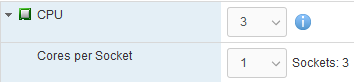
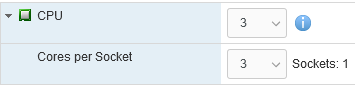
After finding out that Windows 8.1 only uses 2 of of 3 CPU cores, I found [WayBack] How many physical processors does Windows 8 Support? – Super User.

This especially matters when doing virtualisation: here you can choose over how many CPU sockets the cores are divided.

So this limits Windows 8.x to 2 CPU cores, because they 3 cores are spread over 3 sockets:

And this allows Windows 8.x to use 3 CPU cores as it is in one socket:

Note this still applies to more recent non-Server Microsoft products ([Wayback] Windows 10 Home/Pro: 1/2 CPU sockets 64/128 cores; [Wayback] SQL Server Express/Standard: lesser of 1/4 CPU sockets, 4/24 cores) as well. Not sure why the OS would be limited so much, as for development purposes it can make sense to have a 2+ CPU socket machine running a non-server OS.

–jeroen

Posted in Power User, Windows, Windows 8, Windows 8.1 | Leave a Comment »

The curious Kabri | How to force VMware to generate a new MAC address for a virtual machine

Posted by jpluimers on 2021/08/06

[WayBack] The curious Kabri | How to force VMware to generate a new MAC address for a virtual machine

  1. Shut down the Guest OS.
  2. Open up the .vmx file.
  3. Delete the following lines (that begin with…):
    ethernet0.addressType
    uuid.location =
    uuid.bios =
    ethernet0.generatedAddress =
    ethernet0.generatedAddressOffset =
  4. Boot up the Guest OS again, and it should generate new details in the vmx file (I’d check afterwards to be doubly sure).

In my experience, start with the bold values.

If the address is the same, fiddle with ethernet0.generatedAddressOffset

Be careful with the other values, as it might force your OS to think so much hardware has changed, that license keys have become invalid.

Via: [WayBack] Re-generate MAC addresses for VMs |VMware Communities

Related:

–jeroen

Posted in ESXi6, ESXi6.5, ESXi6.7, Power User, Virtualization, VMware, VMware ESXi | Leave a Comment »