The below image is Dutch, but it presents Windows Update errors [Wayback] 0x80070643 and [Wayback] 0x80073712. The first happened when any update was installed after the second occurred.
My hunch was that both were related, so fixing the second should fix the first.
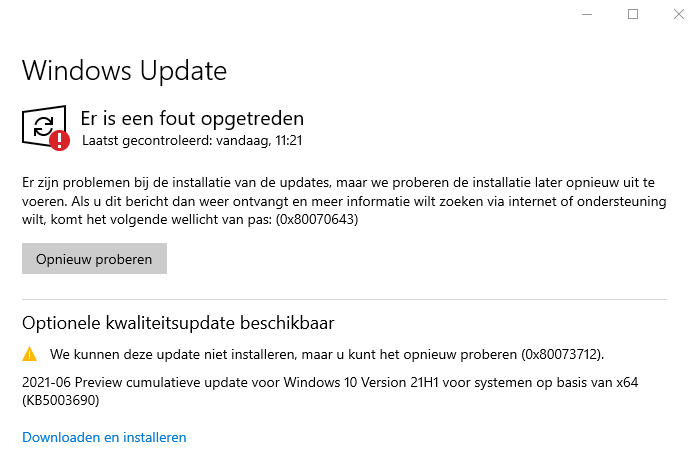
Windows update errors 0x80070643 and 0x80073712
Try 0: reboot
The first step in any odd error is trying to reboot.
Try 1: cleanup
With most Windows Update errors, after rebooting, I usually check disk space (since quite a few of my Windows installs are VMs, so I need to keep VM disk sizes low enough to be able to store all these VMs): there was a comfortable 13 gigabytes free.
Running cleanmgr.exe showed some 5 gigabytes was taken by Windows Update files and almost 1.5 gigabyte by Windows Delivery Optimisation. Cleaning that up brought the free space to almost 20 gigabytes and clear any potential download corruptions: they happen, despite TLS.
Oh Delivery Optimization is just a distributed peer-to-peer cache of Windows related updates, see List of Microsoft Windows components: Services – Wikipedia and [Wayback] Delivery Optimization for Windows 10 updates – Windows Deployment | Microsoft Docs.
Try 2: run the console version of the the Windows Update troubleshooter
After cleanup did not resolve the issue, so the next step is to either run the [Wayback] GUI version of the Windows Update Troubleshooter or from the console equivalent using the below DISM statements.
The below steps are from [Wayback] Windows Update error 0x80073712, but many other sources describe the same steps:
-
Start a Command Prompt as elevated Administrator
-
In the Administrator: Command Prompt window, type the following commands. Press the Enter key after each command:
DISM.exe /Online /Cleanup-image /Scanhealth
DISM.exe /Online /Cleanup-image /Restorehealth
- When finished, re-run the updates
Note that DISM can take a very long time, even on a recently installed Windows machine: the first took 5 minutes, the second also 5 minutes on a VM that was backed with fast SSD storage and had plenty of CPU and memory. These are my results show no corruption, but did repair the problem:
C:\temp>DISM.exe /Online /Cleanup-image /Scanhealth

Deployment Image Servicing and Management tool
Version: 10.0.19041.844

Image Version: 10.0.19043.1052

[==========================100.0%==========================] No component store corruption detected.
The operation completed successfully.

C:\bin\bin>DISM.exe /Online /Cleanup-image /Restorehealth

Deployment Image Servicing and Management tool
Version: 10.0.19041.844

Image Version: 10.0.19043.1052

[==========================100.0%==========================] The restore operation completed successfully.
The operation completed successfully.

C:\temp>
Success
Despite DISM not showing any issues, it did repair the problem.
A retry of the updates (without even rebooting) showed a successful update requiring a reboot:
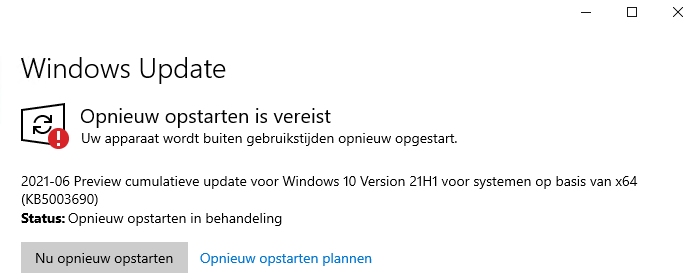
Success: updates were installed and Windows wanted to reboot
More to try
If the above fail, there are two more things to try: reset the whole update mechanism, or verify/repair the .NET framework integrity.
Repairing the .NET framework (specifically for 0x80070643)
Via [Wayback] Windows Update – error 0x80070643 – Microsoft Community.
From [Wayback] Download Microsoft .NET Framework Repair Tool from Official Microsoft Download Center, download NetFxRepairTool.exe (the actual download is via the [Wayback] Download Microsoft .NET Framework Repair Tool from Official Microsoft Download Center:confirmation at [Wayback] download.microsoft.com/download/2/B/D/2BDE5459-2225-48B8-830C-AE19CAF038F1/NetFxRepairTool.exe) and run it.
Resetting the Windows Update mechanism
This is a two part exercise of which the second part is not always needed.
First part: start with a fresh %windir%\SoftwareDistribution
Suggested by for instance
Run these commands in an Administrator elevated command prompt:
net stop wuauserv
rename %windir%\SoftwareDistribution SoftwareDistribution.old
net start wuauserv
If after this, Windows updates work again, then recursively delete the %windir%\SoftwareDistribution folder.
Second part: start with a fresh %windir%\System32\catroot2
Order slightly corrected from [Wayback] Can’t rename Catroot2 and SoftwareDistribution folder in Windows – Microsoft Community because of service dependencies:
net stop bits
net stop wuauserv
net stop cryptsvc
rename %windir%\System32\catroot2 catroot2 .old
net start bits
net start wuauserv
net start cryptsvc
Note that some sources
- indicate you need to stop and start
msiserver too, but that does not seem necessary any more.
- fail to indicate you need to stop and start
cryptsvc, but that is indeed needed.
Third: fully reset the Windows Update mechanism
This is hardly needed, but [Wayback] Windows Update – Additional resources – Windows Deployment | Microsoft Docs has even more steps to fully reset the Windows Update components on your system.
–jeroen







 The Wiert Corner - irregular stream of stuff
brew install --cask wireshark. If you use this, you may need to uninstall the non-cask version of wireshark prior to installing the cask.